

AI Tutorial
Use ChatGPT Connectors for Automated Meeting Prep
Learn how to use ChatGPT connectors with Gmail, Google Calendar, and Google Drive to automate meeting preparation, research attendees, and gather relevant files instantly.
Share
This workflow demonstrates how ChatGPT connectors can combine information from Gmail, Google Calendar, and Google Drive to automatically research meeting attendees, summarize communication history, and gather related files for comprehensive meeting preparation.
Best Suited For:
- Executives handling back-to-back meetings
- Sales teams preparing for client conversations
- Professionals want stronger meeting preparation and context
STEP 1: Enable ChatGPT Connectors
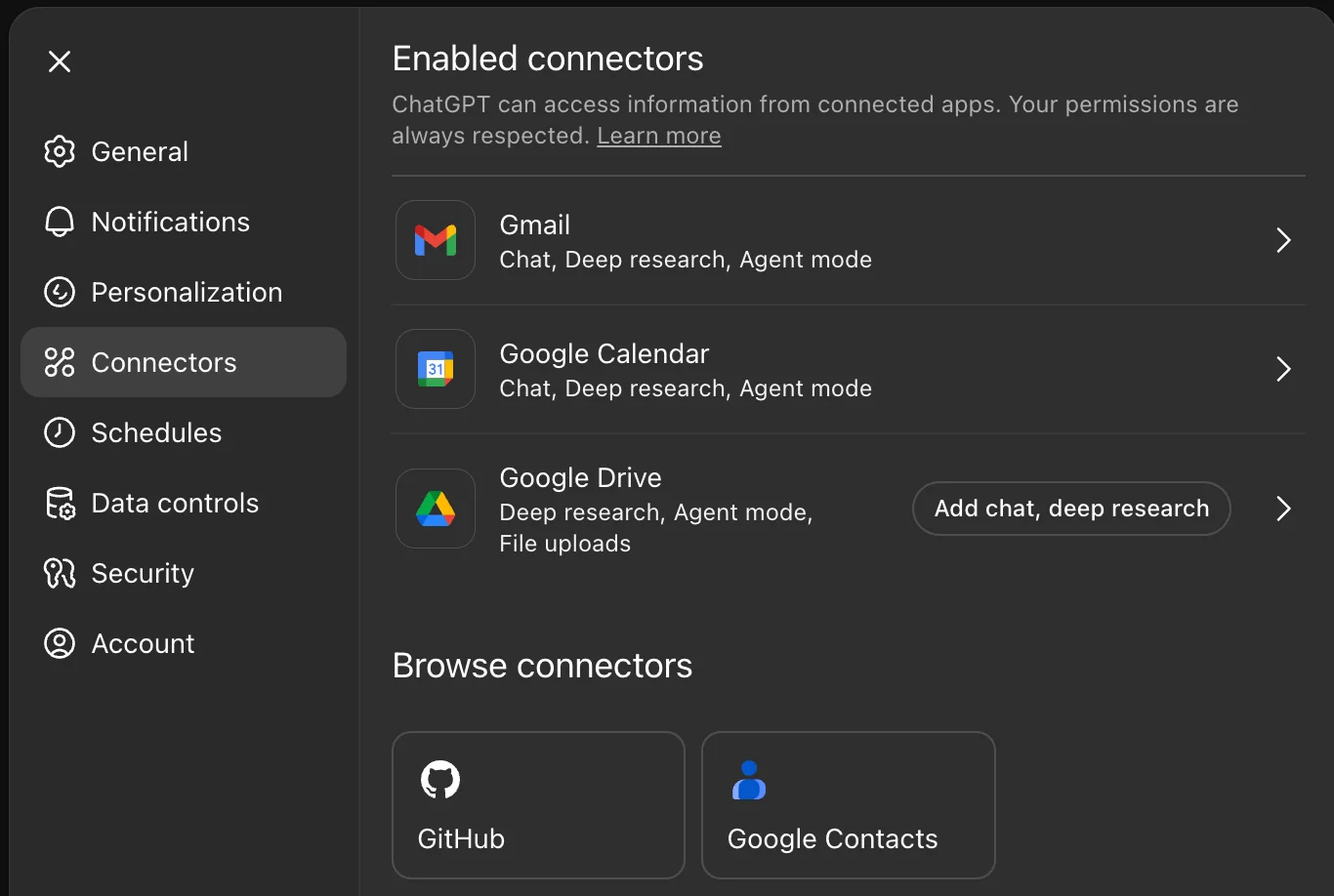
Open ChatGPT and click your profile icon in the lower-left corner, then select “Connectors” (the puzzle-piece icon).
Choose “Browse Connectors” and enable:
- Gmail
- Google Calendar
- Google Drive
These integrations allow ChatGPT to access meeting schedules, communication history, and related files automatically.
Important Privacy Consideration:
Connector access requires a Plus or Pro subscription and grants ChatGPT permission to view connected data sources. Users working with sensitive information or within regulated industries should carefully evaluate data access policies before enabling integrations.
STEP 2: Create Your Meeting Preparation Prompt
Once the connectors are enabled, use a structured prompt to gather context across all connected tools.
Example prompt:
“Review my next meeting in Google Calendar and provide a complete preparation brief including:
- Background information on attendees based on Gmail history
- Context related to the meeting topic from recent conversations
- Relevant files from Google Drive connected to this meeting
- Suggested talking points and preparation notes based on previous interactions
Help me prepare with all relevant context and supporting materials.”
ChatGPT will automatically search across Calendar, Gmail, and Drive to generate a consolidated meeting summary.
STEP 3: Analyze Meeting Context and Communication History
The generated meeting brief may include:
- Meeting agenda details and attendee information
- Important project updates or recent developments
- Relevant documents and supporting materials
- Suggested preparation points based on previous interactions
This is particularly useful for ongoing client relationships, internal projects, or meetings involving long communication histories.
Instead of manually searching through emails and folders, ChatGPT can quickly assemble the most relevant information into a single briefing.
STEP 4: Automate Daily Meeting Briefs
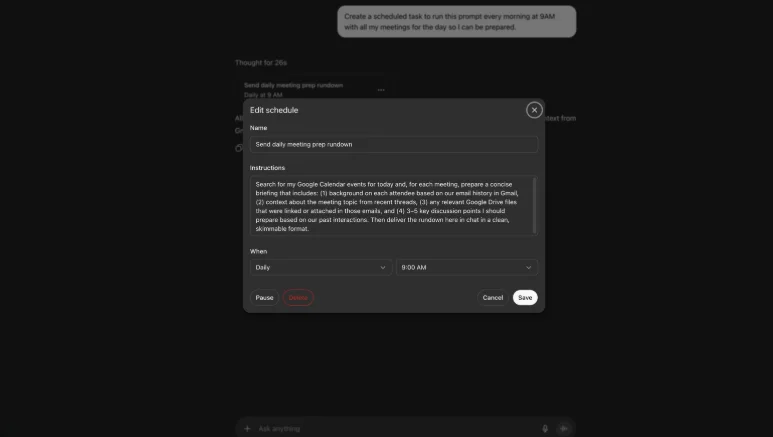
To streamline the process further, create a recurring automation that prepares meeting summaries automatically each day.
Example prompt:
“Create a scheduled task to run this meeting preparation workflow every morning at 9:00 AM for all meetings on my calendar today.”
This setup allows ChatGPT to generate daily prep briefings automatically before meetings begin.
Pro Tip
For important meetings, ask ChatGPT to analyze past email history and identify possible concerns, objections, or unresolved issues from attendees. This can help anticipate questions and improve meeting readiness.

Editorial Staff
The Editorial Staff at AIChief is a team of Professional Content writers with extensive experience in the field of AI and Marketing. AIChief was Founded in 2025, AIChief has quickly grown to become the largest free AI resource hub in the industry. Stay connected with them on Facebook, Instagram and X for the latest updates.



