

AI Tutorial
Build Personalized AI Avatars for Automated Content Creation
Learn how to combine ElevenLabs voice cloning with HeyGen AI avatars to create professional AI videos using your own digital twin for scalable content creation.
Share
Learn how to streamline video production by combining ElevenLabs voice cloning with HeyGen avatar technology to create professional AI-generated videos using your own digital likeness.
Best suited for:
- Creators scaling video production workflows
- Professionals producing explainer or training videos
- Educators developing engaging learning content
- Social media teams managing high-volume publishing
STEP 1: Create Your AI Voice with ElevenLabs
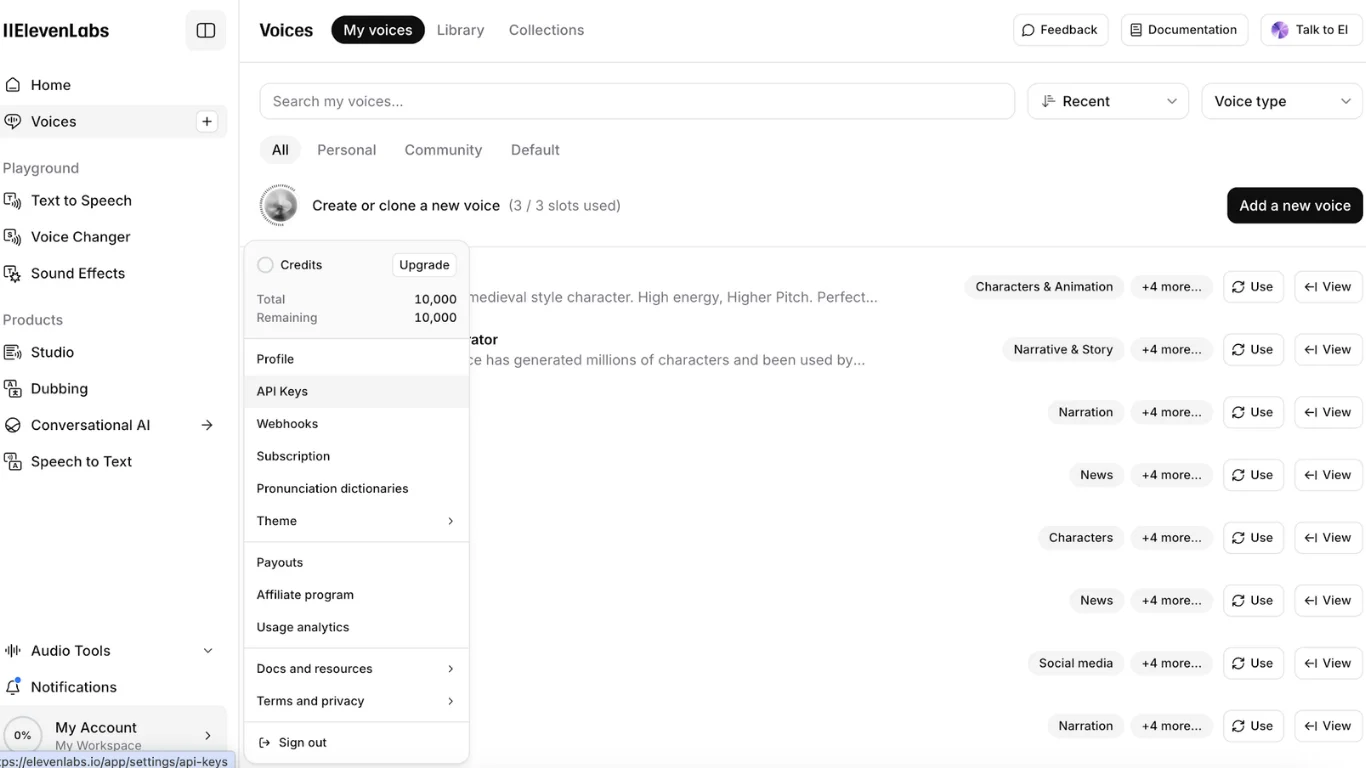
Begin by building a realistic voice clone using ElevenLabs. Once inside the platform, navigate to the “Voices” section.
Click “Add a new voice” in the top-right corner and choose “Professional Voice Clone” for the highest-quality output. This option generally requires around 30 minutes of clean voice recordings, but produces significantly more natural results.
Follow the recording instructions carefully and speak clearly in a quiet setting with minimal background noise to improve voice quality and accuracy.
STEP 2: Generate Your AI Avatar in HeyGen
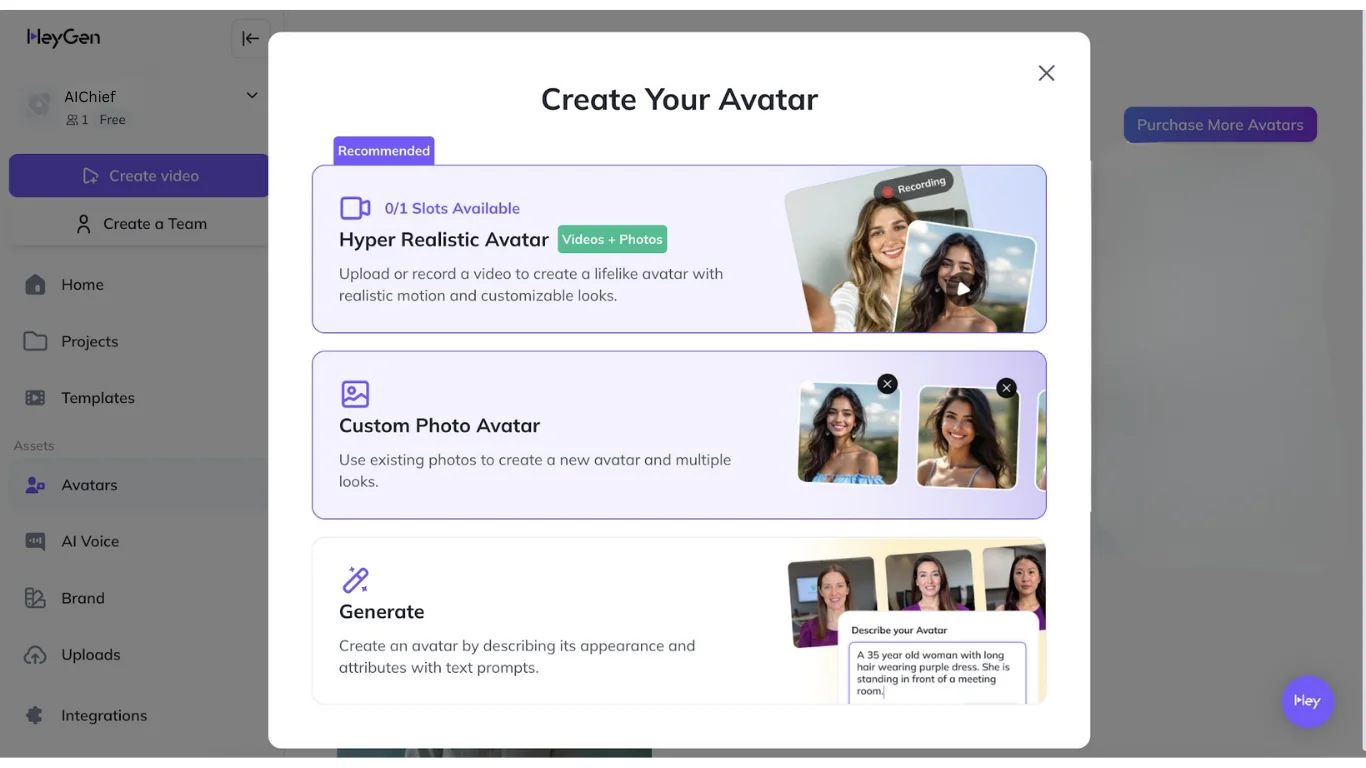
After your voice clone is ready, visit HeyGen to create your visual avatar. From the sidebar, open the “Avatars” section and click “Create New Avatar.”
For the best outcome, select the “Hyper-Realistic” avatar option. You’ll need to upload or record approximately two minutes of video footage of yourself.
For higher-quality avatar generation, make sure your recording includes:
- Strong, even lighting
- A plain or neutral background
- Minimal head movement
- High-definition video quality
Upload the footage and allow HeyGen to process and generate your AI avatar.
STEP 3: Link Your Cloned Voice
Now combine your avatar with your custom voice. In HeyGen, click “Create video” to open a new project using your generated avatar.
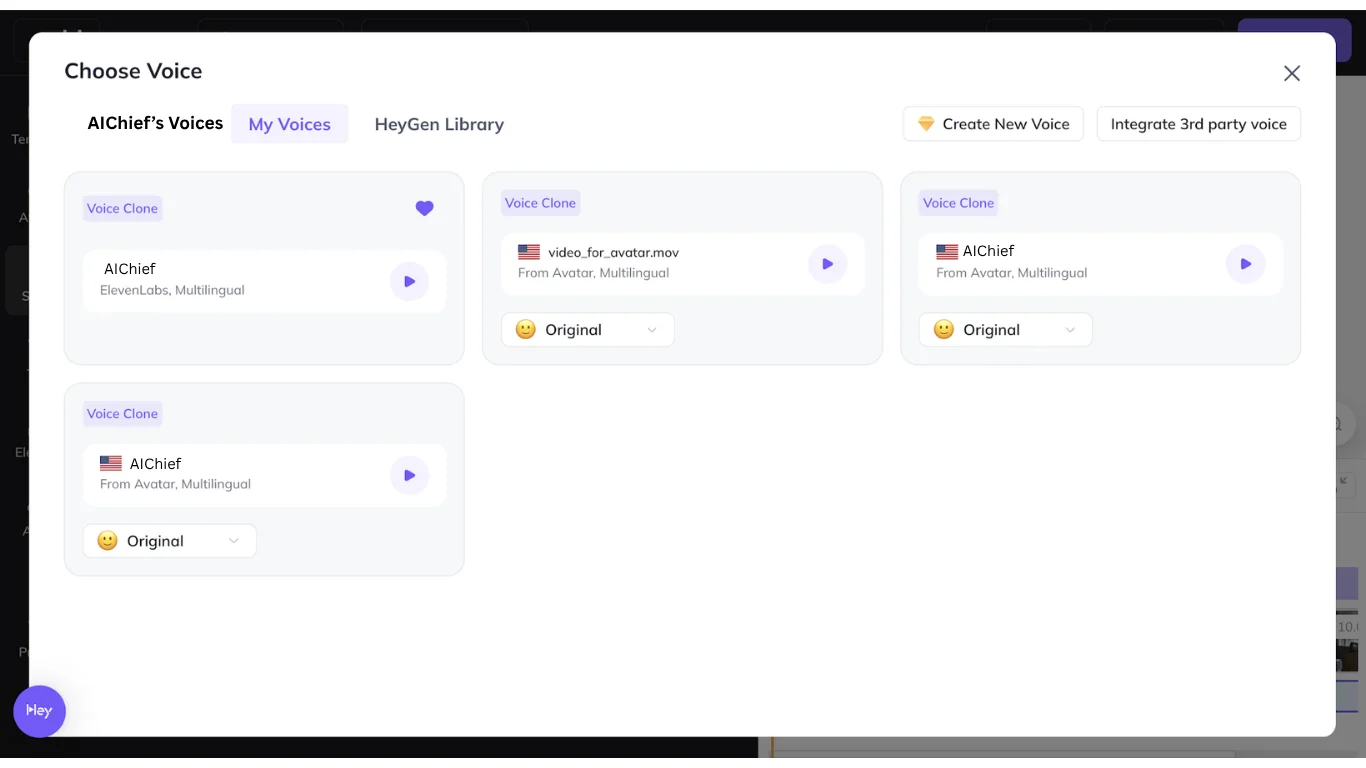
Inside the script editor, locate the voice selection settings. Instead of using the default HeyGen voices, select “Integrate 3rd party voice” on the right side of the interface.
To connect ElevenLabs, retrieve your API key by going to the ElevenLabs settings area and opening “API Keys.” Copy the key, return to HeyGen, and paste it when prompted to import your cloned voice.
STEP 4: Produce Your First AI Video
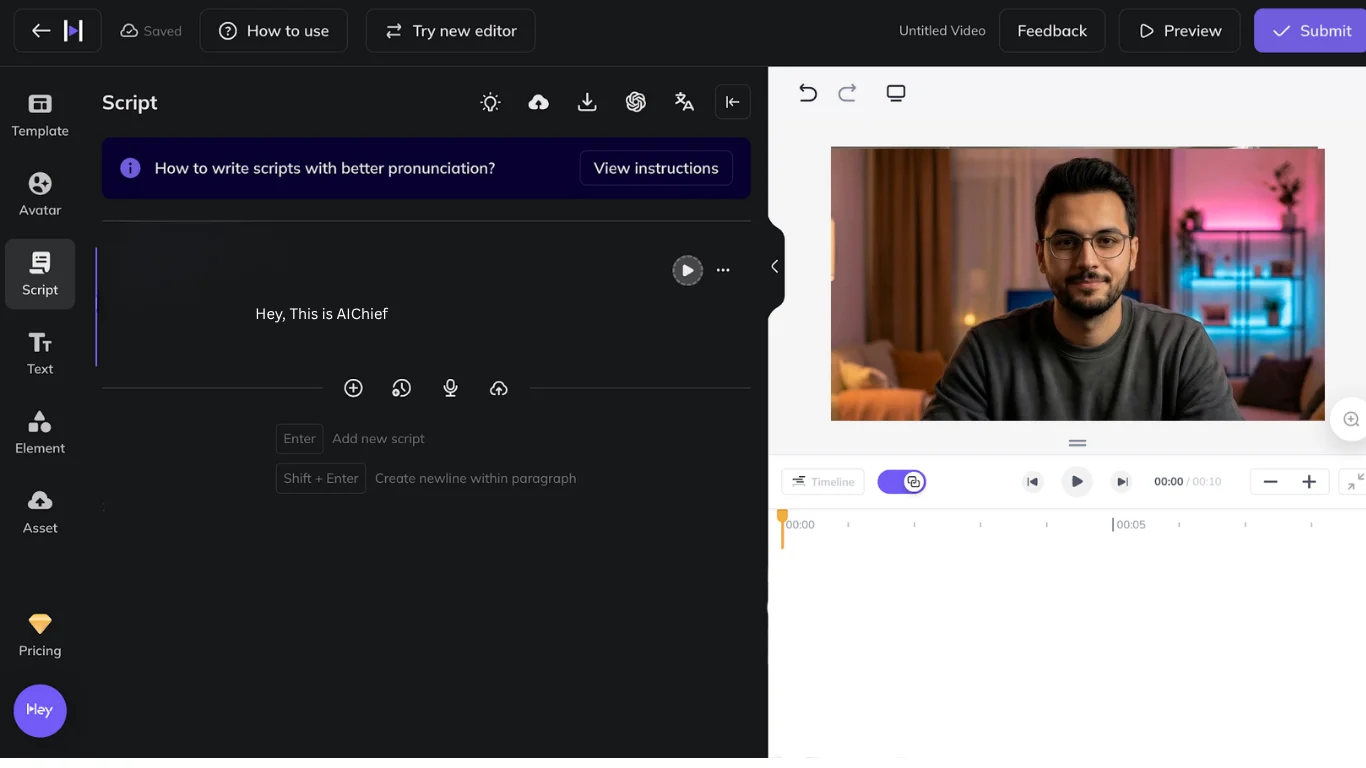
With your avatar and voice connected, you’re ready to create content. In the script section, enter or paste the dialogue you want your AI avatar to present.
Use the preview feature to review performance and make refinements to pacing, tone, and sentence structure for more natural delivery.
Once satisfied, click “Submit” to generate the final video. HeyGen will process the request and notify you when the completed AI-generated video is available for download.
Pro Tip
Write scripts the way you naturally speak. Using contractions, pauses, and conversational phrasing helps your AI avatar sound significantly more authentic and human-like.

Editorial Staff
The Editorial Staff at AIChief is a team of Professional Content writers with extensive experience in the field of AI and Marketing. AIChief was Founded in 2025, AIChief has quickly grown to become the largest free AI resource hub in the industry. Stay connected with them on Facebook, Instagram and X for the latest updates.



