

AI Tutorial
Create Your Own AI Assistant with Automated Workflows in n8n
Learn how to create your own AI assistant using n8n automation workflows to manage emails, scheduling, tasks, and app integrations without coding.
Share
Learn how to build a smart personal AI assistant that can draft emails, organize tasks, and manage requests using workflow automation tools that connect AI models with your everyday apps.
Best suited for:
- Professionals wanting to automate repetitive work
- Entrepreneurs aiming to optimize daily operations
- Anyone interested in building no-code AI solutions
- Teams looking for smarter email and scheduling automation
STEP 1: Set Up Your Automation Workspace
Start by visiting your preferred workflow automation platform and signing up for a free account. Most platforms include a free trial with API credits, making it easy to experiment and test your AI assistant setup.
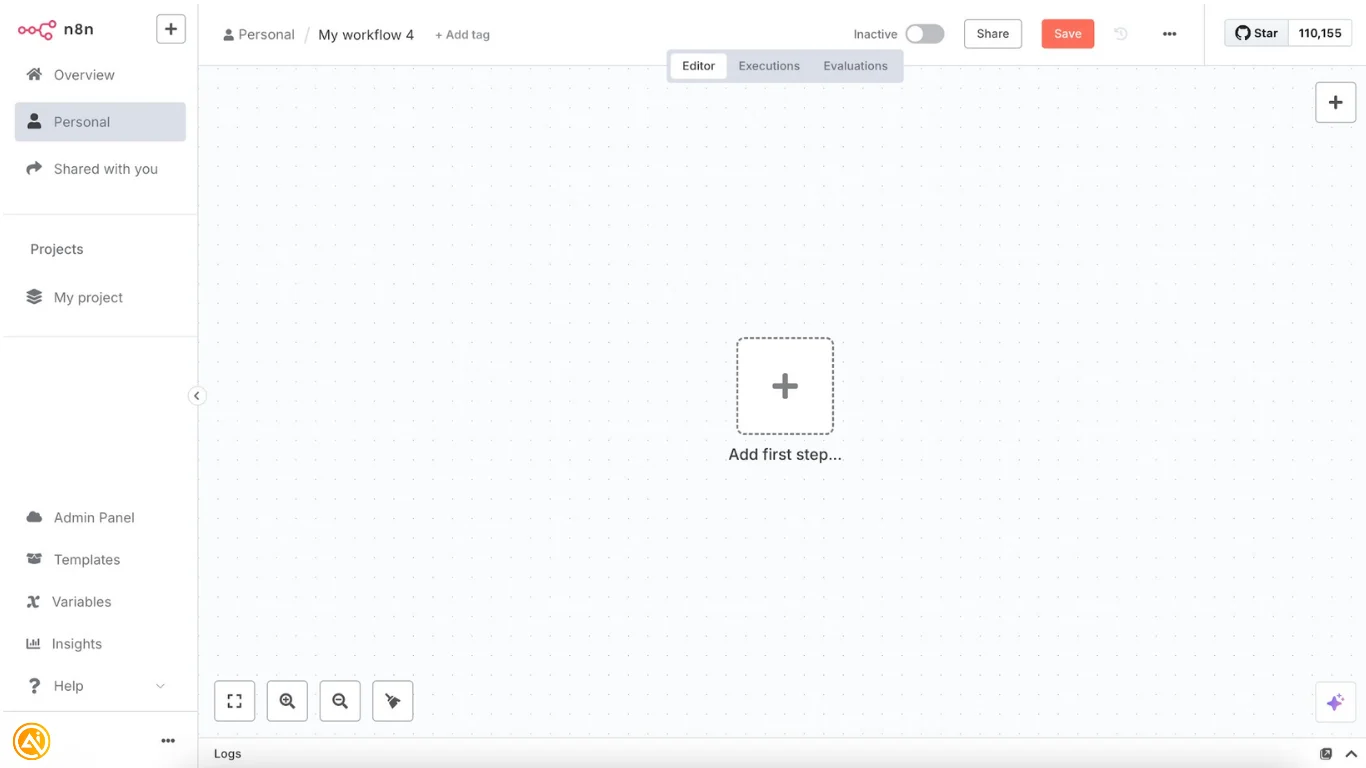
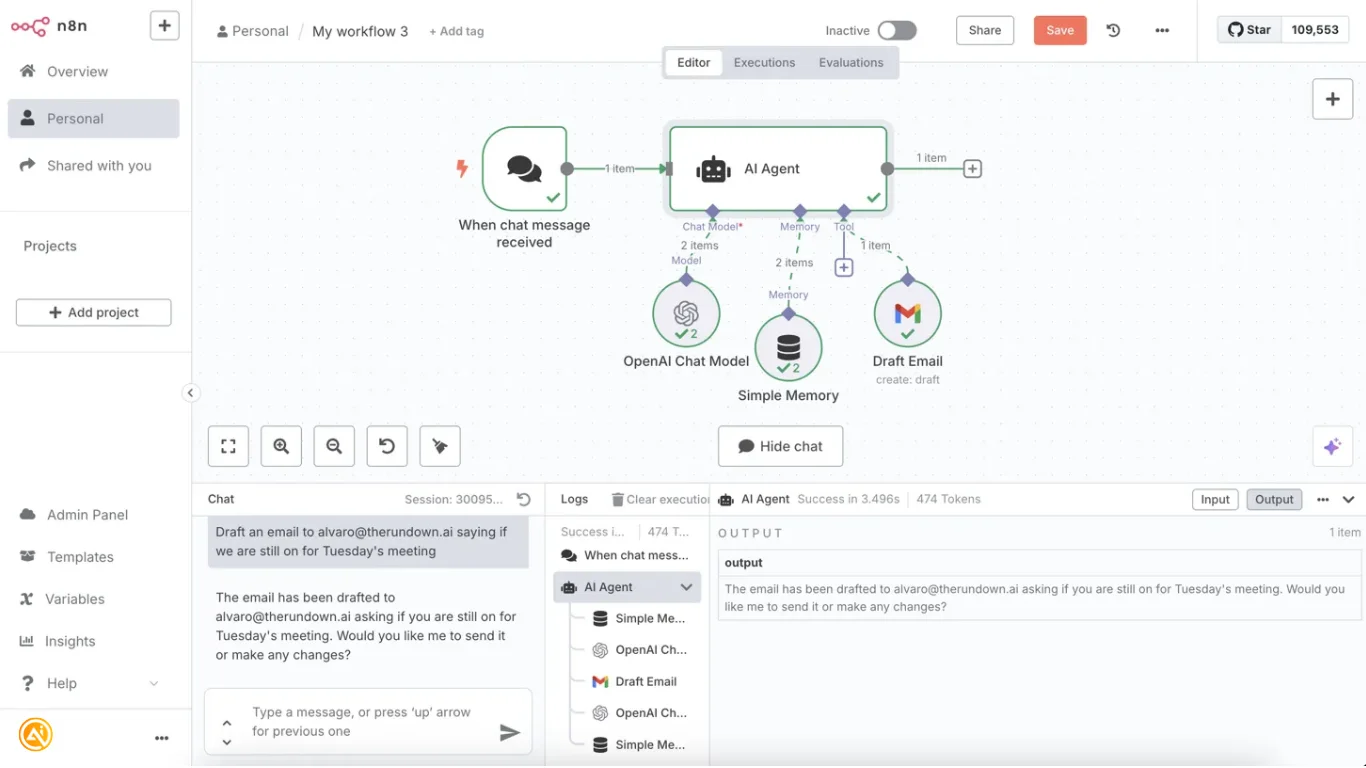
After signing in, create a new workflow using the plus button. You’ll be presented with a blank workflow canvas where your automation will be built. The process follows a simple structure: every workflow starts with a trigger (an event) followed by an action (the response).
Example:
Trigger = “I send a chat message requesting an email draft” → Action = “AI generates an email draft inside Gmail”
STEP 2: Set Up Your AI Agent
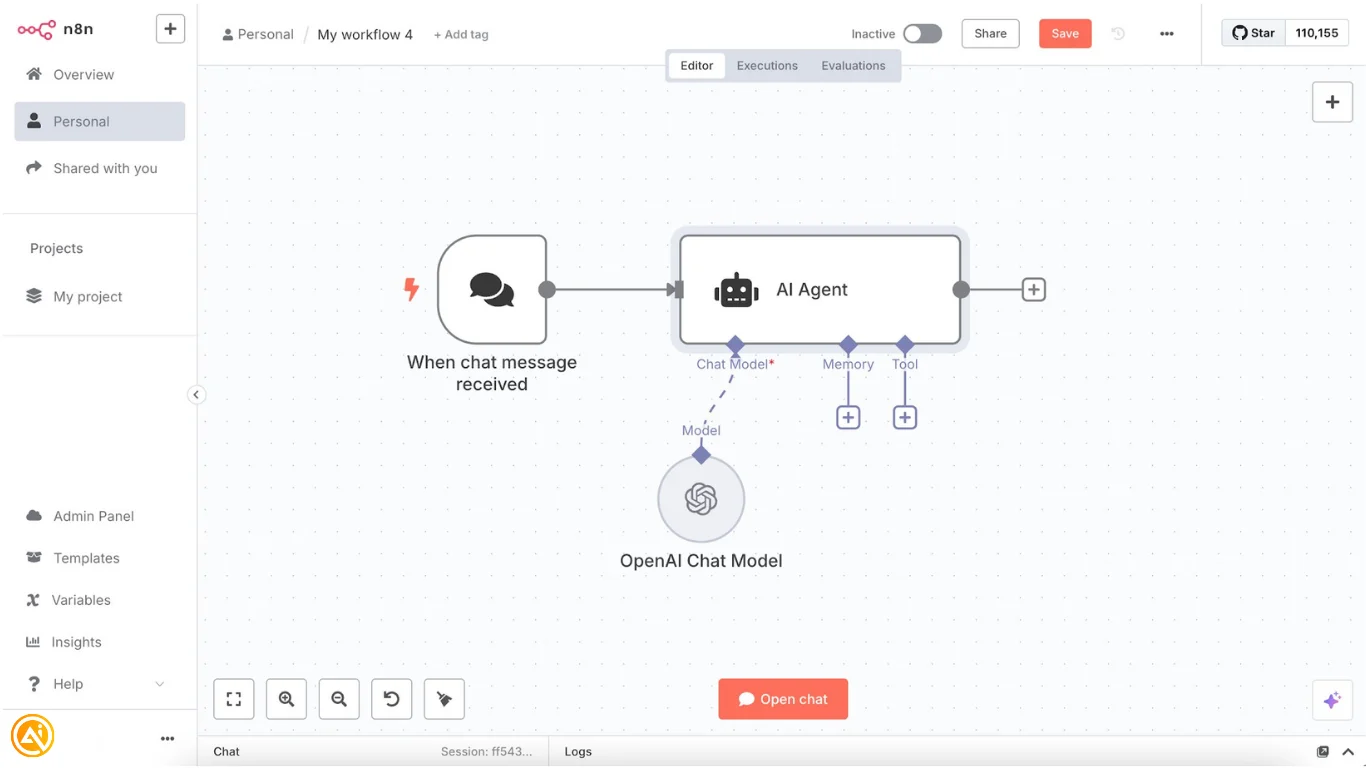
Add an “AI Agent” node to the workflow. This becomes the central intelligence layer of your assistant. The AI agent is typically made up of three core parts:
Model:
Select your preferred AI model such as GPT-4, Claude, or another provider. Many automation platforms include starter API credits. If using your own API key, create credentials and paste the key from OpenAI, Anthropic, or your chosen provider.
Memory:
Include a “Simple Memory” component so the assistant can retain conversation context. Configure it to remember the last 5–10 interactions, allowing it to reference earlier requests and maintain continuity.
Tools:
This section connects your assistant to external platforms such as Gmail, Calendar, Slack, and hundreds of other supported services.
STEP 3: Integrate Your Apps and Services
Open the “Tools” section and search for the apps you want your assistant to access. Common integrations include:
- Gmail: Drafting, sending, and organizing emails
- Google Calendar: Scheduling meetings and managing events
- Slack: Team messaging and collaboration
- Google Drive: File and document handling
For each integration, you’ll typically need to:
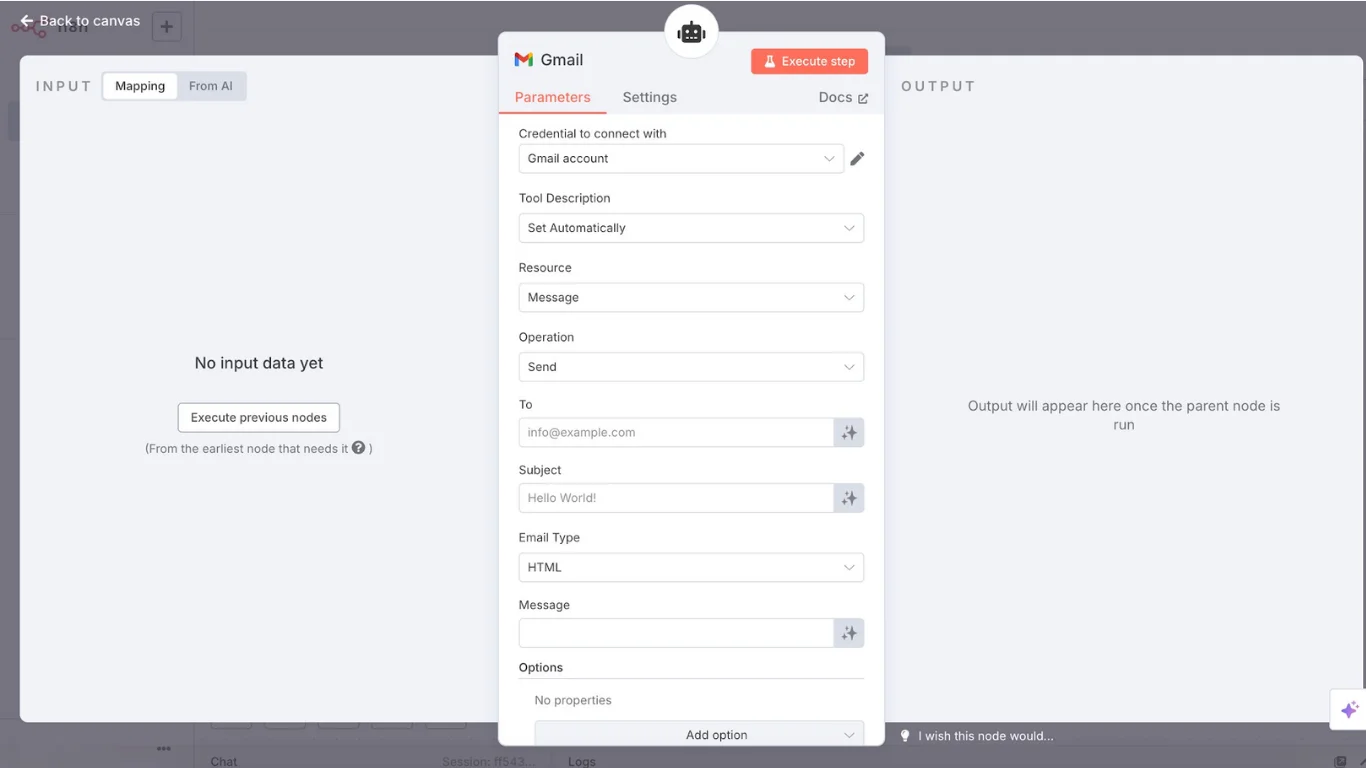
- Connect your account credentials
- Select the desired action (send email, create draft, book meeting, etc.)
- Enable parameters to be “defined automatically by the model” so the AI can populate information such as recipients, subject lines, dates, and message content based on your instructions
STEP 4: Define Your Assistant’s Instructions
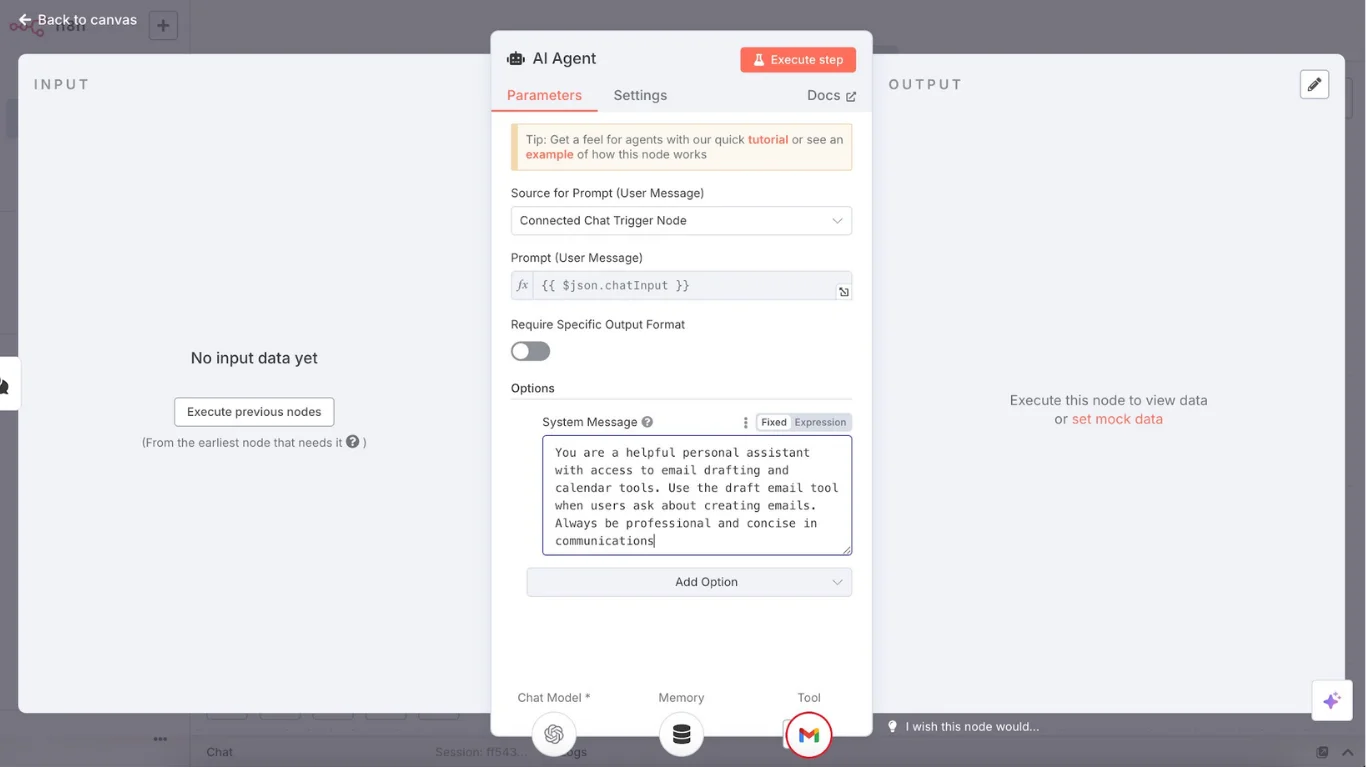
Provide your AI assistant with clear guidance about its responsibilities and available capabilities. In the system message area, add instructions similar to:
“You are a helpful personal assistant with access to email drafting and calendar tools. Use the draft email tool when users ask about creating emails. Always communicate in a professional and concise manner.”
These instructions help the assistant understand how and when to use connected tools effectively.
STEP 5: Test and Launch Your Workflow
Begin testing with straightforward requests such as:
- “Draft an email to [x] confirming Tuesday’s meeting”
- “Schedule a 30-minute meeting with the marketing team next week”
Observe how the assistant interprets the request, selects the appropriate tools, and completes the workflow automatically. Once everything is functioning properly, activate the workflow so it can run whenever triggered.
Pro Tip
Start with simple automations like email drafting and calendar scheduling before expanding into advanced workflows such as document generation, reporting, analytics, or social media automation.

Editorial Staff
The Editorial Staff at AIChief is a team of Professional Content writers with extensive experience in the field of AI and Marketing. AIChief was Founded in 2025, AIChief has quickly grown to become the largest free AI resource hub in the industry. Stay connected with them on Facebook, Instagram and X for the latest updates.



