

AI Tutorial
Turn Your Videos Into Content Assets with NotebookLM
Learn how to use Google NotebookLM to analyze videos, generate transcripts, create YouTube titles and hooks, and optimize your content creation workflow.
Share
Learn how to use Google NotebookLM to transform your videos into reusable content assets with AI-generated transcripts, video optimizations, and engagement-focused ideas.
Best suited for:
- Creators aiming to improve their video workflow
- YouTubers focused on increasing discoverability and engagement
- Educators are making video content more accessible
- Marketers repurposing video content across channels
STEP 1: Create Your NotebookLM Workspace
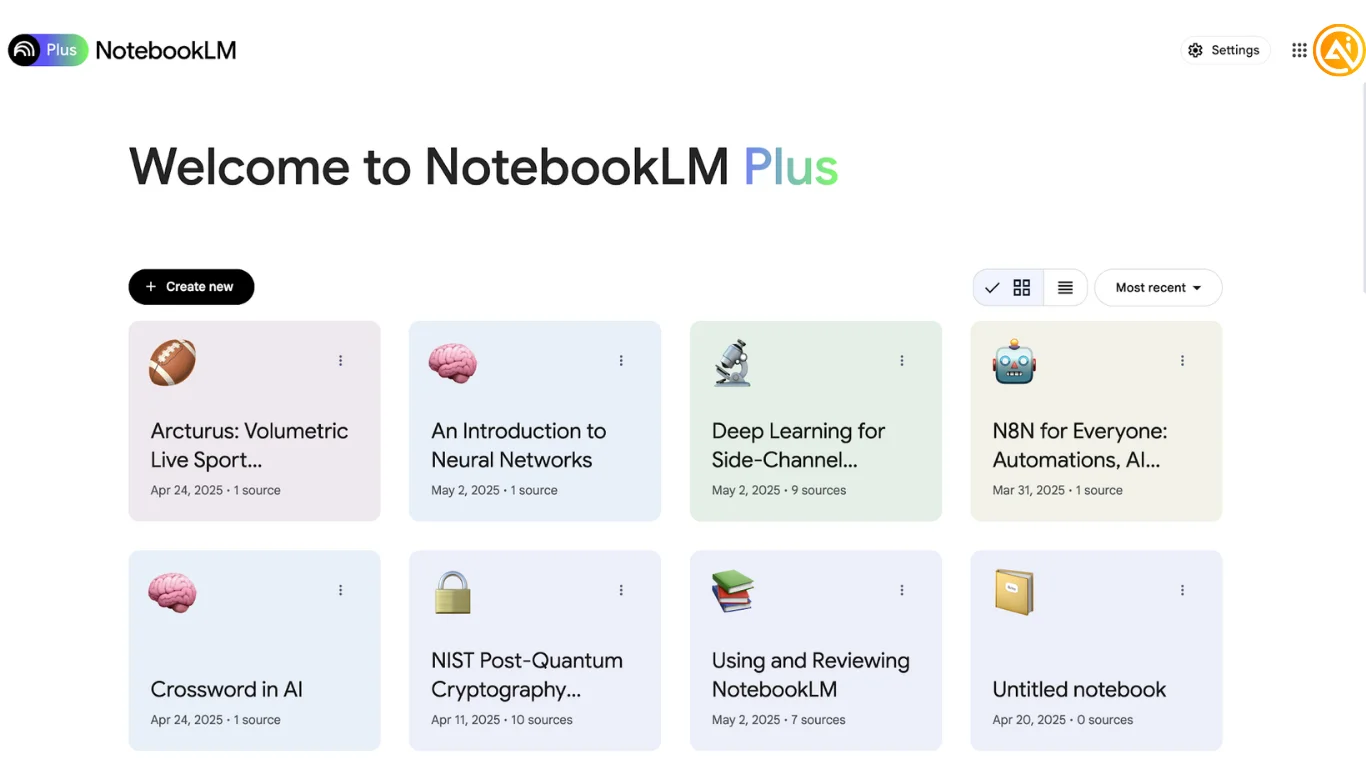
To begin, visit the NotebookLM website and sign in with your Google account. After logging in, you’ll arrive at the main dashboard, where you can manage existing notebooks or start a new project.
Click the “Create new” button on the left-hand side to open a fresh notebook. You can also assign an emoji to your notebook to make it easier to identify later.
STEP 2: Add Your Video Content
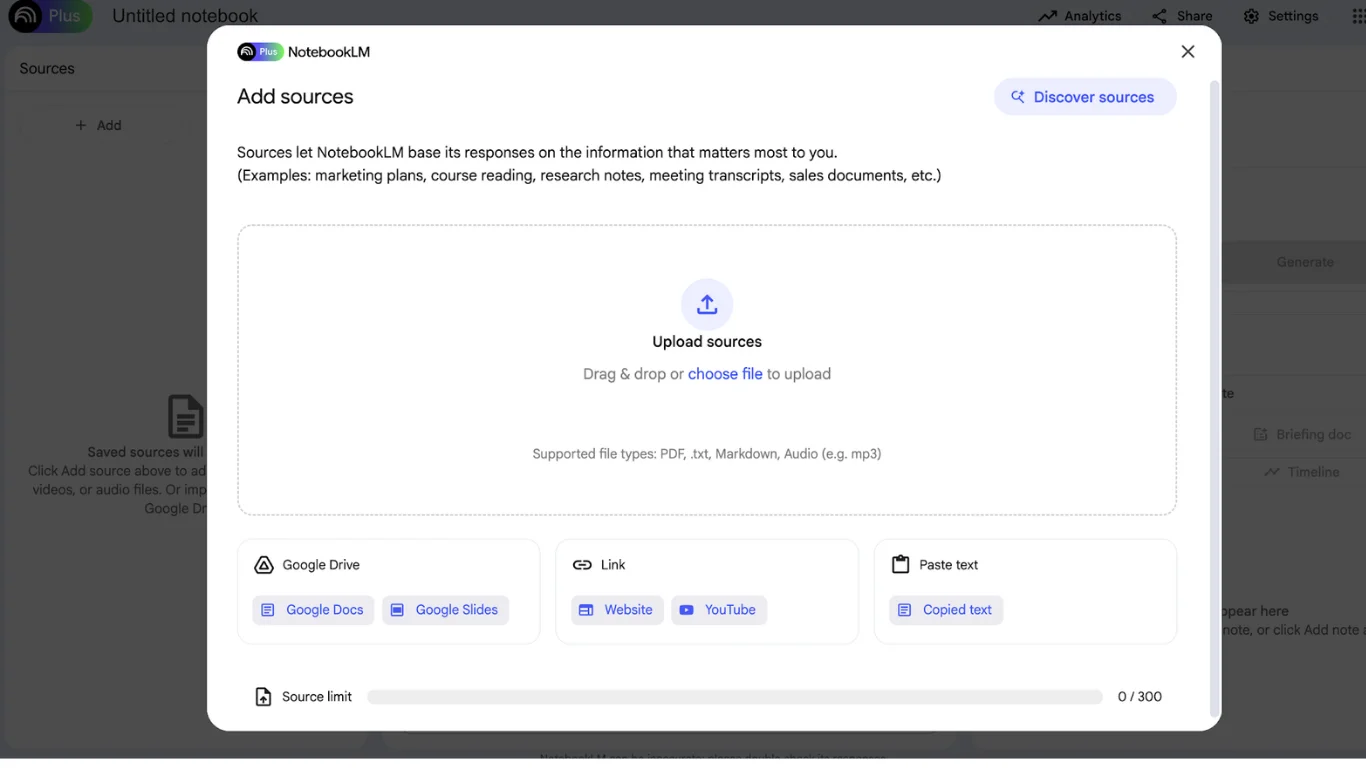
Next, upload the video you want to analyze. Inside your notebook, find the “Sources” section on the left side of the interface and click “Add” to open the source menu.
NotebookLM gives you several ways to import video-related content:
- Upload files directly using the “Upload sources” option (supports audio formats such as MP3)
- Add YouTube videos through the YouTube option under the “Link” section
- Import files from Google Drive if your videos are stored there
After the source is added, NotebookLM will process the content and prepare it for analysis.
STEP 3: Generate Transcripts and Translations
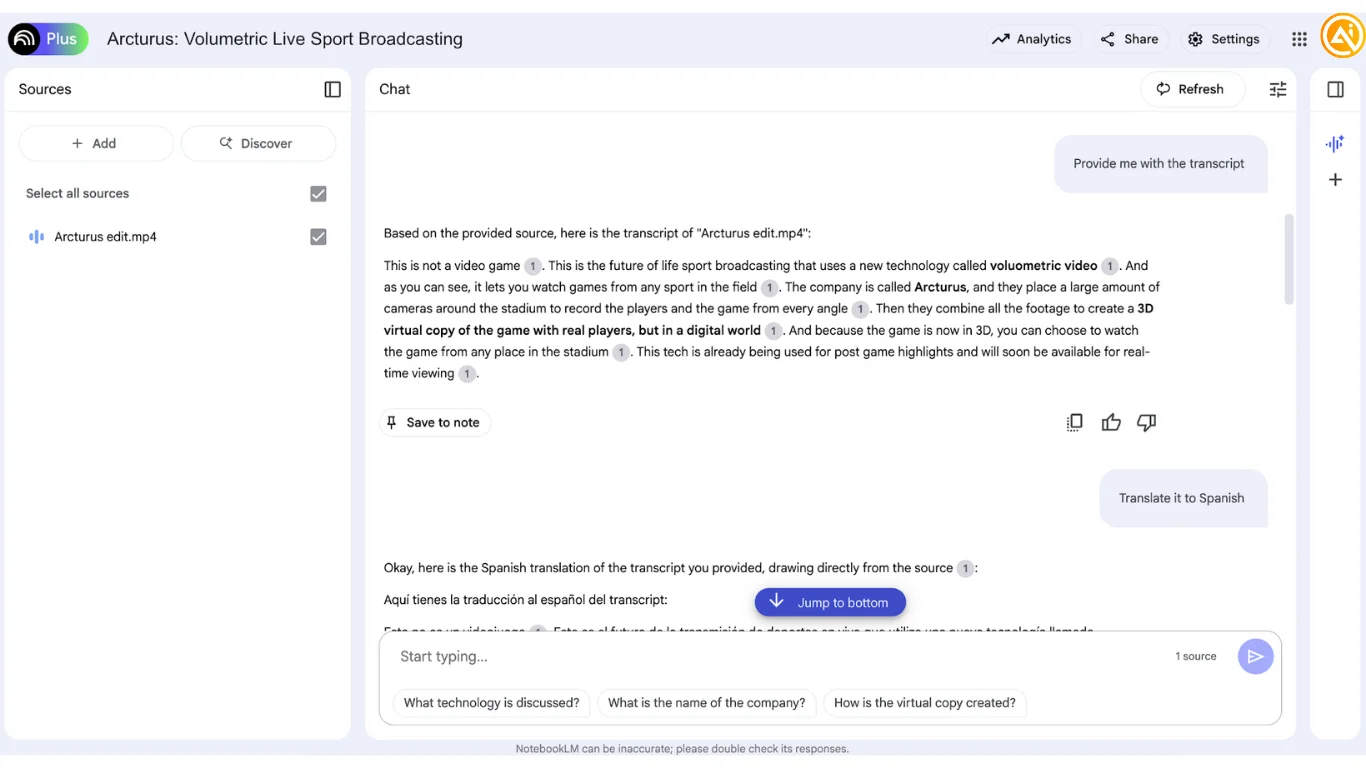
Once your video has been processed, you can begin extracting useful content using the chat interface. Try prompts such as:
- “Provide a complete transcript of this video with timestamps.”
- “Translate the transcript to Spanish.”
- “Create a summary of the key points discussed in this video.”
NotebookLM will analyze the audio and generate transcripts, translations, and summaries that can be copied, edited, or repurposed for your workflow.
STEP 4: Create Better Hooks, Titles, and Descriptions
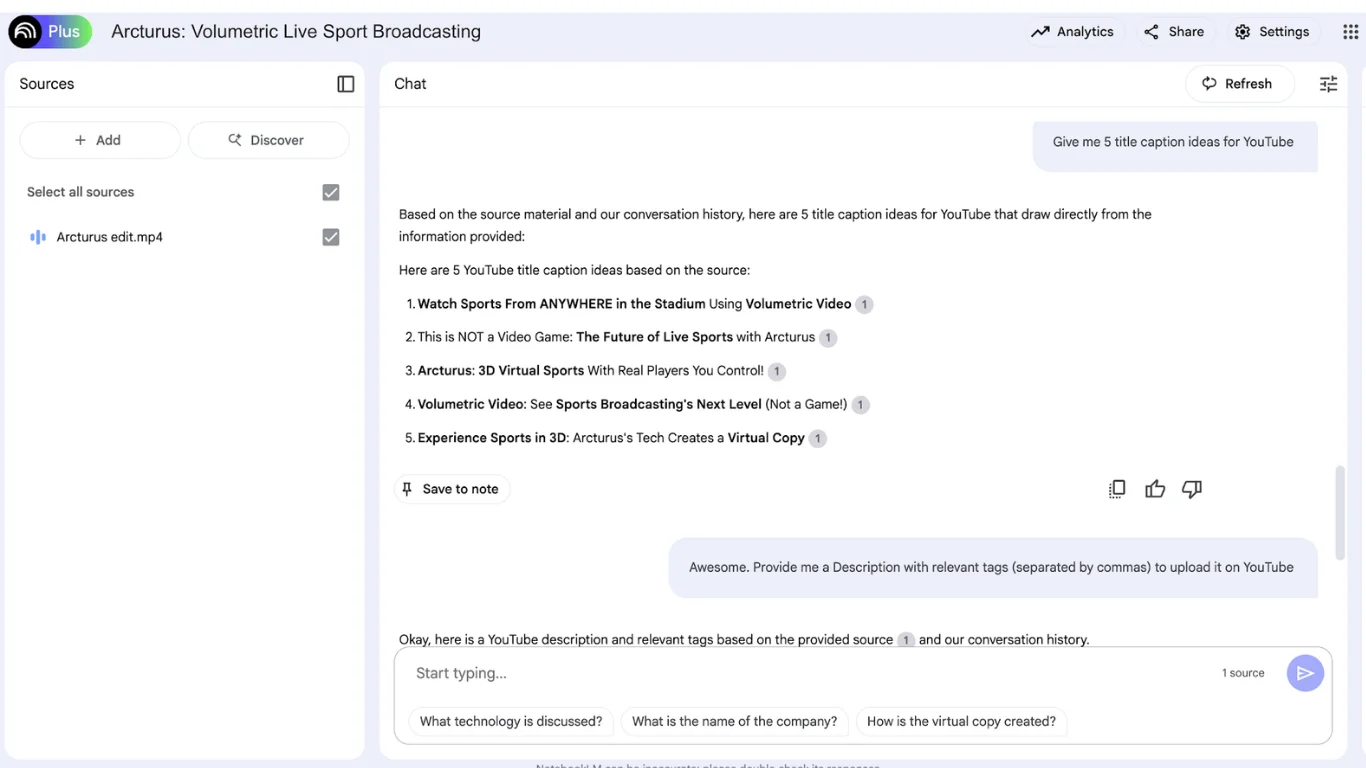
Now use NotebookLM to improve your video’s reach and engagement with AI-generated optimization ideas. Example prompts include:
- “Give me a list of 10 stronger hooks for this video.”
- “Generate 5 YouTube title ideas that improve click-through rate.”
- “Write a YouTube description with relevant tags separated by commas.”
The AI reviews your video’s content, audience, and topic to generate customized suggestions designed to improve discoverability and viewer engagement.
Pro Tip
If you manage multiple videos, upload several related videos into the same notebook, and ask:
- “Analyze all these sources and identify which content style performed best.”
This helps uncover patterns in tone, structure, and topics that resonate most with your audience, making it easier to refine your future content strategy.

Editorial Staff
The Editorial Staff at AIChief is a team of Professional Content writers with extensive experience in the field of AI and Marketing. AIChief was Founded in 2025, AIChief has quickly grown to become the largest free AI resource hub in the industry. Stay connected with them on Facebook, Instagram and X for the latest updates.



