

AI Tutorial
Turn Your Sales Transcripts Into an AI Objection Playbook
Use ChatGPT and Notion to convert sales call transcripts into a fast, searchable objection-handling system you can use during calls.
Share
This guide walks through a simple weekly workflow that transforms raw call notes into a structured, easy-to-search reference. Instead of letting transcripts sit unused, you’ll turn them into a tool you can actually use mid-call.
Who This Works Best For
- Sales reps who need fast, reliable answers during live calls
- Founders running their own sales and tracking feedback trends
- Managers who want a clear view of why deals are getting stuck
What You’ll End Up With
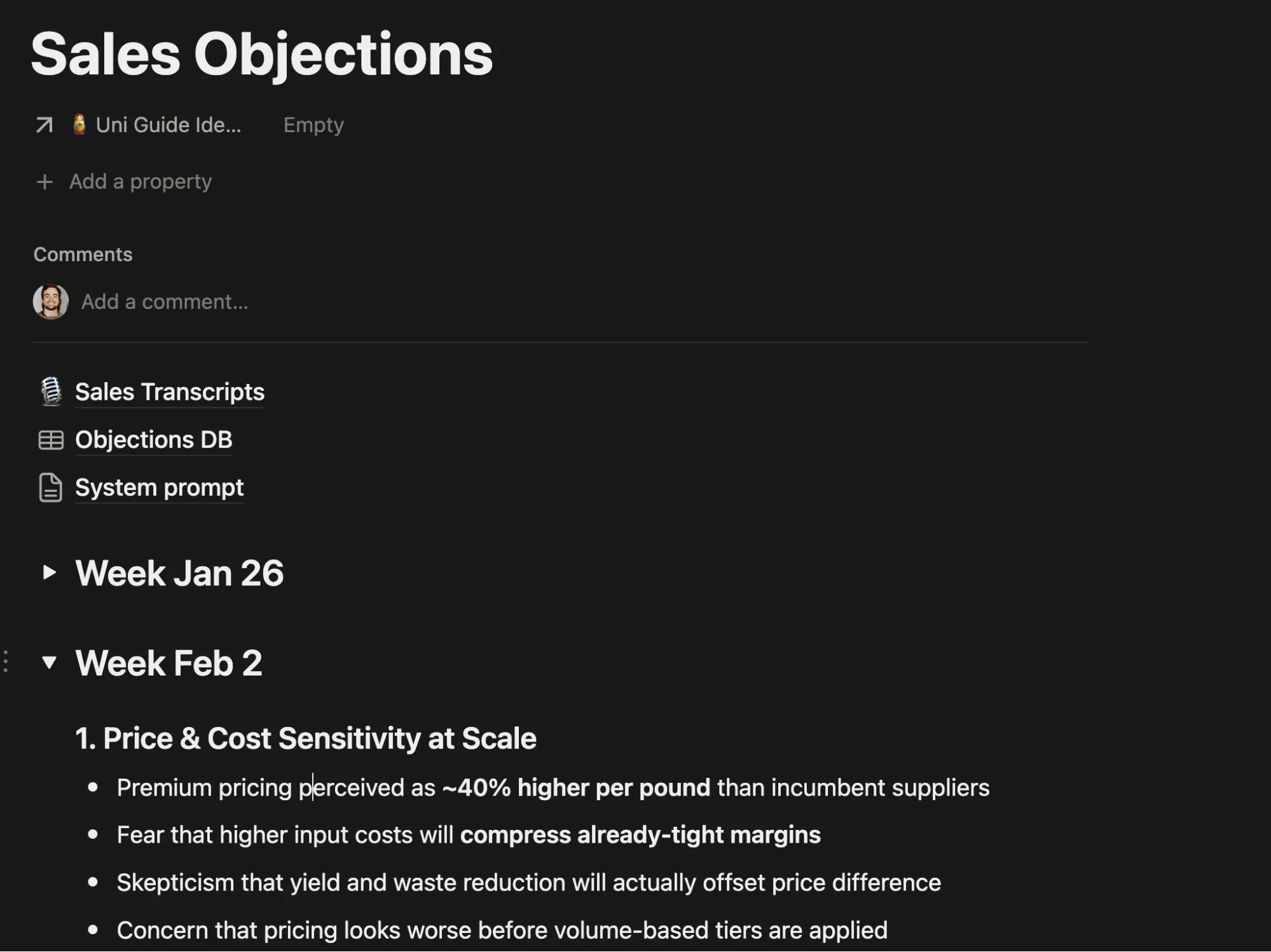
A streamlined system powered by ChatGPT that reviews your transcripts weekly and organizes objections into a single, searchable document.
What You Need Before You Start
- ChatGPT Plus account
- ChatGPT desktop app
- Notion desktop app
- A collection of sales call transcripts
Note: The same setup works with other tools if you prefer alternatives.
Step 1 Stop Overbuilding Databases
A common mistake is creating overly detailed Notion databases with too many properties and filters.
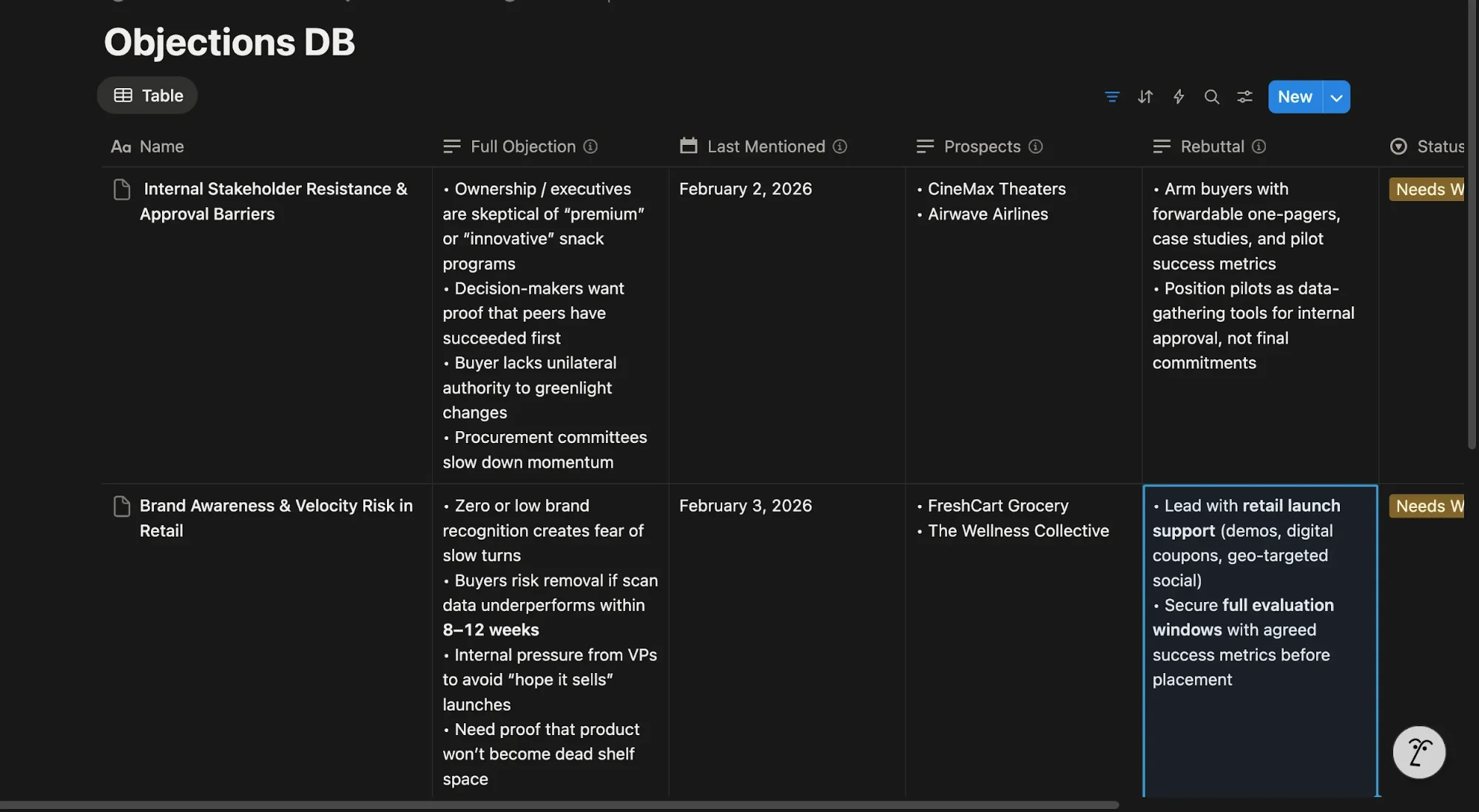
It looks organized, but it’s slow to use.
During a call, you don’t have time to:
- Open a database
- Filter by tags or dates
- Click into entries and scan for answers
That friction makes the system useless in practice.
Instead, focus on speed. Use a single-page reference powered by ChatGPT that you can search instantly.
Step 2 Set Up a Dedicated ChatGPT Project
Open ChatGPT and create a new Project.
Give it a simple name so you can reuse it every week.
Upload a short document outlining your product, pricing, and main offers so ChatGPT understands your business context.
Each week, export your transcripts and ensure they include dates (e.g., “Call with Client – Feb 9”). Upload them into the Project.
Step 3 Define the Output Format
This is where everything clicks.
Go into your Project settings and add clear instructions for how ChatGPT should structure the output.
For example:
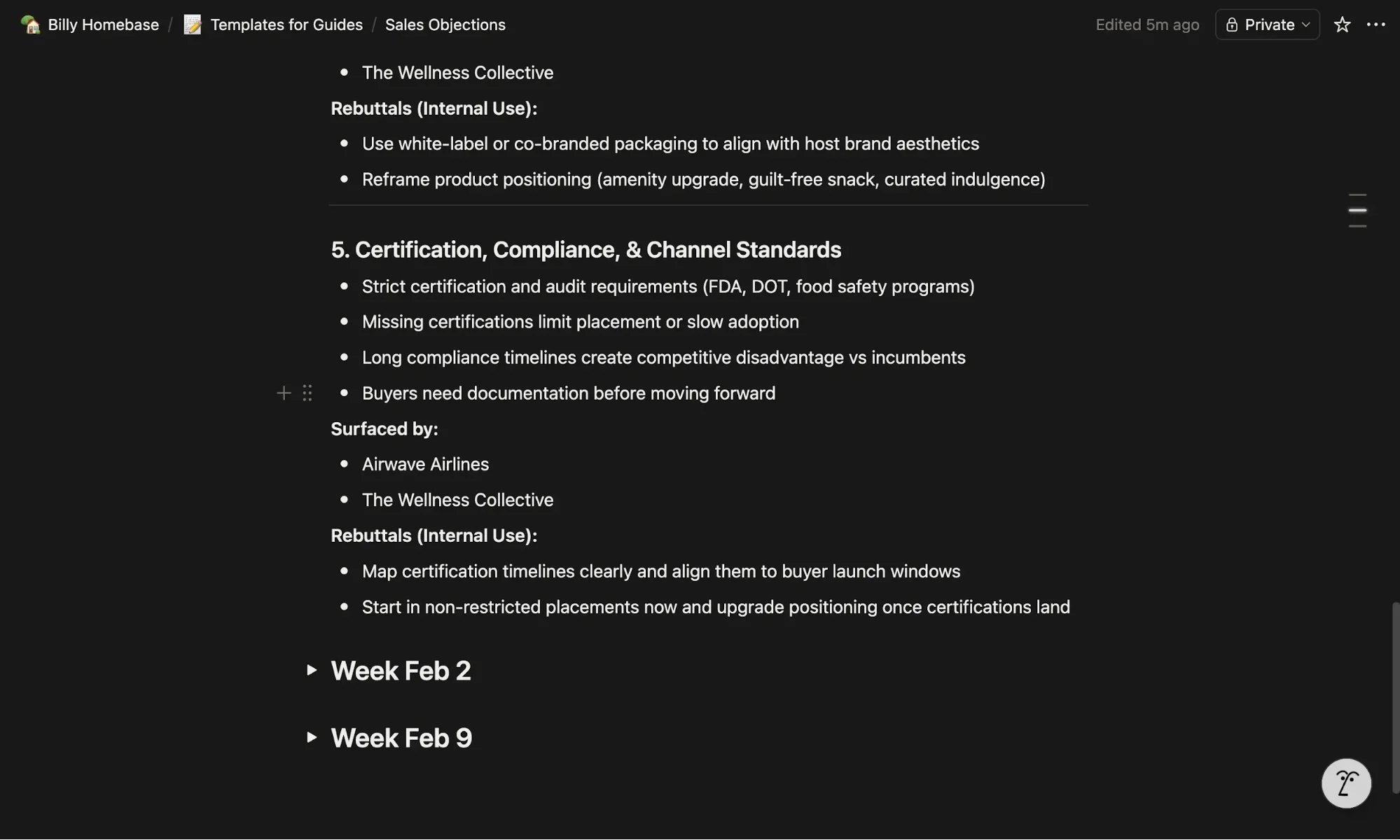
- Number each objection
- State it clearly
- Add three short context bullets
- Mention the prospect
- Include exactly two concise rebuttals
This structure keeps everything readable when you’re in the middle of a call.
Step 4 Run Your Weekly Processing Routine
Keep this part manual.
Fully automated systems tend to get ignored. Running it yourself ensures you actually review the results.
Once a week, open your Project and prompt:
“Run weekly report for the week starting [date].”
ChatGPT will scan the relevant transcripts and generate a clean summary.
Step 5 Build a Searchable Notion Archive
Create a new page in Notion.
Add a toggle section for each week (e.g., “Week of Feb 9”).
Paste your generated report inside.
Over time, this becomes a running archive of objections and responses without needing complex organization.
When you’re on a call, use Cmd/Ctrl + F to search keywords like “pricing” or “contract” and instantly find relevant responses from past weeks.
Going Further
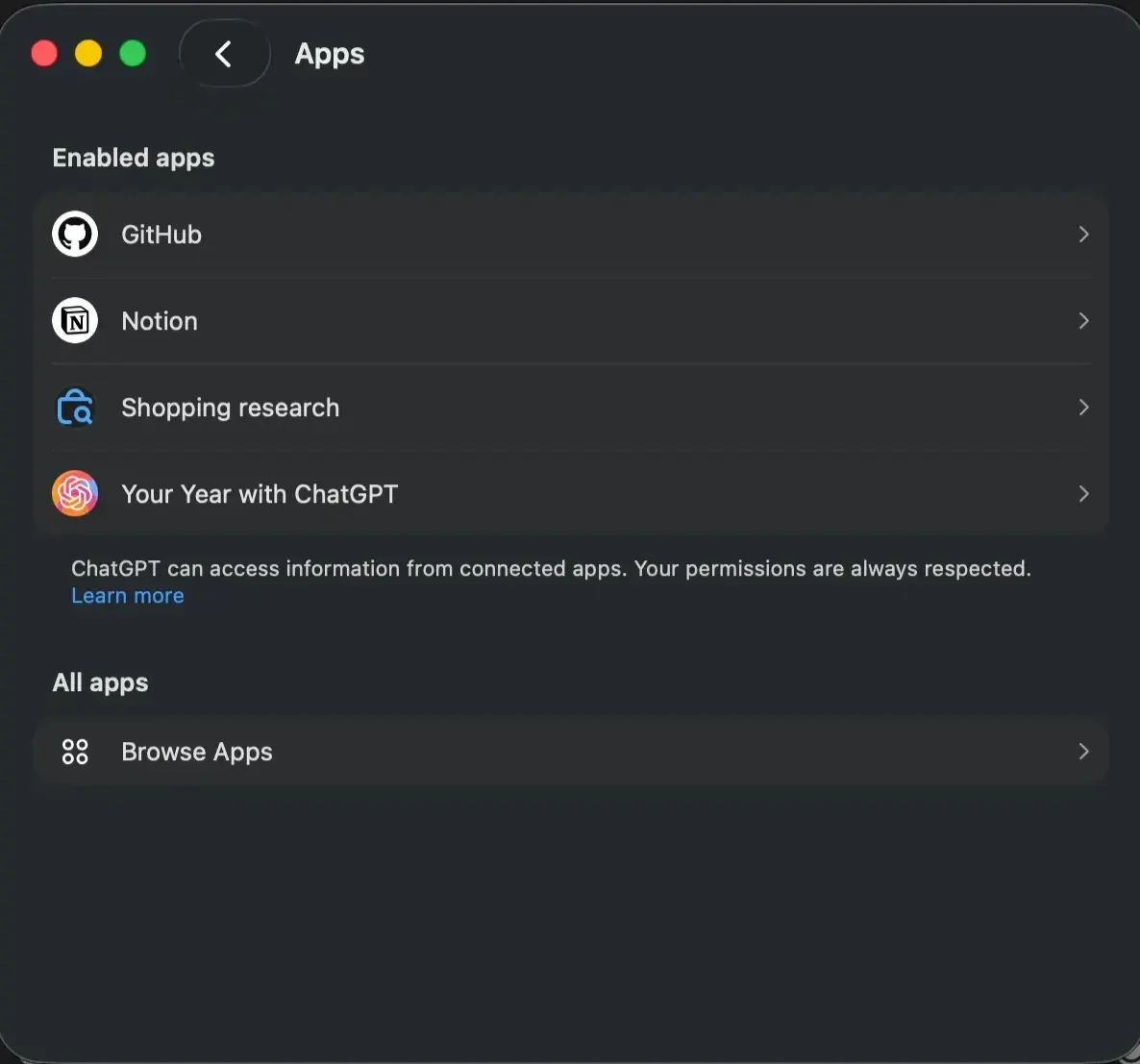
Connect Notion to ChatGPT for easier access to your notes.
Apply this same workflow to internal meetings by generating concise summaries instead of reviewing full transcripts.
Keep the system simple. The goal is speed and usability, not complexity.

Editorial Staff
The Editorial Staff at AIChief is a team of Professional Content writers with extensive experience in the field of AI and Marketing. AIChief was Founded in 2025, AIChief has quickly grown to become the largest free AI resource hub in the industry. Stay connected with them on Facebook, Instagram and X for the latest updates.



