

AI Tutorial
Turn Top-Performing Ads into Polished AI Videos with Sora 2
Learn how to replicate successful UGC ads and turn them into polished AI-generated videos with Sora 2 using structured JSON workflows.
Share
This guide walks you through producing high-quality marketing videos using Sora 2 by breaking down successful UGC ads, converting them into structured JSON, generating content in Sora, and refining the final output before publishing.
Who Should Use This
- Performance marketers seeking scalable, testable ad creatives with strong hooks
- Small business owners want professional product videos without production costs
- Agencies and freelancers delivering UGC-style content at scale
- Content strategists turning proven ad formats into repeatable scripts and visuals
Step 1: Gather High-Performing UGC Ad Examples
Start by browsing platforms like TikTok or Instagram. Search within your niche and identify ads with compelling hooks and clear product demonstrations that you can model for your brand.
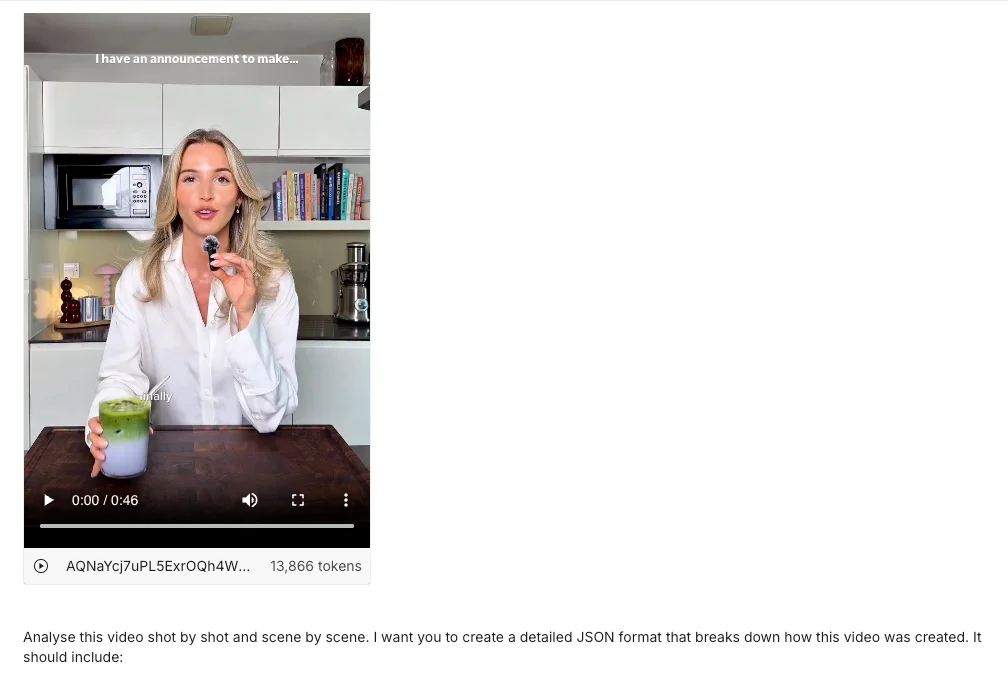
Step 2: Break Down the Video Using Gemini 2.5 Pro
Go to Google AI Studio and open the chat playground. Select Gemini 2.5 Pro with video analysis enabled. Use this prompt:
“Analyze this video shot by shot and scene by scene.
Return a strict JSON object with: scene, description, environment, props, colors, camera_angles, camera_motion, transitions, lighting_setup, source_quality, shadows, mood, subject_actions, gestures, exact voice over transcript, on-screen text, captions/graphics, audio elements, music style, and timing.
Constrain final runtime to 15 seconds. Output valid JSON for future generation. Be specific, exhaustive, and technical.”
This produces a detailed breakdown of how the original video was constructed.
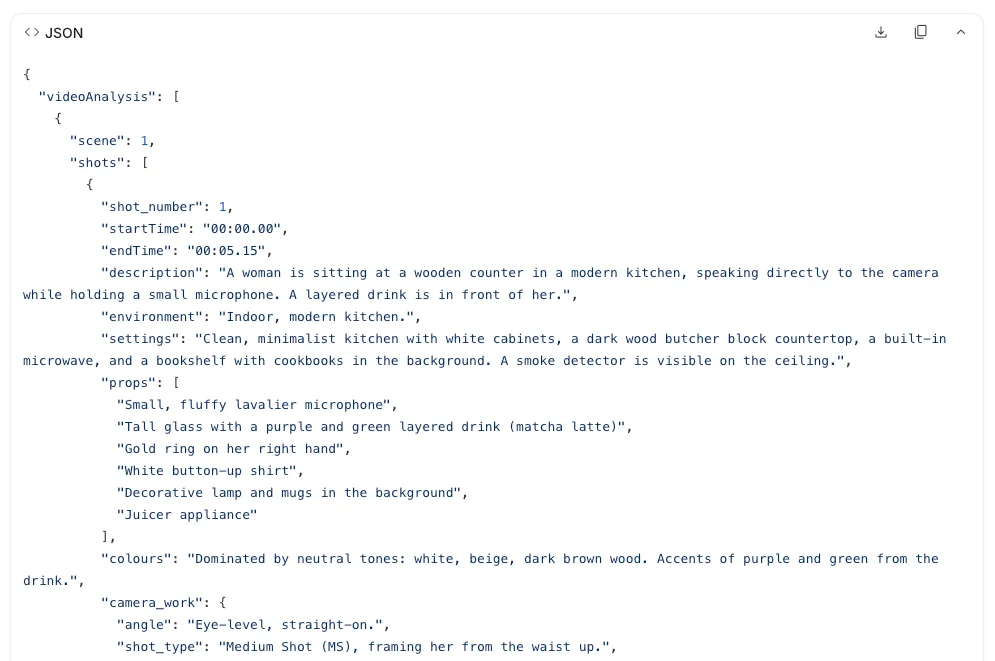
Step 3: Customize the JSON for Your Brand
Download the JSON and paste it into ChatGPT. Example prompt:
“Adapt this video breakdown JSON to the fitness and health niche. Product: a 24/7 nutrition and training coach app. Keep camera angles, pacing, and kitchen setting. Replace the script with concise sentences that thank and recommend the app. Output updated JSON.”
Then:
“Convert this into Sora-compatible JSON using fields: camera, motion, scene, lighting, mood, spoken_script with intonation. Keep runtime under 15 seconds.”
Log in to your Sora account (or create one) to continue.
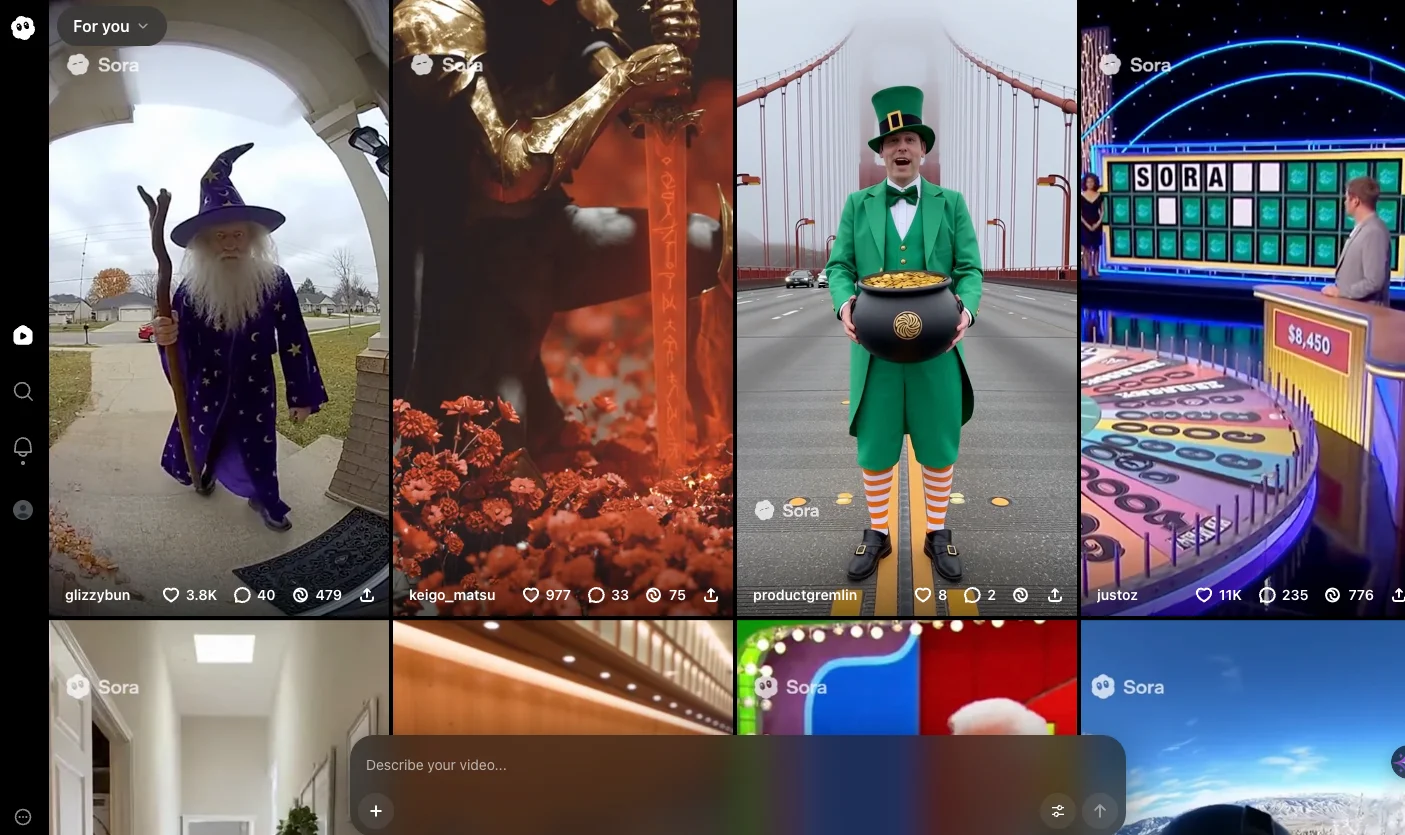
Step 4: Generate and Refine in Sora
Paste the final JSON into Sora and generate the video. Review carefully for:
- Complete voiceover (no cut-offs)
- Accurate UI or logo rendering
- Clear, readable text
- Smooth pacing and transitions
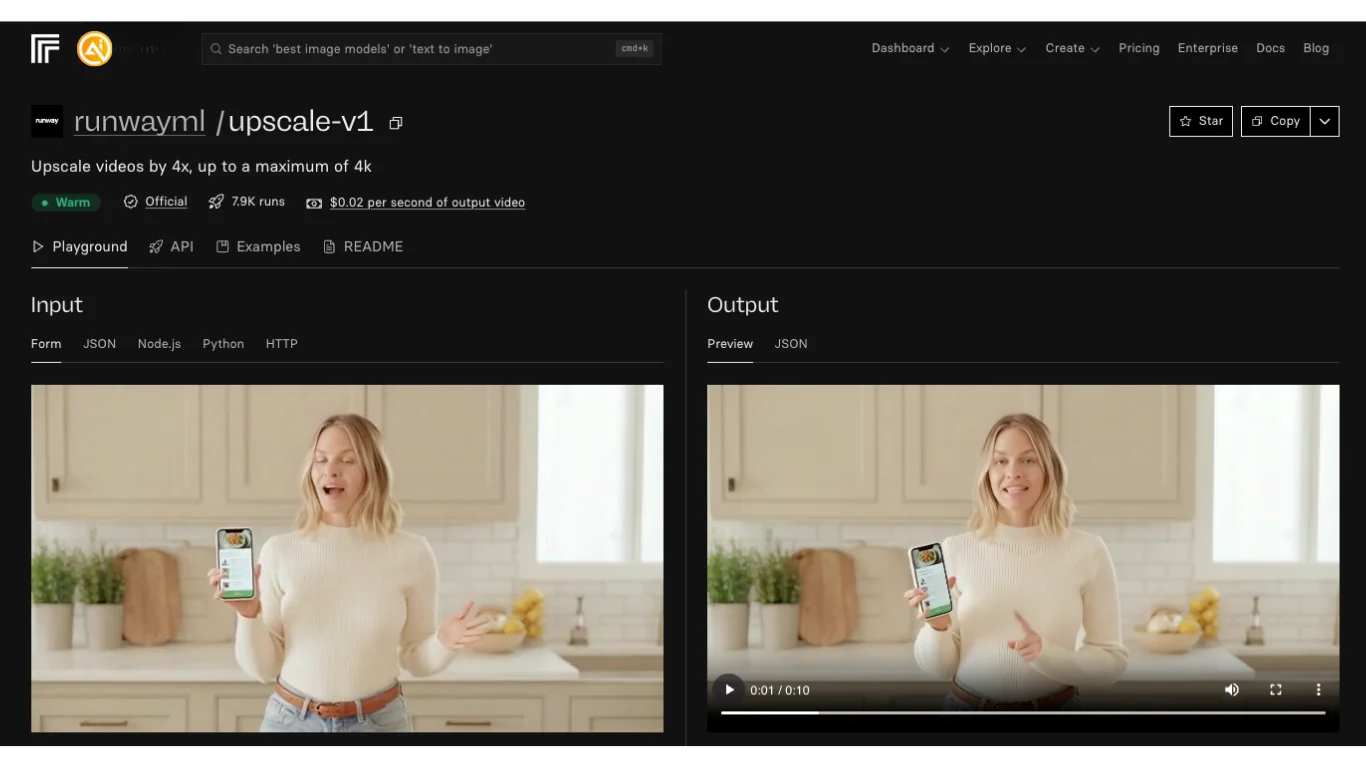
Step 5: Polish the Final Video
After downloading your Sora output, you can improve it further:
- Remove watermarks using a free tool
- Clean up audio and balance volume
- Upscale resolution (1080p or 4K) with tools like Replicate or Canva
- Strip metadata using a video remixer
Pro Tip
Even high-quality AI videos benefit from post-processing. Refinement helps your content stand out in feeds saturated with generic AI-generated clips.

Editorial Staff
The Editorial Staff at AIChief is a team of Professional Content writers with extensive experience in the field of AI and Marketing. AIChief was Founded in 2025, AIChief has quickly grown to become the largest free AI resource hub in the industry. Stay connected with them on Facebook, Instagram and X for the latest updates.



