

AI Tutorial
Turn Product Images Into Video Content Using Runway AI
Learn how to convert product images into cinematic social media videos using Runway and AI-generated prompts, fast, scalable, and production-ready.
Share
In this walkthrough, you’ll learn how to convert static product images into short, engaging video clips using Runway’s video generation tool. This approach works especially well for ads, social media, and product showcases.
Who This Is For
- E-commerce brands needing video without production costs
- Real estate agents turning listing photos into dynamic previews
- Creators who want video content but only have images
What You’ll Create
A cinematic clip generated from a single image, complete with motion, depth, and atmosphere, ready for platforms like TikTok, Instagram, or product pages.
What You Need
- Runway account (free or paid plan)
Step 1: Choose Your Image
Start with a product photo or any image with a clear subject. This can include products, portraits, interiors, or food.
Since Runway uses the image as the first frame, select something that works well with motion effects like zoom, pan, or lighting animation.
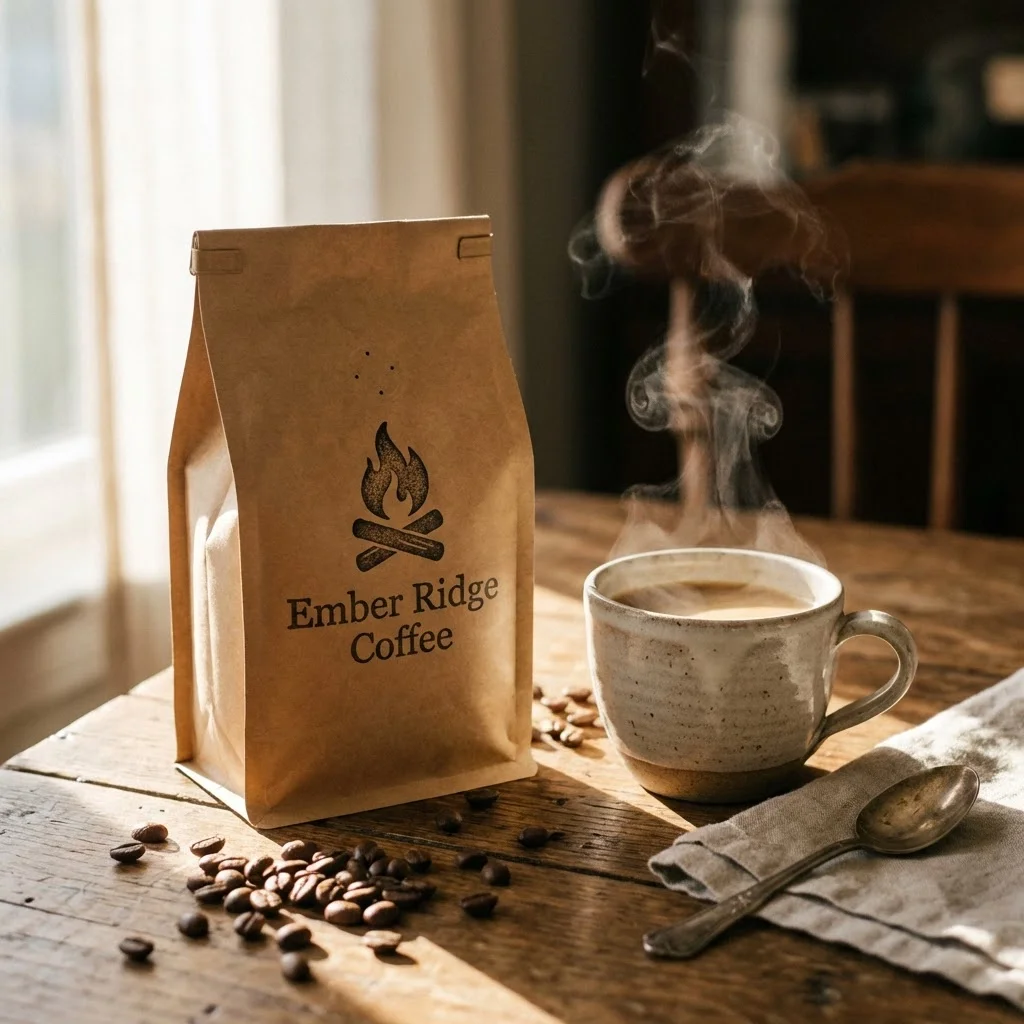
Tip: Images with depth, lighting variation, or visual elements like smoke or reflections tend to produce better results.
Step 2: Generate a Motion Prompt With AI
Instead of writing prompts manually, use an AI assistant to create them. Upload your image and use a prompt like:
Write a short video prompt for Runway to generate a social media clip from this image. Include motion and camera effects where appropriate.
This helps produce more effective and creative results without guesswork.
Step 3: Generate the Video in Runway
Go to Runway and open the video generation tool.
Upload your image and paste the generated prompt.
For best results:
- Set duration to around 5 seconds
- Use a faster generation mode to save credits
Generate the clip and review the output.
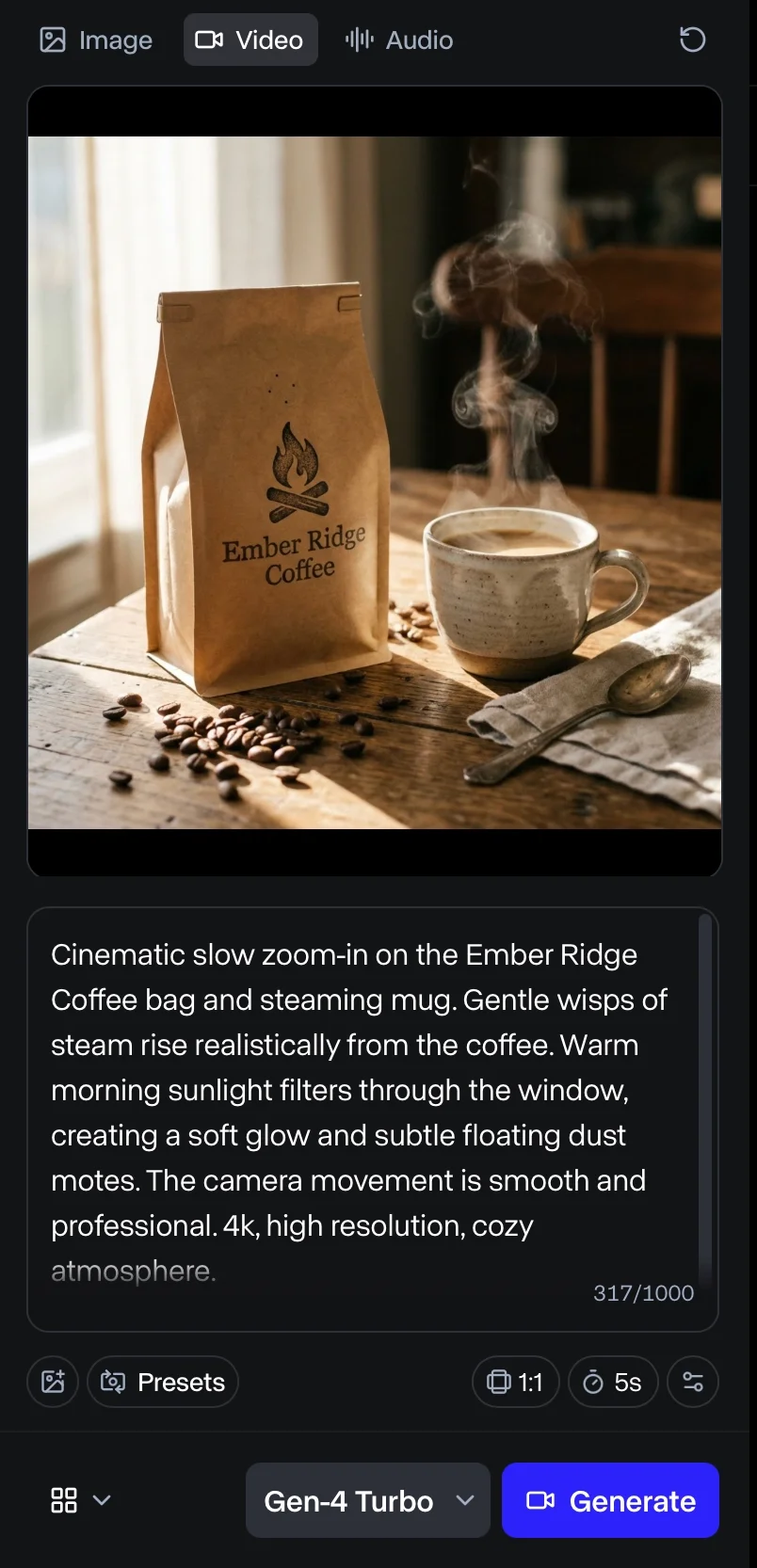
You’ll notice the motion effects, such as subtle zooms and camera movement, look realistic and usable, making the content suitable for real-world use.
Tip: If results aren’t strong, try a different image rather than adjusting the same prompt repeatedly.
Step 4: Use or Enhance the Clip
Once generated, you can use the video directly:
- Post as short-form content (Reels, TikTok)
- Add to product pages or email campaigns
- Use as an intro for longer videos
For additional polish, edit the clip in a video editor. Add text, music, or voiceovers to turn it into a complete ad.
Take It Further
Scale the workflow by generating prompts for multiple images at once.
Upload several product images into an AI assistant, generate prompts for each, and process them in batches. This allows you to build a library of video content quickly and efficiently.

Editorial Staff
The Editorial Staff at AIChief is a team of Professional Content writers with extensive experience in the field of AI and Marketing. AIChief was Founded in 2025, AIChief has quickly grown to become the largest free AI resource hub in the industry. Stay connected with them on Facebook, Instagram and X for the latest updates.



