

AI Tutorial
Transform a Single Thumbnail Into Multiple Social Posts
Learn how to create a YouTube thumbnail in Canva and instantly resize it into multiple social media formats using AI-powered tools.
Share
In this walkthrough, you’ll design a YouTube thumbnail in Canva and then use its AI-powered resize tool to convert it into different social media formats automatically.
Who This Is For
- Content creators posting across multiple platforms who want to avoid repetitive resizing work
- Marketing teams handling brand visuals across several social channels
- Freelancers and agencies delivering assets in multiple formats without extra manual effort
What You’ll Create
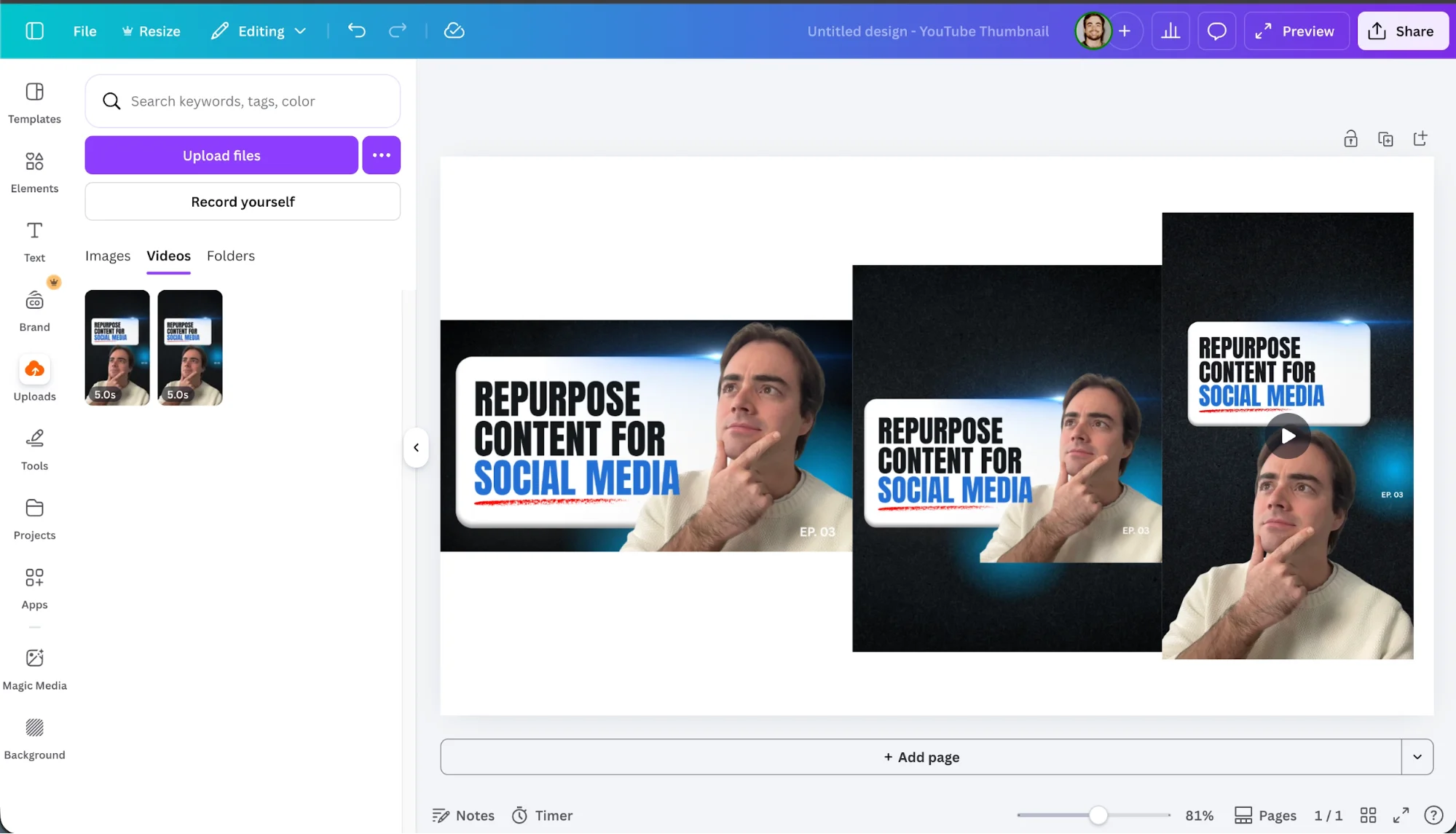
A YouTube thumbnail built from a Canva template using your own image, then resized into formats for major social platforms, all organized in one place and ready to publish.
What You Need to Start
- Canva Pro account ($15/month)
Step 1: Design a YouTube Thumbnail From a Template
Open Canva and click Create. Search for a YouTube Thumbnail and select it to start a project with the correct dimensions.
Browse the Templates panel on the left and pick one that matches your style. Click to apply it to your canvas.
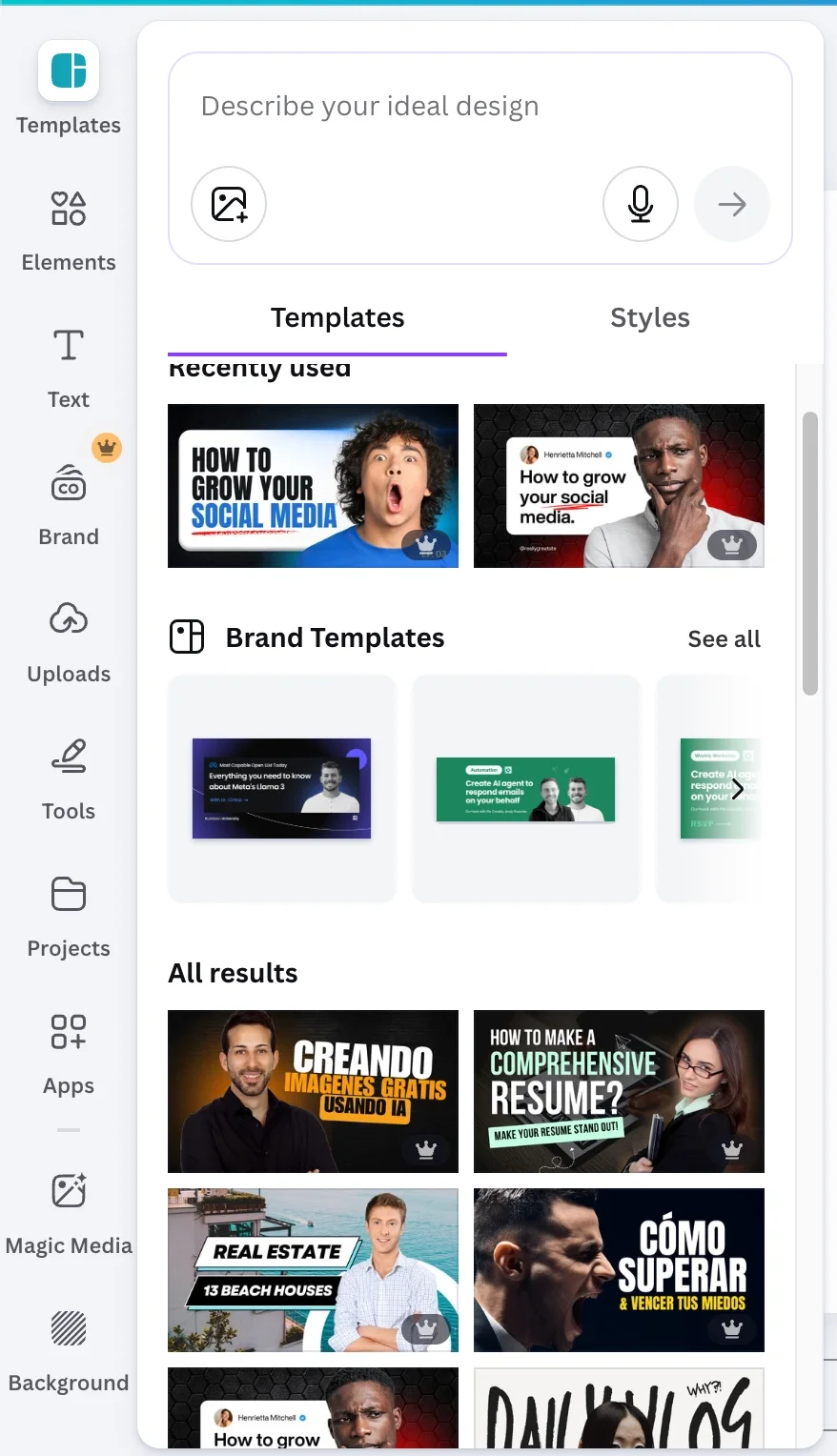
Edit the text by replacing the headline and subheading with your own copy.
Upload your image, either from your phone or a quick shot using Photo Booth. A reaction-style photo works well, but a simple portrait also does the job.
Go to Uploads, add your image, and drag it over the existing photo in the template. Canva will replace it automatically.
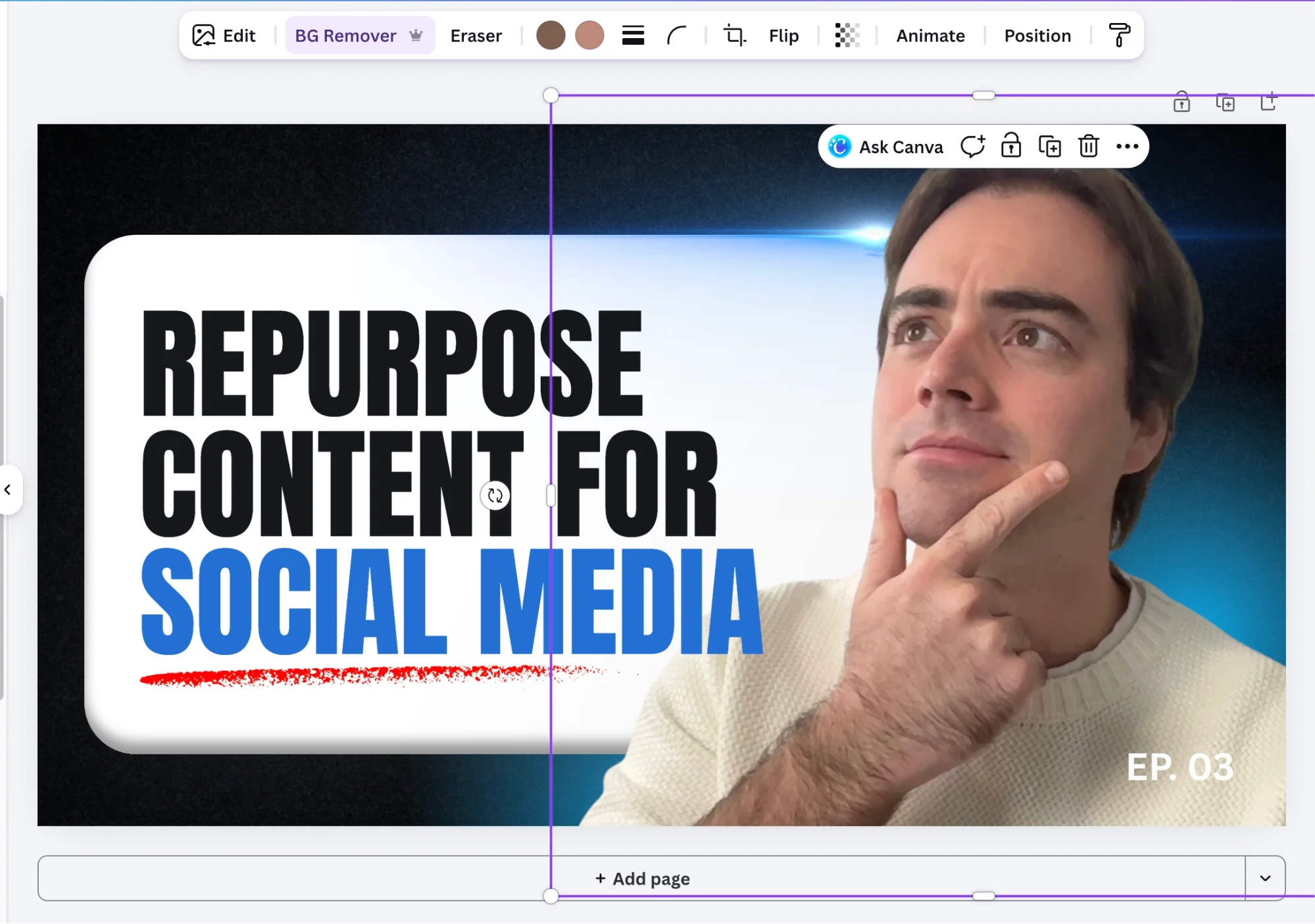
Select your image and use Canva’s AI background remover to isolate it and blend it into the design.
Step 2: Resize for Different Platforms
Click Resize in the top menu. You’ll see a list of supported social media formats.
Choose the ones you need, such as:
- Twitter Post
- Facebook Post
- Facebook Story
- Instagram Post
- Instagram Story
Then click Copy & Resize.
Canva duplicates your design and uses AI to adjust layout elements, text, images, and background for each format.
All versions will appear in your project sidebar. Open each one and go to Share > Download to export.
Go Further
If you want more control than standard templates, create your own designs and import them into Canva.
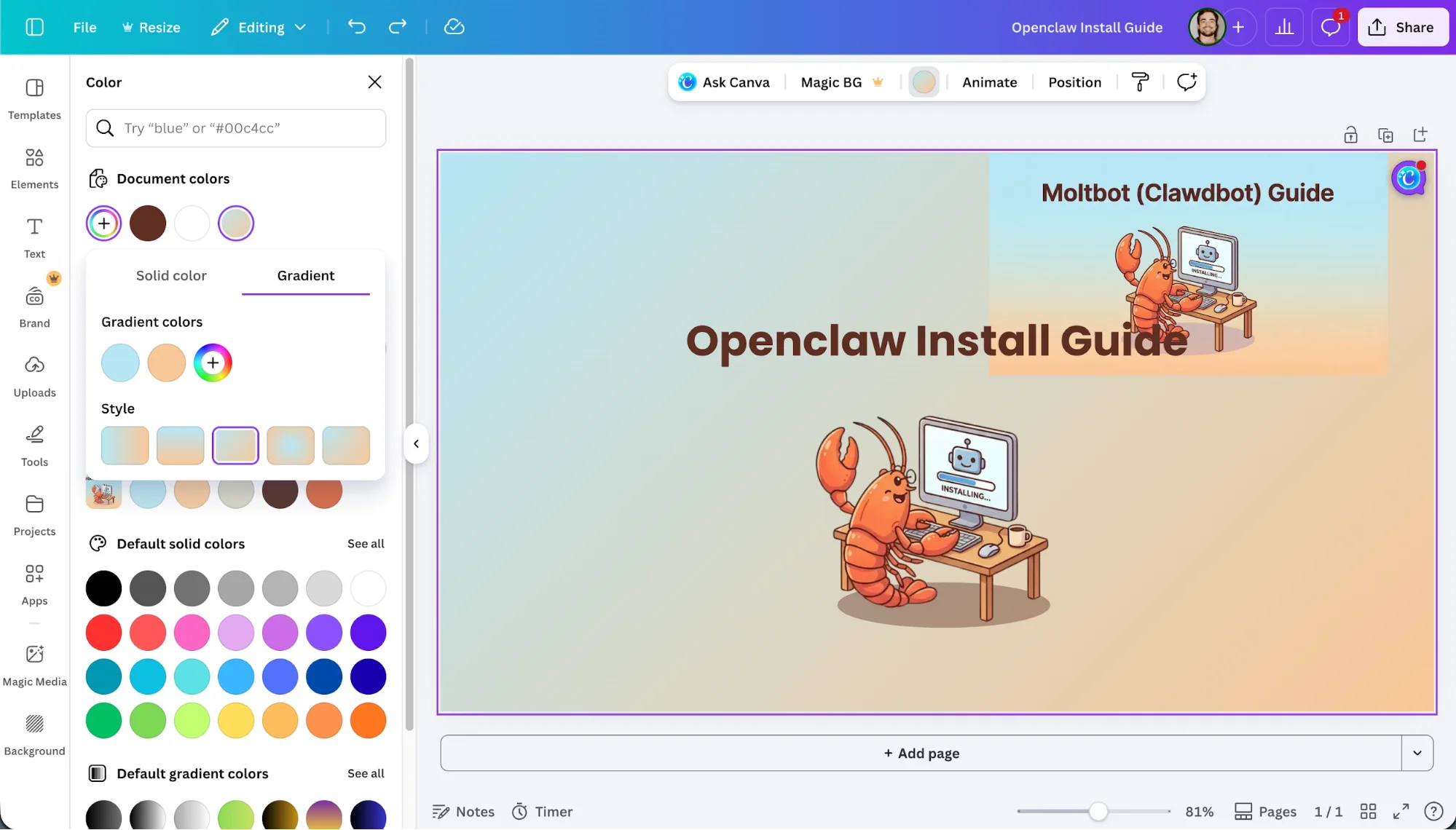
For example, generate a thumbnail using Nano Banana Pro, upload it into Canva, and recreate elements using the color picker (best in Google Chrome).
Use AI background removal and cropping to integrate custom graphics or characters. Once set up, Canva’s resize tool will treat it like a native template.

Editorial Staff
The Editorial Staff at AIChief is a team of Professional Content writers with extensive experience in the field of AI and Marketing. AIChief was Founded in 2025, AIChief has quickly grown to become the largest free AI resource hub in the industry. Stay connected with them on Facebook, Instagram and X for the latest updates.



