

AI Tutorial
Transcribe and Translate Videos for Free Using Local AI
Learn how to transcribe and translate any video or audio file for free using a local AI setup with Whisper, fast, private, and easy to install.
Share
In this walkthrough, you’ll learn how to process video or audio files locally to generate transcripts and translations. Skip unreliable online services and produce accurate results directly from your terminal in just a few minutes.
Who This Is For
- Editors working with video or podcast content
- Users who prioritize privacy when handling recordings
- Anyone managing large volumes of media for transcription or translation
What You’ll Create
A local setup that allows you to transcribe any media file using a single command. You’ll also be able to automatically convert non-English speech into English. After setup, the system is reusable with no ongoing cost.
What You Need
- A Mac or Windows machine
- Python 3 installed (pre-installed on most Macs)
- Homebrew (Mac) or Chocolatey (Windows) to install ffmpeg
- A media file to process
- Around five minutes for setup
Step 1: Install ffmpeg and Whisper
Launch your terminal. On Mac, press Cmd + Space, search “Terminal,” and open it. Start by installing ffmpeg, which allows Whisper to read media files.
Mac:
brew install ffmpeg
If Homebrew isn’t installed, use an AI assistant to install it quickly.
Windows:
choco install ffmpeg
Next, confirm Python is installed:
python3 --version
If a version appears, you’re set. Otherwise, install Python 3.
Now install Whisper:
pip3 install -U openai-whisper
That’s all, these commands only need to be run once.
Tip: If pip3 doesn’t work, try: python3 -m pip install -U openai-whisper.
Step 2: Transcribe a File
Choose a video or audio file and copy its file path.
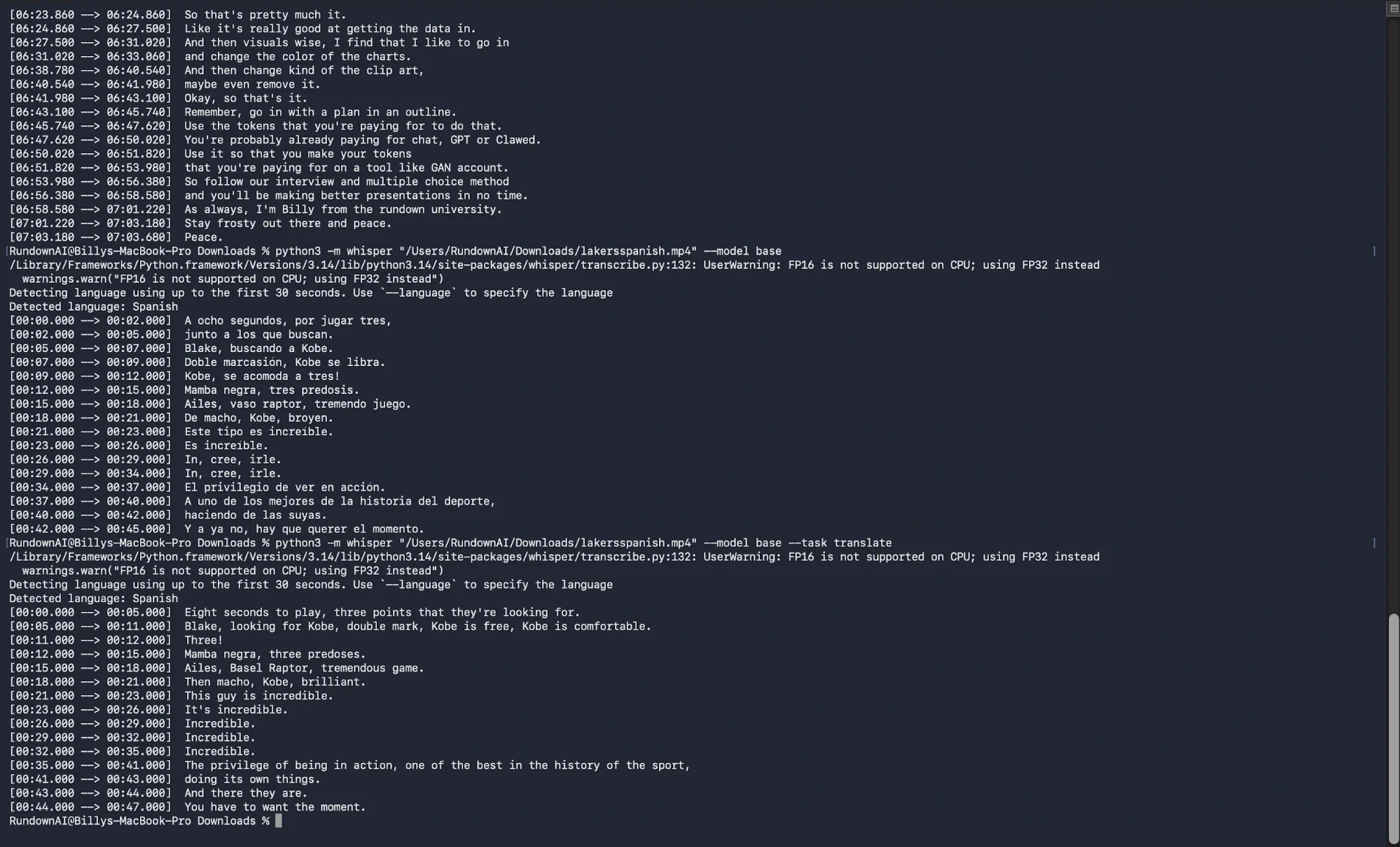
Run the following command:
python3 -m whisper "[your file path]" --model base
Example:
python3 -m whisper "/Users/you/Downloads/video.mp4" --model base
Whisper will automatically detect the language and begin generating a transcript with timestamps. A short video typically takes just a couple of minutes.
Once complete, several files will appear:
- .txt for plain text
- .srt for subtitles (ideal for video editors)
- .vtt, .tsv, and .json for other formats
To control output location and format:
python3 -m whisper "[your file]" --model base --output_dir "/Users/you/Downloads" --output_format txt
The base model balances speed and accuracy well, though larger models are available if needed.
Tip: Use the .srt file for captions, it works directly with most editing software.
Step 3: Translate Audio to English
To translate non-English speech, use the same command and add a translation flag: python3 -m whisper "[your file path]" --model base --task translate
Without this flag, the output remains in the original language. With it, you’ll get an English version automatically.
Take It Further
To process multiple files at once, navigate to a folder containing your videos and run: for f in *.mp4; do python3 -m whisper "$f" --model base; done
This command transcribes every file in the directory, allowing you to handle bulk content efficiently.

Editorial Staff
The Editorial Staff at AIChief is a team of Professional Content writers with extensive experience in the field of AI and Marketing. AIChief was Founded in 2025, AIChief has quickly grown to become the largest free AI resource hub in the industry. Stay connected with them on Facebook, Instagram and X for the latest updates.



