

AI Tutorial
Set Up an AI Scheduling Assistant for Your Inbox
Learn how to build an AI-powered email assistant that can schedule meetings directly from email threads and sync with Google Calendar automatically.
Share
This guide walks through creating an AI email assistant that can be CC’d into conversations to automatically identify meeting times and schedule events directly in Google Calendar.
Best Suited For:
- Executives managing large volumes of meeting requests
- Team leads coordinating meetings across departments
- Anyone looking to eliminate scheduling back-and-forth
STEP 1: Create Your Lindy AI Account
Go to Lindy AI and create an account.
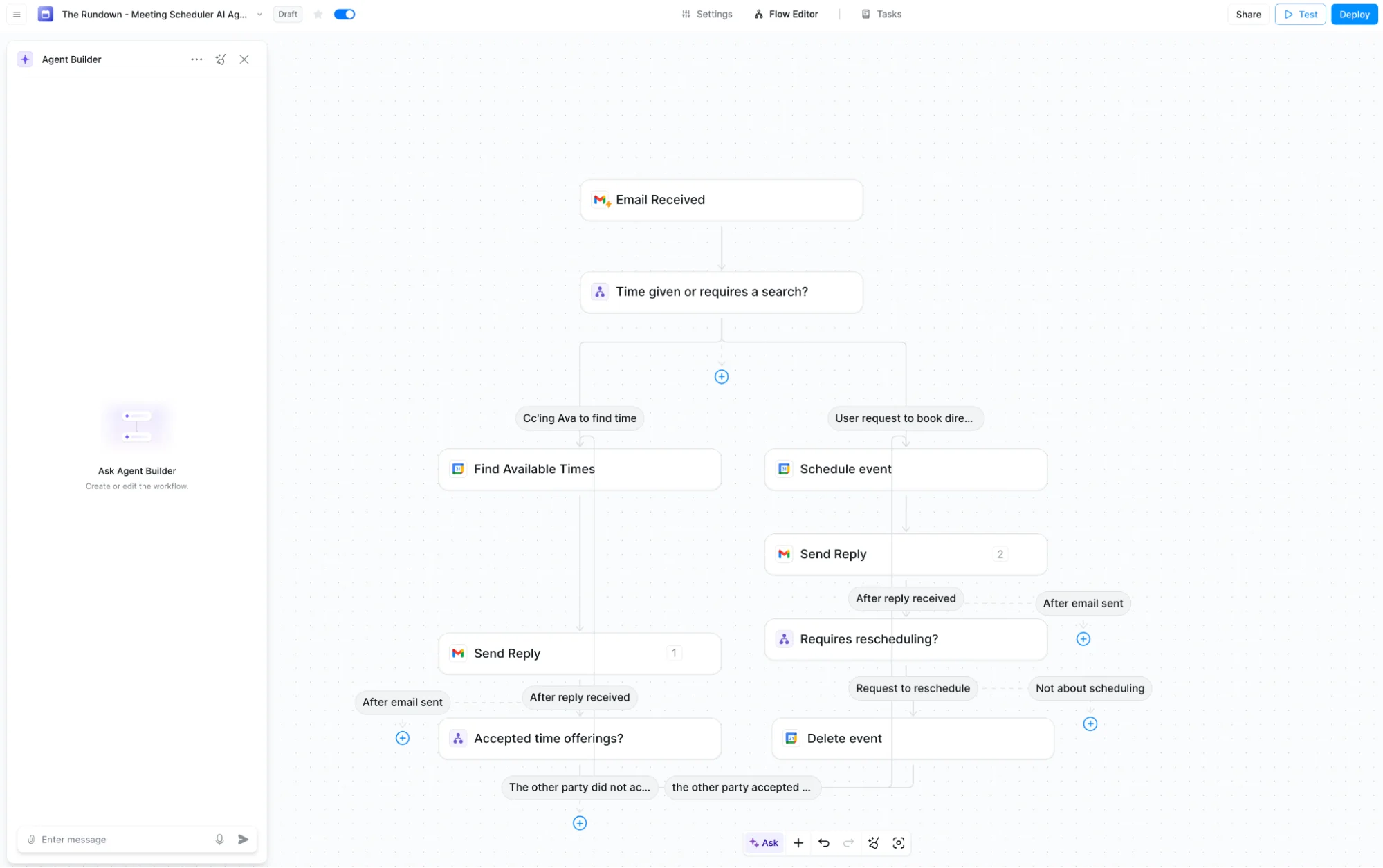
After signing in, duplicate the pre-built template provided here.
The template already includes the core automation setup, making it unnecessary to build everything manually.
STEP 2: Configure the Lindy AI Template
Most of the workflow is already prepared inside the template, but authentication connections still need to be configured. The template includes integrations for:
- Gmail: reading and sending emails
- Google Calendar: checking availability and creating meetings
- Preferred meeting tools like Zoom or Microsoft Teams
Select “Connect” for each service and authenticate using your Google account. The template will automatically inherit the required calendar and email permissions.
Note: It’s recommended to create a dedicated inbox for the AI assistant and connect that account separately. The assistant can be given any preferred name.
STEP 3: Configure Email Triggers and Addresses
Next, set up which email addresses are allowed to activate the assistant. In the trigger settings, configure:
- Outbound email address: The address used by the assistant when sending responses
- Filtered sender: Your personal email address that is allowed to trigger the workflow
The automation works by detecting emails sent from your address whenever the AI assistant is included in CC.
Review all trigger conditions in the template and replace the example assistant name and email addresses with your own setup.
STEP 4: Configure the Dual Scheduling Modes
The AI assistant works using two scheduling modes depending on the email content.
Mode 1 — Automatic Booking
If a specific time is already mentioned in the email, such as “Tuesday at 2 PM,” the assistant automatically creates the meeting in your calendar and sends confirmation to all attendees.
Mode 2 — Smart Time Suggestions
If no time is provided and the email simply requests scheduling help, the assistant scans Google Calendar availability, identifies open slots, and sends suggested meeting times to participants. Once a time is selected, the assistant books the meeting automatically and can also manage rescheduling requests.
STEP 5: Adjust Your Availability Settings
Open the “Find Available Times” section and update the user preferences.
Modify:
- Workday Start Hour: When the assistant should begin suggesting meetings
- Workday End Hour: When the assistant should stop offering meeting slots
The sample setup currently uses a 3-hour scheduling window from Monday through Thursday.
STEP 6: Test and Launch the Scheduling Assistant
Before using the assistant in real conversations, test both scheduling modes with a colleague or secondary email account.

Try:
- Sending an email with a specific meeting time
- Sending another asking the assistant to find a suitable time automatically
Once the responses and calendar integrations are working correctly, simply CC the assistant in future scheduling emails, and it will handle the coordination process automatically.
Pro Tip
Additional sender conditions can be added to include teammates’ email addresses and calendars. This allows the assistant to coordinate scheduling across multiple team members instead of just one calendar.

Editorial Staff
The Editorial Staff at AIChief is a team of Professional Content writers with extensive experience in the field of AI and Marketing. AIChief was Founded in 2025, AIChief has quickly grown to become the largest free AI resource hub in the industry. Stay connected with them on Facebook, Instagram and X for the latest updates.



