

AI Tutorial
Run an AI Model Locally on Your Laptop (For Free with Ollama)
Learn how to install Ollama and run an AI model on your laptop for free. Chat privately, offline, and without API costs.
Share
In this guide, you’ll learn how to install Ollama and start chatting with a real AI model that runs entirely on your laptop. No accounts, no subscriptions, and no data leaving your device, just fast, private AI you can use for everyday tasks.
Who This Is For
- Consultants and agency owners handling sensitive client data that shouldn’t be sent to external servers
- Marketers, writers, and operators who want unlimited prompt experimentation without usage limits
- Anyone curious about local AI who doesn’t want to commit to another paid tool just to try it
What You’ll Build
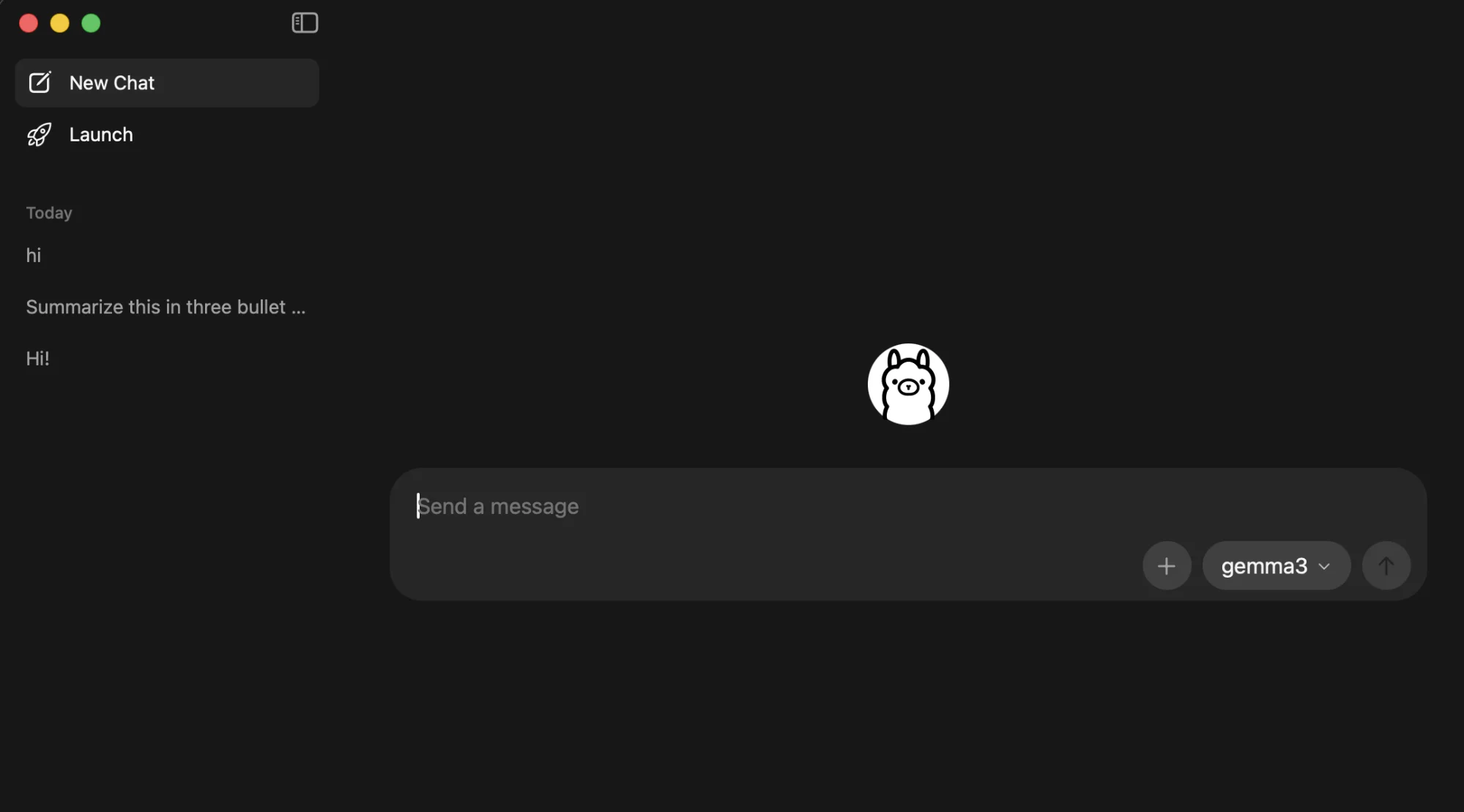
By the end, you’ll have a fully functional local AI chat setup using the Ollama desktop app. The model runs directly from your machine, works offline after download, and uses your CPU or GPU for processing.
Requirements
- A modern laptop (Mac, Windows, or Linux)
- At least 8 GB RAM recommended (4 GB works for smaller models)
- 3–8 GB of available storage, depending on the model
Step 1: Install Ollama
- Mac: Open the downloaded file and drag Ollama into the Applications folder
- Windows: Run the installer and follow the setup steps
- Linux: Open a terminal and run:
"curl -fsSL https://ollama.com/install.sh | sh"
After installation, launch the app from your Applications folder or Start menu.
Pro tip: On Mac, you can install via Homebrew using:
"brew install ollama"
Step 2: Choose a Model That Matches Your Hardware
Open Ollama, click New Chat, and select a model from the dropdown. The right choice depends on your system’s RAM.
Here’s a quick guide:
| RAM | Model Options | Best Use |
|---|---|---|
| 4 GB | gemma3:1b, tinyllama | Very lightweight tasks, basic Q&A |
| 8 GB | gemma3:4b, llama3.2:3b | Every day writing, summaries, and simple workflows |
| 16 GB | gemma3:12b, qwen3:8b | Strong performance for real writing and analysis |
| 32 GB+ / GPU | gemma3:27b, gpt-oss:20b | Near cloud-level performance |
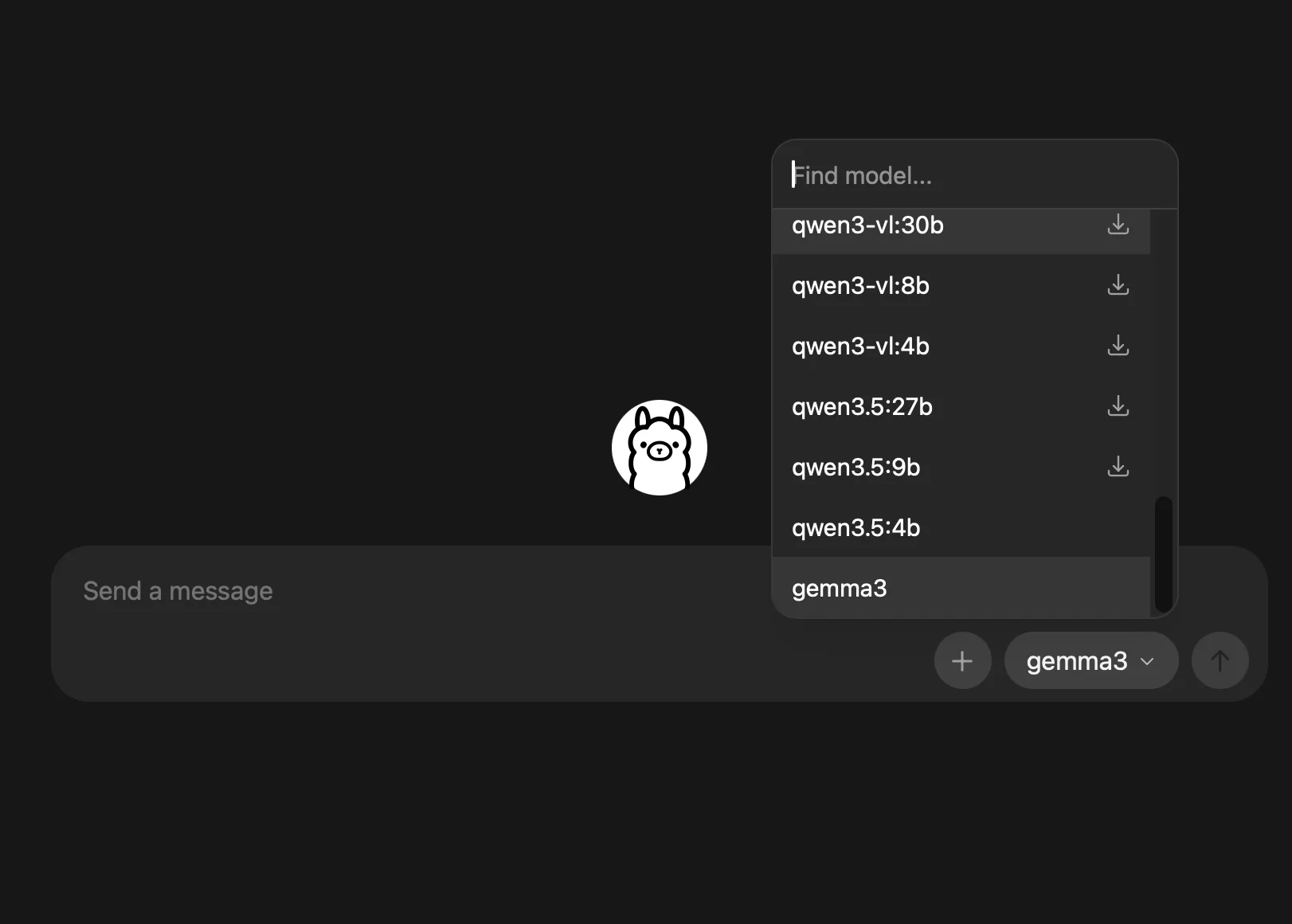
Step 3: Start Chatting Instantly
- No API keys
- No internet requests
- No usage fees
This gives you the same experience without the desktop interface.
Step 4: Confirm It’s Fully Local
To verify everything is running locally:
- Turn on airplane mode or disconnect from the internet
- Send another prompt
The model will continue responding normally, proving that everything runs offline.
This is especially valuable when working with:
- Confidential client data
- Internal documents
- Sensitive business information
Going Further
Once your local chat setup is working, you can expand it in several ways:
1. Add a coding agent
Connect Ollama to tools like Claude Code, Codex, or OpenCode. Your coding workflows can run locally without API costs.
2. Enable tools and integrations
Ollama provides a local API (http://localhost:11434) that supports tool usage. You can connect your model to:
- Web search
- File readers
- Custom workflows
3. Use a dedicated machine
If you run models frequently, consider setting up a separate device (like a Mac mini or spare PC) as a local AI server. Access it across your network without slowing down your main laptop.
Final Takeaway
Cloud AI still leads in advanced reasoning, but a growing portion of everyday tasks can now be handled locally. Installing Ollama is a simple way to:
- Work privately
- Eliminate recurring costs
- Stay ahead as local AI continues to improve
Getting started today puts you ahead of the curve as this shift accelerates.

Editorial Staff
The Editorial Staff at AIChief is a team of Professional Content writers with extensive experience in the field of AI and Marketing. AIChief was Founded in 2025, AIChief has quickly grown to become the largest free AI resource hub in the industry. Stay connected with them on Facebook, Instagram and X for the latest updates.



