

AI Tutorial
Produce a Custom, Royalty-Free Jingle in Under 30 Seconds
Learn how to generate jingles, background music, and sound effects using Suno AI. Create cohesive, royalty-free audio assets for your brand in minutes.
Share
This walkthrough demonstrates how to create jingles, background audio, and sound effects using Suno AI. Everything is royalty-free and generated using simple text prompts.
Who Can Benefit
- Podcasters needing intros, outros, and transitions that match their brand identity
- Content creators aiming for consistent audio across YouTube, TikTok, and ads without licensing issues
- Small business owners looking for hold music, ad audio, or jingles without spending $500 on Fiverr
What You’ll Create
A collection of branded audio assets: a primary jingle, a few variations using different instruments, and short stings for transitions and logo animations, all generated from prompts in Suno.
Getting Started
- A Suno AI account (free plan works; Pro is $10/month)
- A clear idea of your brand’s tone (genre, mood, energy)
- A video editor like CapCut or TikTok (optional for syncing audio with visuals)
Step 1: Create Your First Jingle
Visit suno.com and click Create. Enter a prompt describing your track, for example:
Upbeat indie pop podcast intro with acoustic guitar and light percussion. Energetic but not overwhelming. Think tech podcast.
Click Create, and your track will be ready in about 20–30 seconds. Two variations will appear in the feed.
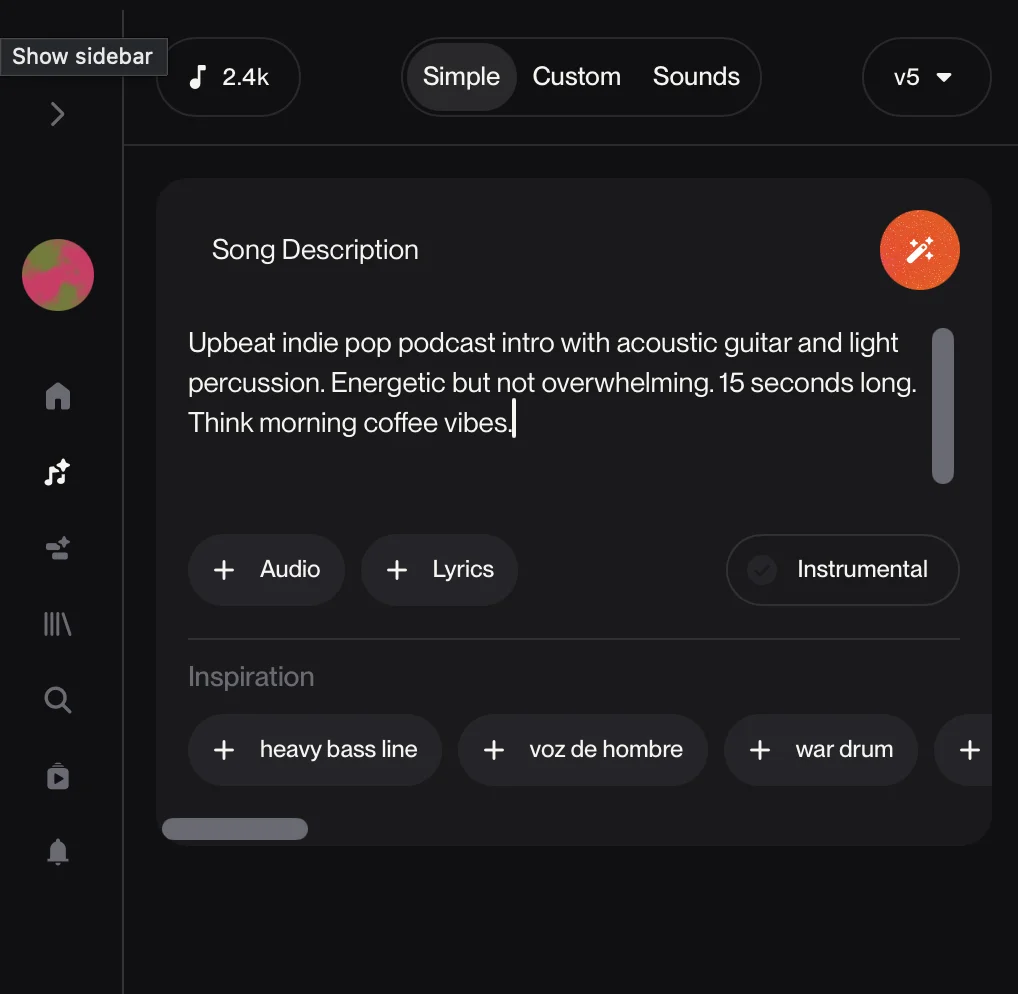
To refine your result, adjust the instruments:
- Add synth plucks
- Replace the acoustic guitar with an electric
- Remove percussion
Small tweaks can noticeably change the output.
Pro tip: If it sounds too cheesy, adjust the descriptor. “Morning coffee vibes” will produce a very different feel than “tech podcast.”
Step 2: Generate Branded Variations
Choose your favorite version and build variations from it.
Click Remix and Edit, then select Cover. Modify instruments or genres in the prompt.
Suno keeps the same melody but changes the arrangement, giving you different versions that still feel connected.
Use this to create multiple formats:
- Orchestral version for TikTok
- Synthwave style for YouTube
- Soft background audio for podcasts
Step 3: Make Stings and Sound Effects
This feature is slightly hidden. Instead of songs, switch to Sounds.
Enter a prompt like:
Punchy, memorable audio sting. Works as a transition sound. Synth pluck.
Choose:
- One Shot (single sound effect)
- Loop (repeatable audio)
For transitions or logo animations, use One Shot.
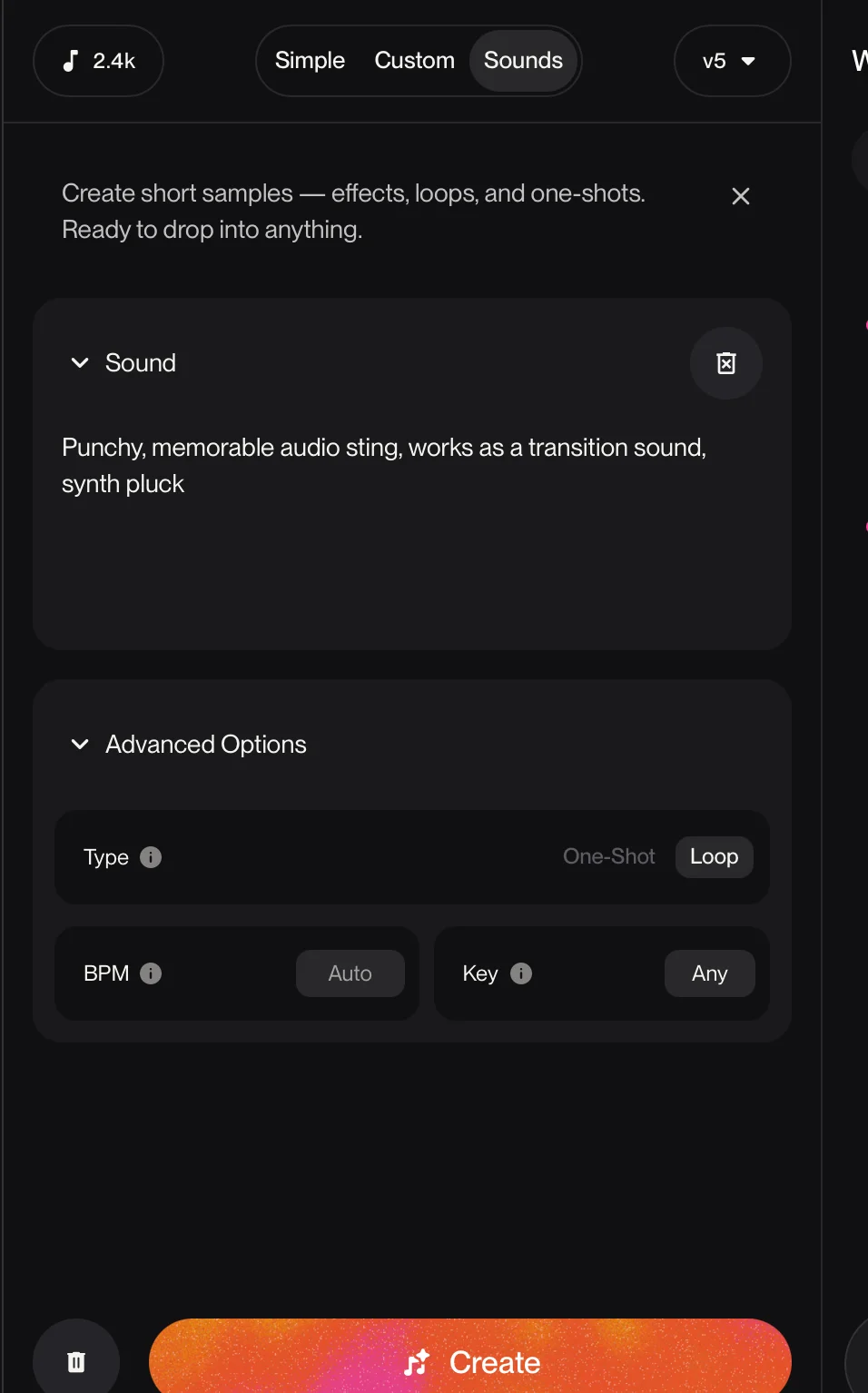
Click Create to generate the clip. If it’s too short, open the menu, select Remix and Edit, then Extend to lengthen it while preserving the sound.
Save your favorites to a playlist, then download them from your Library. Import into CapCut, TikTok, or your preferred editor and layer them into videos or podcasts.
Step 4: Organize Your Audio Library
Like and save your preferred sounds into playlists. When ready, download them from your Library.
Import them into your editor and apply them to logo animations, ads, or transitions.
Take It Further
Combine with AI video tools. Create logo animations in Higgsfield or generate ads with Gemini, then layer your Suno audio in CapCut.
The result: fully AI-generated, royalty-free content that looks and sounds professionally produced.

Editorial Staff
The Editorial Staff at AIChief is a team of Professional Content writers with extensive experience in the field of AI and Marketing. AIChief was Founded in 2025, AIChief has quickly grown to become the largest free AI resource hub in the industry. Stay connected with them on Facebook, Instagram and X for the latest updates.



