

AI Tutorial
Privately Run AI on Your Own Computer
Learn how to run powerful AI models privately on your own computer using Ollama or LM Studio for offline access, zero subscription costs, and full data control.
Share
Learn how to run advanced AI models directly on your computer for complete privacy, offline access, and zero subscription costs without sending your data to external servers.
Best Suited for:
- Privacy-focused users are avoiding third-party data sharing
- People needing AI access without internet connectivity
- Users looking to avoid recurring AI subscription costs
- Developers and enthusiasts wanting deeper AI customization
STEP 1: Select a Local AI Platform
There are two popular ways to run AI models locally on your computer:
- Ollama: Developer-focused, terminal-based, and highly customizable
- LM Studio: Beginner-friendly interface similar to modern AI chat applications
This guide covers both options so you can choose the setup that best fits your workflow. Both platforms support Windows, macOS, and Linux.
STEP 2: Install Your Preferred Platform
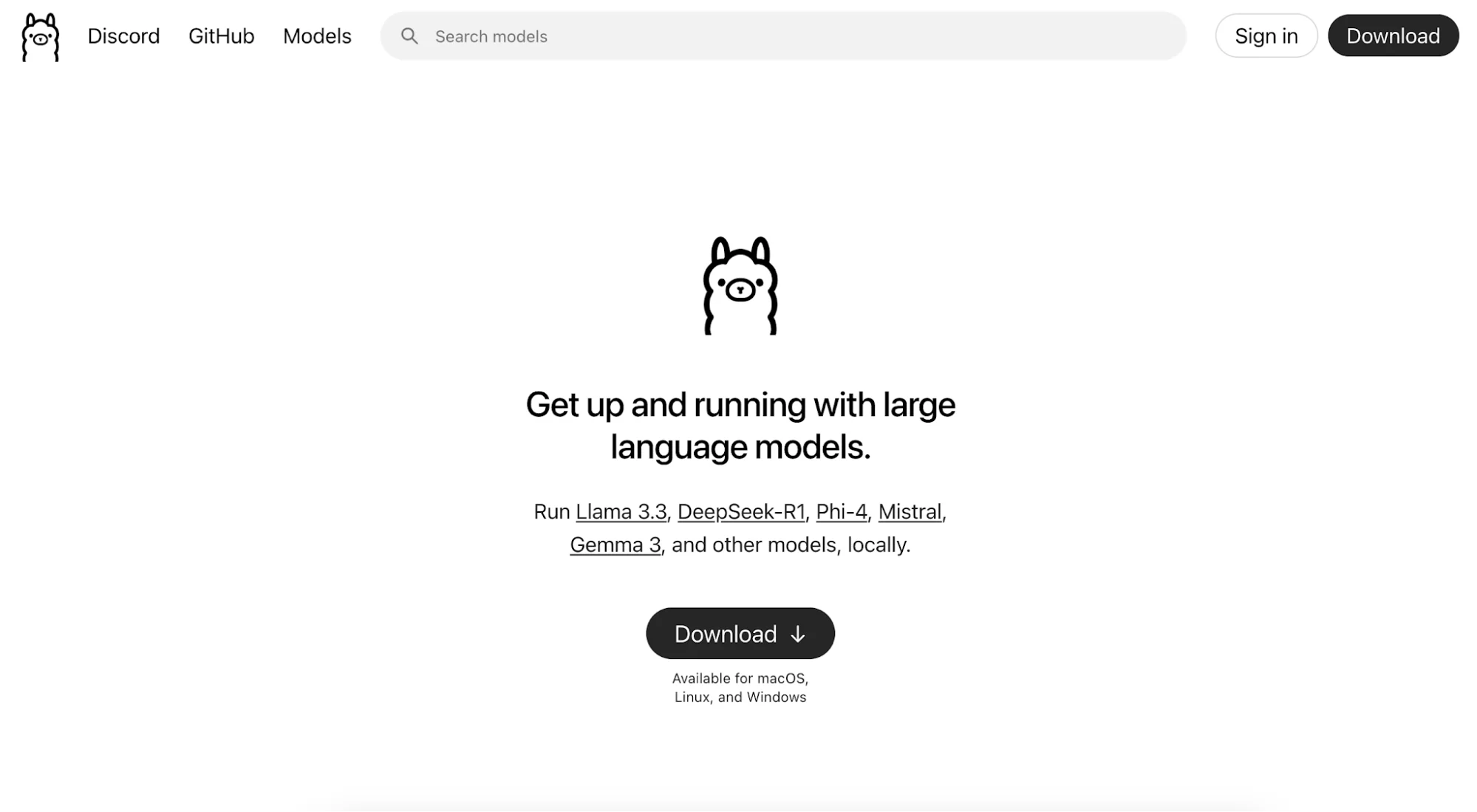
For Ollama, visit the Ollama website and click the “Download” button. Follow the installation steps for your operating system.
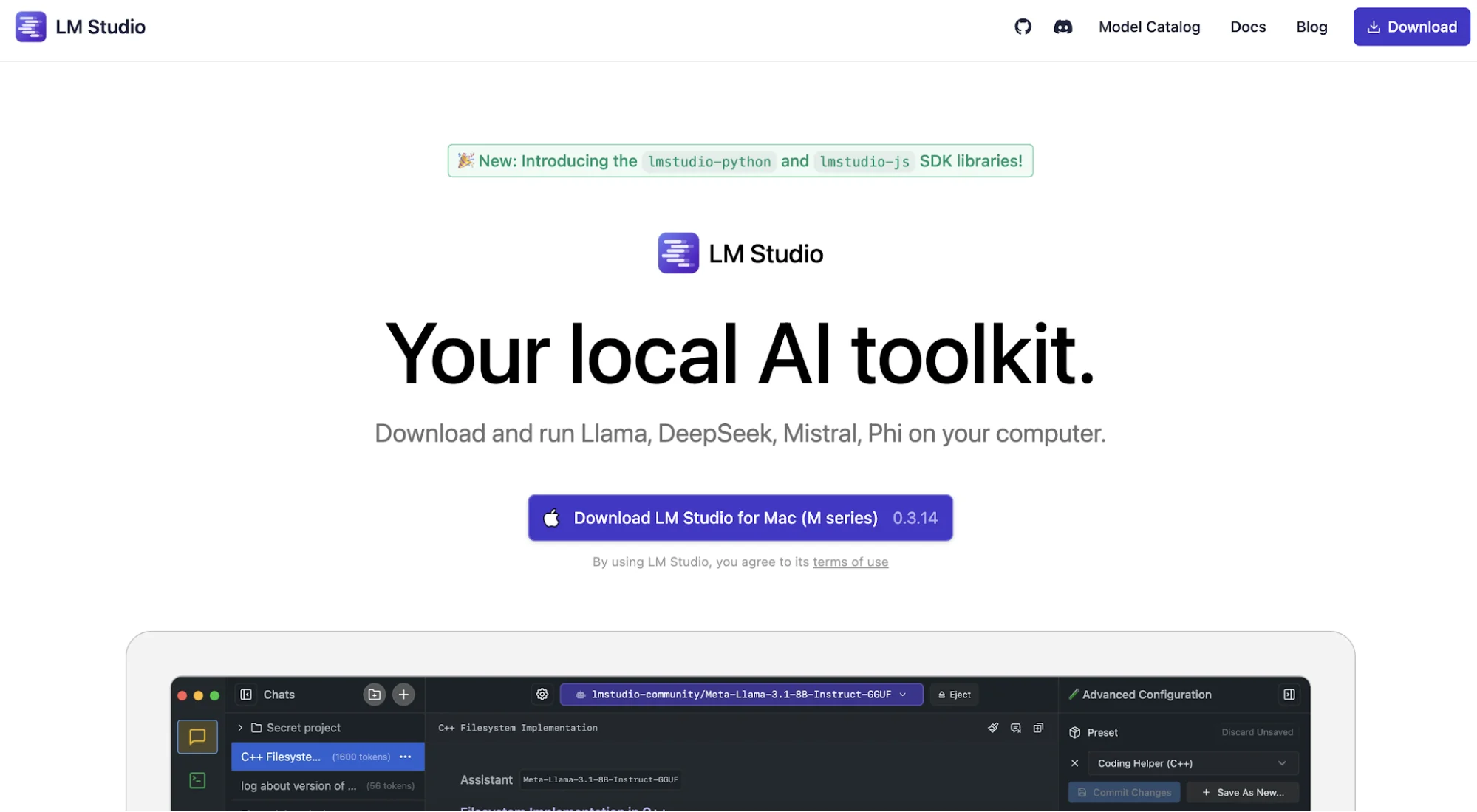
For LM Studio, download the correct version for your device from the LM Studio website. After installation, you’ll see an interface similar to popular AI chatbot platforms.
STEP 3: Download an AI Model
After installing your platform, the next step is downloading an AI model to run locally.
Using Ollama
- Open your terminal or command prompt
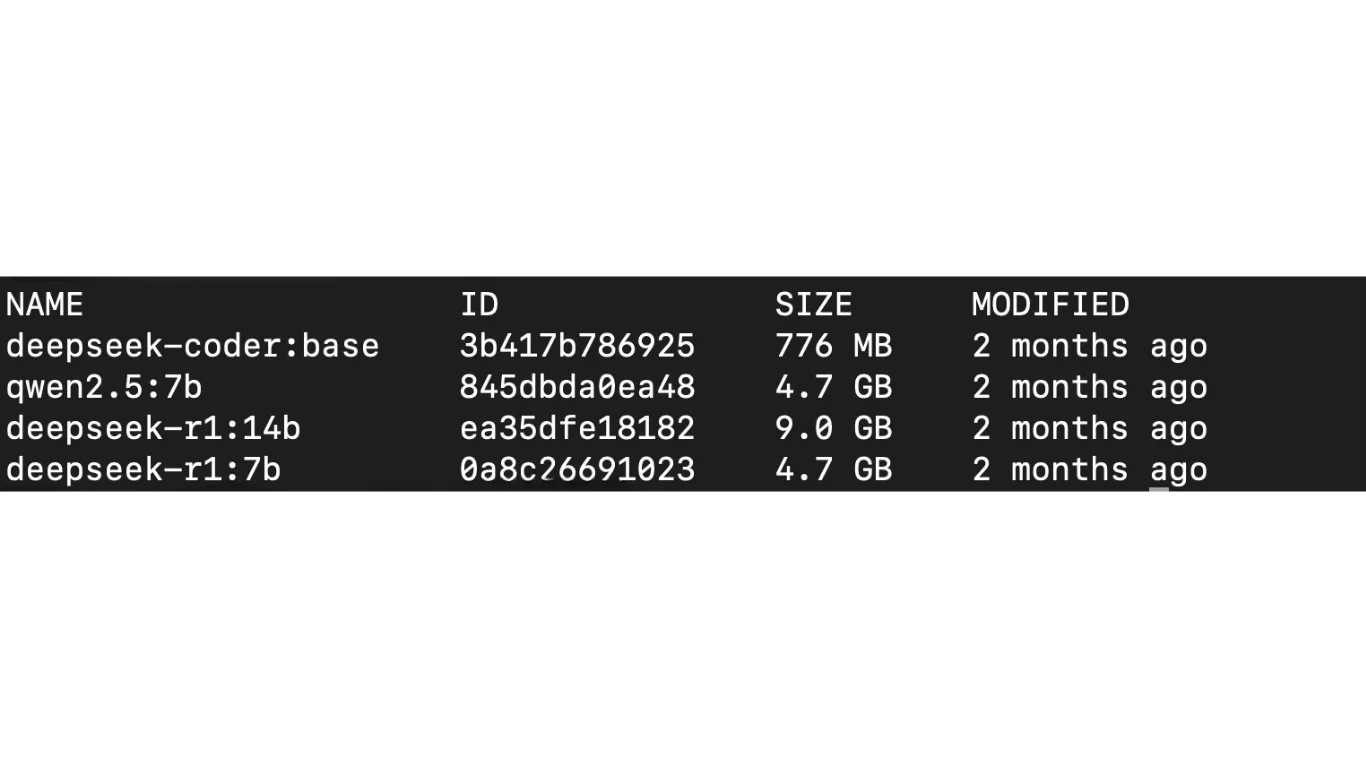
- Type ollama run followed by a model name
Example: ollama run gemma:7b - The first time you run the command, Ollama will automatically download the selected model
Using LM Studio
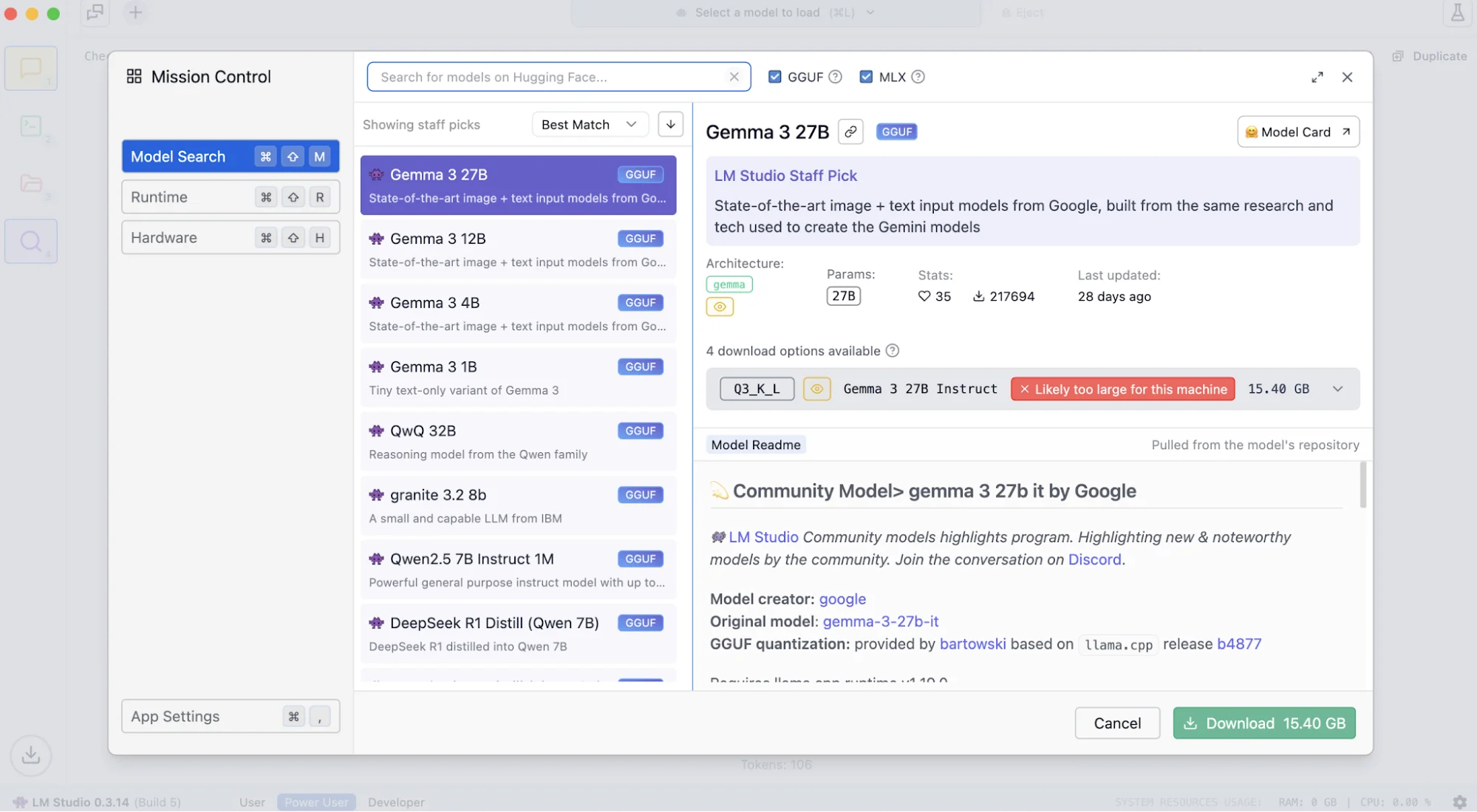
- Open the application and select “Discover.”
- Browse available models
- Smaller models (7B or lower) generally perform best on most computers
- Click “Download” for your selected model
- Return to the chat area and choose “Load Model.”
Keep in mind that larger models require more system resources. Models with 7B–14B parameters usually run smoothly on modern computers, while larger models such as 30B+ often require high-end hardware.
STEP 4: Start Using Your Local AI Assistant
With Ollama
- Open your terminal
- Run ollama run followed by your downloaded model name
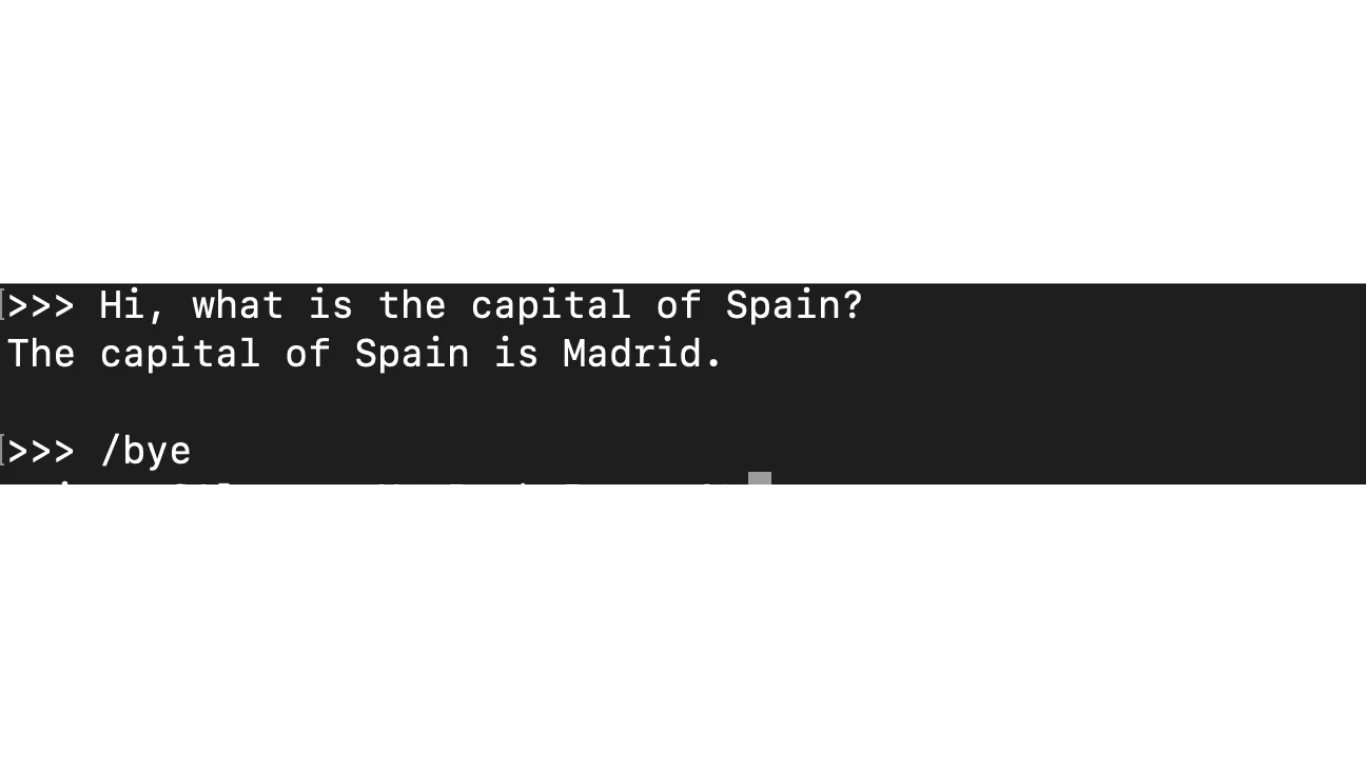
- Once loaded, a prompt (usually >>>) will appear where you can begin chatting with the AI
- Type /bye when you want to close the session
With LM Studio
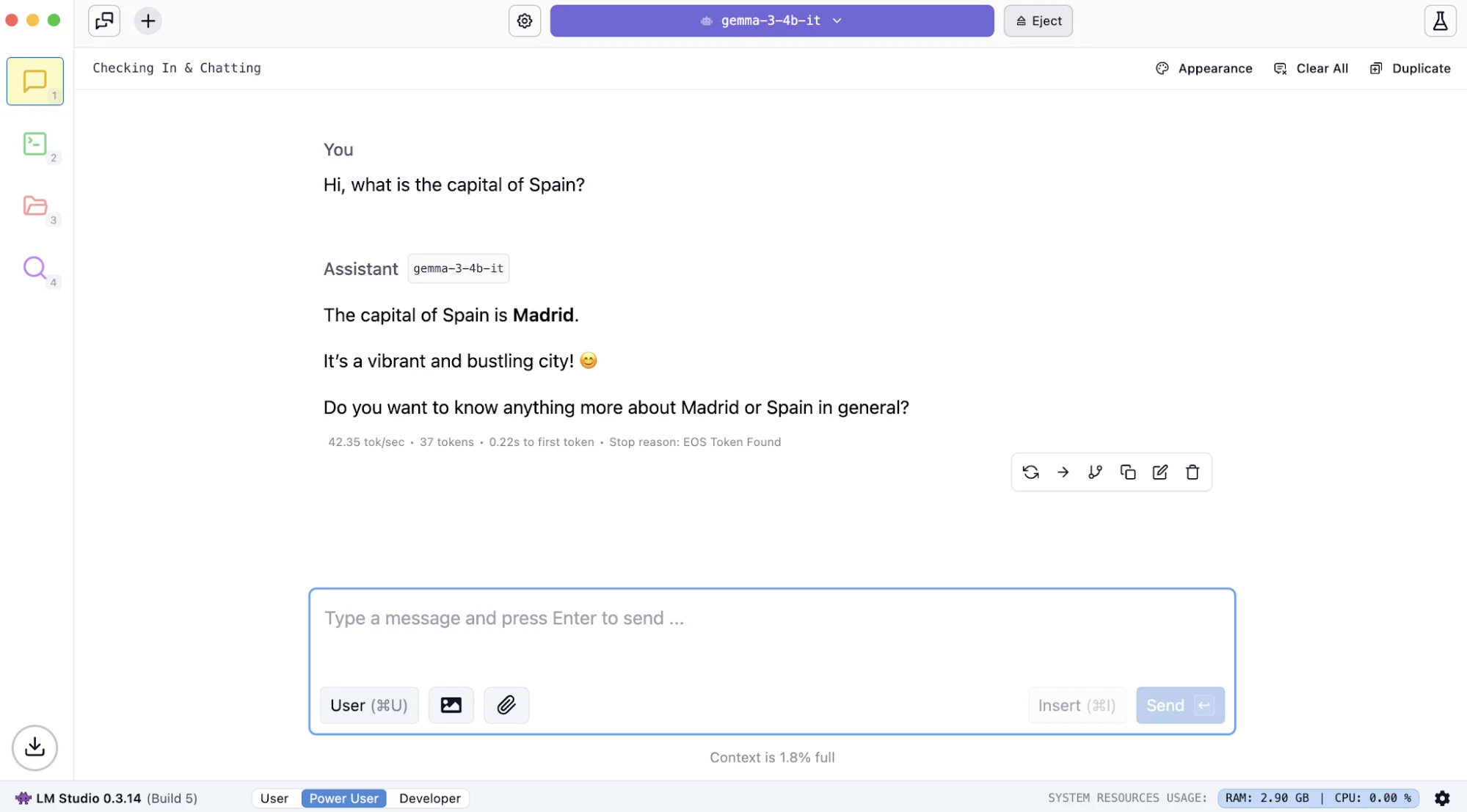
- Open the chat interface
- Select your downloaded model
- Click “Load Model” to activate it
- Begin interacting with the AI through the built-in chat interface, just like you would with cloud-based AI tools
Pro Tip
Start with lightweight models first to test performance on your hardware. Once you understand your system’s capabilities, you can experiment with larger or more advanced models for better reasoning, coding, or creative tasks.

Editorial Staff
The Editorial Staff at AIChief is a team of Professional Content writers with extensive experience in the field of AI and Marketing. AIChief was Founded in 2025, AIChief has quickly grown to become the largest free AI resource hub in the industry. Stay connected with them on Facebook, Instagram and X for the latest updates.



