

AI Tutorial
Multiply Your Productivity With Claude Cowork + Obsidian
Learn a simple system using Claude Cowork and Obsidian to automate daily planning, stay organized, and manage your work efficiently.
Share
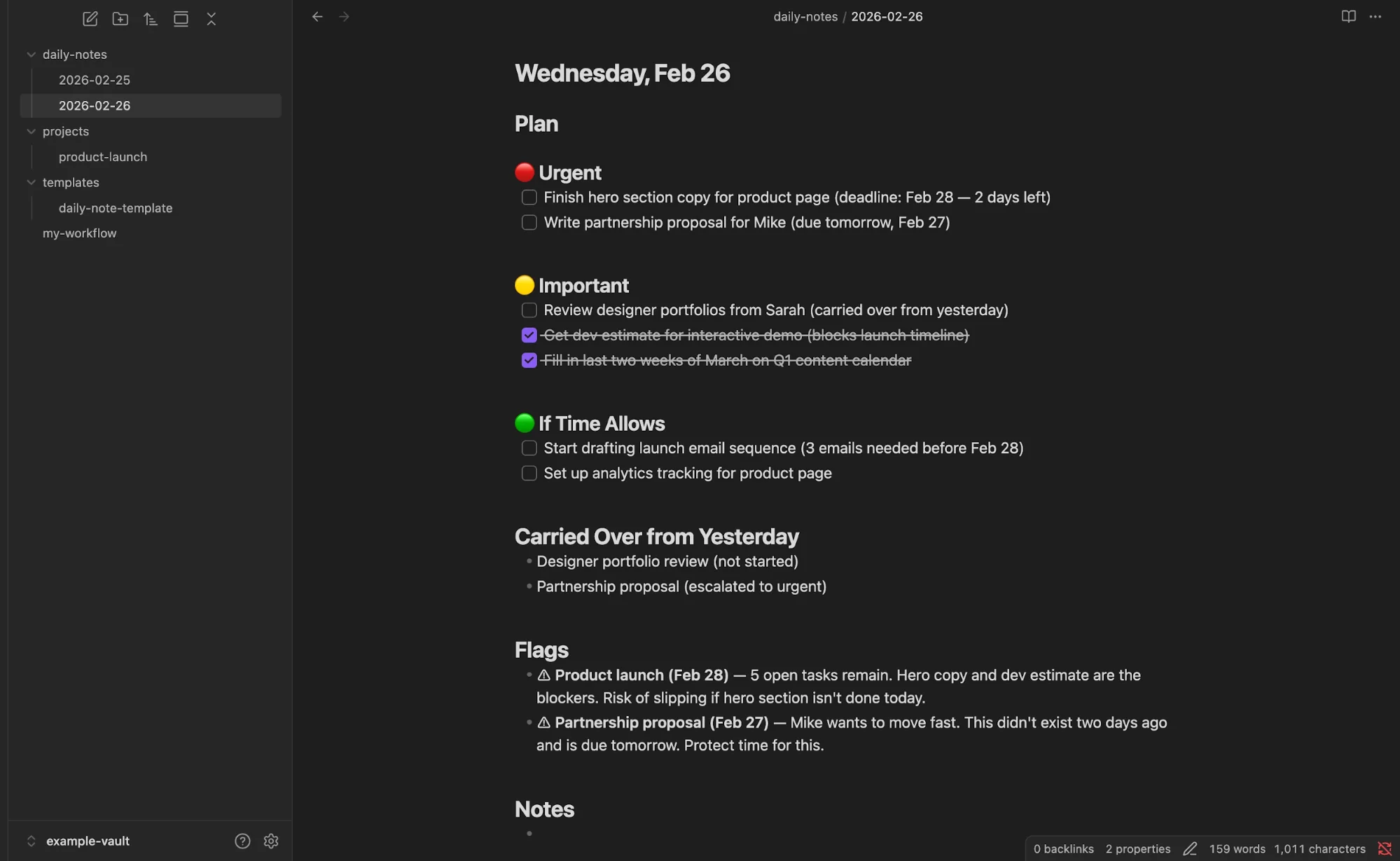
This walkthrough explains how to create a simple daily planning system using Obsidian and Claude Cowork. Once set up, Claude will automatically generate your daily plans inside your notes.
Who This Is For
- People overwhelmed by scattered notes they never revisit
- Founders and freelancers who want structure without rigid tools
- Anyone who abandoned to-do apps because they felt like extra work
What You’ll Create
A lightweight planning system powered by two tools: Obsidian for storing notes and Claude Cowork for reading your files and generating daily plans. Each morning, your plan is ready the moment you open Obsidian.
What You Need
- Obsidian (free)
- Claude desktop app (Pro plan or higher)
- Google Calendar connected to Claude
Step 1: Set Up Your Obsidian Vault
Download Obsidian and install the app. It works well with Claude since it saves everything locally as markdown files.
Open Obsidian and create a new vault. Choose a name and location, this creates a folder on your computer that Claude will access later.
Inside the vault, create these folders:
- daily-notes/
- projects/
- templates/
That’s your full structure. You’ll also see these folders directly in your system files.
Tip: Use this vault only for tracking work. For larger projects, create separate vaults to avoid clutter.
Step 2: Add Starter Files
Download the provided files and place them in your vault:
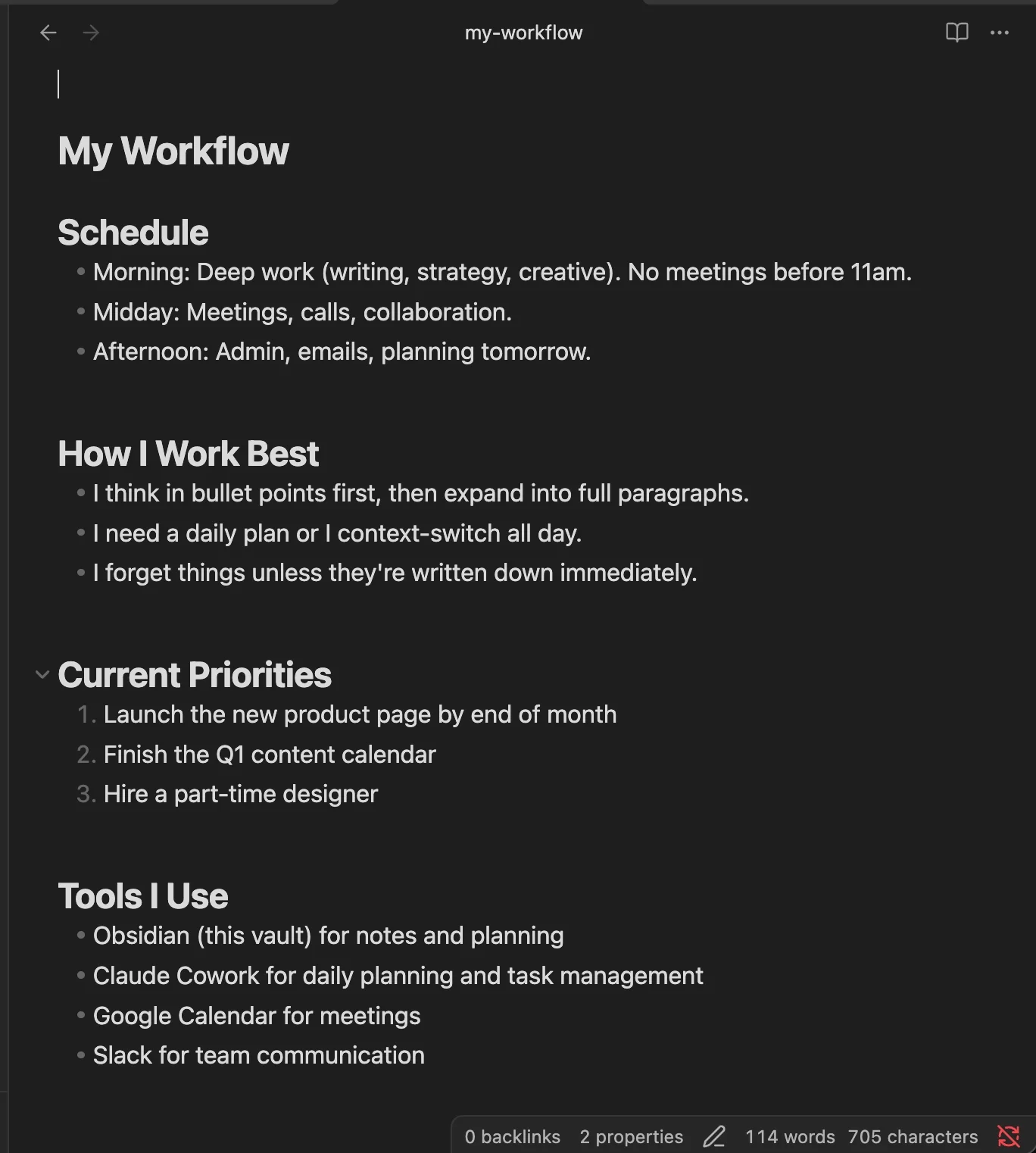
- my-workflow.md: put this in the root folder. It defines your schedule, priorities, and working style for Claude. Customize it to reflect your actual workflow.
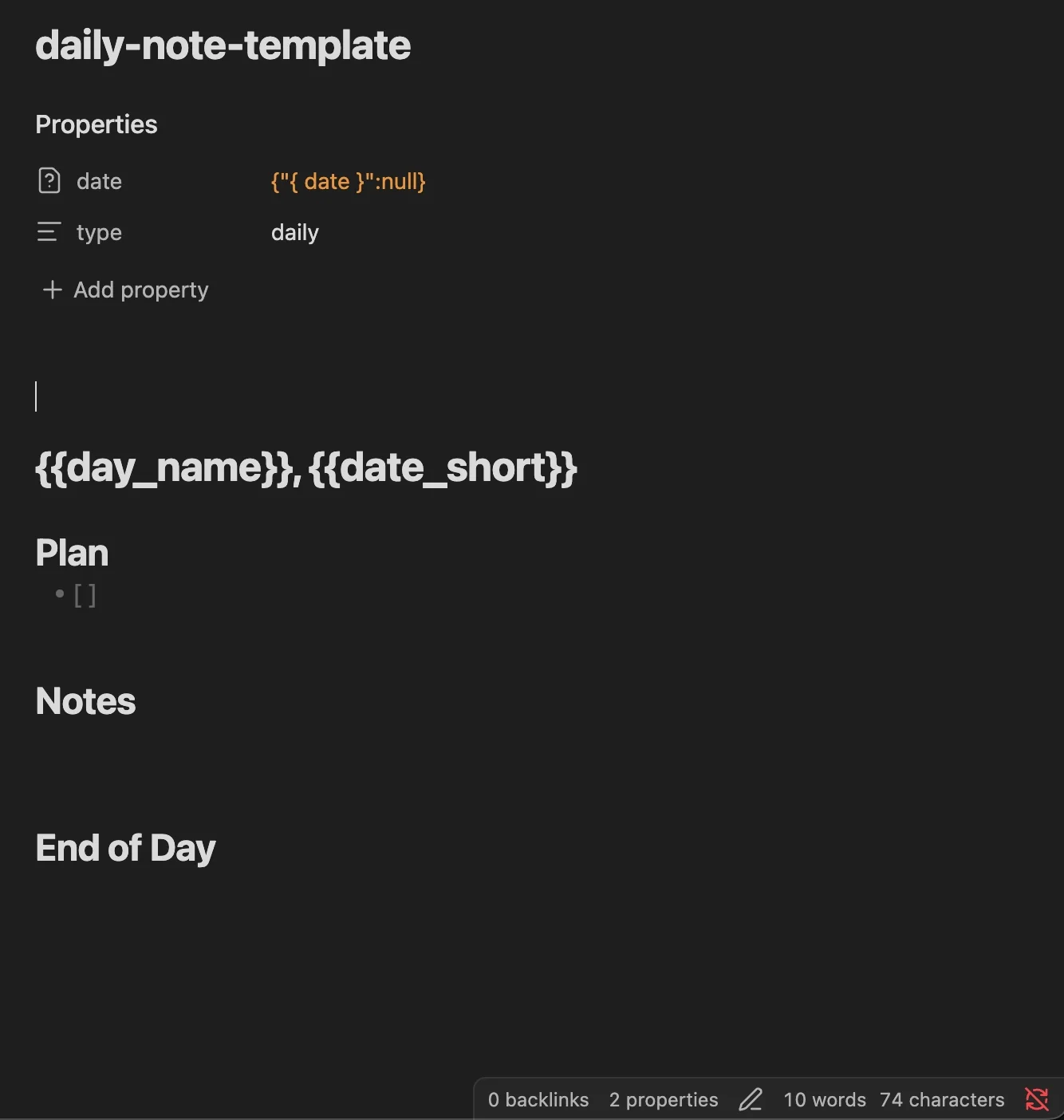
- daily-note-template.md: place this inside the templates/ folder. It controls how daily notes are structured.
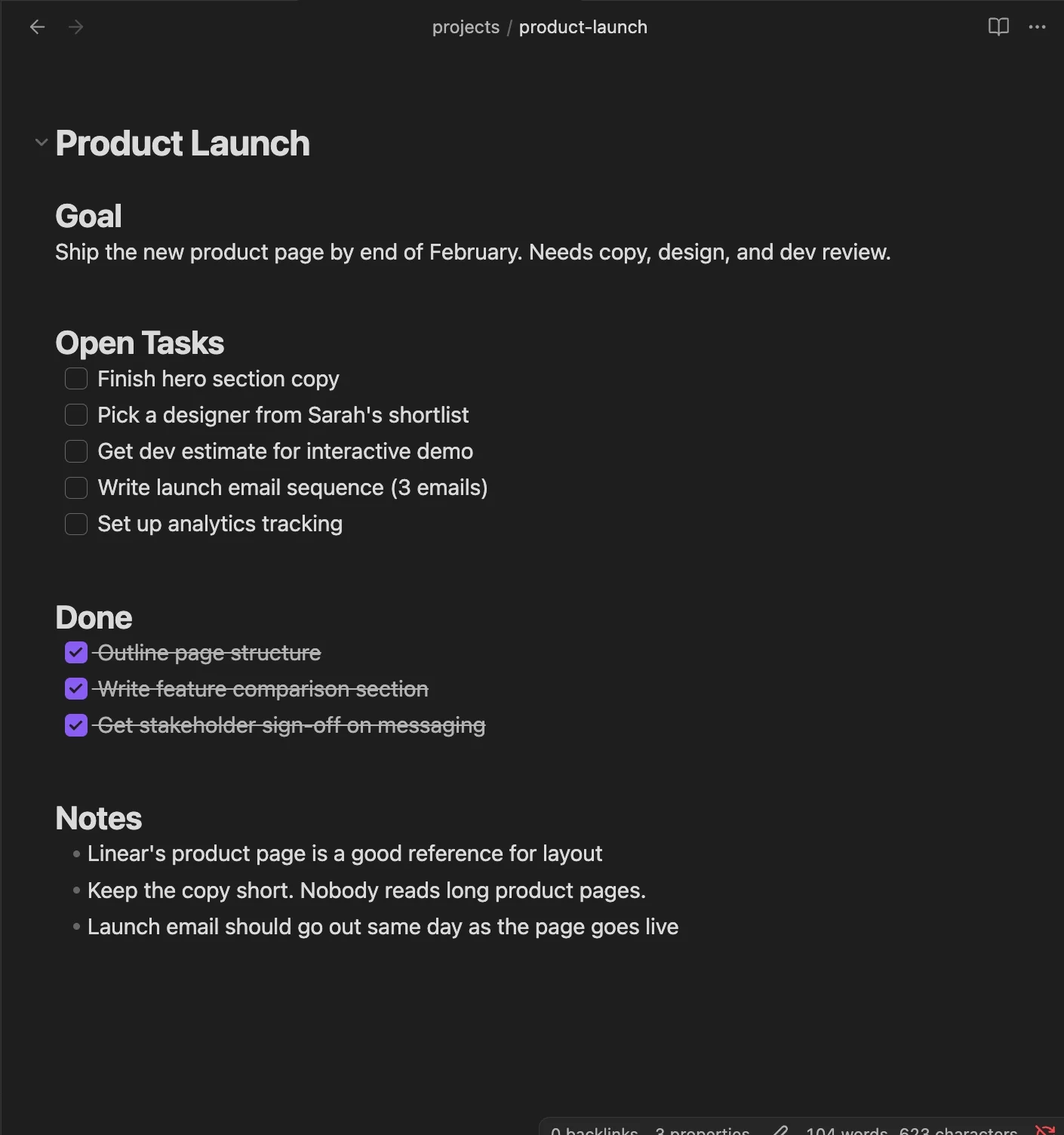
Then, create at least one file inside projects/. Each file represents an active project with a simple outline: goal, progress, and remaining tasks.
Step 3: Generate Your Daily Plan
Open the Claude desktop app and start a Cowork session. When prompted, select your Obsidian vault folder. Use this planning prompt:
Read my vault. Look at my-workflow.md to understand my schedule and priorities. Look at my project files to see what's due soon. Then create today's daily note in daily-notes/ with a plan for the day. Put the most important task first. Highlight anything overdue or urgent.
From there, manage your day inside Obsidian, check off tasks, add notes, and track progress directly in the daily note.
Step 4: Automate the Process
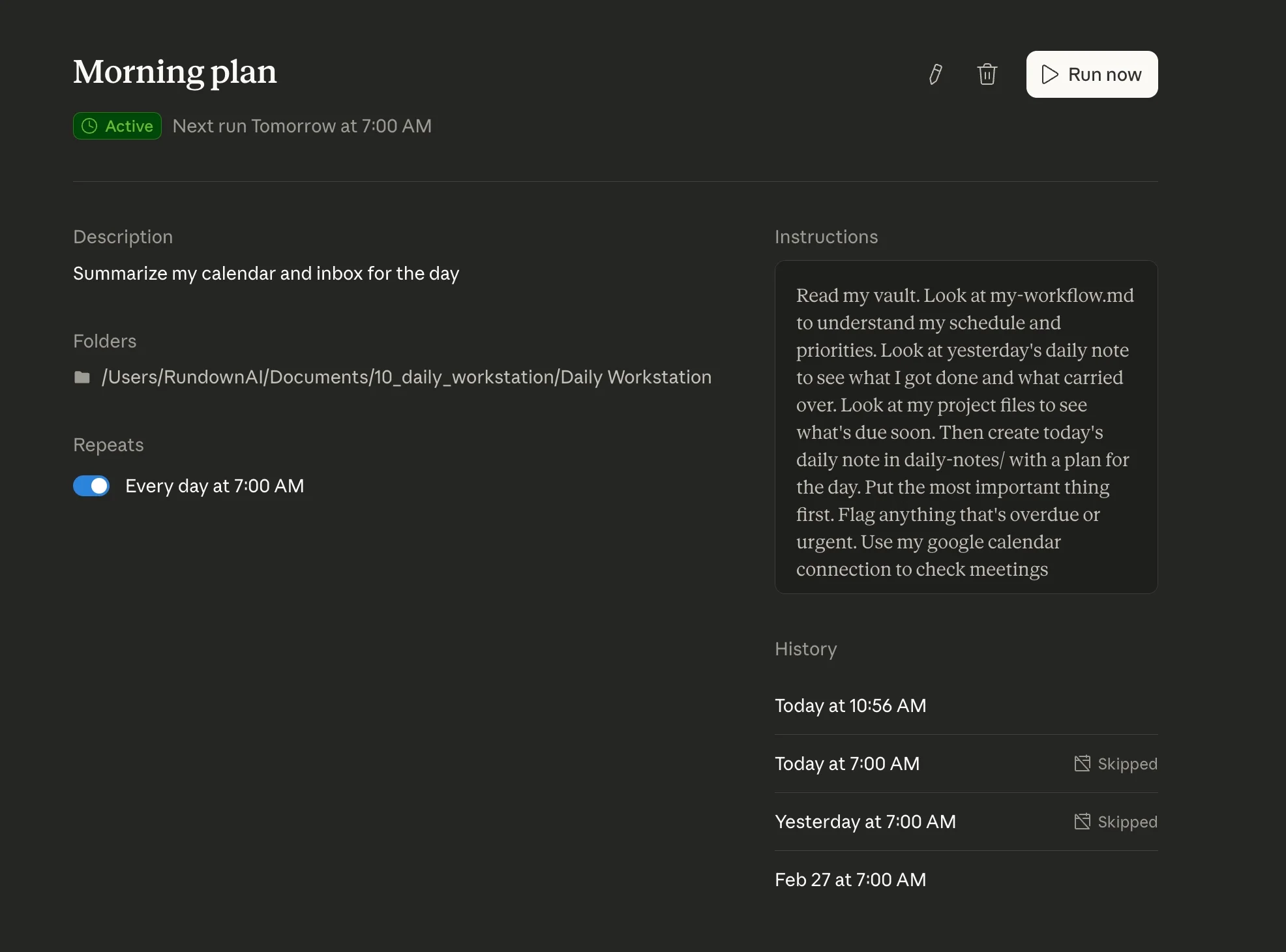
Instead of running the prompt manually each morning, automate it. In Claude Cowork, go to “Scheduled” and create a new task. Morning task prompt:
Read my vault. Review my-workflow.md for priorities and schedule. Check yesterday’s note for unfinished tasks. Review project files for deadlines. Then create today’s daily note in daily-notes/ with a clear plan. Prioritize key tasks and flag anything urgent. Use my Google Calendar to include meetings.
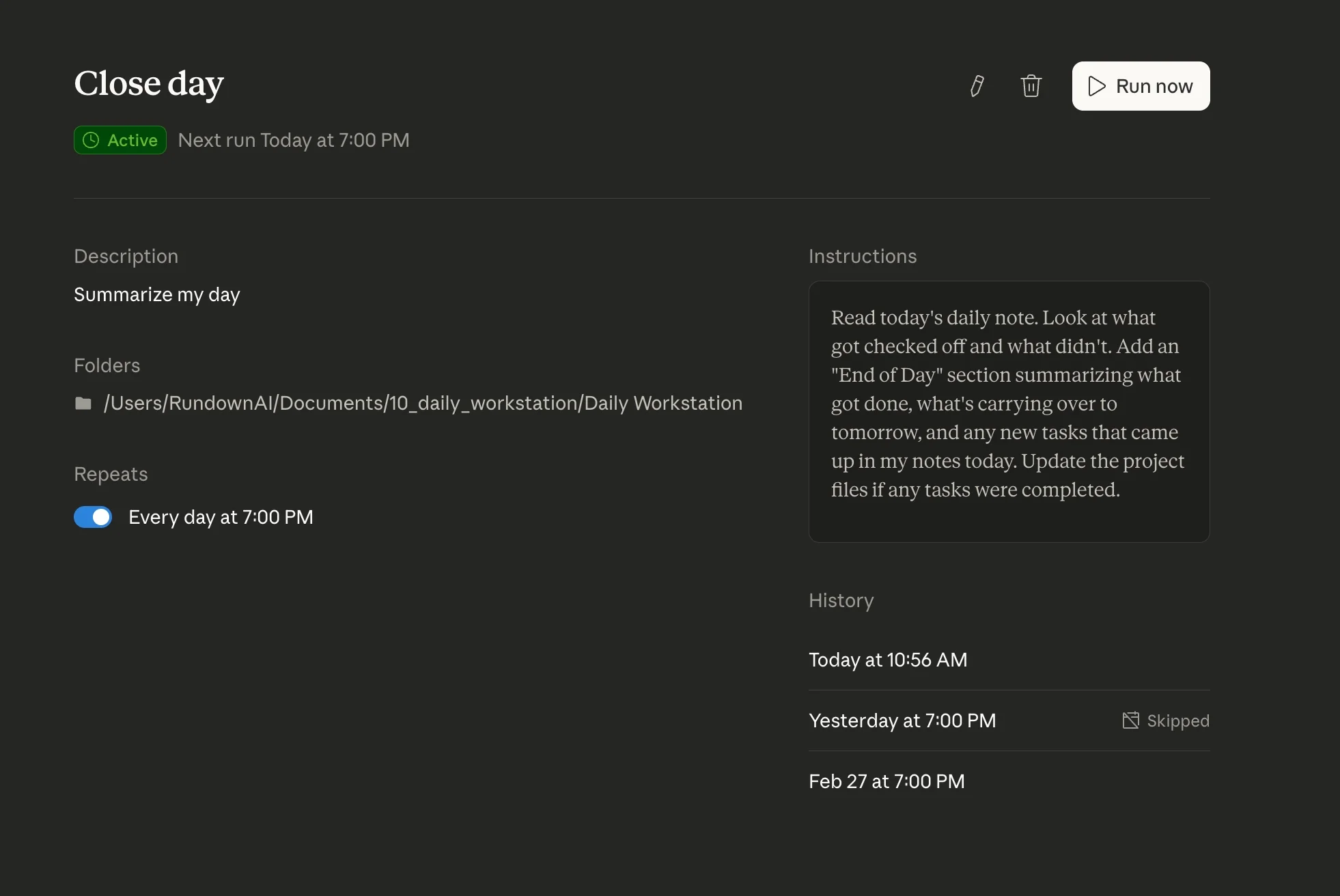
End-of-day task prompt:
Read today’s daily note. Identify completed and incomplete tasks. Add an “End of Day” section summarizing progress, carry-over items, and new tasks. Update project files where needed.
Take It Further
Before your end-of-day task runs, have Claude ask you about your day and update your notes. This helps capture anything you didn’t record earlier.

Editorial Staff
The Editorial Staff at AIChief is a team of Professional Content writers with extensive experience in the field of AI and Marketing. AIChief was Founded in 2025, AIChief has quickly grown to become the largest free AI resource hub in the industry. Stay connected with them on Facebook, Instagram and X for the latest updates.



