

AI Tutorial
Launch an AI-Powered Calling Agent in Just 15 Minutes
Learn how to set up an AI-powered calling agent using ElevenLabs and Twilio to automate sales calls, qualify leads, and manage outreach effortlessly.
Share
In this tutorial, you’ll build an AI-driven calling agent capable of making real phone calls. You’ll set up the agent, purchase a low-cost phone number, and upload a contact list for automated outreach. The full setup takes about 15 minutes and can be tested at no cost.
Who This Is For
- Sales teams running outbound campaigns who want to pre-qualify leads before human follow-up
- Small business owners who need consistent outreach without spending hours on cold calls
- Consultants and agencies automating bookings, check-ins, or event confirmations
What You’ll Create
A complete AI calling agent that dials a list of contacts, holds natural conversations based on your prompt, handles objections, and records full transcripts—all powered by a simple CSV upload.
What You Need to Start
- ElevenLabs account (free or $9 plan)
- Twilio account (free signup with credits)
- A list of phone numbers
- A clear idea of your call script or objective
Step 1: Set Up Your AI Agent in ElevenLabs
Log in to ElevenLabs and navigate to the Agents section to create a new agent.
Select a voice that matches your tone from the voice library.
Add context by including your business website in the agent’s knowledge base so it can respond accurately during calls.
Write a concise system prompt defining:
- Who the agent is
- What company does it represent
- The goal of the call
Example structure:
A friendly sales rep introduces your service and aims to book a short meeting, while staying conversational and respectful.
Set a natural conversation opener, then publish the agent.
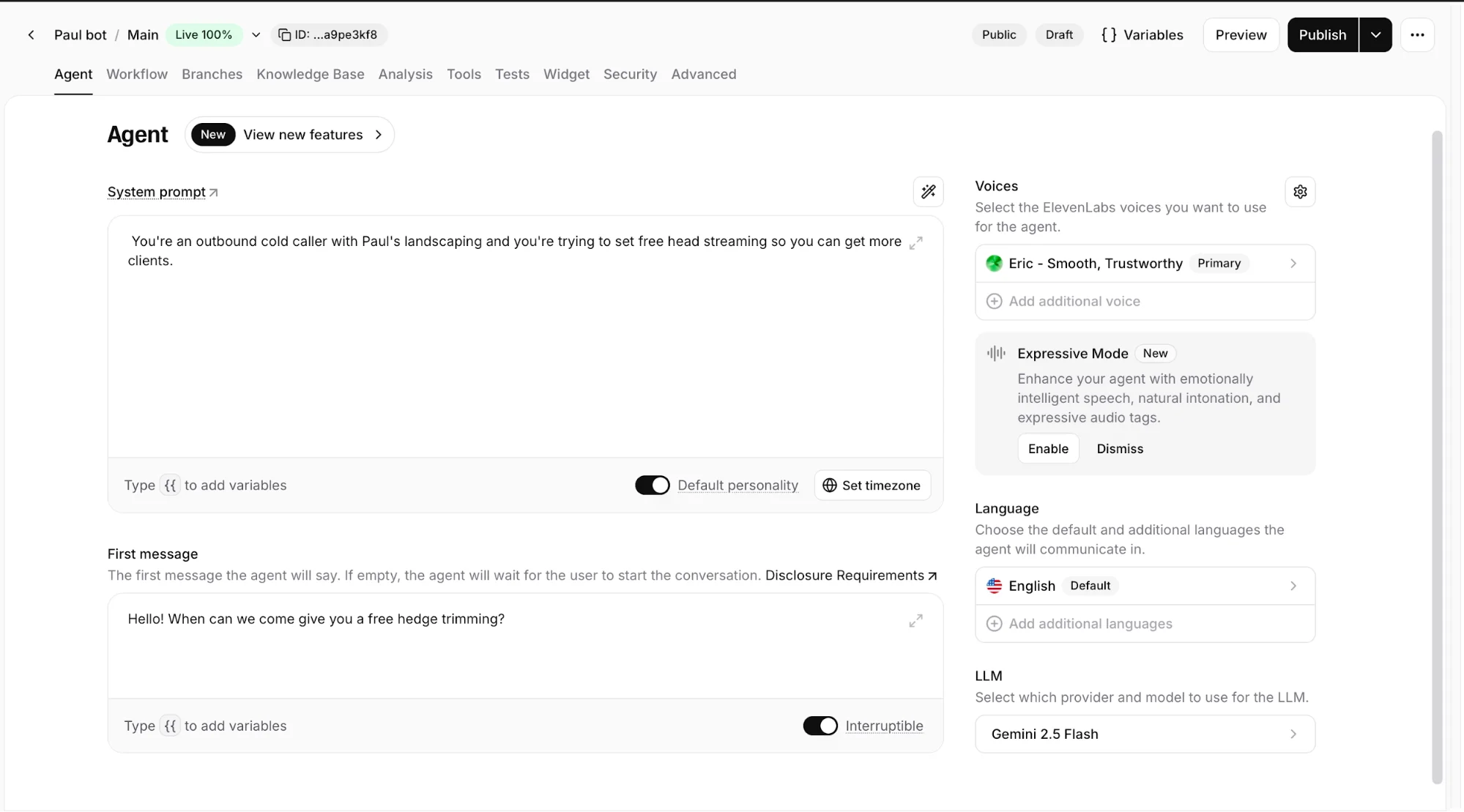
Pro tip: Keep prompts short and focused. The AI handles conversation flow without needing detailed scripting.
Step 2: Configure Twilio and Get a Number
Create an account on Twilio and use the provided credits for testing.
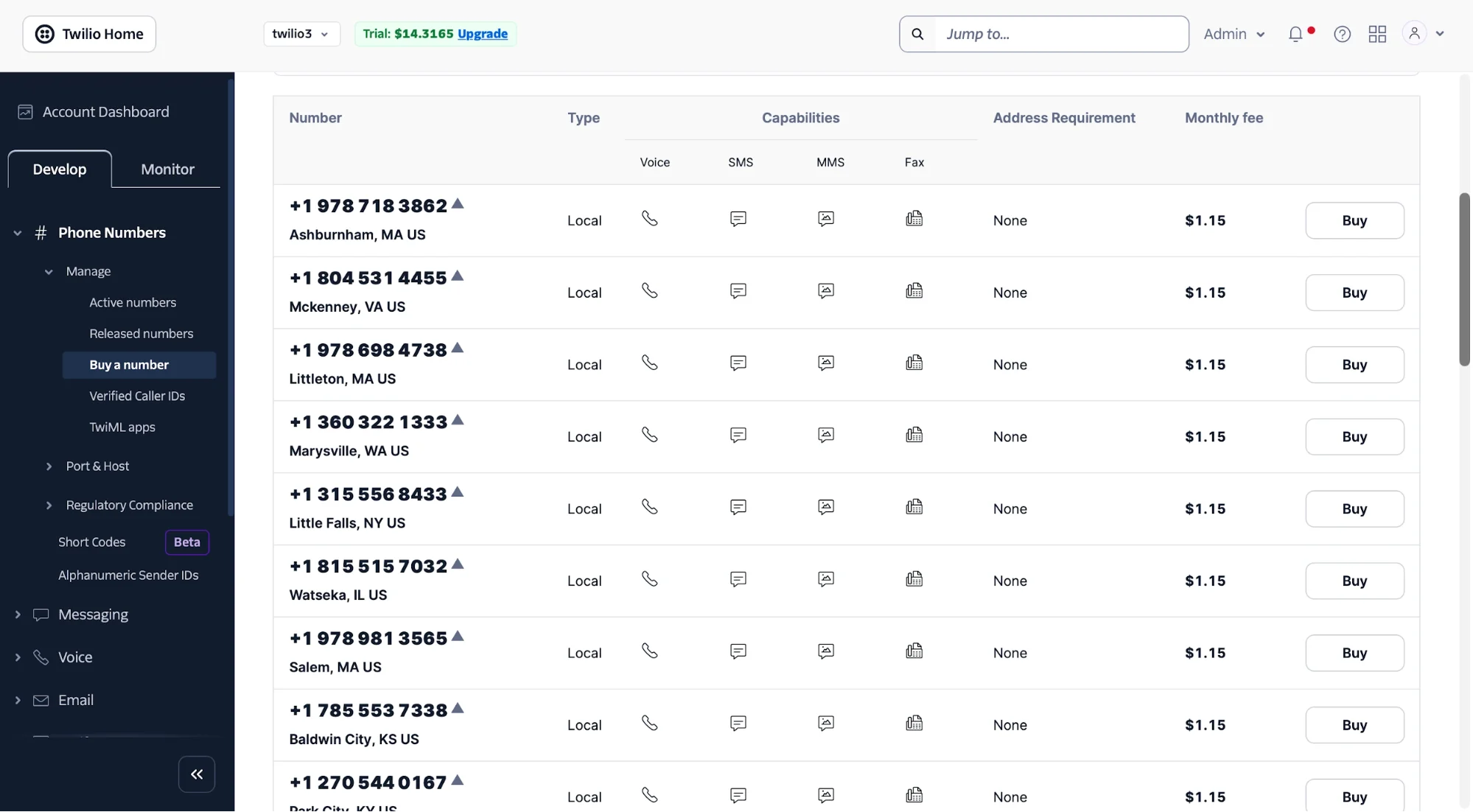
Purchase a phone number (low monthly cost), then collect:
- Your phone number
- Account SID
- Auth Token
These credentials will connect your calling system.
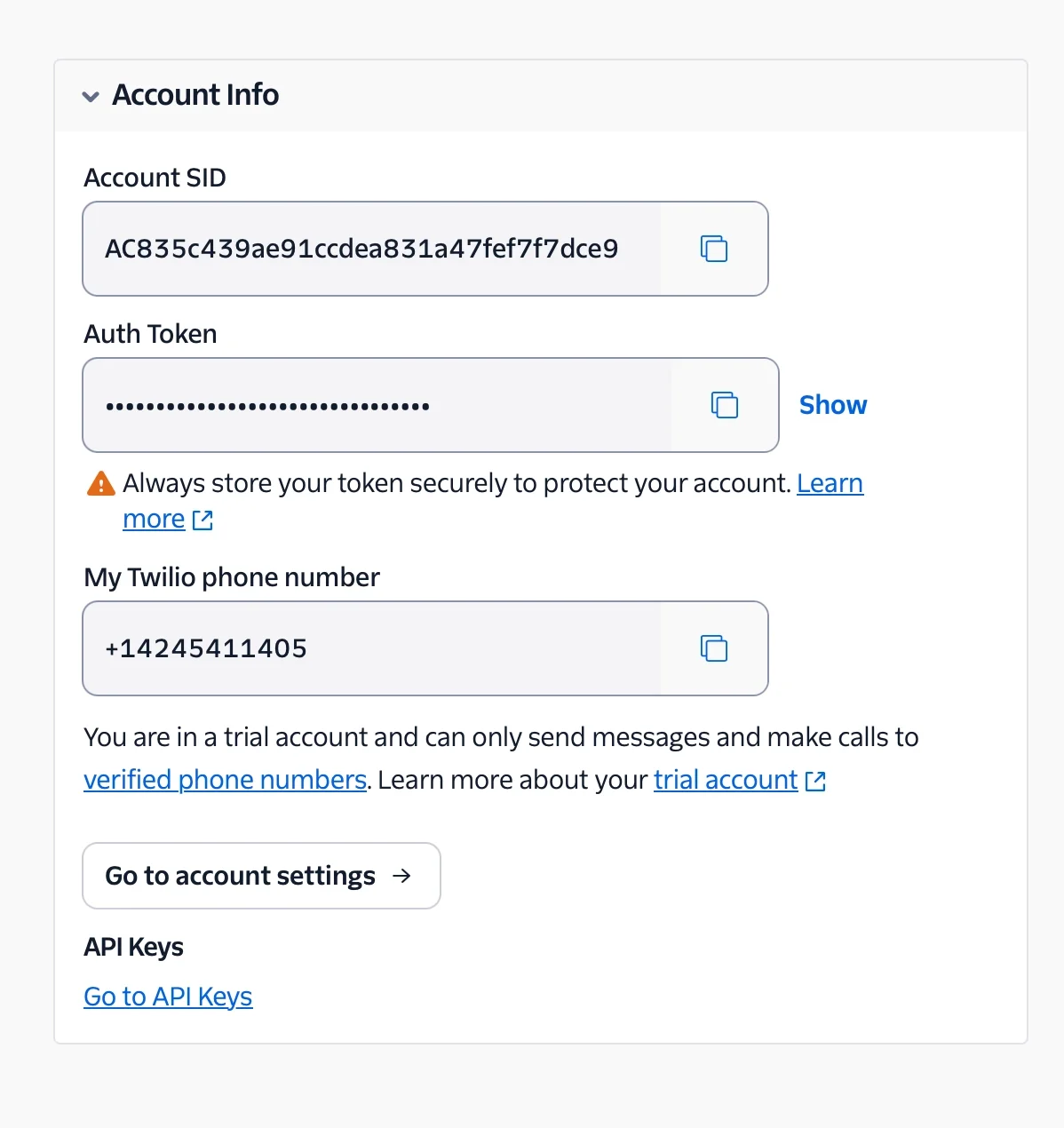
Pro tip: Twilio operates on a pay-as-you-go model, and free credits are enough for extensive testing.
Step 3: Link Twilio with ElevenLabs
Return to ElevenLabs and open the Phone Numbers section.
Create a new entry and input:
- Twilio phone number
- Account SID
- Auth Token
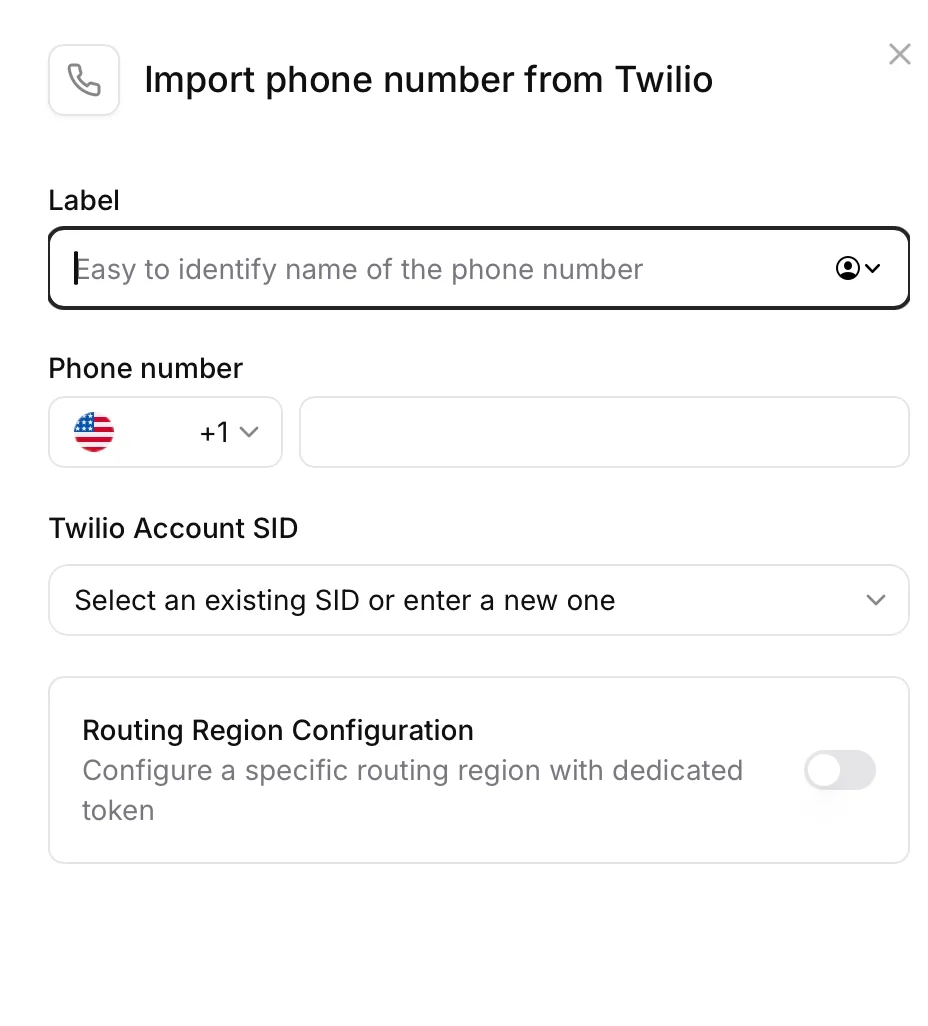
Once connected, your AI agent can place real calls.
Step 4: Upload Contacts and Launch Calls
Go to the Outbound section in ElevenLabs and create a new batch using Telephony.
Download the CSV template, keep only the phone number column, and add your contact list.
Upload the file and choose one of the following:
- Send immediately
- Test with your own number
- Schedule for later
Select your agent and number, then launch the campaign.
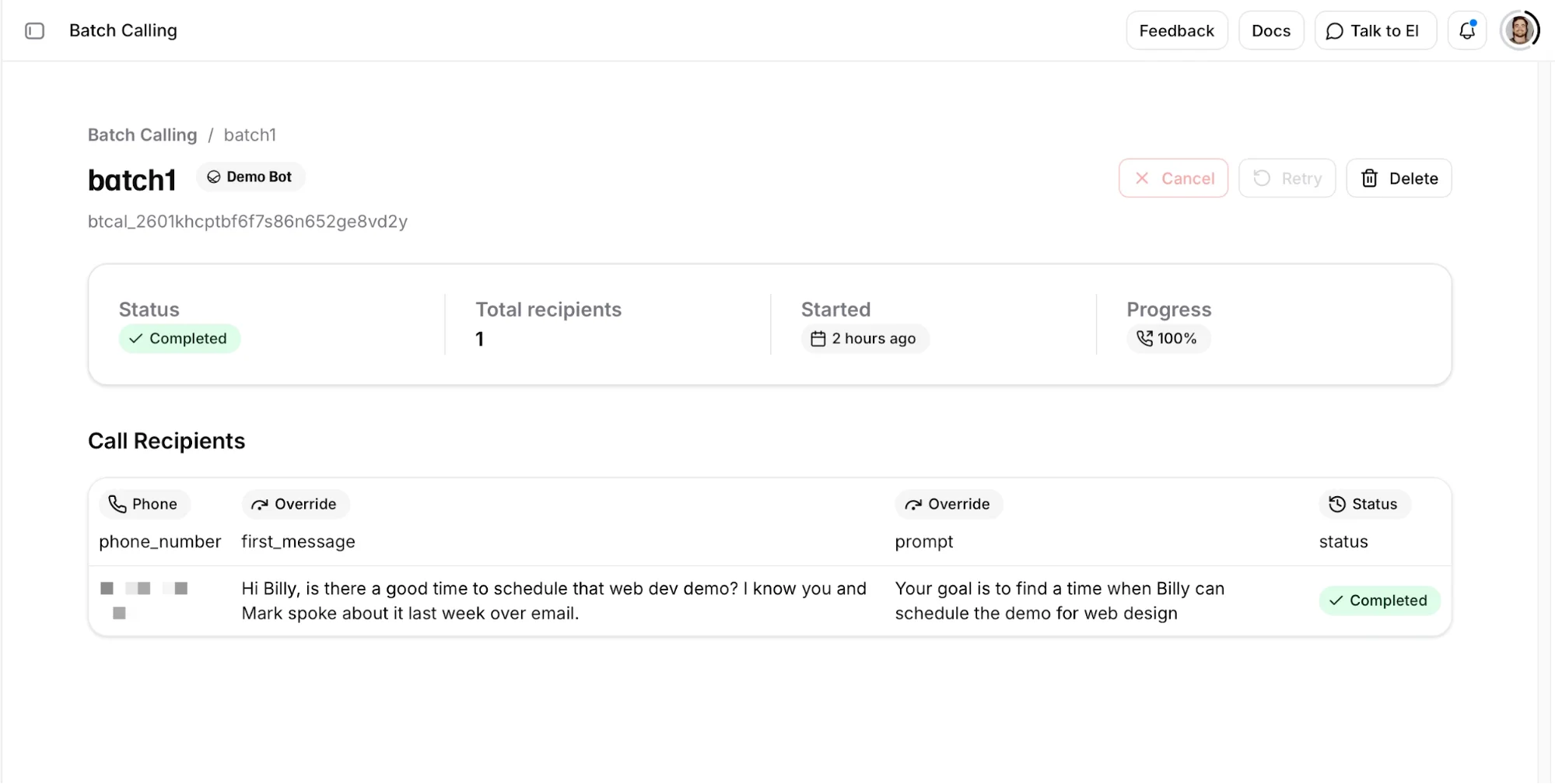
Pro tip: You can override prompts for specific batches without changing your main agent settings.
Take It Further
Enhance your setup with additional features:
- Call transfers: Route interested prospects directly to your phone
- CRM integrations: Connect with tools like HubSpot or Salesforce
- Scheduling automation: Integrate with tools like Cal.com
- Lead qualification: Add questions to your prompt for automated scoring
This system can also handle appointment reminders, feedback calls, RSVP collection, and more. Just adjust the prompt and contact list.

Editorial Staff
The Editorial Staff at AIChief is a team of Professional Content writers with extensive experience in the field of AI and Marketing. AIChief was Founded in 2025, AIChief has quickly grown to become the largest free AI resource hub in the industry. Stay connected with them on Facebook, Instagram and X for the latest updates.



