

AI Tutorial
Improve Your Coding Workflow with Claude Code Insights
Discover how to use the hidden Insights feature in Claude Code to analyze your coding habits, get feedback, and generate custom skills.
Share
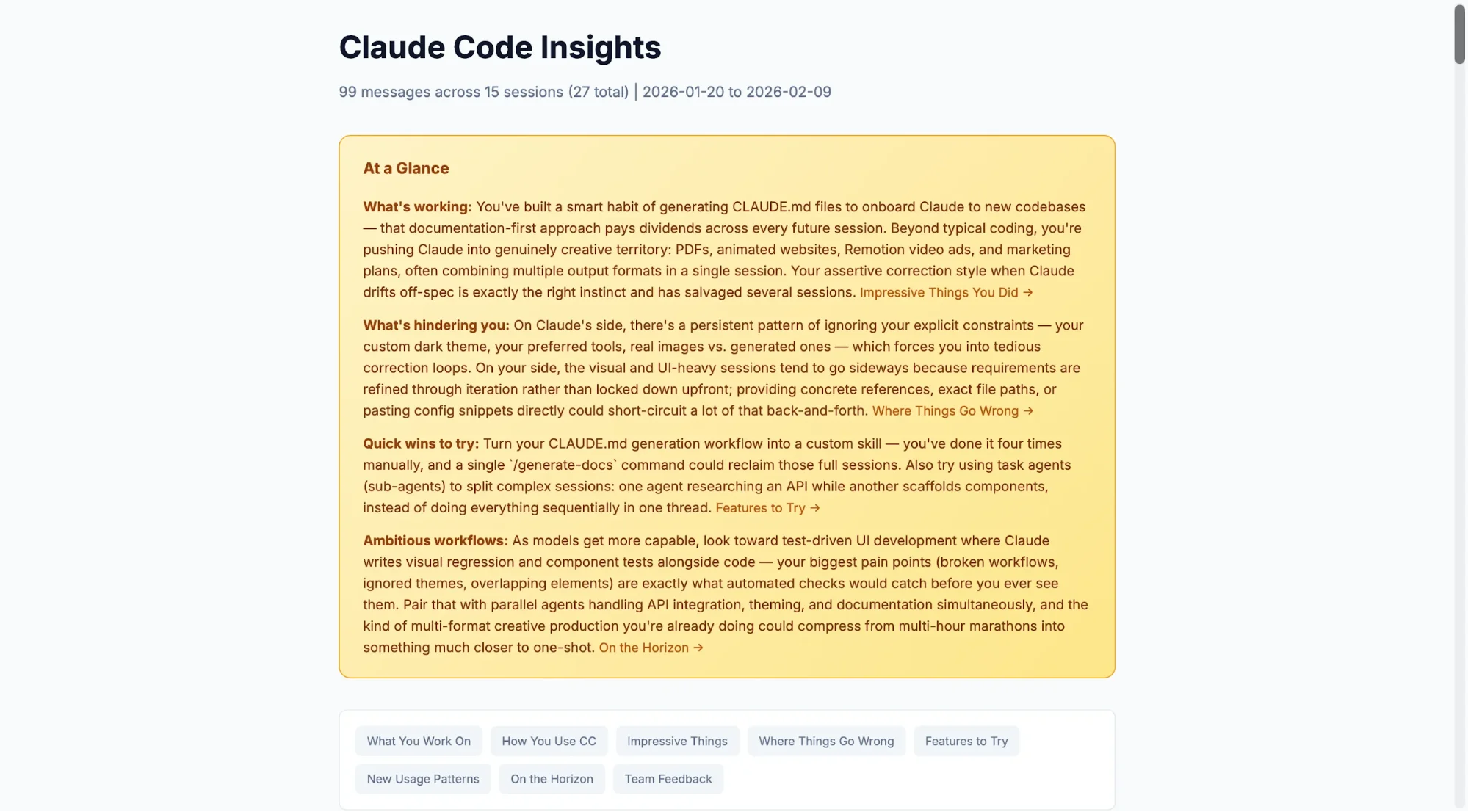
In this walkthrough, you’ll learn how to access and use the hidden insights report in Claude Code. This feature analyzes your usage patterns, provides feedback, and even suggests custom skills and agent instructions tailored to your workflow.
Who This Is For
- Developers are unsure about their coding practices
- Anyone curious about how Claude Code evaluates their workflow
- Data-focused users interested in usage patterns, tools, and language trends
What You’ll Create
A personalized insights report with actionable improvements, plus custom skills and configuration updates for future sessions.
What You Need to Start
- Claude Code Pro or higher subscription
- A system with the Claude CLI installed
- A few weeks of usage history (more data improves results)
- A code editor like Cursor, Visual Studio Code, or terminal
Step 1: Generate the Insights Report
Create a new empty folder and open it in your IDE (e.g., Cursor).
Open a terminal and run:
"claude /insights"
If the command doesn’t work, restart Claude Code using ctrl + c and reopen it to ensure it’s updated.
Step 2: Open the Report
Once processing is complete, Claude provides a report.html file. Save it to your working folder.
Open it using a live server tool (e.g., via command palette in your editor).
Alternatively, you can load the file into ChatGPT or Claude to render it.
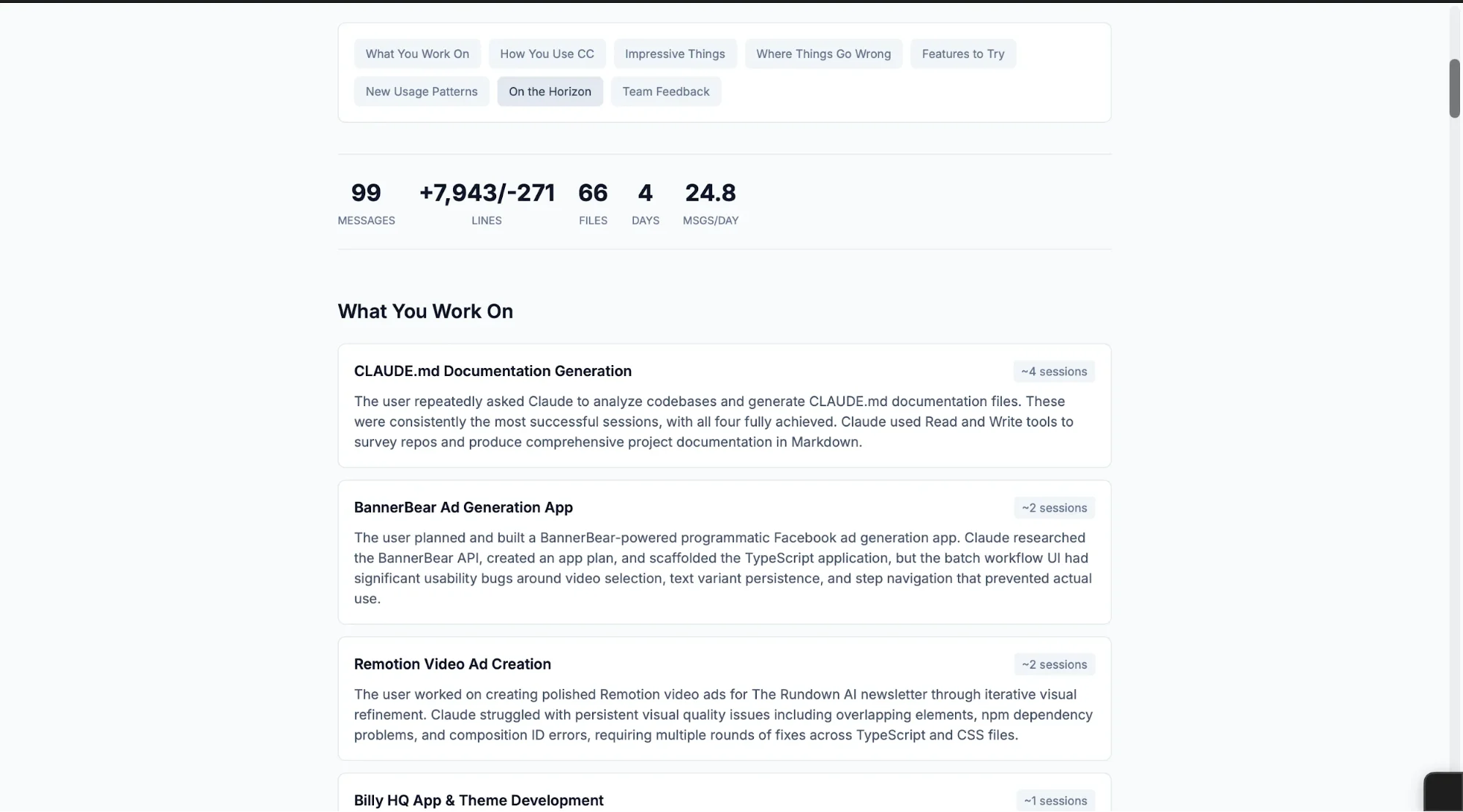
Step 3: Review Key Sections
The report includes several useful breakdowns:
- Your Activity: Projects, session counts, tools used, languages, and request types
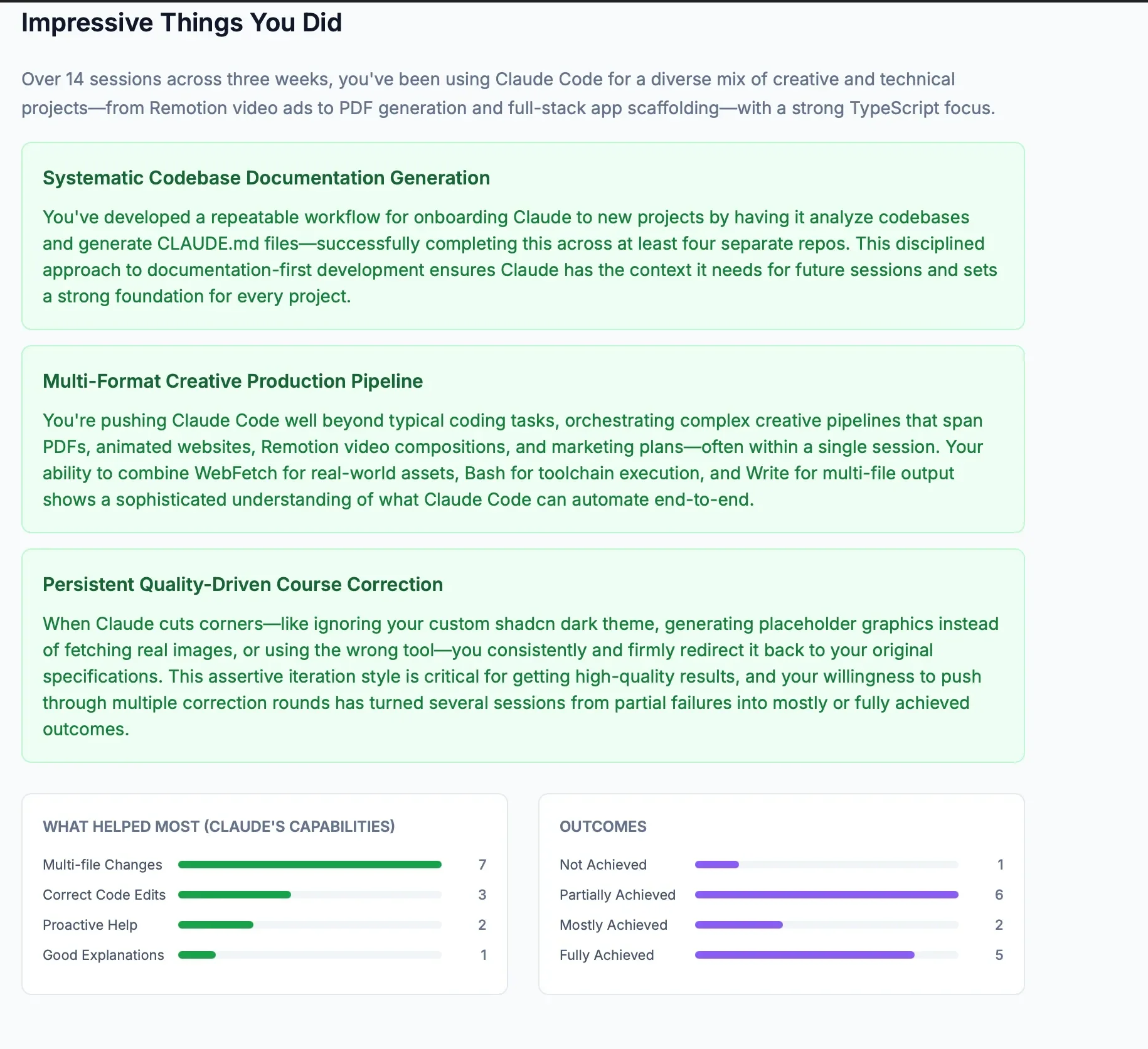
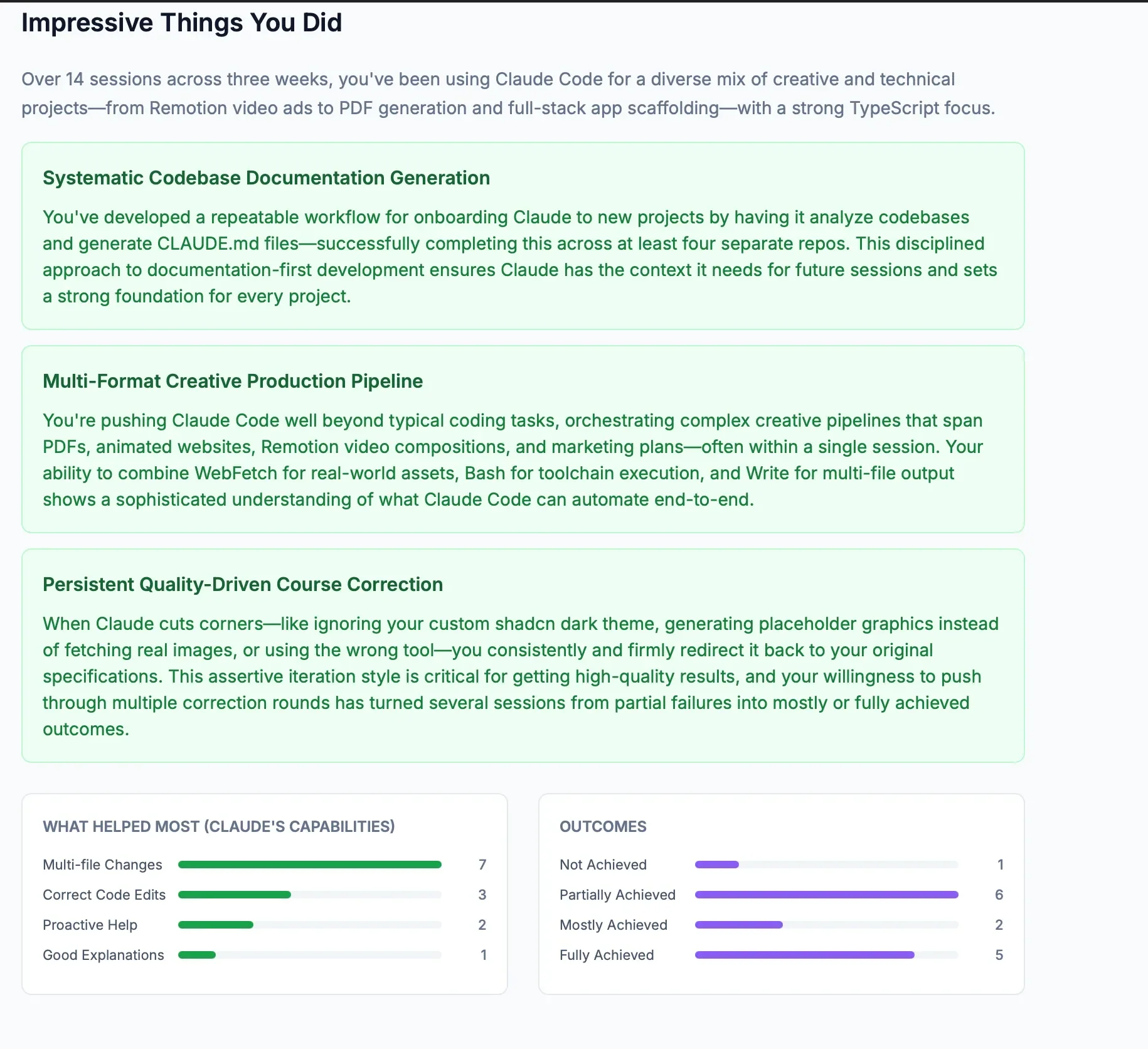
- What Worked Well: Highlights of successful patterns
- Problem Areas: Recurring issues like ignored instructions, bugs, or misaligned outputs
Step 4: Apply Suggested Improvements
Scroll to Existing Features to Try. This section provides ready-to-use lines for your CLAUDE.md.
Each suggestion includes context and a copy button. Example:
Define consistent styling rules or framework usage to guide future outputs.
Paste these into your project’s CLAUDE.md file so the AI follows them in future sessions.
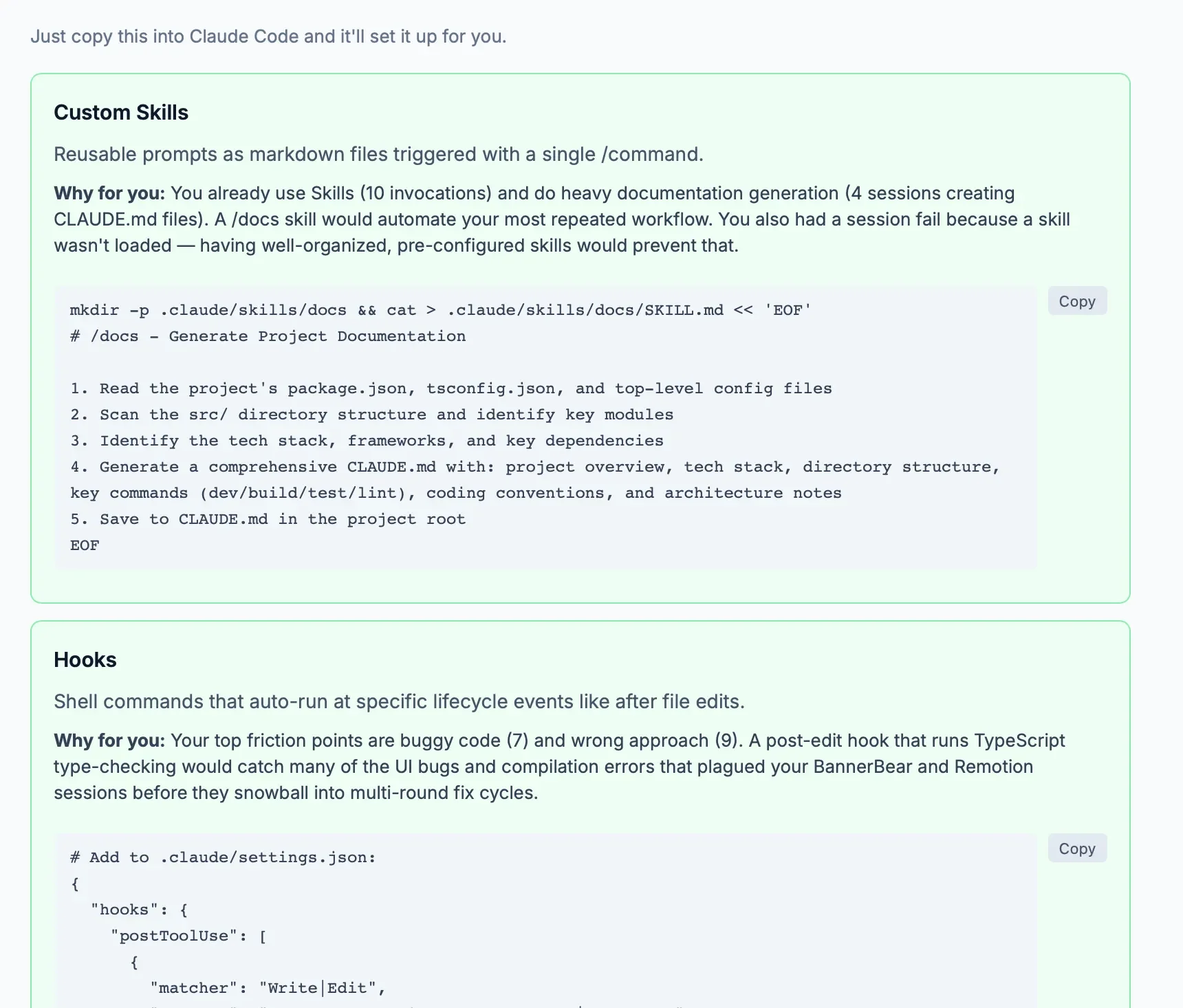
Step 5: Set Up Custom Skills
The report may suggest reusable skills and hooks based on repeated tasks.
These allow you to trigger workflows with a single command.
To add one, paste the provided code into Claude Code and run:
“Set up this skill”
Restart the tool to activate newly added skills.
Take It Further
Run /insights regularly (e.g., monthly) to track improvements and discover new optimizations.
As your workflow evolves, the report will continue suggesting better habits, skills, and configurations tailored to your projects.

Editorial Staff
The Editorial Staff at AIChief is a team of Professional Content writers with extensive experience in the field of AI and Marketing. AIChief was Founded in 2025, AIChief has quickly grown to become the largest free AI resource hub in the industry. Stay connected with them on Facebook, Instagram and X for the latest updates.



