

AI Tutorial
How to Use Perplexity Computer as Your Personal Shopping Assistant
Learn how to shop smarter with Perplexity Computer. Find in-stock items, compare deals, and save time with this practical walkthrough.
Share
This guide shows you how to turn Perplexity’s advanced agent search into a powerful shopping assistant. Instead of manually browsing dozens of websites, you can quickly find the right products, check availability in your size, and compare options, all in one place.
Who This Is For
- Shoppers who want help filtering products by size, style, brand, or availability
- Perplexity Pro users looking to test a computer using their available credits
- Anyone overwhelmed by too many choices across online stores
What You’ll Get
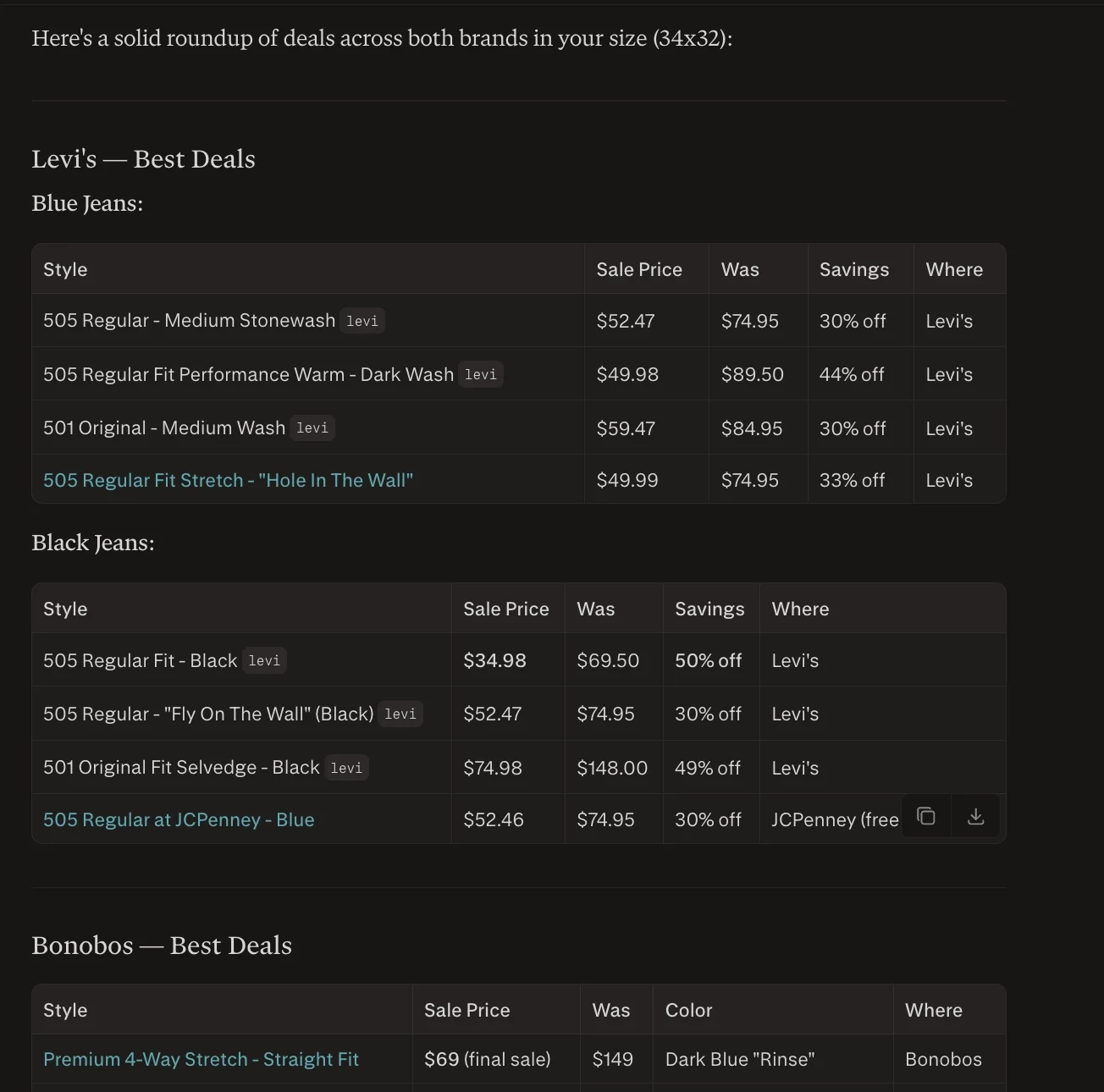
A comprehensive shopping report that includes:
- Top product recommendations
- Budget-friendly alternatives
- Items confirmed to be in stock in your size
- Direct purchase links
What You Need
- A Perplexity Pro subscription
- Access to Perplexity Computer (via credits or Max plan)
- Optional: Perplexity or Comet app
- A product category you want help deciding on
Step 1: Turn On Perplexity Computer
Open Perplexity in your browser or app and enable the “Computer” feature.
When tested side by side, standard Perplexity works well for quick lookups, but Computer mode provides much deeper and more structured results.

Step 2: Use a Simple, Focused Prompt
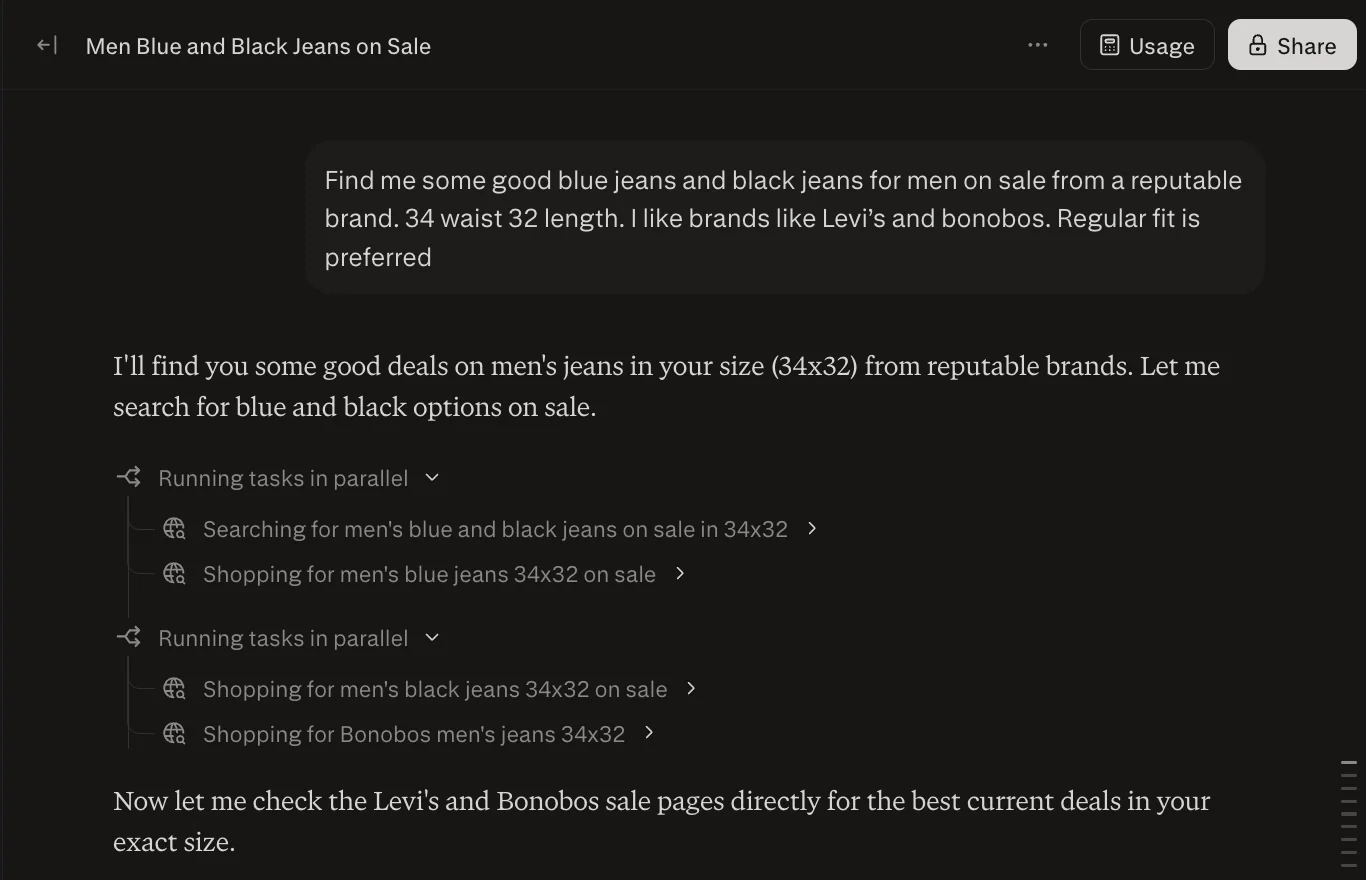
Avoid overcomplicating your request. A clear and concise prompt works best.
Example Prompt
Help me find [product type]
Preferences:
- Brand: [preferred brand or none]
- Style: [minimal, modern, bold, etc.]
- Size: [your size]
Include:
- Best overall options
- Best value choice
- Items currently available in my size
- Direct purchase links
This level of detail is usually enough to get high-quality results.
Tip:
If you want deals, simply ask for them. Perplexity can identify discounts and sales automatically.
Another advantage is that it sticks closely to your criteria. If you specify certain brands, it won’t drift into unrelated suggestions.
Extra Tip:
Run the same query in standard Perplexity first to compare results before using credits.
Step 3: Manage Your Credits Efficiently
Perplexity Computer operates on a credit system, unlike regular search. To reduce usage:
- Start with a lower-cost model for initial exploration
- Switch to Computer mode when you’re ready for detailed results
If you frequently use this feature, you can upgrade your plan or purchase additional credits.
You can also extend your workflow by using the Comet browser, which can assist with further research, though it may take a bit longer.
Bonus Feature:
Some supported retailers allow “Instant Buy,” where you can complete purchases directly after entering your payment and shipping details.
Step 4: Complete and Track Your Purchase
Try placing an order through the Perplexity or Comet app. Once completed, you can monitor it in the Orders section.
For a smoother experience, connect your email account so updates and confirmations are synced.
Take It Further
Perplexity Computer can also automate ongoing tasks.
For example, you can:
- Track price changes over time
- Monitor restocks for specific items
- Receive updates on new product listings
These scheduled checks typically do not consume your credits, making them useful for long-term tracking.

Editorial Staff
The Editorial Staff at AIChief is a team of Professional Content writers with extensive experience in the field of AI and Marketing. AIChief was Founded in 2025, AIChief has quickly grown to become the largest free AI resource hub in the industry. Stay connected with them on Facebook, Instagram and X for the latest updates.



