

AI Tutorial
How to Turn a Blog Post Into a Short Video Using Manus
Learn how to convert blog content into engaging short videos using Manus. Script, generate, and assemble videos for social media in minutes.
Share
In this guide, you’ll learn how to use Manus to transform written content into a short, engaging promotional video. The process covers scripting, generation, and assembly, all without needing prior video editing experience.
Who This Is For
- Content marketers looking to repurpose articles into short-form videos without a production team
- Newsletter creators and publishers who want to drive traffic back to their full content
- Founders and solo creators who want video output but lack time or editing tools
What You’ll Create
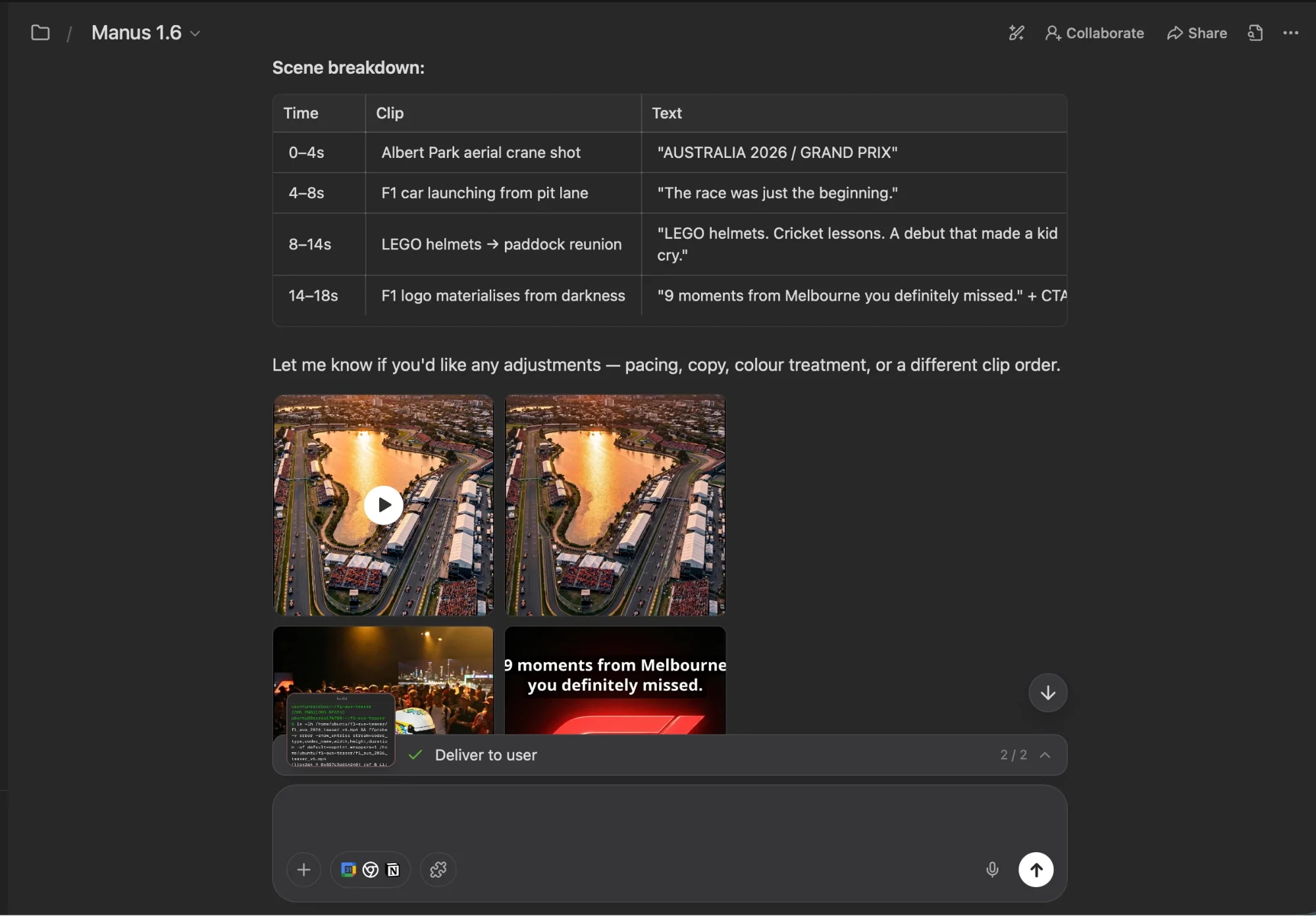
You’ll produce a 15–20 second vertical video designed for platforms like Instagram Reels, YouTube Shorts, or TikTok. In the example setup, an article about the 2026 Australian Grand Prix was used, but the same method works for any type of written content.
What You Need
A Manus account
- A blog post, article, or press release saved as a PDF or Markdown file
- Your brand logo (PNG format works best)
- Optional but recommended: a royalty-free music track prepared in advance
Step 1: Convert Your Content Into a File
Open your article in a browser and export it as a PDF using the print menu (File to Print, and then Save as PDF).
Uploading a file tends to produce better results than pasting raw text. It simplifies the process for the AI and improves output consistency. Both PDF and Markdown formats are supported.
Tip:
The quality of your source material matters. A well-structured article with a clear narrative will generate stronger hooks compared to short, fact-heavy content.
Step 2: Set Up Your Manus Project
This setup only needs to be done once. Everything configured here will apply to future videos created within the same project.
- Go to manus.im, then locate Projects, and then New Project
- Give your project a name (for example, “Social Videos – [Your Brand]”)
- In the instructions section, add:
You are responsible for turning written content into branded video assets for [your brand].
Upload your brand logo to the Files panel. Manus will automatically incorporate it into the closing section of your videos.
If you have brand guidelines, such as colors, typography, or usage rules, upload those as well.
Tip:
Including examples of previous social content can help Manus match your existing style, including text overlays and pacing.
Step 3: Write a Clear Prompt
Create a new task within your project. Attach your content file and use a structured prompt.
Example Prompt
Create a 15–20 second teaser video based on the attached article.
The goal is to drive viewers to read the full piece.
Format it vertically for Instagram Reels.
Provide four script variations before generating the video.
Use default mode. Include voiceover and background music.
Requesting multiple script options first is important. Video generation consumes significantly more credits, so reviewing scripts beforehand helps you avoid unnecessary renders.
Using the default mode is also more efficient; it requires fewer resources and works well for testing. You can switch to higher-quality settings for the final version if needed.
Tip:
Always specify audio preferences. Clearly indicate whether you want voiceover, music, or both to avoid inconsistent results.
Step 4: Choose the Best Script
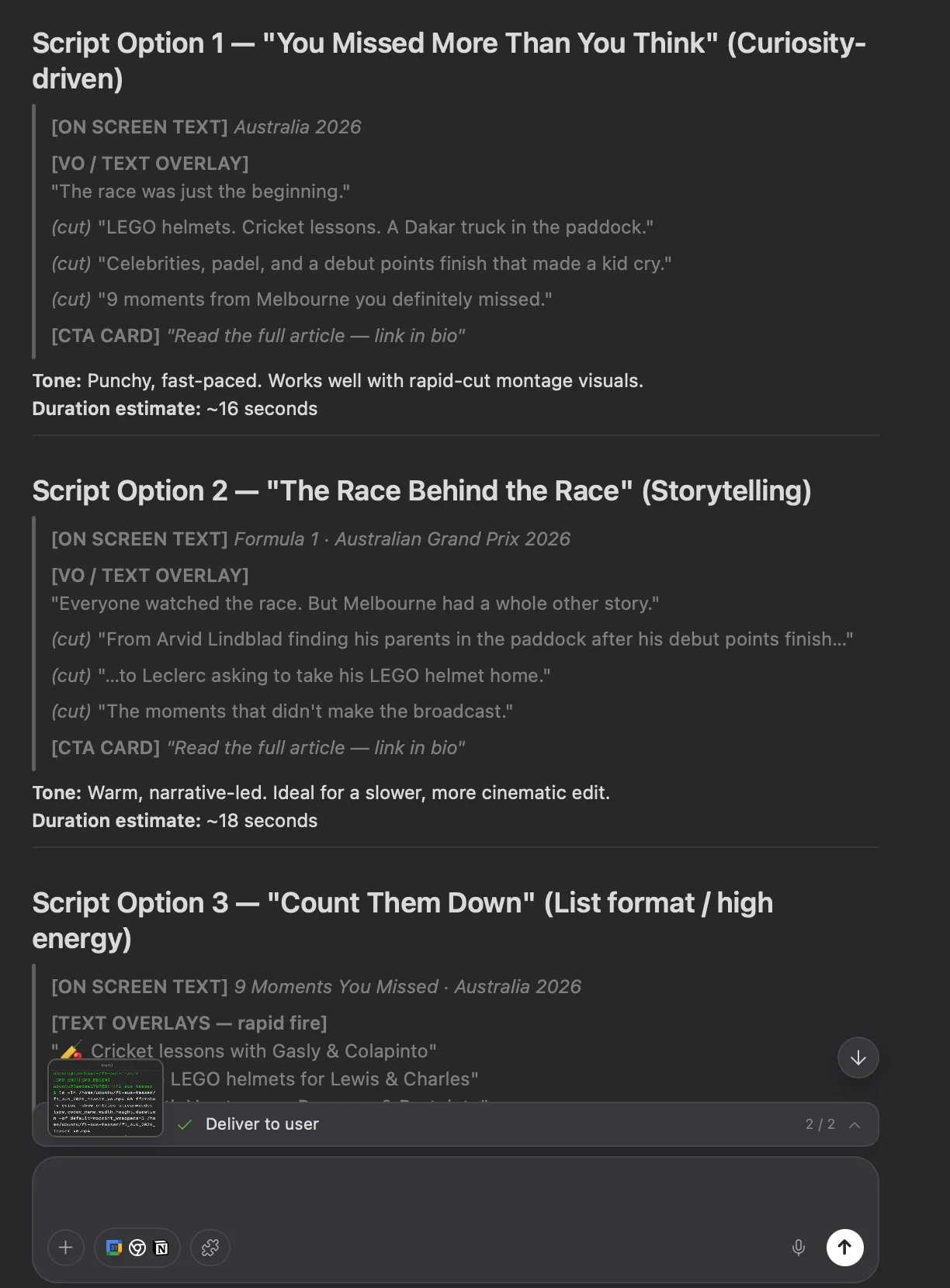
Manus will return several script options before generating the video. Review each one carefully and select the version most likely to capture attention quickly.
In most cases, scripts with strong emotional or dramatic openings perform better than purely informational ones.
Reply with your chosen option and include any adjustments before proceeding to video generation.
Step 5: Generate and Review the Video
Rendering typically takes between 5 and 10 minutes. Once the video is ready, evaluate it using a few key criteria:
- Does the opening capture attention within the first couple of seconds?
- Is the voiceover clear and well-paced?
- Is the call-to-action directing viewers effectively?
- Does the closing segment (with branding) appear clean and consistent?
If something needs adjustment, you can request targeted changes instead of regenerating the entire video.
All visual elements, such as clips and keyframes, are also saved individually in your project. These can be reused for other purposes like thumbnails, ads, or additional social posts.
Note on voiceovers:
Timing can sometimes feel off if the script is too long. Keeping the script concise usually resolves pacing issues.
Advanced Tips
To get more value from your credits:
- Upload your own B-roll footage, images, and approved music
- Connect Manus to Google Drive to access these assets easily
- Adjust your project instructions to prioritize existing assets before generating new ones
Once your workflow is refined, you can save it as a reusable process within the project. This allows you to generate future videos faster without repeating setup steps.
Final Thoughts
This approach makes it easy to turn written content into engaging video assets. Instead of starting from scratch, you build on what you already have, saving time while expanding your content reach.

Editorial Staff
The Editorial Staff at AIChief is a team of Professional Content writers with extensive experience in the field of AI and Marketing. AIChief was Founded in 2025, AIChief has quickly grown to become the largest free AI resource hub in the industry. Stay connected with them on Facebook, Instagram and X for the latest updates.



