

AI Tutorial
How to Redesign a Web Page Using Google Stitch (Step-by-Step Guide)
Learn how to quickly redesign any webpage using Google Stitch. Upload screenshots, generate design variations, and export ready-to-build layouts.
Share
This guide shows how to use Google Stitch to refresh an existing web page by using screenshots or URLs as input. Instead of starting from scratch, you can generate improved layouts, explore variations, and create something ready for development in minutes.
Who This Is For
- Founders and marketers who want to improve underperforming pages without redesigning everything
- Anyone collaborating with developers or AI coding tools who needs a stronger design starting point
- Website owners are updating older pages gradually instead of rebuilding an entire site
What You’ll Create
- A redesigned version of an existing web page
- Multiple layout variations to compare
- Export-ready designs (Figma, prototype, or code)
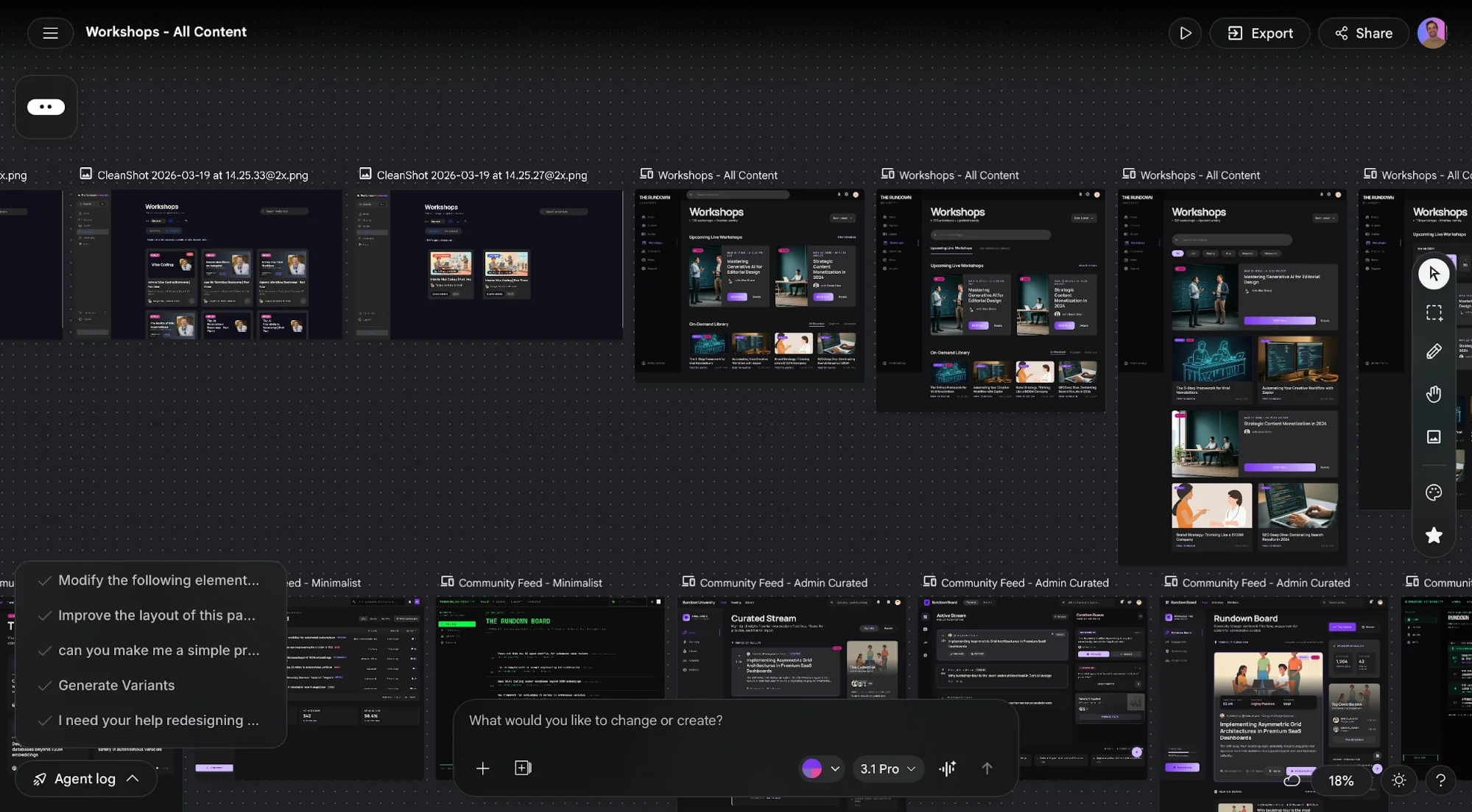
What You Need
- A Google account
- A web page you want to improve
- A screenshot of the page (or its URL)
Step 1: Choose a Page and Identify Issues
Start with just one page. Avoid trying to overhaul your entire site at once, this method works best when applied incrementally.
Capture a screenshot of the page and think about what isn’t working:
- Does the layout feel empty or unbalanced?
- Is the message unclear?
- Is there too much unused space?
The more clearly you define the problem, the better results you’ll get.
Tip:
You can also paste the page URL directly into Stitch. Testing both screenshot and URL inputs can help you find the best output.
Step 2: Upload and Guide the Redesign
Open Google Stitch and upload your screenshot. Then provide a prompt that focuses on the outcome you want, not just the action.
Example Prompt
Improve the layout so the page feels more valuable and content-rich.
Make information easier to scan and reduce empty space.
This works because it gives direction rather than vague instructions.
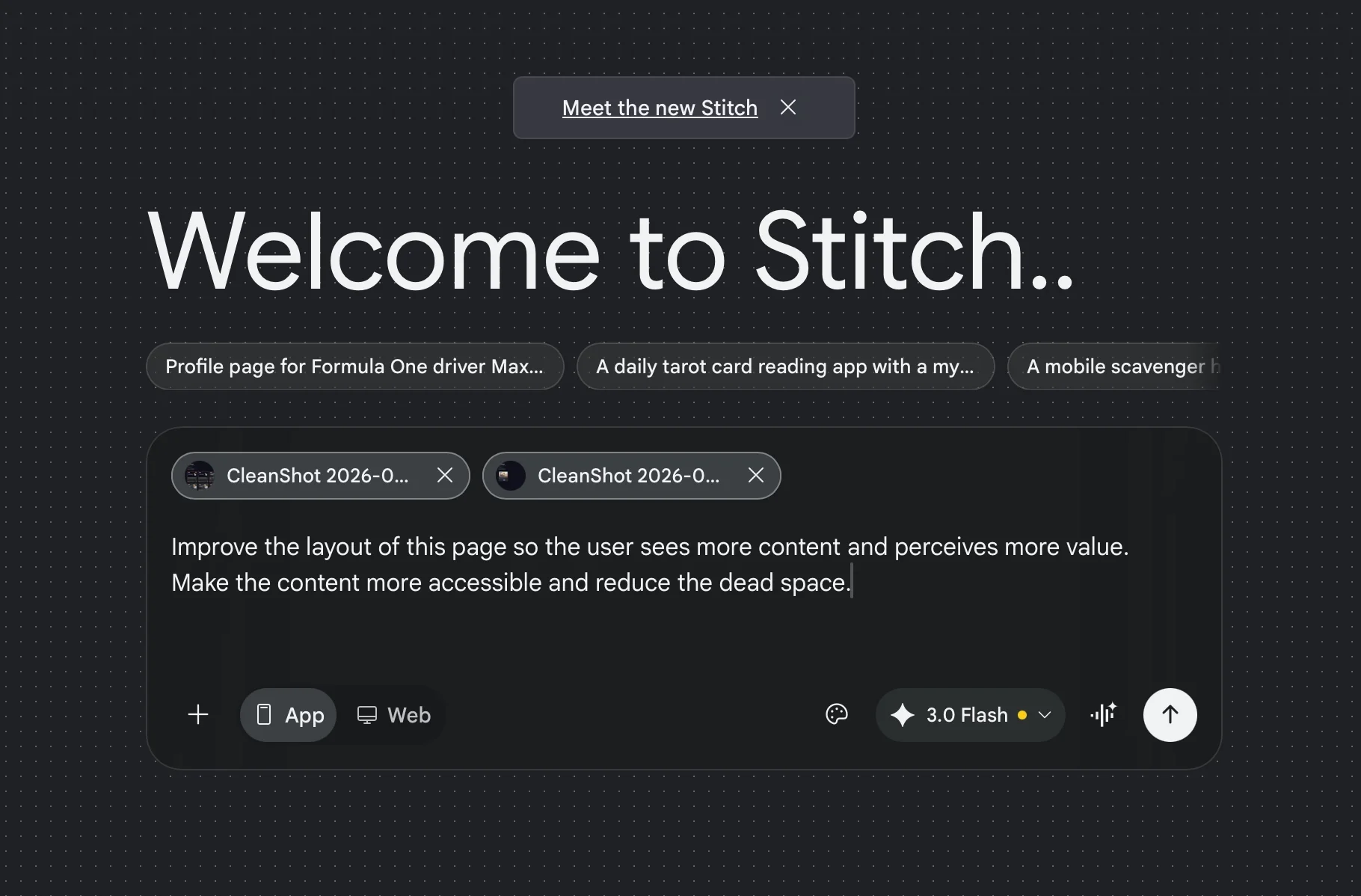
Tip:
Include your goal, such as improving conversions, readability, or user flow, to guide better results.
Step 3: Explore Multiple Design Variations
After generating the first version, don’t stop there.
Navigate to:
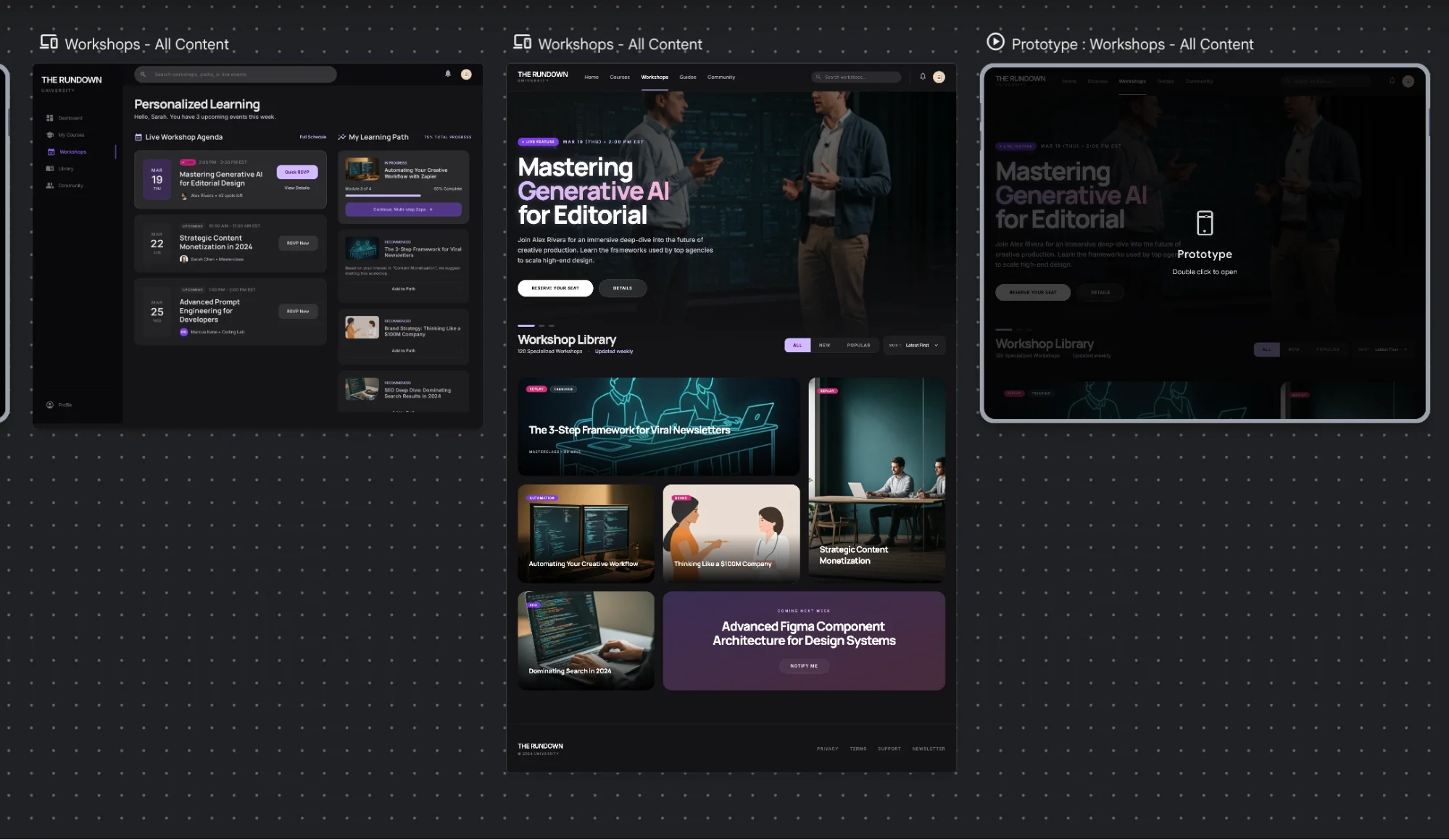
Generate, then go to Variations, and Generate Variations
This will produce multiple alternative layouts based on the same starting point.
This step is where Stitch becomes especially powerful, you can quickly compare different design directions without starting over each time.
Step 4: Export Your Preferred Design
Once you find a version that works, export it using the available options.
You can:
- Send it to Figma
- Download code
- Share it with a developer or an AI coding tool
Keep in mind that the output is a strong starting point, not always a final production-ready file. Developers may still refine it to match your existing system.
Tip:
If you’re using AI coding tools, let Stitch handle the design first, then have your coding assistant rebuild it using your current styles or components.
Step 5: Build Consistency Across Pages
You can continue redesigning additional pages within the same workspace. This helps maintain a consistent visual style across your site.
Instead of isolated redesigns, you gradually create a unified design system.
Advanced Options
To go further:
- Export designs to AI Studio for interactive prototypes
- Adjust fonts, colors, and styling within Stitch before generating new versions
- Use it as a foundation for a broader design system
Final Thoughts
The real advantage of this workflow is speed and direction. Instead of struggling with blank canvases, you start with your existing page and quickly evolve it into something stronger.
Use Stitch to define the visual direction, then hand it off for development. This separation makes both design and implementation more efficient.

Editorial Staff
The Editorial Staff at AIChief is a team of Professional Content writers with extensive experience in the field of AI and Marketing. AIChief was Founded in 2025, AIChief has quickly grown to become the largest free AI resource hub in the industry. Stay connected with them on Facebook, Instagram and X for the latest updates.



