

AI Tutorial
How to Recreate ChatGPT Pulse on a $20 Plan Using Tasks
Learn how to replicate ChatGPT Pulse using the Tasks feature on a Plus plan. Automate daily briefings, news updates, and reports effortlessly.
Share
This guide shows how to mimic a premium ChatGPT feature, often associated with higher-tier plans, using tools already available in the Plus subscription. By leveraging the “Tasks” feature, you can automate daily updates and receive useful insights without manual input.
Who This Is For
- ChatGPT Plus users who want more value from their subscription
- Founders and marketers tracking competitors or industry trends
- Anyone who regularly checks the same information every day
What You’ll Create
- Automated, recurring tasks that run on a schedule
- Daily or weekly briefings tailored to your interests
- A system that delivers updates without requiring manual prompts
What You Need
- A ChatGPT Plus subscription (or higher)
- Access to ChatGPT via web, desktop, or mobile
Step 1: Understand the Workaround
Higher-tier plans include features that proactively send updates based on your activity. However, a similar outcome can be achieved using “Tasks,” a built-in feature available to Plus users.
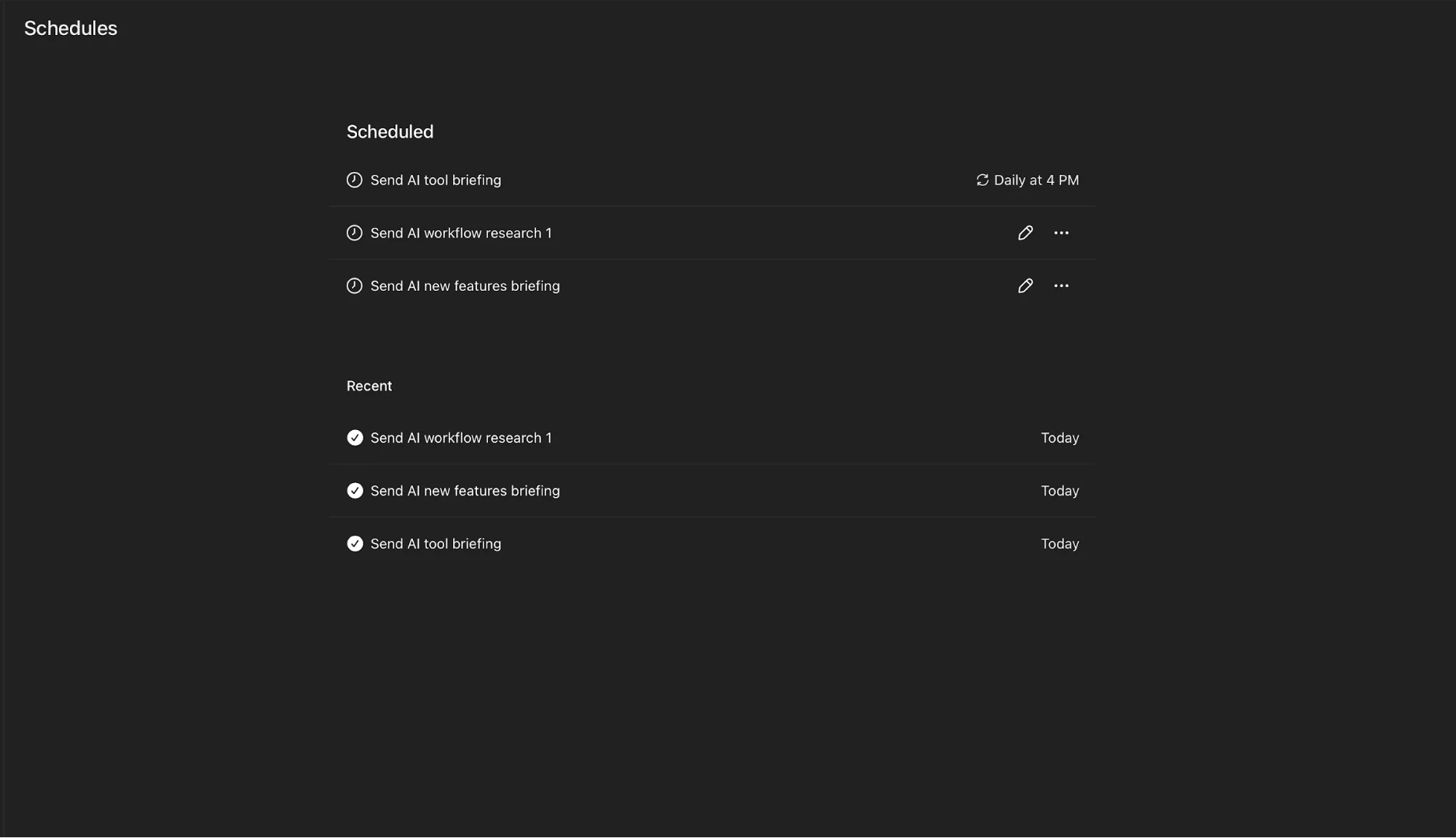
Tasks allow you to schedule prompts that run automatically, even when you’re not actively using the app. The results appear in your chat history like regular responses.
Step 2: Create Your First Task
Open ChatGPT and type a request to schedule a recurring task.
Example Prompts
- Create a daily task at 5 PM that summarizes stock market activity
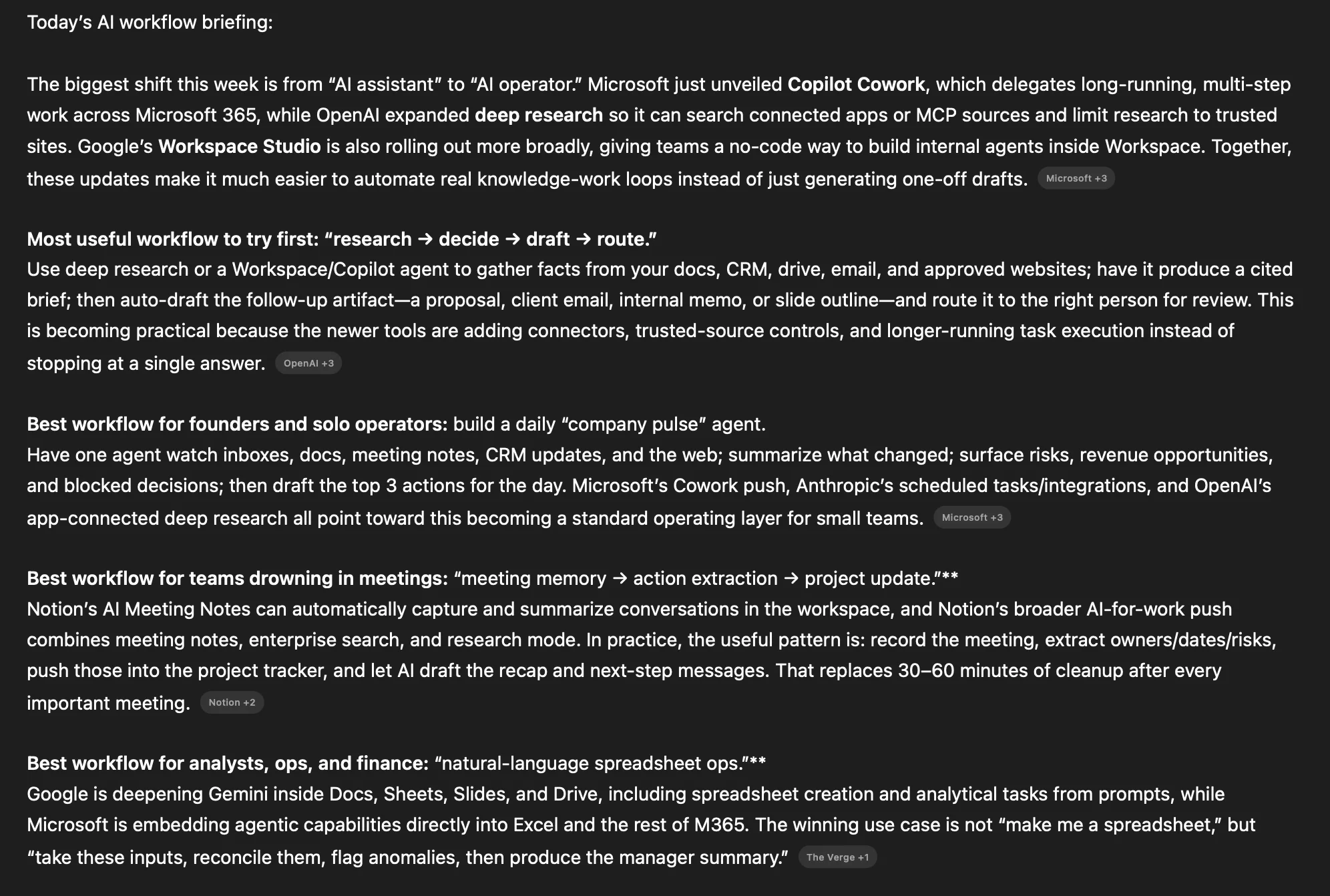
- Set a daily briefing at 7 AM covering the latest AI news
- Schedule a weekly update every Monday about a specific competitor
- Create a daily crypto market summary at 8 AM
Once submitted, ChatGPT will confirm the task and handle the rest. At the scheduled time, your update will appear automatically.
Step 3: Manage and Adjust Tasks
To modify or remove tasks:
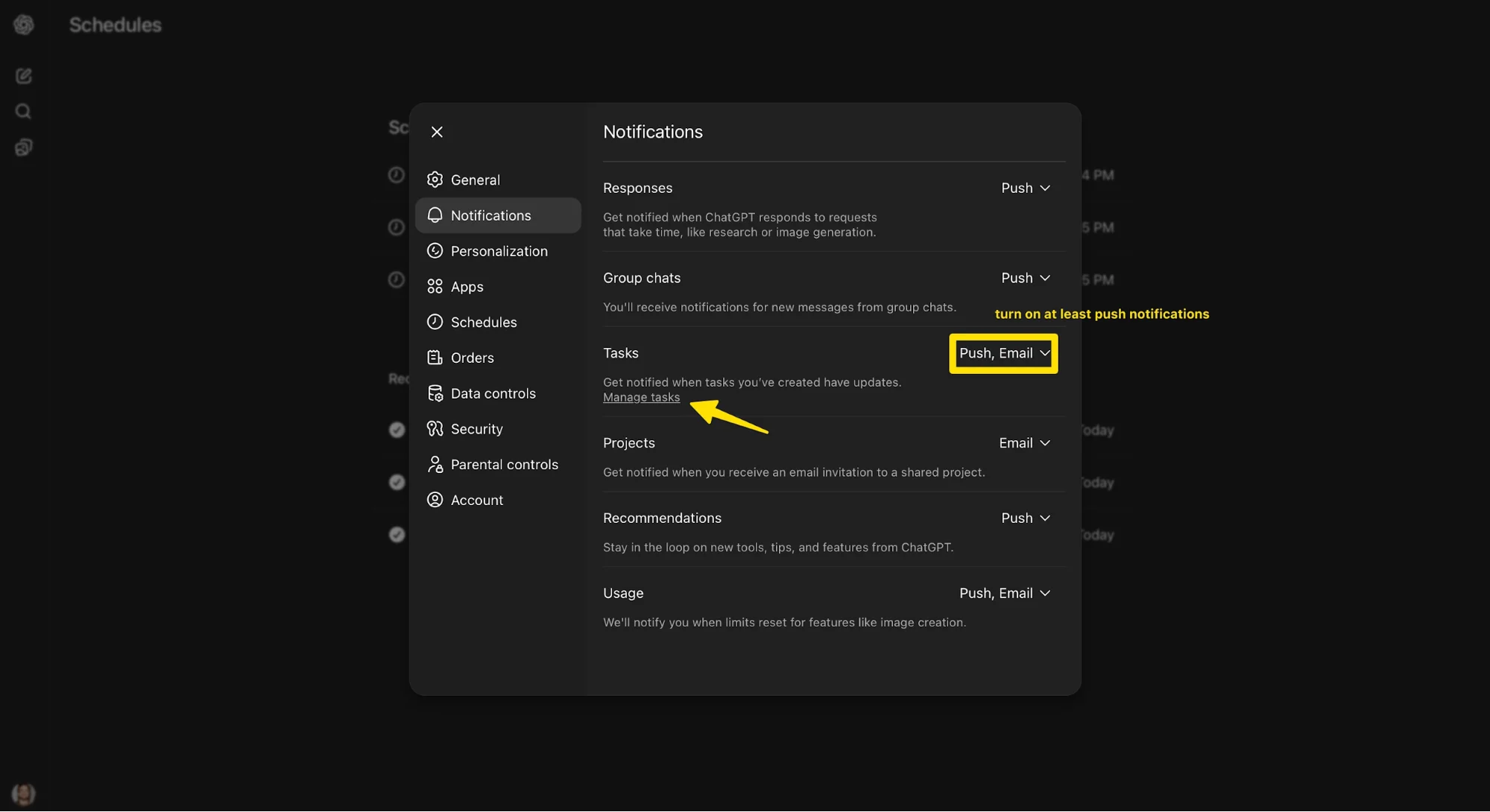
- Go to Settings
- Navigate to Notifications
- Open the Tasks section
From there, you can:
- Edit schedules
- Pause tasks
- Delete tasks
Tip:
If you don’t see the task manager in the mobile app, access it through the web version instead.
Also, enable notifications on your device to ensure you receive alerts when tasks run.
Step 4: Receive Your Automated Updates
Once everything is set up, your scheduled briefings will appear in the same conversation where you created the task.
You can open ChatGPT at any time and find your updates waiting, no searching or prompting required.
Advanced Ideas
After setting up basic tasks, you can expand your system:
- Daily information stack: Combine multiple briefings (e.g., news, industry updates, markets)
- Competitor monitoring: Track updates for specific companies on a weekly basis
- Connected workflows: If integrated with email or calendar, generate summaries or reminders
- One-time tasks: Schedule single-use reminders for specific dates
Final Thoughts
This approach allows you to unlock powerful automation using features you already have. Instead of manually gathering information, you create a system that delivers it to you, saving time and making better use of your subscription.

Editorial Staff
The Editorial Staff at AIChief is a team of Professional Content writers with extensive experience in the field of AI and Marketing. AIChief was Founded in 2025, AIChief has quickly grown to become the largest free AI resource hub in the industry. Stay connected with them on Facebook, Instagram and X for the latest updates.



