

AI Tutorial
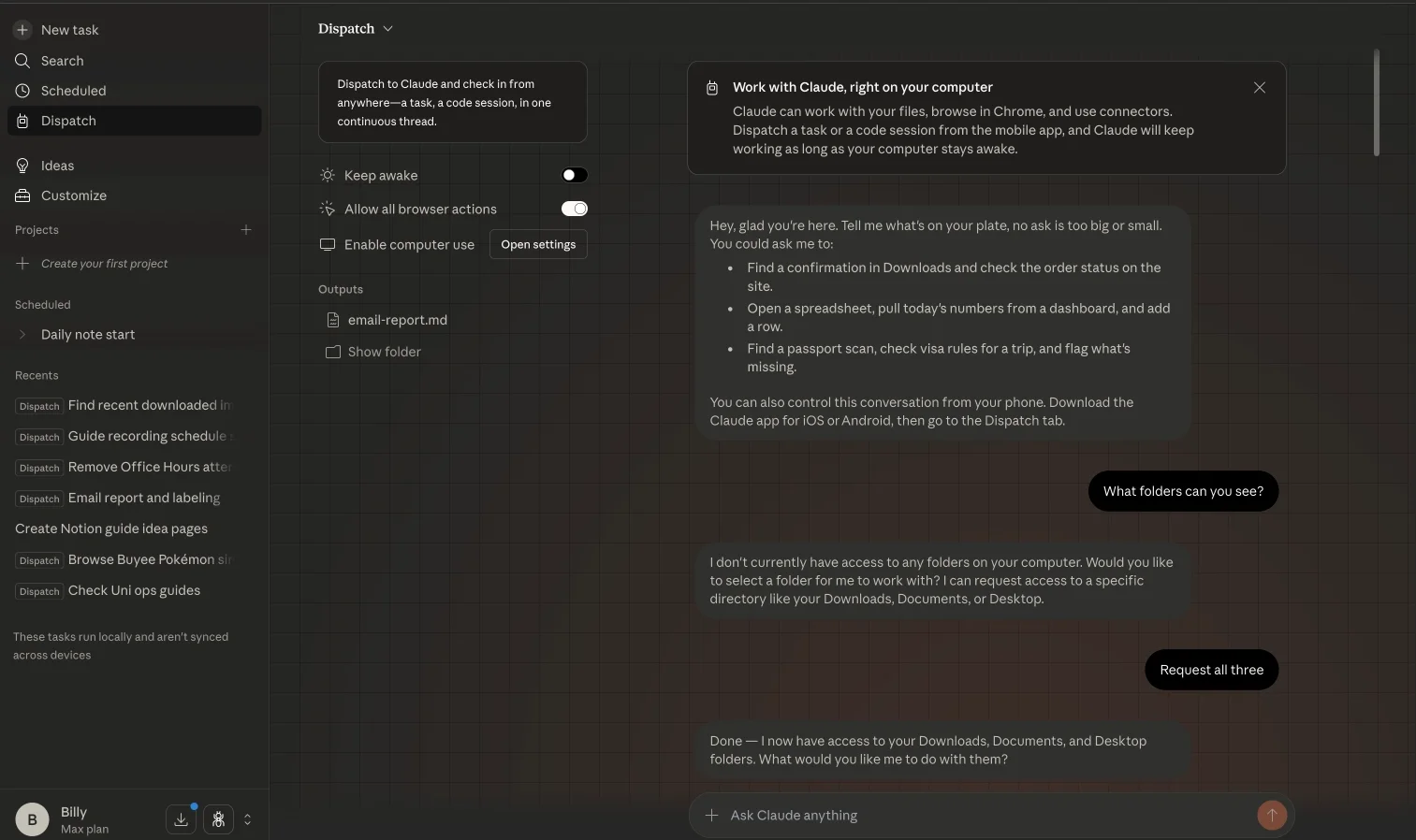
How to Let Claude Handle Tasks on Your Computer Using Dispatch
Learn how to control your computer remotely using Claude Dispatch. Send tasks from your phone and let Claude handle work on your desktop.
Share
This guide explains how to use Dispatch inside Claude to assign tasks from your phone or desktop and have them completed on your computer. It’s a practical way to keep small but necessary work moving, even when you’re away from your desk.
Who This Is For
- Operators and chiefs of staff who want routine admin tasks handled between meetings
- Founders and solo professionals switching frequently between devices
- Users exploring Claude Cowork who want a safe introduction to remote workflows
What You’ll Set Up
- A working Dispatch connection between your phone and computer
- A repeatable workflow for handling simple remote tasks
- A system for reviewing results once tasks are complete
Requirements
- A Claude Pro (or higher) subscription
- The latest version of the Claude Desktop app
- The latest version of the Claude mobile (iOS) app
Step 1: Update and Access Dispatch
Start on your computer by opening the Claude Desktop app. Make sure it’s fully updated before proceeding.
On macOS, you can check updates from the menu bar. Do the same for the mobile app on your phone.
Once everything is current:
- Open the Cowork section in Claude Desktop
- Select Dispatch
- Click “Get started” to begin setup
Step 2: Configure Permissions and Setup
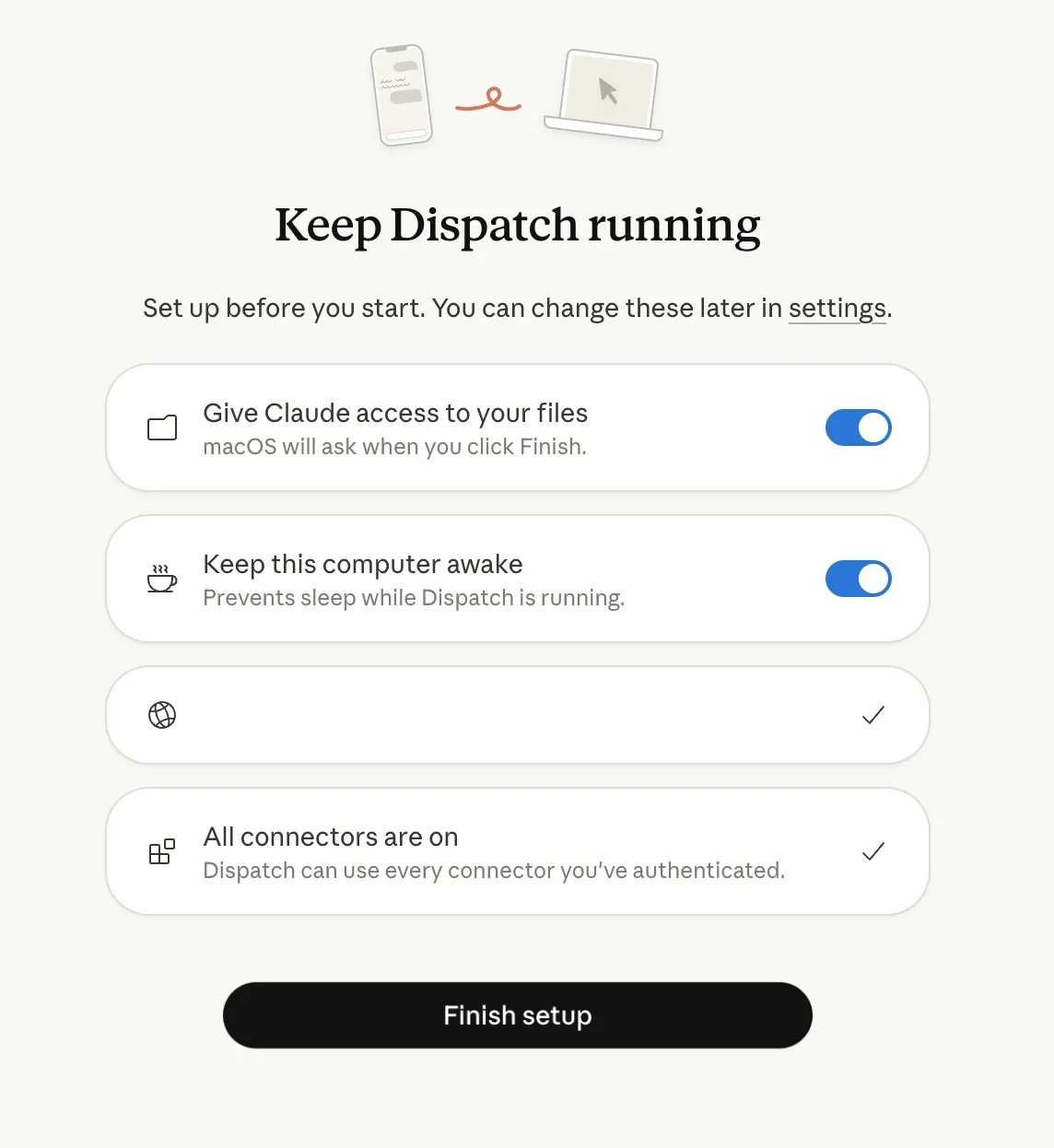
During setup, you’ll be prompted to allow certain permissions.
- Enable file access if you want Claude to read and modify files locally
- Turn on the keep-awake option if tasks should continue running while you’re away
Ensure the Claude browser extension is installed and logged in for full functionality.
Optional but recommended:
Create a dedicated project folder on your computer. This makes it easier to track what Claude modifies and keeps your main system more secure.
Advanced option:
There is an experimental setting that allows Claude to control your keyboard and mouse to interact with apps directly. While powerful, it’s best to leave this disabled initially due to potential complexity and security concerns.
Step 3: Connect Your Phone and Send a Task
After completing desktop setup, pair Dispatch with the Claude mobile app.
Once connected, send a task from your phone. Claude will continue and complete the work on your computer.
Good Starter Tasks
- Sort, label, and archive emails from the day
- Organize files within a specific folder
- Summarize documents stored on your machine
- Create a daily work summary
Start with tasks that are easy to verify and undo if needed.
Tip:
Ask Claude to generate a log file detailing what actions were taken. This makes reviewing results much easier.
Step 4: Review the Results
When the task is complete, check the output on your desktop or within the synced conversation on your phone.
You’ll be able to see:
- What actions were performed
- Where files were saved
- Any remaining steps that require your input
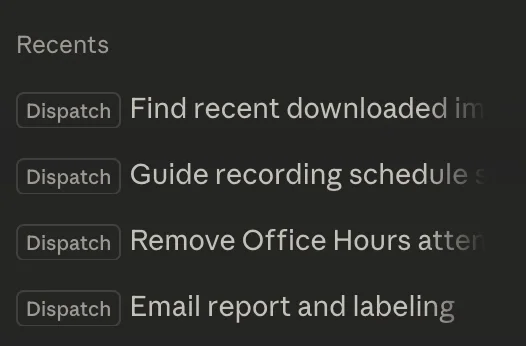
Dispatch keeps tasks within a continuous conversation on mobile, which makes it easy to revisit later. On the desktop, these tasks appear as separate threads under the Cowork section.
Make It Part of Your Workflow
The real benefit of Dispatch comes from consistent use.
The pattern is simple:
- Send a task from your phone
- Let Claude complete it on your computer
- Return to a cleaner, more organized workspace
Advanced Use Cases
Once you’re comfortable, you can expand to more dynamic tasks:
- Before a meeting: open your calendar, notes, and video conferencing app
- During time away: summarize missed emails or messages
- After work: generate a recap of completed tasks

Editorial Staff
The Editorial Staff at AIChief is a team of Professional Content writers with extensive experience in the field of AI and Marketing. AIChief was Founded in 2025, AIChief has quickly grown to become the largest free AI resource hub in the industry. Stay connected with them on Facebook, Instagram and X for the latest updates.



