

AI Tutorial
How to Automatically Capture AI Call Notes on Your iPhone
Learn how to automatically record, transcribe, and organize phone call notes on your iPhone using AI. Step-by-step guide with tools, setup, and tips.
Share
This walkthrough explains how to configure an AI-powered note-taking system that works seamlessly with phone calls on your iPhone. While many people are familiar with AI tools for Zoom or Google Meet, fewer realize that similar functionality can be applied to regular phone conversations, both incoming and outgoing.
Using tools like Granola, you can turn everyday calls into structured, searchable notes without extra effort.
Important: Always check your local call recording laws before using any recording feature, as consent requirements vary by region.
Who Can Benefit From This Setup
- Sales professionals & account managers handling multiple daily calls who need accurate recall for CRM updates
- Founders & operators juggling conversations on the move, from investors to vendors
- Consultants & freelancers who want a reliable record of client agreements and discussions
What You’ll Create
By following this guide, you’ll build a repeatable workflow where every call you place from your iPhone is:
- Automatically transcribed
- Summarized with key points
- Organized into structured notes
These notes will be searchable, properly labeled, and synced across devices. You can also route them into tools like CRMs, Notion, or Slack if needed.
Requirements Before You Begin
- An iPhone
- The Granola app (free version is sufficient)
- A few minutes to verify your phone number
Quick Tip:
Some regions require both participants to agree to call recording. Confirm whether you’re in a one-party or two-party consent area before proceeding.
Step 1: Install and Set Up the App
Download the app from the App Store and launch it.
- Tap the phone icon (bottom-left corner) to begin setup
- Enter your phone number and complete verification via code
- Optionally sync your contacts for easier dialing inside the app
This step connects your phone to the AI system so it can process calls.
Step 2: Make Calls With AI Note Capture Enabled
Start a call directly from the app:
- Select a contact or enter a number
- Place the call as usual
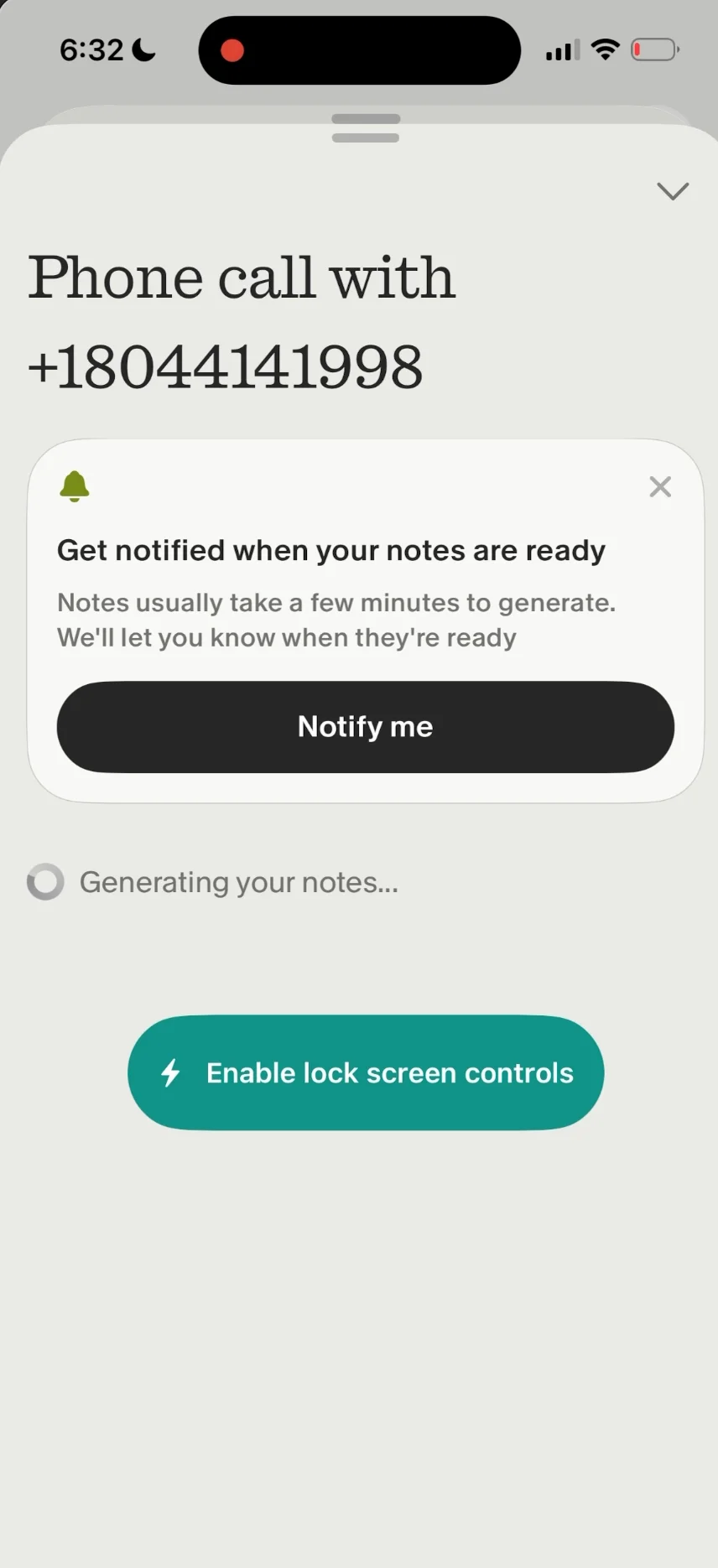
While the call is active, the AI runs quietly in the background, capturing and transcribing the conversation.
After the call ends:
- Wait briefly (usually 1–2 minutes)
- A structured summary will appear, including highlights and action items
You don’t need to stay in the app while it processes.
Pro Tip:
Create headings in your notes before or during the call (e.g., Next Steps, Context, Decisions). The AI will automatically sort content into those sections afterward.
Step 3: Handling Incoming Calls
The tool performs best with outgoing calls.
- For incoming calls, it may only capture your side of the conversation if started mid-call
- If accuracy matters, consider using speakerphone and opening a note from another device (like your laptop)
Step 4: Keep Notes Organized
To make your notes easy to find later:
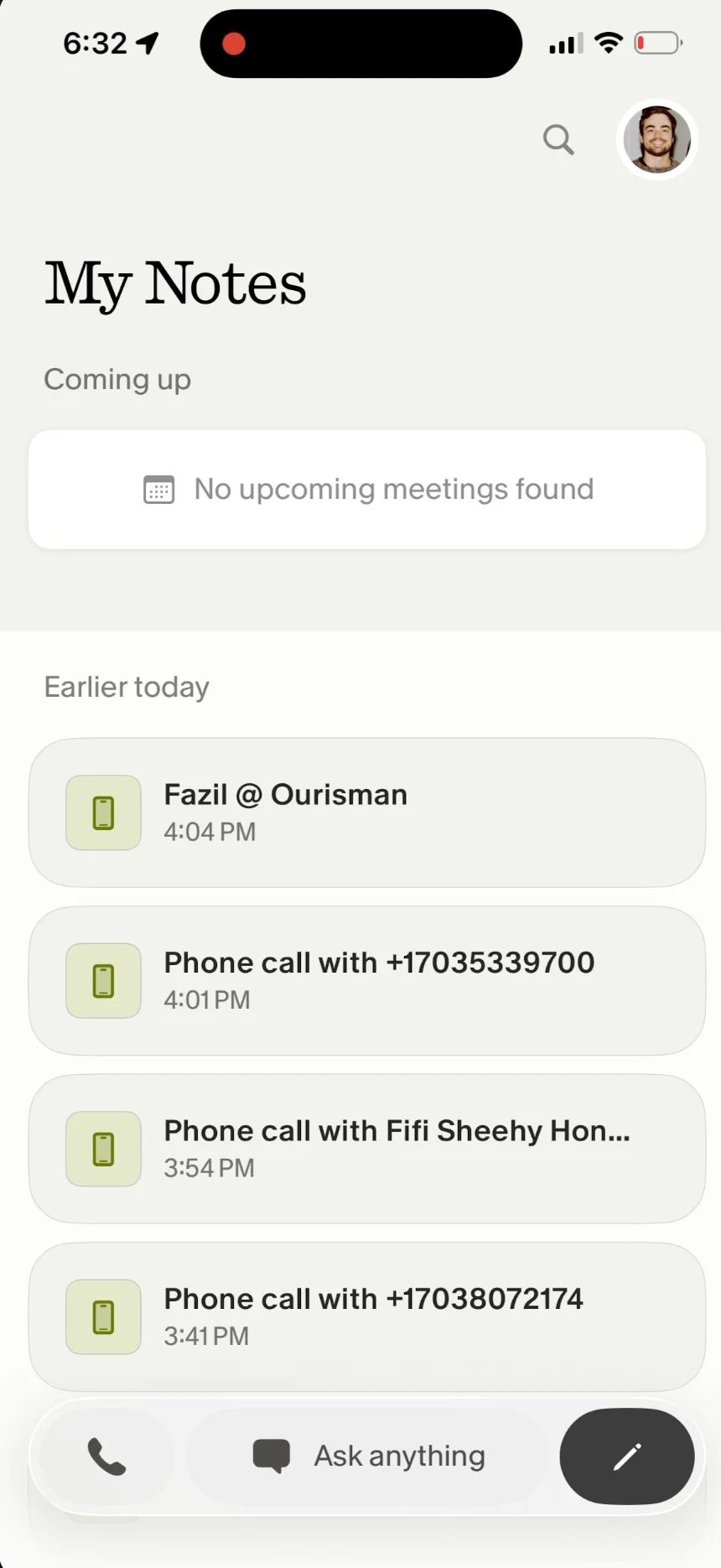
- Use a consistent naming format such as: [Person Name] @ [Company]
- Create folders based on call type (e.g., Sales, Clients, Vendors, Personal)
All notes sync automatically with the desktop version, so your mobile activity is available on your computer instantly.
Taking It Further
If you want your call summaries to live outside the app:
- Open settings and go to integrations
- Connect tools like Notion, Slack, Zapier, HubSpot, or your CRM
This ensures your notes end up where you actually use them, instead of being buried in a single app.
With this setup in place, your phone calls effectively become structured data, ready to review, search, and act on without manual note-taking.

Editorial Staff
The Editorial Staff at AIChief is a team of Professional Content writers with extensive experience in the field of AI and Marketing. AIChief was Founded in 2025, AIChief has quickly grown to become the largest free AI resource hub in the industry. Stay connected with them on Facebook, Instagram and X for the latest updates.



