

AI Tutorial
Generate Creative Marketing Videos with Gemini VEO 3
Learn how to create short, high-quality marketing videos using Gemini’s VEO 3. This guide covers prompting, generating, refining, and exporting AI-powered video clips.
Share
This guide covers how to create short-form marketing videos using Gemini’s VEO 3 video generator. It offers a similar experience to Sora, though VEO stands out as a stronger option for generating quick promotional clips.
Ideal For:
- Marketing teams are creating campaign assets quickly
- Social media managers producing short-form videos
- Founders and solo creators without dedicated video teams
- Performance marketers are testing different creative concepts
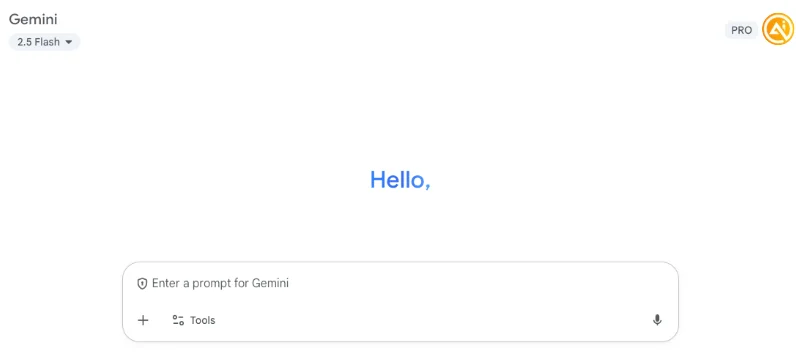
STEP 1: Access VEO 3 Inside Gemini
Visit https://gemini.google.com/app (there’s also a highly optimized mobile experience available).
Under the input field, click “Tools” and select “Videos with Veo.”
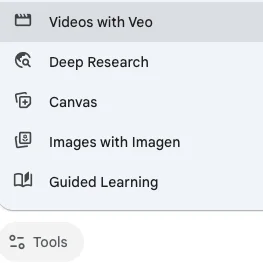
STEP 2: Describe the Video You Want to Generate
Inside the creation workspace, there are two ways to build your video request:
- Upload an image reference to animate it into a short clip
- Enter a written prompt describing the video concept
Be specific when describing scenes, transitions, product highlights, music style, and final branding elements.
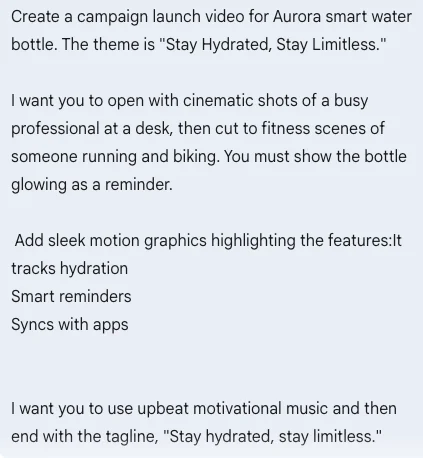
Example Prompt Structure:
Product and concept:
“Create a product launch video for the Aurora Smart Water Bottle. Theme: ‘Stay Hydrated, Stay Limitless.’”
Scene Requirements:
- Begin with cinematic shots of a professional working at a desk
- Transition into fitness scenes like running and cycling
- The bottle should glow as a hydration reminder throughout each scene
Clear instructions for “must-show” elements usually improve consistency since models follow direct constraints more reliably.
STEP 3: Generate the Video and Review the Output
Once enough detail has been added, click “Submit.” Gemini will begin rendering the video and display the generation progress.
Keep in mind that even with the Gemini Pro plan, video generations are limited, typically around two renders per day.
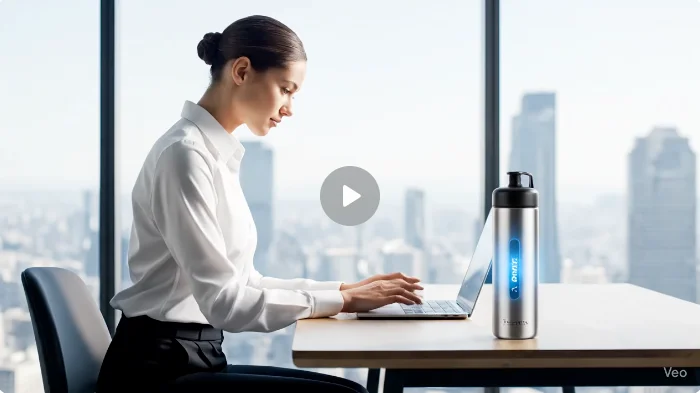
STEP 4: Refine or Regenerate the Video
Preview the generated clip. If the output matches the concept, download the file.
For additional refinements, export the video into editing tools like Canva to:
- Replace AI-generated text with brand typography
- Improve transition timing and end screens
- Add licensed audio tracks if needed
- Create platform-specific formats (9:16 for Reels/TikTok, 1:1 for feeds, 16:9 for YouTube)
Pro Tip
Detailed prompts lead to stronger results. Include specific filmmaking terms such as “whip pan,” “match cut,” or “speed ramp” to create smoother transitions and more dynamic video flow.

Editorial Staff
The Editorial Staff at AIChief is a team of Professional Content writers with extensive experience in the field of AI and Marketing. AIChief was Founded in 2025, AIChief has quickly grown to become the largest free AI resource hub in the industry. Stay connected with them on Facebook, Instagram and X for the latest updates.



