

AI Tutorial
Enhance Software Development with Claude Code
Learn how to use Claude Code to analyze projects, debug applications, optimize workflows, and enhance AI-assisted development directly from your terminal.
Share
Claude Code helps developers improve coding workflows by providing contextual project analysis, debugging assistance, refactoring support, and code insights directly inside terminal environments and AI-assisted editors.
Best Suited For:
- Developers using AI-powered editors like Cursor
- Engineers debugging large multi-file codebases
- Teams collaborating on complex software projects
- Programmers combining terminal workflows with AI assistance
STEP 1: Install and Initialize Claude Code
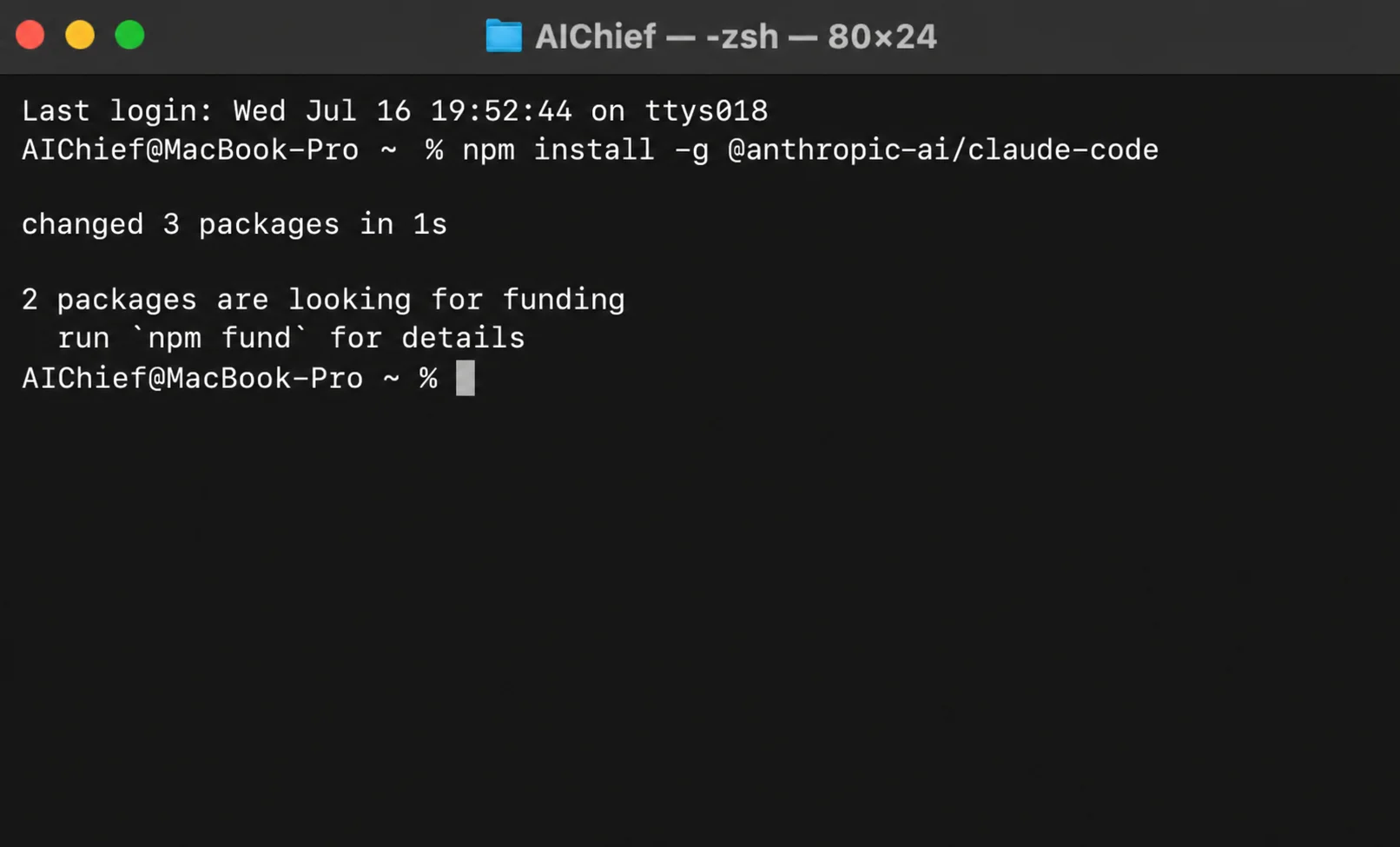
Before installation, make sure Node.js version 18 or higher is installed on your system.
Install Claude Code globally and launch the interactive assistant from your terminal.
During the first launch:
- Authenticate with your Anthropic account
- Allow Claude Code to analyze your current project directory
- Initialize the interactive coding session
Once active, the assistant maintains conversation context throughout the session without needing to restart repeatedly.
STEP 2: Connect Claude Code with Cursor
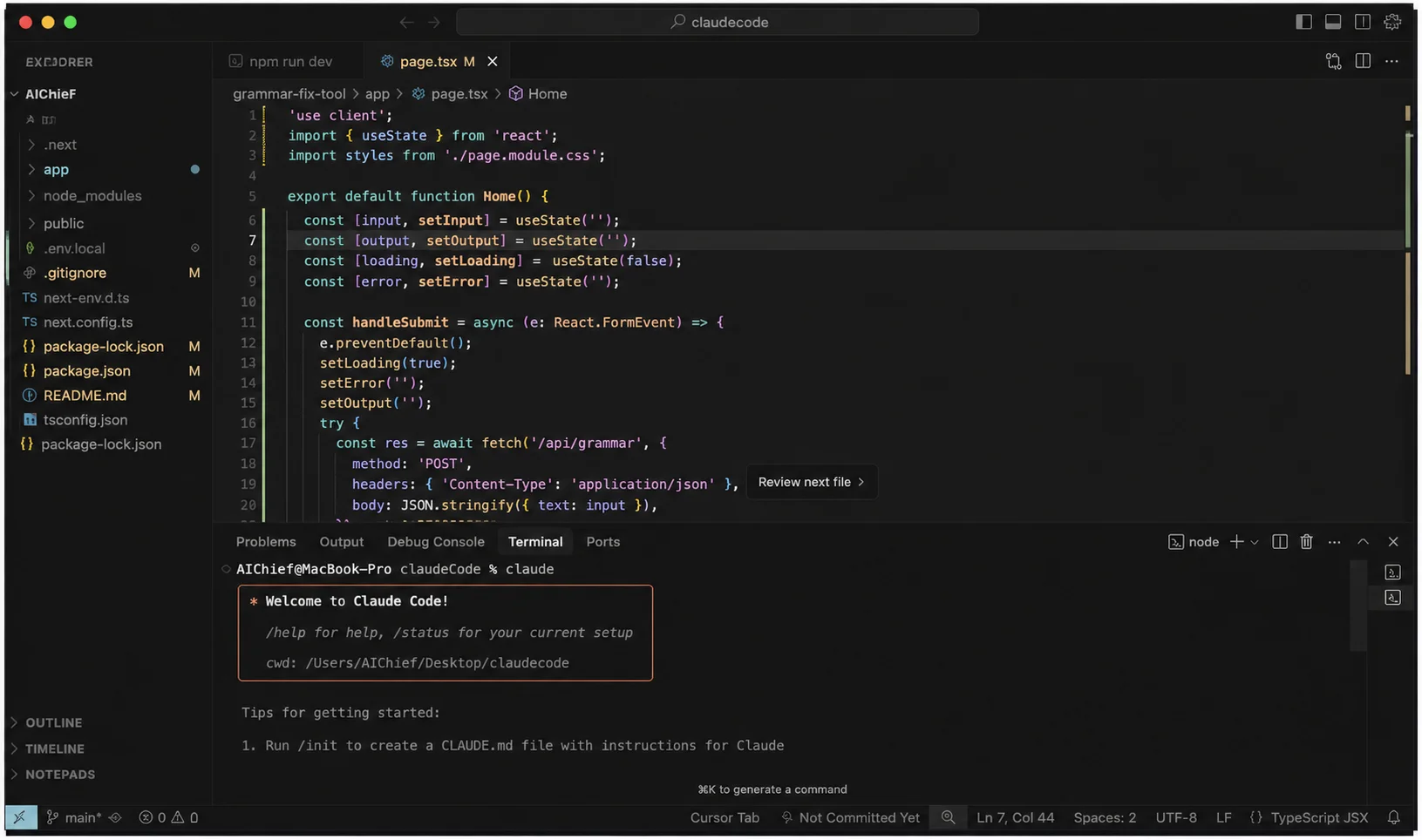
Open your project inside Cursor and launch Claude Code from Cursor’s integrated terminal.
This setup combines:
- Cursor’s AI-enhanced editing tools
- Claude Code’s terminal-level analysis
- Shared project context across both environments
The result is a more connected development workflow where editing, debugging, and architecture analysis work together seamlessly.
STEP 3: Explore and Analyze Your Project
Inside the Claude session, begin with broader project-level questions to understand how the AI interprets your codebase.
Example Questions:
- “Explain the overall architecture of this project.”
- “Show the main entry points and application flow.”
- “Identify parts of the codebase that may need refactoring.”
You can then continue with more focused follow-up prompts, such as:
- “Explain how the authentication system works.”
- “Identify any potential security concerns.”
- “Analyze the database interaction patterns.”
Since the session retains context, responses become more accurate and detailed over time.
STEP 4: Debug and Optimize Your Code
Claude Code can assist with debugging, testing, and optimization through conversational prompts.
Example Debugging Requests:
- “Help identify the cause of this memory leak.”
- “Analyze this stack trace and suggest possible fixes.”
- “Compare the performance of these database queries.”
Example Development Requests:
- “Generate unit tests for the authentication module.”
- “Refactor this component for better maintainability.”
- “Suggest improvements for this API endpoint.”
This workflow reduces context switching and makes development tasks more efficient.
STEP 5: Integrate Claude Code into Your Daily Workflow
For the best experience, keep Claude Code running throughout development sessions instead of using it only occasionally.
Over time, the assistant builds a stronger awareness of:
- Project structure
- Coding standards
- Development patterns
- Ongoing debugging context
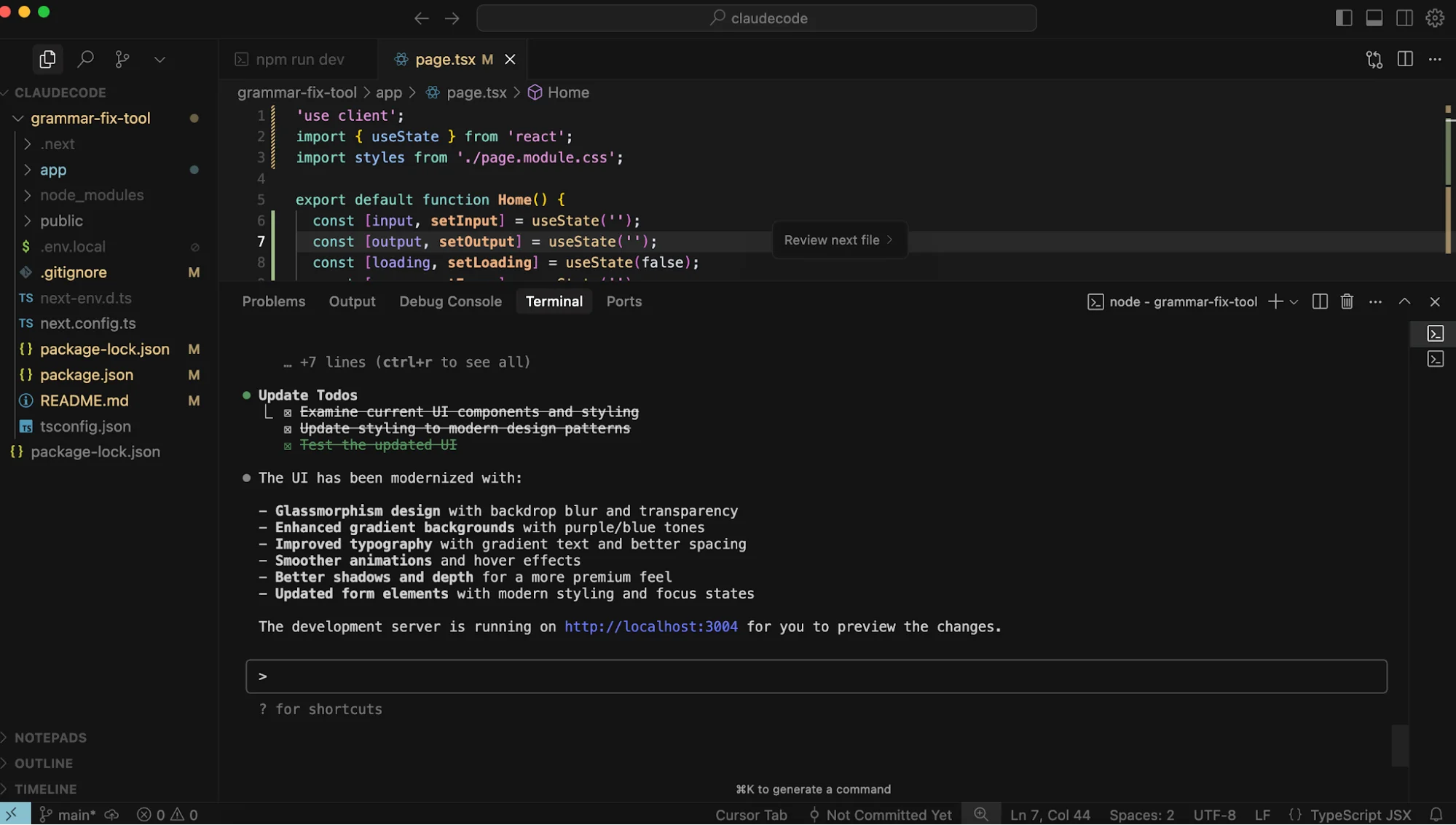
This creates a more effective AI-assisted pair-programming experience during long coding sessions.
Pro Tip
Treat Claude Code like an ongoing development collaborator rather than a one-time assistant. Longer-running sessions allow it to understand your project structure and coding style more deeply, resulting in stronger debugging suggestions, architecture insights, and development support over time.

Editorial Staff
The Editorial Staff at AIChief is a team of Professional Content writers with extensive experience in the field of AI and Marketing. AIChief was Founded in 2025, AIChief has quickly grown to become the largest free AI resource hub in the industry. Stay connected with them on Facebook, Instagram and X for the latest updates.



