

AI Tutorial
Discover Free AI Tools in Google Labs
Learn how to use Google Labs’ free AI tools to create ads, videos, and marketing content with step-by-step guidance.
Share
You’ll learn how to use Google Labs’ free AI tools to generate marketing content. There are many available, but we’ll highlight three standout options to try.
Who It’s For
- Marketers looking for ad inspiration
- Businesses needing social media content
- Anyone curious about free AI audio or video generation
What You’ll Create
Custom ads and videos with original background music using Google’s AI tools
Requirements
- A free Google account
- Note: Some tools (like Flow) have daily limits and may prompt upgrades
Step 1: Open Google Labs
Go to labs.google/experiments.
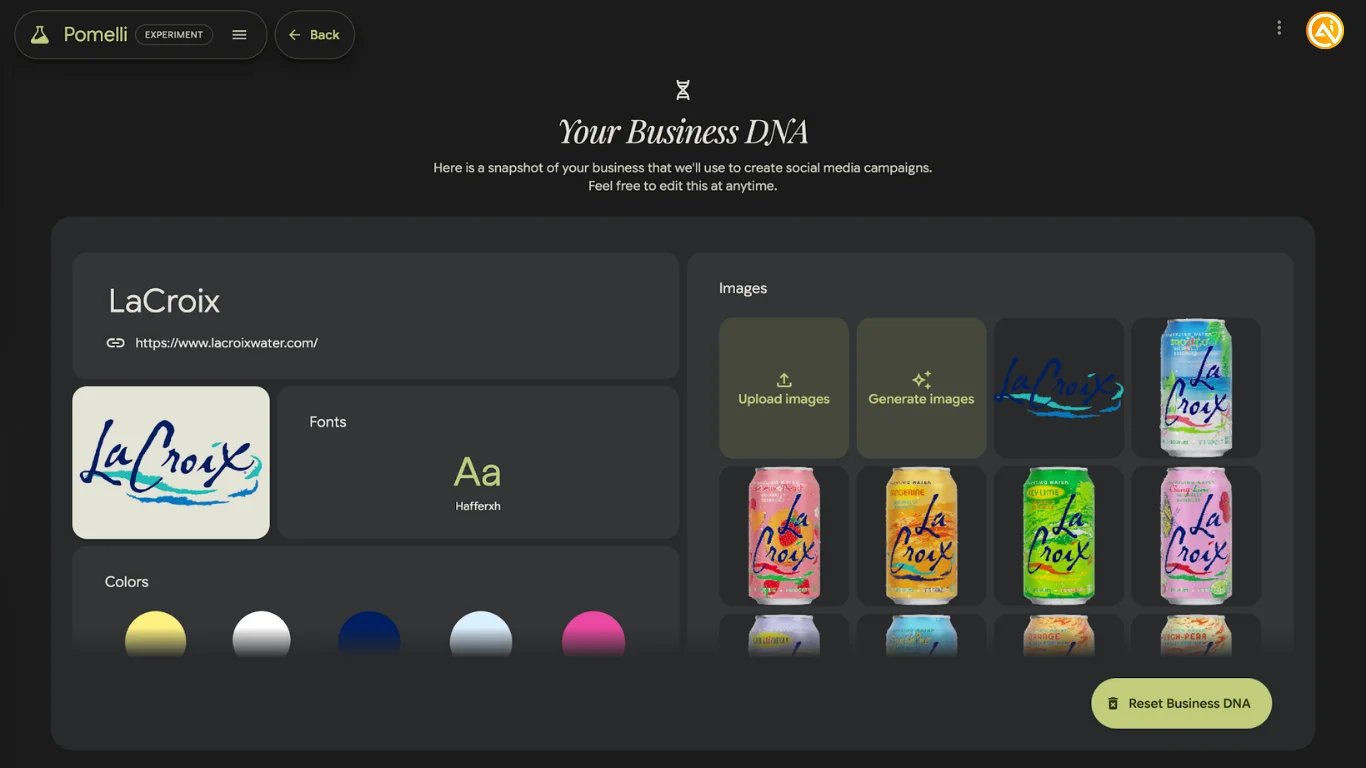
Step 2: Use the AI Business Analyzer
Copy your website URL and open the Pomelli tool inside Google Labs. Paste your link into the analyzer and wait a few minutes for results.
You’ll receive an overview of your brand, which you can edit for accuracy.
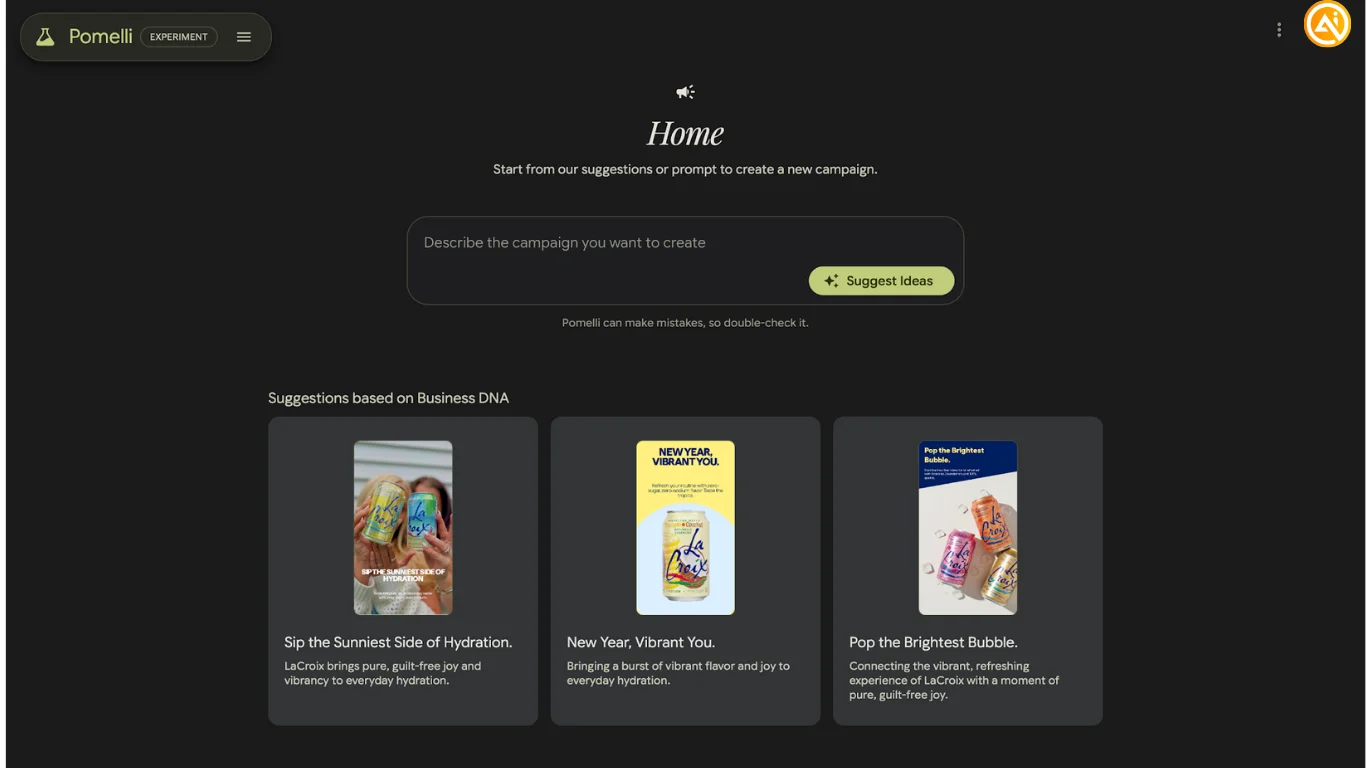
Open the “Campaigns” section from the menu to view suggested marketing ideas.
Select a campaign to download ad creatives or generate similar ones.
Tip: Use the “Animate” option on a creative to turn it into a video ad or story.
Note: Only one business can be analyzed at a time.
Step 3: Create Videos with Flow
Go to labs.google/flow.
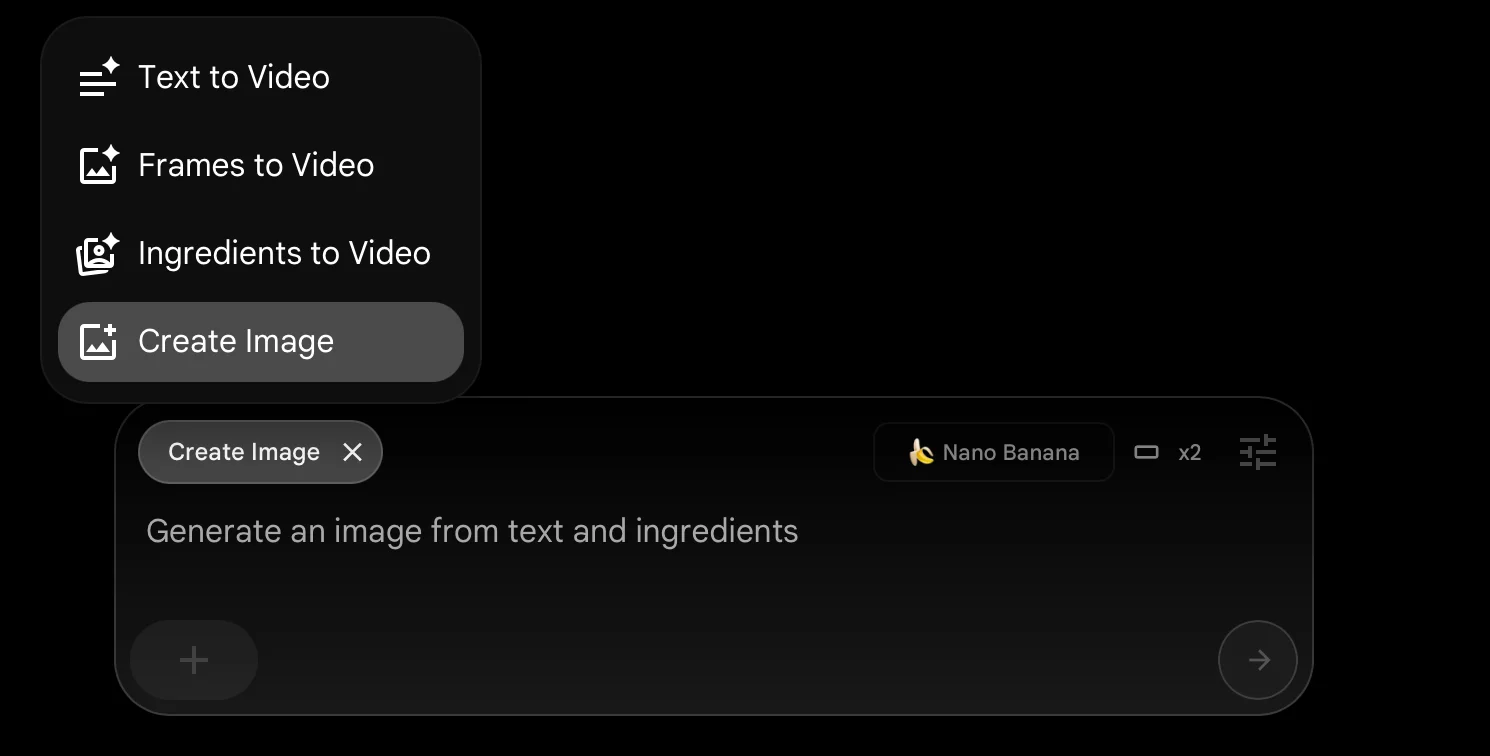
Choose “Create Image” and describe a starting scene, for example:
“Beef jerky brand called Adventure Strips on a picnic table.”
Then switch to “Frames to Video.” Select your generated image as the starting frame. Optionally choose an ending frame. Flow will generate a video sequence based on these frames.
Tip: This works well for smooth transitions between clips.
Step 4: Generate Visuals with ImageFX
ImageFX helps you experiment with prompts and styles. It suggests styles automatically, and each can be expanded into related options.
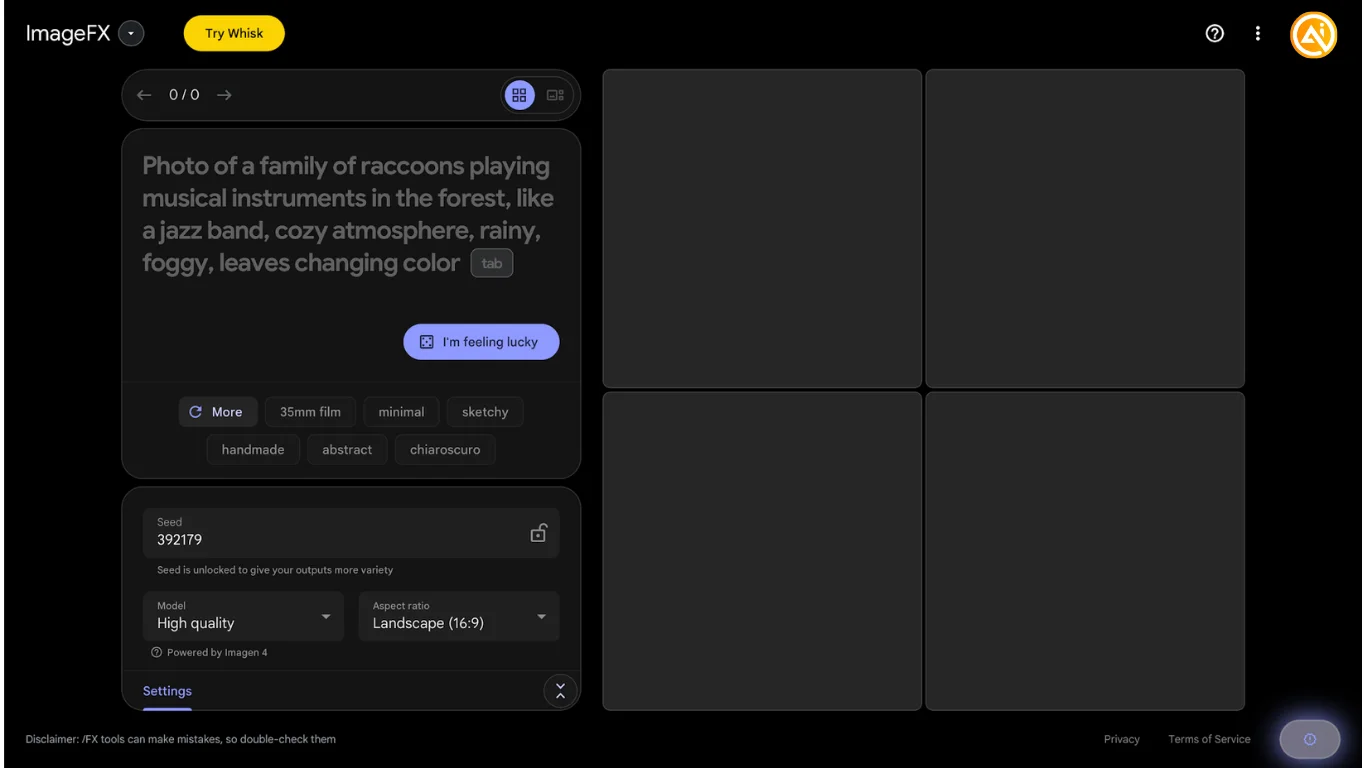
You can lock the seed value to keep outputs consistent while testing variations.
Tip: Quickly create frames here and reuse them inside Flow.
Going Further
Switch from ImageFX to MusicFX using the dropdown menu. It uses the same interface but generates audio instead.
You can combine Flow and MusicFX to produce videos with custom soundtracks, or add music to ads created with Pomelli.

Emily Newton
Emily Newton is an experienced Editor-in-Chief who has spent the last decade sharing her insights on science and technology advances through platforms like IoT for All and DZone. She is deeply interested in showcasing how connected technologies and smart ecosystems transform modern businesses. When she isn’t writing, Emily enjoys walking local trails, playing video games, or curling up with a good book.



