

AI Tutorial
Design High-Impact Thumbnails With This Midjourney Workflow
Learn a fast prompting and editing workflow to design high-quality thumbnails with Midjourney and Canva that stand out without looking artificial.
Share
This walkthrough shows how to use a streamlined prompting and editing approach to produce thumbnails that stand out while still looking natural. Whether you’re creating visuals for YouTube, blogs, or social media, mastering fast thumbnail creation is highly valuable.
Who Benefits From This
- YouTubers and podcasters need consistent weekly thumbnails without outsourcing design
- Writers and bloggers looking for custom visuals instead of generic stock images
- Marketing and social media teams are producing thumbnails at scale while maintaining quality
What You’ll Get
A repeatable process for creating thumbnail backgrounds in Midjourney, then refining them in Canva (or Photoshop/Figma) with well-designed text. You’ll be able to turn a title into a finished thumbnail in about two minutes.
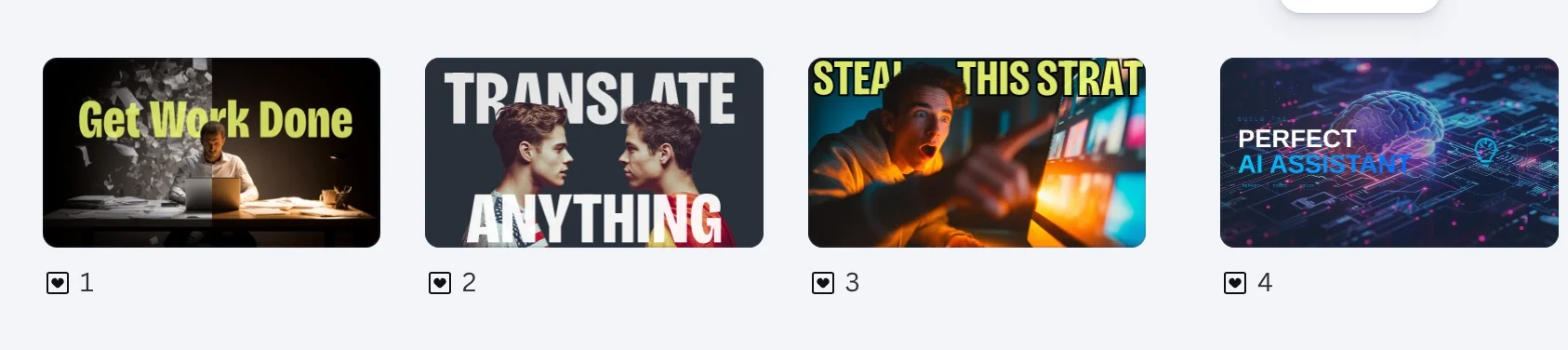
Requirements
- Midjourney subscription (basic plan works)
- Any AI assistant like Claude for prompt creation
- Canva (free or Pro), Photoshop, or Figma
- A piece of content that needs a thumbnail
Step 1: Generate Prompt Ideas With an AI Assistant
Open your preferred AI tool and start a new session. Use this structure:
Use the following structure and article title to create four Midjourney prompt ideas for thumbnails with space for text.
Structure: [Person + Expression] + [Action/Prop] + [Setting] + [Lighting] + [Framing with negative space] --ar 16:9
Title: [insert title]
The AI will return four visual concepts based on your title, following this structure to produce realistic scenes instead of abstract outputs.
If you don’t want a person included, remove that part and specify it. You can also skip the structure entirely for more creative results. If the outputs miss the main idea, guide the AI by clearly stating the visual focus.
Step 2: Create Images in Midjourney
Go to Midjourney and paste one of the prompts into the image field. Upload all four prompts to generate multiple options. Some results won’t work, but others might exceed expectations.
When you find a promising image:
- Use “Vary Subtle” for minor adjustments
- Use “Vary Strong” for bigger changes
Continue refining until you find a strong visual, then download it. If none of the options work, generate new prompts instead of forcing a result.
Tip: Enable Draft Mode to reduce token usage during experimentation.
Step 3: Add Text Using Canva
Open Canva and select a YouTube thumbnail template or create a blank canvas (1280×720). Import your image and set it as the background.
Keep things simple. Add 1–5 bold words that capture attention. This text should not repeat your title but highlight an outcome, action, or emotion.
Example:
For “Translate Any Video File Using This Free Local AI Model,” use text like:
- MAKE GLOBAL CONTENT
- ANY LANGUAGE
- FREE TOOL
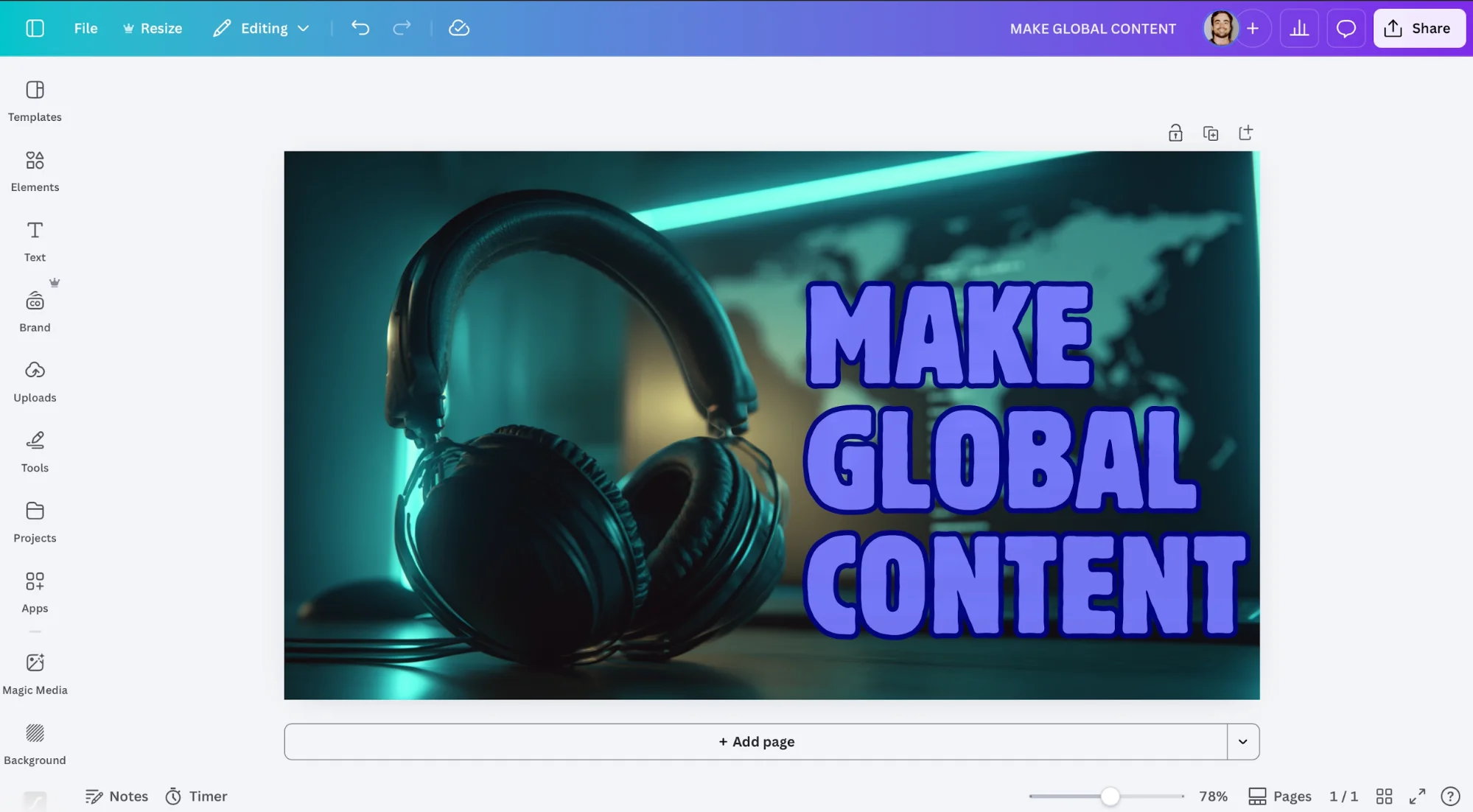
Text guidelines:
- Use large, bold fonts
- Stick with white or yellow
- Add a black outline for contrast
- Slightly reduce the opacity to blend it in
If readability is still poor, place a semi-transparent dark box behind the text.
Tip: If there isn’t enough empty space, generate a new image with better composition rather than forcing adjustments.
Step 4: Add Depth With Layering
This technique elevates your thumbnail from basic to polished.
In Canva:
- Duplicate your background image
- Place the copy on top
- Remove the background from the top layer
Now you’ll have:
- Background image
- Text layer
- Foreground cutout
This layering makes the text appear between elements, adding depth and a more professional feel.
It works best with images containing people; placing text behind part of the subject enhances realism. Avoid over-covering the text. The goal is subtle depth, not obstruction. This effect makes viewers pause slightly, increasing curiosity and clicks.
Take It Further
Create a consistent visual style. In Midjourney, upload a thumbnail you like into the Style Reference section and lock it. Future generations will follow that same aesthetic, helping maintain a cohesive brand across content.


Editorial Staff
The Editorial Staff at AIChief is a team of Professional Content writers with extensive experience in the field of AI and Marketing. AIChief was Founded in 2025, AIChief has quickly grown to become the largest free AI resource hub in the industry. Stay connected with them on Facebook, Instagram and X for the latest updates.



