

AI Tutorial
Design Creative Assets with Genspark AI Designer
Learn how to create posters, t-shirts, websites, flyers, and more using Genspark AI Designer. Discover workflows, prompting tips, and design customization techniques.
Share
Genspark AI Designer is a versatile AI design platform capable of generating posters, websites, t-shirts, flyers, menus, and other creative assets from simple prompts. It serves as an alternative to Canva, Ideogram, and MidJourney, while standing out for its ability to produce a wide range of visual content styles.
Best Suited For:
- Small businesses creating flyers, posters, or websites quickly
- Marketing teams building engaging social content without designers
- Event organizers designing merchandise and promotional materials
- Freelancers and creators experimenting with AI-assisted design workflows
Workflow 1: Create a Custom T-Shirt Design
STEP 1: Open Genspark AI Designer
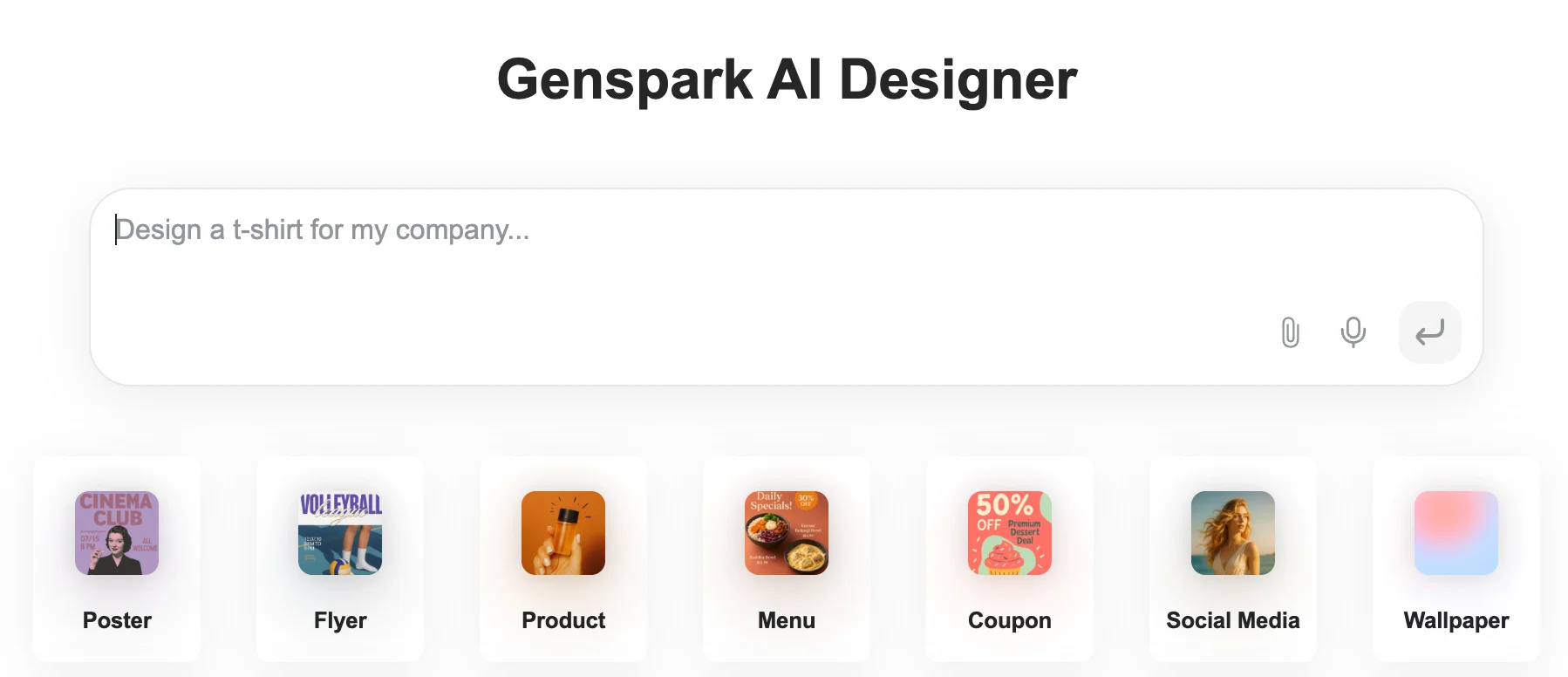
Visit https://www.genspark.ai/ai_designer to access the platform.
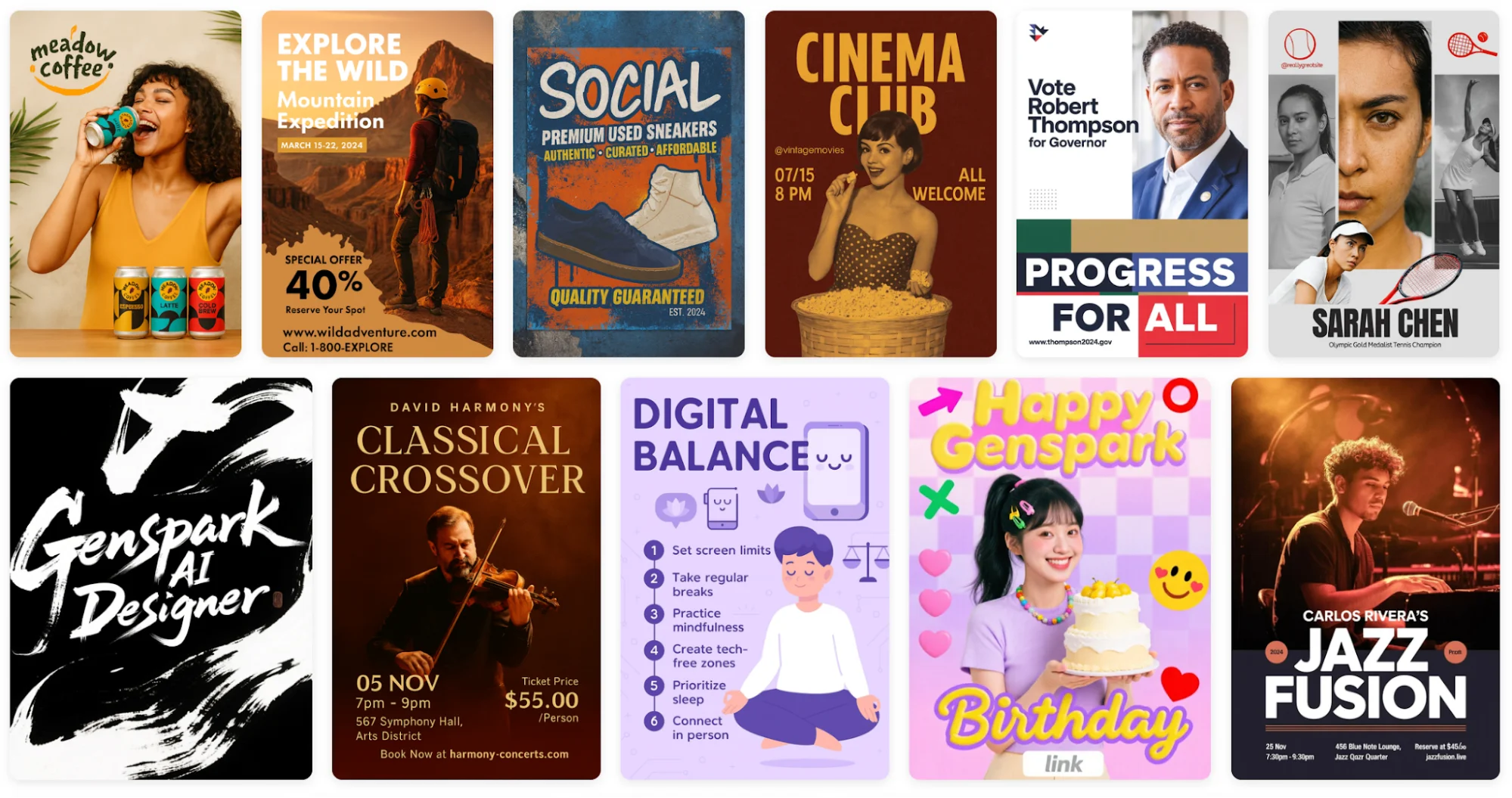
The homepage showcases examples, including posters, menus, flyers, and branding concepts. One standout feature is the quality of the typography and overall layout styling, which feels more polished compared to many AI design tools.
STEP 2: Generate a Design Using a Single Prompt
For this example, the prompt used was:
“Create a t-shirt design for a company boss that says ‘The buck stops here.’”
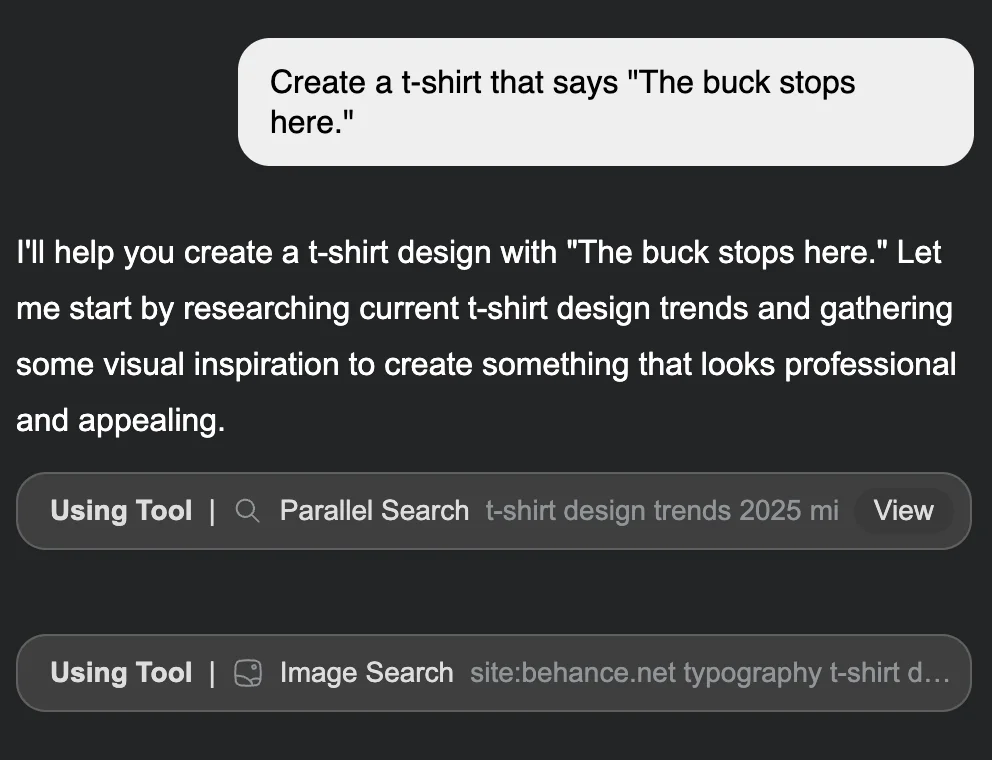
One of Genspark’s strengths is that its AI agents first gather visual inspiration from across the web before generating designs. Instead of immediately rendering outputs, the system analyzes layouts, typography styles, logos, and design trends first.
The platform generated four different concepts, ranging from minimalist typography designs to more vintage-inspired layouts.
Notable Limitation:
The free plan’s credits can run out quickly. The platform currently offers 200 free credits per day, so repeated refinements can consume usage limits fast.
STEP 3: Review and Refine the Initial Designs
During generation, Genspark displays its reasoning process, including inspiration gathering and design assembly steps.
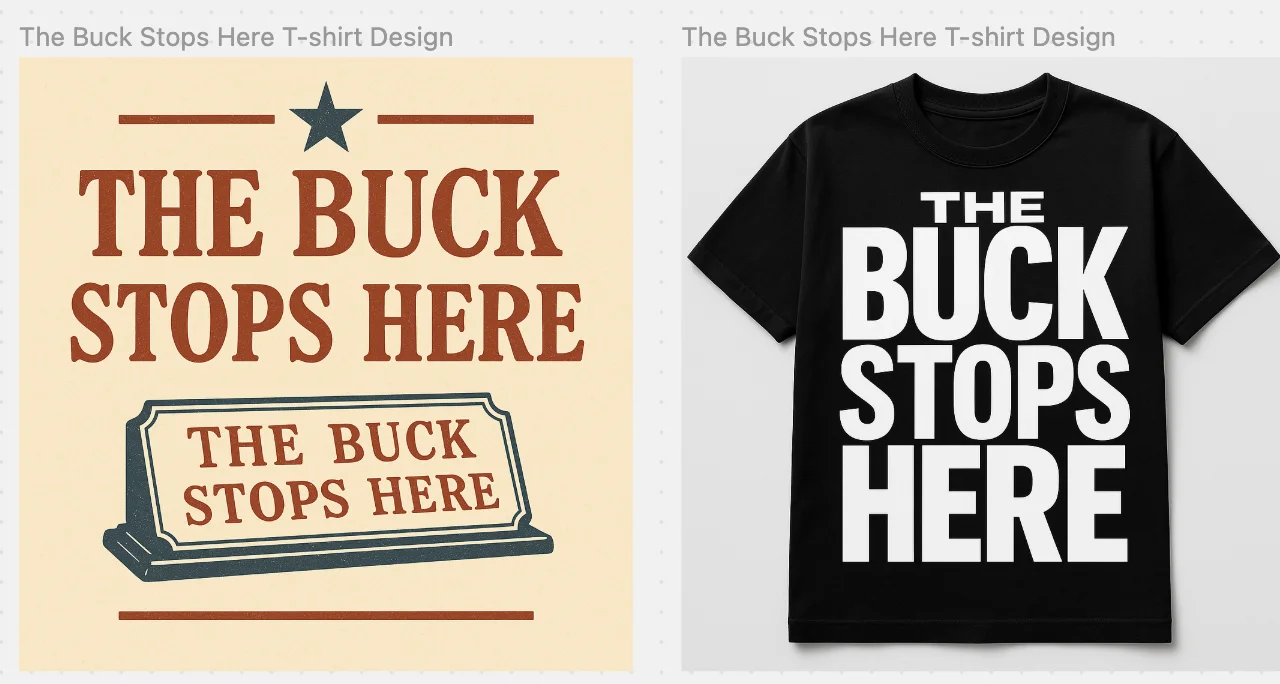
For the t-shirt example, the generated outputs included:
- A black t-shirt with bold white typography
- A logo-only concept suitable for additional merchandise
- A clean white shirt with minimalist black print
The black shirt concept stood out as the strongest option due to its balance between professionalism and personality.
STEP 4: Customize the Final Design
Once a preferred design is selected, additional edits can be applied, including mockups, layout refinements, and wording adjustments.
Prompt phrases like:
- “Make it modern minimalist”
- “Make it viral”
often improve the overall design direction and visual quality.
Workflow 2: Design a Website for a Tennis Coaching Brand
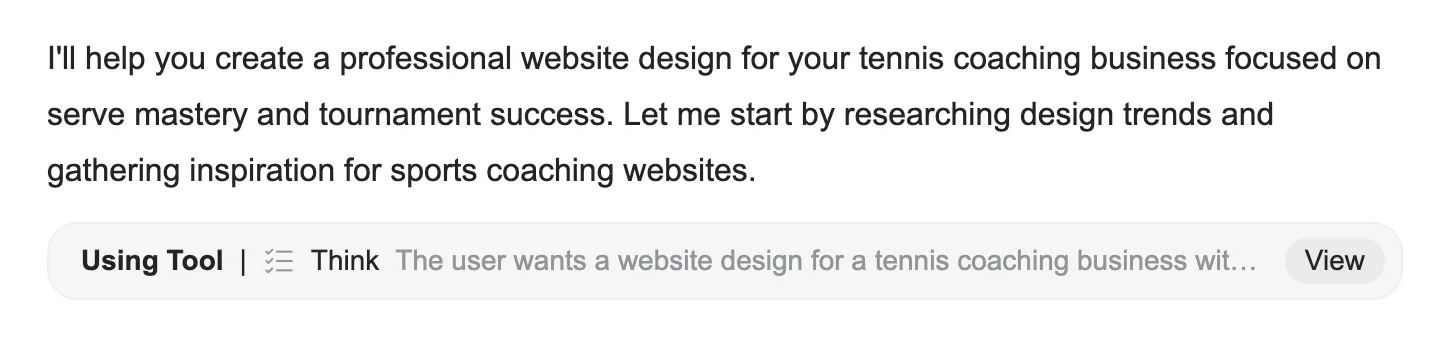
STEP 1: Test Genspark’s Website Design Capabilities
To explore a different use case, Genspark was prompted to generate a website concept for a tennis coaching business.
Example prompt:
“Create a website design for my tennis coaching business focused on helping players master serves and hit more aces during tournaments.”
STEP 2: Observe the AI Design Process
After clicking Generate, the platform’s AI agent began analyzing the request.
The system first used internal reasoning tools, then gathered references such as:
- Sports coaching website layouts
- Tennis-related imagery
- Common design structures used in coaching businesses
This structured workflow makes the platform feel more strategic than standard template generators.
STEP 3: Review the Website Concepts
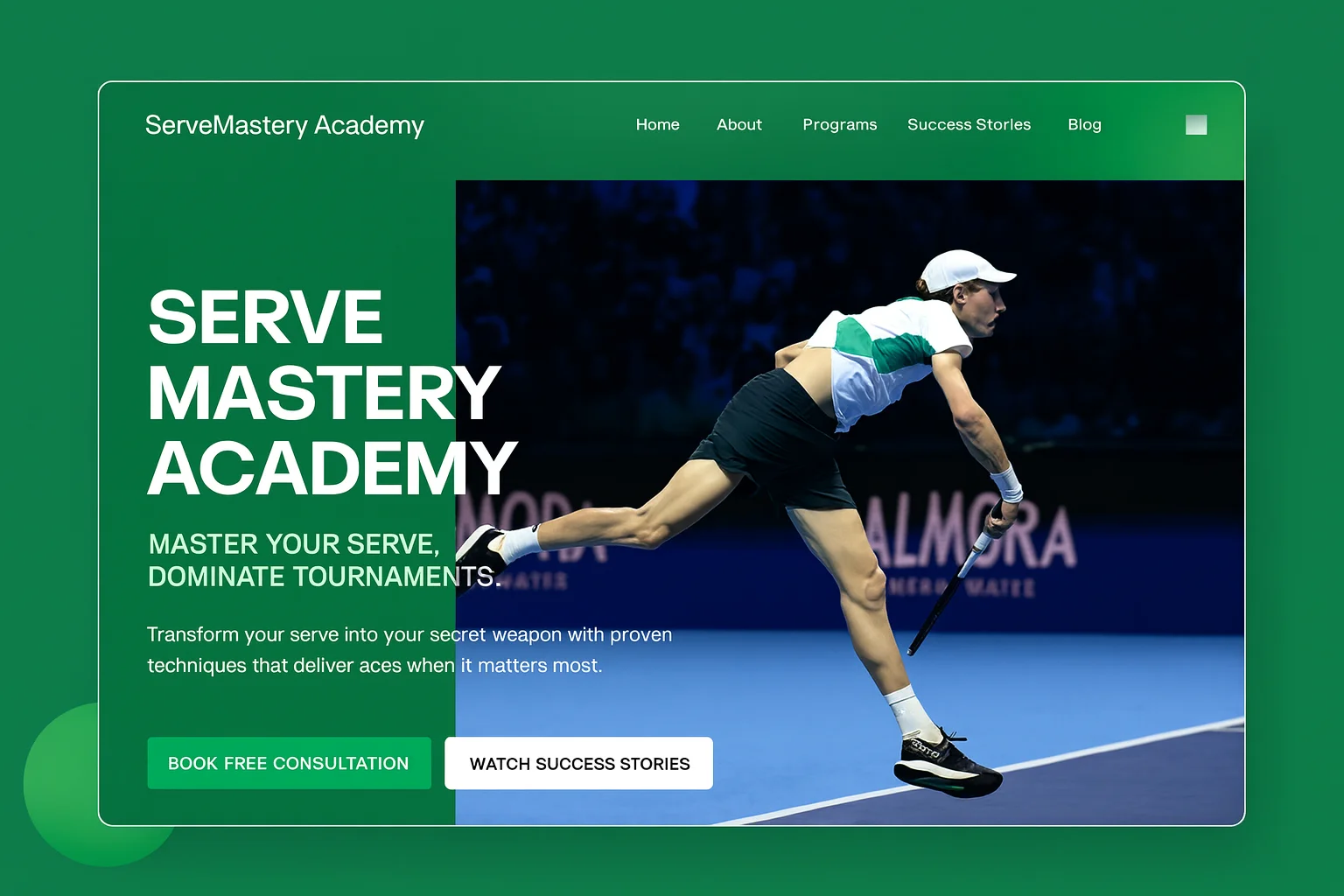
After processing, multiple website variations were generated.
Highlights included:
- A sleek, modern landing page design
- A bolder concept branded as “Creative Master Academy”
- Several additional layouts still loading progressively
The range of styles provided enough flexibility to continue refining the concept.
Pro Tip: Treat the first output as a starting point rather than the final design. Additional prompts such as:
“Add booking functionality”
“Highlight testimonials”
“Make the design more modern”
can significantly improve the final result.
STEP 4: Expand the Workflow Further
After generating the designs, the workflow can continue by:
- Downloading design mockups
- Sharing concepts with clients or teammates
- Using Genspark Developer Agent to convert layouts into functional code
While the first-pass designs may not always feel production-ready, continued iterations can dramatically improve the quality.
Compared to tools like V0 or Lovable, Genspark still feels early in development, but its reasoning-driven workflow, analyzing trends, researching references, and structuring layouts, makes it more advanced than a simple template-based generator.
Pro Tip
Genspark performs best with highly descriptive prompts. Include details about style, layout, color palette, typography, audience, and mood to get more polished and accurate designs. Terms like “minimalist,” “retro,” “luxury branding,” or “high-converting landing page” can noticeably improve the output quality.

Editorial Staff
The Editorial Staff at AIChief is a team of Professional Content writers with extensive experience in the field of AI and Marketing. AIChief was Founded in 2025, AIChief has quickly grown to become the largest free AI resource hub in the industry. Stay connected with them on Facebook, Instagram and X for the latest updates.



