

AI Tutorial
Create AI Infographics in Minutes with Canva Magic Layers
A simple workflow to turn research into editable infographics using AI tools and Canva, no design skills required.
Share
In this guide, you’ll learn how to turn raw research into a fully editable infographic using tools like Perplexity, Gemini, and Canva’s Magic Layers. Instead of building visuals from scratch, you’ll generate a strong first draft that you can quickly refine and publish.
Who This Is For
- Marketers and content creators turning reports, case studies, or campaign results into shareable visuals
- Operators and analysts who need to present complex data in a clear, engaging format
- Teams already using AI for research or image generation who want a faster path from insights to visuals
What You’ll Build
By the end, you’ll have a repeatable workflow that converts a topic, dataset, or report into an infographic you can edit directly in Canva. The output isn’t a perfect final design; it’s a high-quality starting point you can polish quickly.
Requirements
- A research tool like Perplexity (or similar AI)
- An image generator such as Gemini
- Canva Pro (for Magic Layers)
- A topic, report, or dataset to visualize
Step 1: Focus on the Story, Not Just the Data
Start by researching your topic using an AI tool. The key is to guide the tool toward storytelling, not just summarization. Instead of asking for a general overview, request:
- Key outliers
- Interesting comparisons
- Narrative-driven insights
Example prompt:
Do deep research on [topic]. Identify outliers and narrative angles. The goal is to generate four infographic concepts highlighting the most interesting trends.
The goal isn’t to collect every statistic; it’s to uncover compelling storylines that can anchor your infographic.
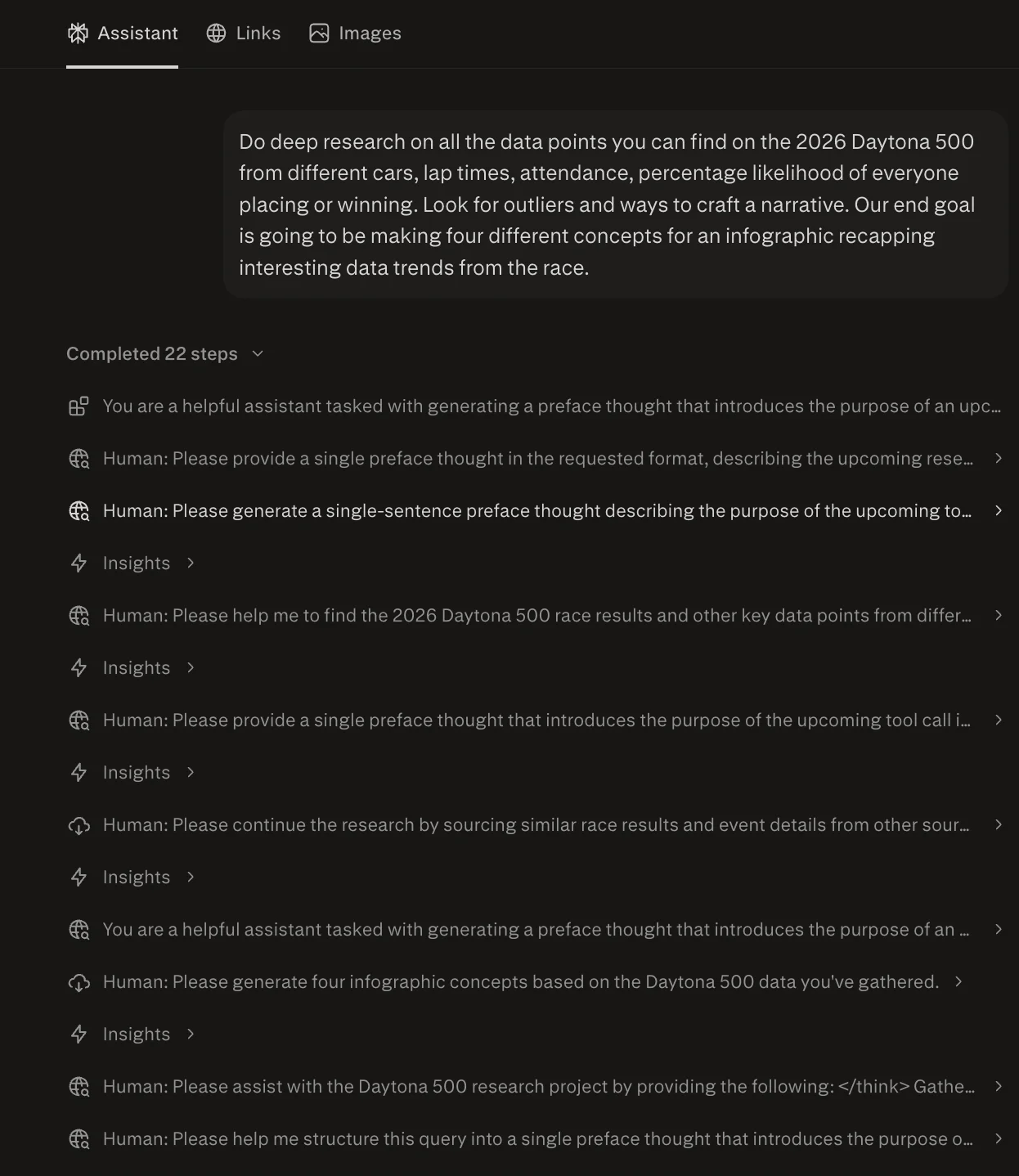
Pro tip: Always specify the final format (e.g., “infographic concepts”) to get more useful output.
Step 2: Convert Research Into Image Prompts
Once you have your concepts, ask the AI to turn them into prompts for an image generator.
Example prompt:
Create an image generation prompt for each concept. Make the data easy to copy and paste.
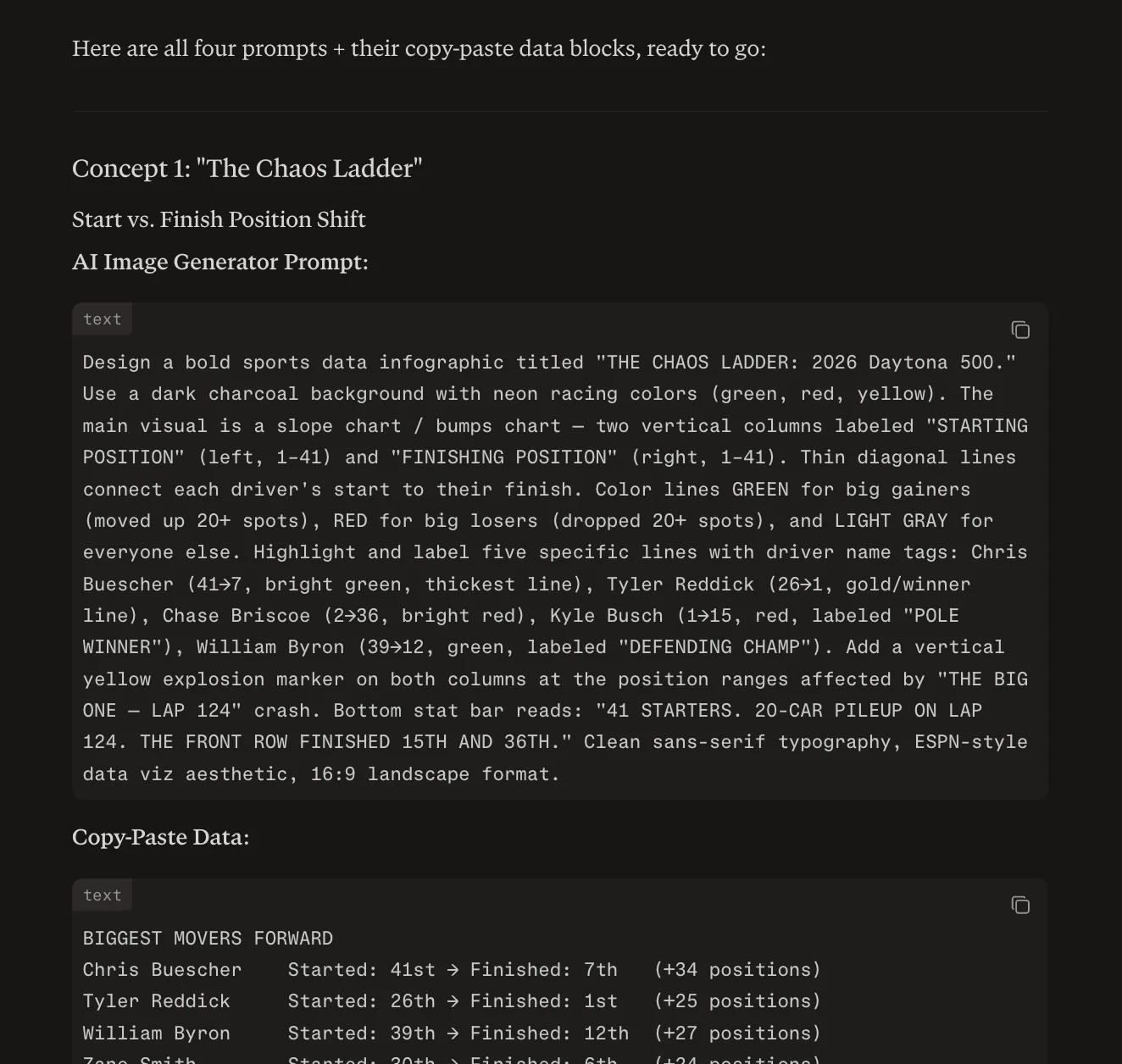
This step packages both the story and the data into ready-to-use prompts. Not every prompt will be perfect; some may be too long or dense, but they serve as a strong starting point.
Step 3: Generate the Visual in Gemini
Take one of your prompts and generate infographic variations in Gemini (or another image tool).
- Produce multiple versions
- Choose the clearest and most structured output
- Download it as a PNG
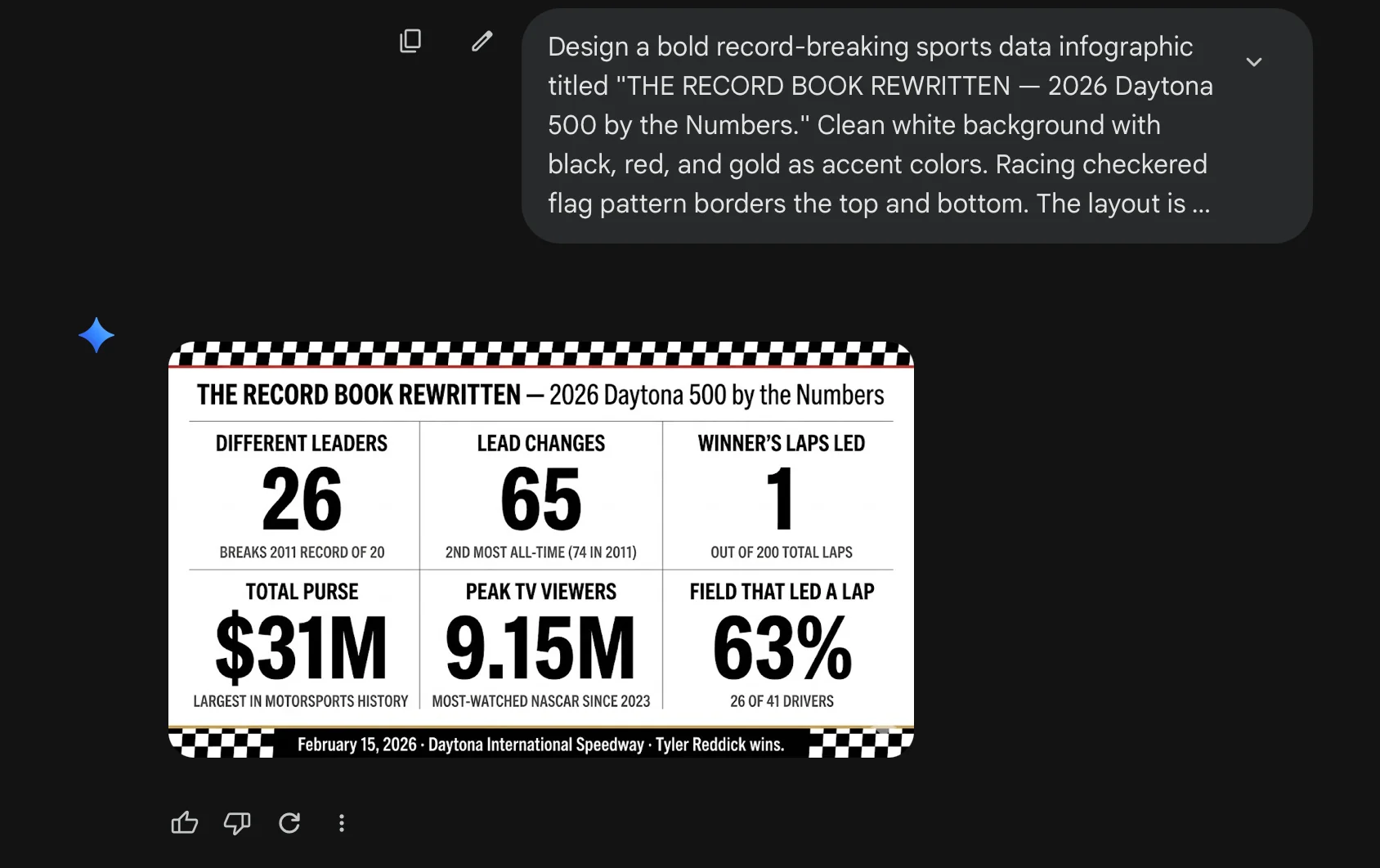
From testing, Gemini handles data-heavy prompts better than many alternatives.
Pro tip: Text-focused infographics work best. Overly complex visuals (dense charts, tiny labels) make editing harder in later steps.
Step 4: Import Into Canva and Use Magic Layers
Open Canva and upload your generated image.
Then:
- Select the image
- Navigate to Edit, then Magic Studio, and lastly Magic Layers
Canva will analyze the image and break it into editable components such as text, shapes, and sections.
This process typically takes 30–60 seconds per image.
Step 5: Refine and Fix the Design
Now, improve the draft by correcting common AI issues:
- Fix typos or incorrect labels
- Simplify or rewrite overcrowded text
- Replace inaccurate visuals with real images or brand assets
Text-heavy designs usually require minimal cleanup. More complex layouts (especially charts) may need additional adjustments.
Going Further
You don’t always need to start from scratch.
If you already have:
- A report
- A case study
- A memo
You can skip the research step and feed it directly into your AI tool. Ask it to extract key insights and generate infographic prompts based on the strongest data points.
This allows you to quickly transform existing content into polished visuals without rebuilding everything manually.
Final Takeaway
AI won’t instantly create perfect infographics, but it dramatically speeds up the process. With this workflow, you can:
- Turn raw data into visual concepts
- Generate a usable first draft
- Edit and finalize designs quickly
Instead of starting from a blank canvas, you start with momentum, and that’s what makes this approach effective.

Editorial Staff
The Editorial Staff at AIChief is a team of Professional Content writers with extensive experience in the field of AI and Marketing. AIChief was Founded in 2025, AIChief has quickly grown to become the largest free AI resource hub in the industry. Stay connected with them on Facebook, Instagram and X for the latest updates.



