

AI Tutorial
Create a personalized daily command center with Claude Live Artifacts
Learn how to create an AI-powered daily command center in Claude using Live Artifacts to track KPIs, prioritize updates, summarize workflows, and manage tasks in one dashboard.
Share
Claude Live Artifacts can help you build a centralized dashboard that organizes your daily workflow, highlights priorities, and surfaces actionable insights from your connected tools and data sources.
Who can benefit from this?
- Professionals managing multiple apps and workflows
- Founders and operators tracking business metrics
- Project managers coordinating tasks and blockers
- Teams wanting a centralized operational dashboard
STEP 1: Have Claude learn your workflow first
Open Claude Cowork and let Claude interview you before building the dashboard. This helps ensure the command center reflects how your workday actually operates instead of generating a generic layout.
Use this prompt:
"Interview me about my connected apps, daily workflow, KPIs, and what counts as urgent. Then propose the modules for a daily command center before creating the artifact."
Or use the more detailed version:
"Before you build anything, interview me about my workday. Ask me about:
- My connected apps and files
- What I check every morning
- What decisions I make daily
- the KPIs I care about
- What counts as urgent
- What updates are FYI only
- What should show up in Today, This Week, and This Month
After the interview, propose the dashboard modules before creating the artifact."
Provide real workflow examples such as Slack mentions, Gmail updates, calendar events, CRM activity, Notion projects, or weekly performance metrics.
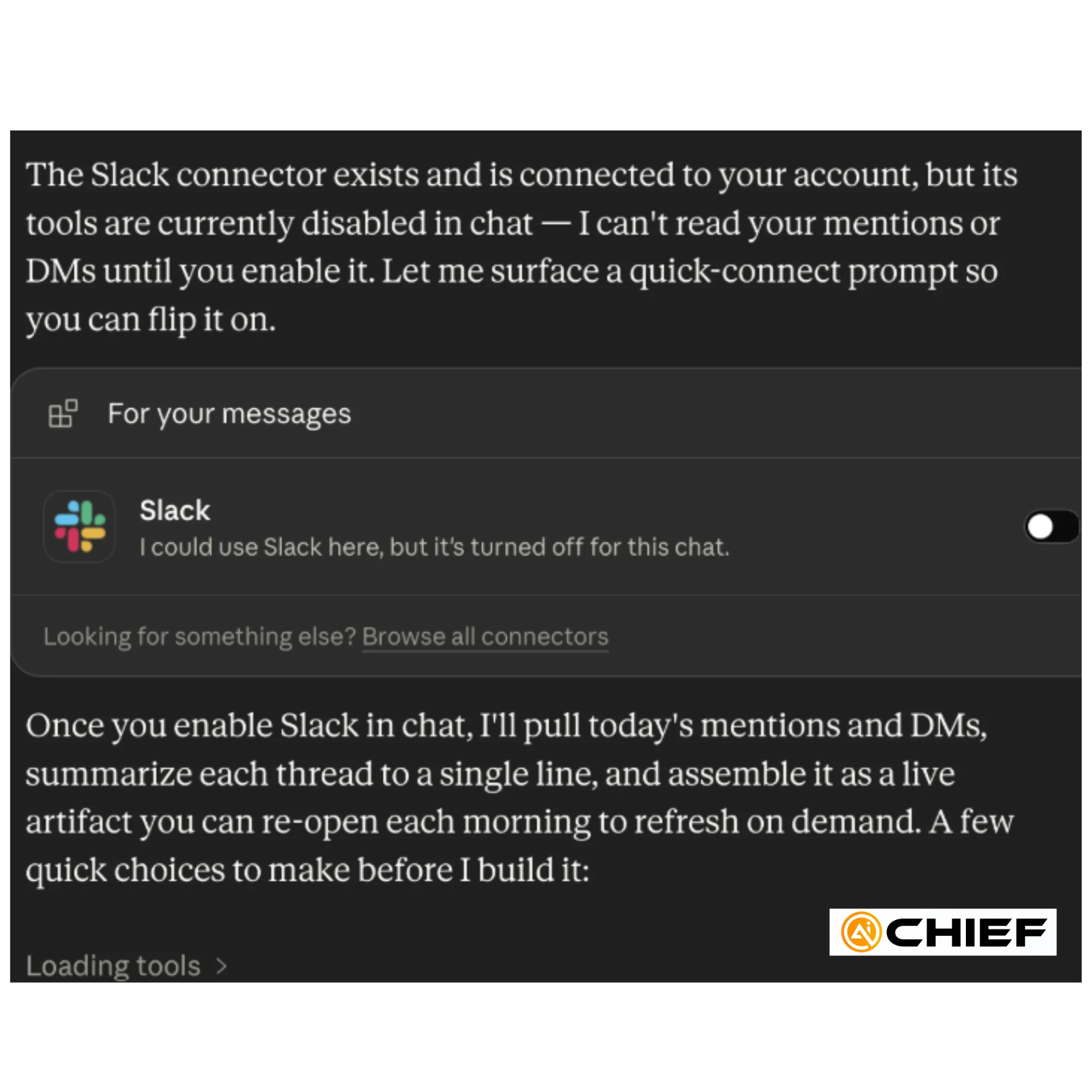
Pro tip: Ask Claude to summarize its understanding before it starts building. A quick recap helps catch incorrect assumptions early.
STEP 2: Build the first version of the dashboard
Once the interview is complete, ask Claude to create the initial version of your command center. Keep the first version simple and functional before adding advanced features.
Use this prompt:
"Create a modular Live Artifact command center with three views:
- Today
- This Week
- This Month
Include:
- KPI cards
- quick stats
- charts for trends or changes
- feed panels grouped by app or workflow
- blockers and waiting-on items
- top 3 recommended actions
Keep it scan-friendly. I should understand the day in 60 seconds. Use the interview answers to decide what belongs in each view."
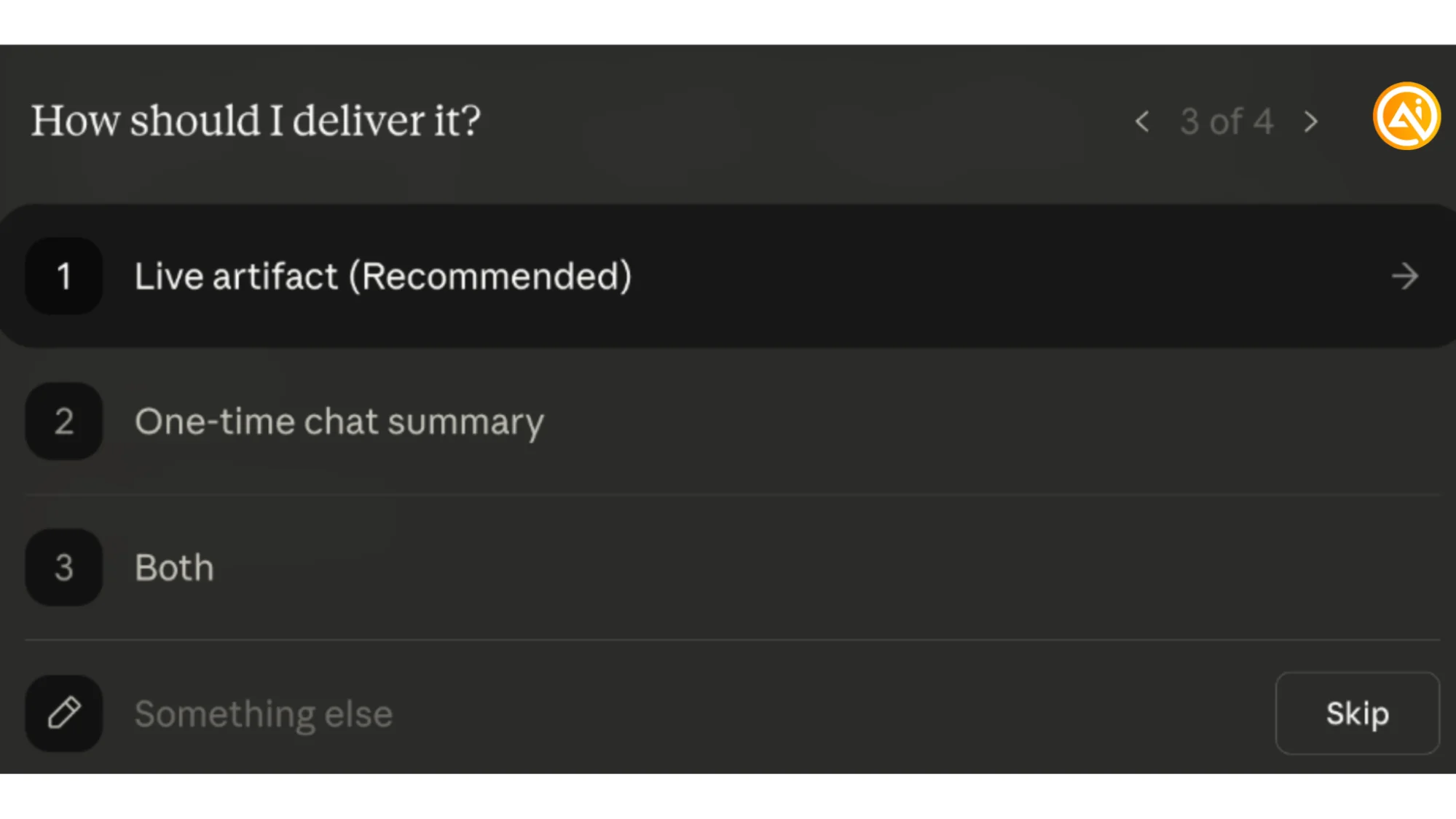
If Claude asks how you want the result delivered, choose Live Artifact so the dashboard can be reopened and updated later.
Before moving on, review whether:
- The top metrics are genuinely useful
- The feeds are grouped logically
- The dashboard is understandable within a minute
- Sensitive information is displayed appropriately
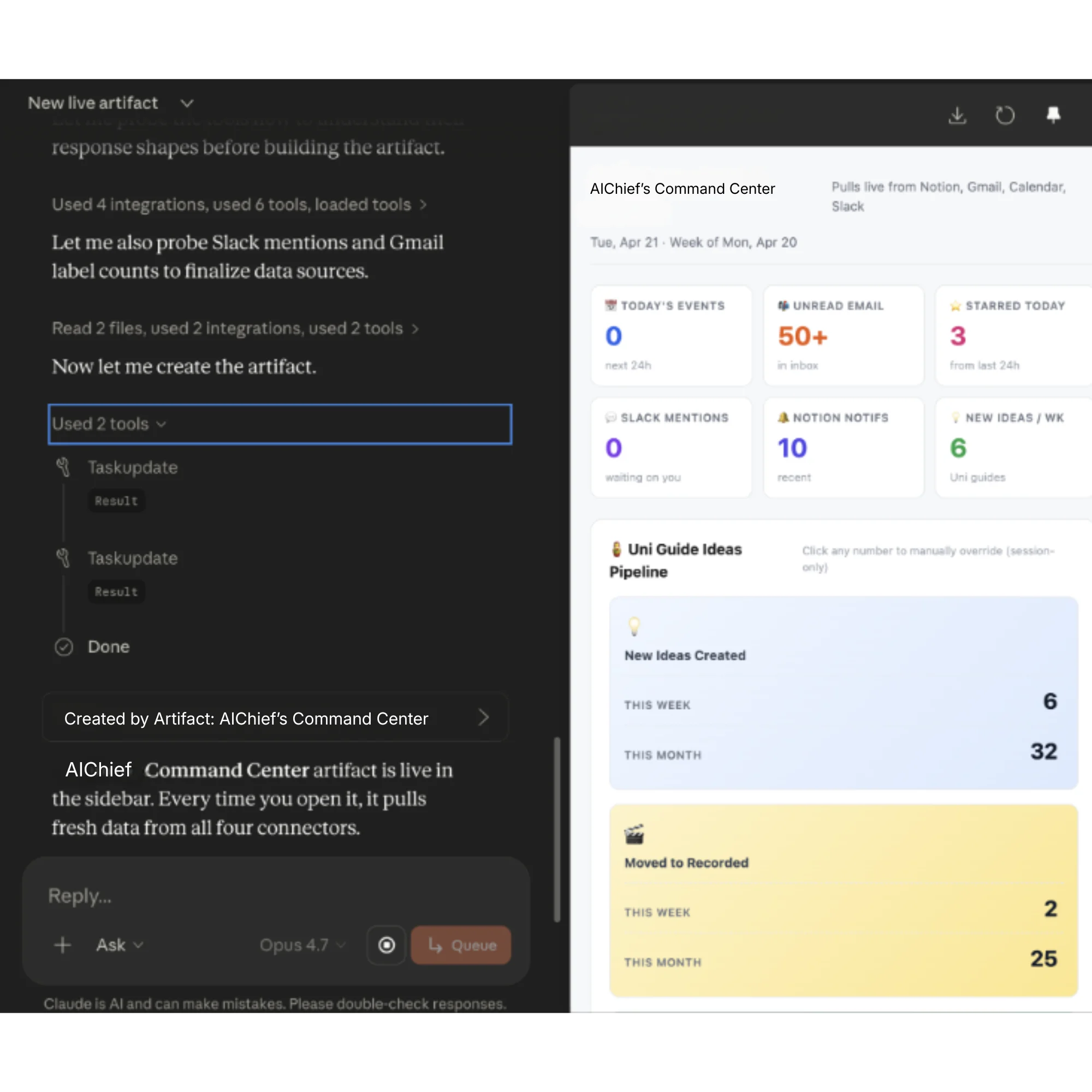
Pro tip: Treat this version as the foundation. Make sure it is useful before layering on more complexity.
STEP 3: Add intelligent priority tracking
After the base dashboard works well, introduce priority scoring so important updates stand out instead of blending into one long feed.
Use this prompt:
"Add priority labels to every update:
- urgent
- needs review
- FYI
- blocked/waiting
Rank items by:
- deadline
- business impact
- customer impact
- whether I am the blocker
- whether a decision is needed today
If you are not sure, mark the item “review manually.” Do not invent status. Cite the source app or source item for each recommendation."
This transforms the dashboard into an operational decision tool rather than just another information feed.
Pro tip: Keep labels highly visible so you can identify urgent actions immediately without reading every detail.
STEP 4: Add actionable dashboard skills
Expand the dashboard by adding AI-powered actions that help you complete work directly from the interface.
Use this prompt:
"Add these dashboard skills:
- Summarize email
Read the latest relevant email updates, summarize the important ones, flag anything urgent, and place the results in the Today view. - Summarize Slack mentions
Read new Slack mentions and DMs, group them by project or urgency, and add anything actionable to the Today view. - Prep meetings
Look at today's calendar, find related docs or recent messages, and create a short prep brief for each important meeting. - Review KPIs
Compare today's numbers to this week and this month. Flag anything that changed meaningfully. - Draft replies
Create short draft replies for urgent messages, but do not send anything without review."
The objective is to make the dashboard the starting point for action, not just observation.
Pro tip: Pin the Live Artifact in Claude’s sidebar so it becomes part of your daily workflow.
STEP 5: Add refresh tools and dashboard controls
Once the workflow feels stable, add controls that make the command center easier to maintain and update daily.
Use this prompt:
"Add a Daily refresh button to this command center. When I click it, update the dashboard with current information from connected apps and files. The refresh should show:
- What changed since the last version
- What got more urgent
- What is blocked
- what improved
- The top 3 actions I should take next
Preserve the dashboard structure. Update the state."
Then add this enhancement prompt:
"Add these dashboard controls:
- Settings panel for update frequency
- Manual override for any incorrect status or priority
- Archive button for updates I have handled
- Click-to-open links for every source update
- Dark mode toggle
- Simple animations only, where they make status changes easier to notice."
Even if certain integrations are not fully connected, the workflow remains valuable because the dashboard still centralizes context and next actions.
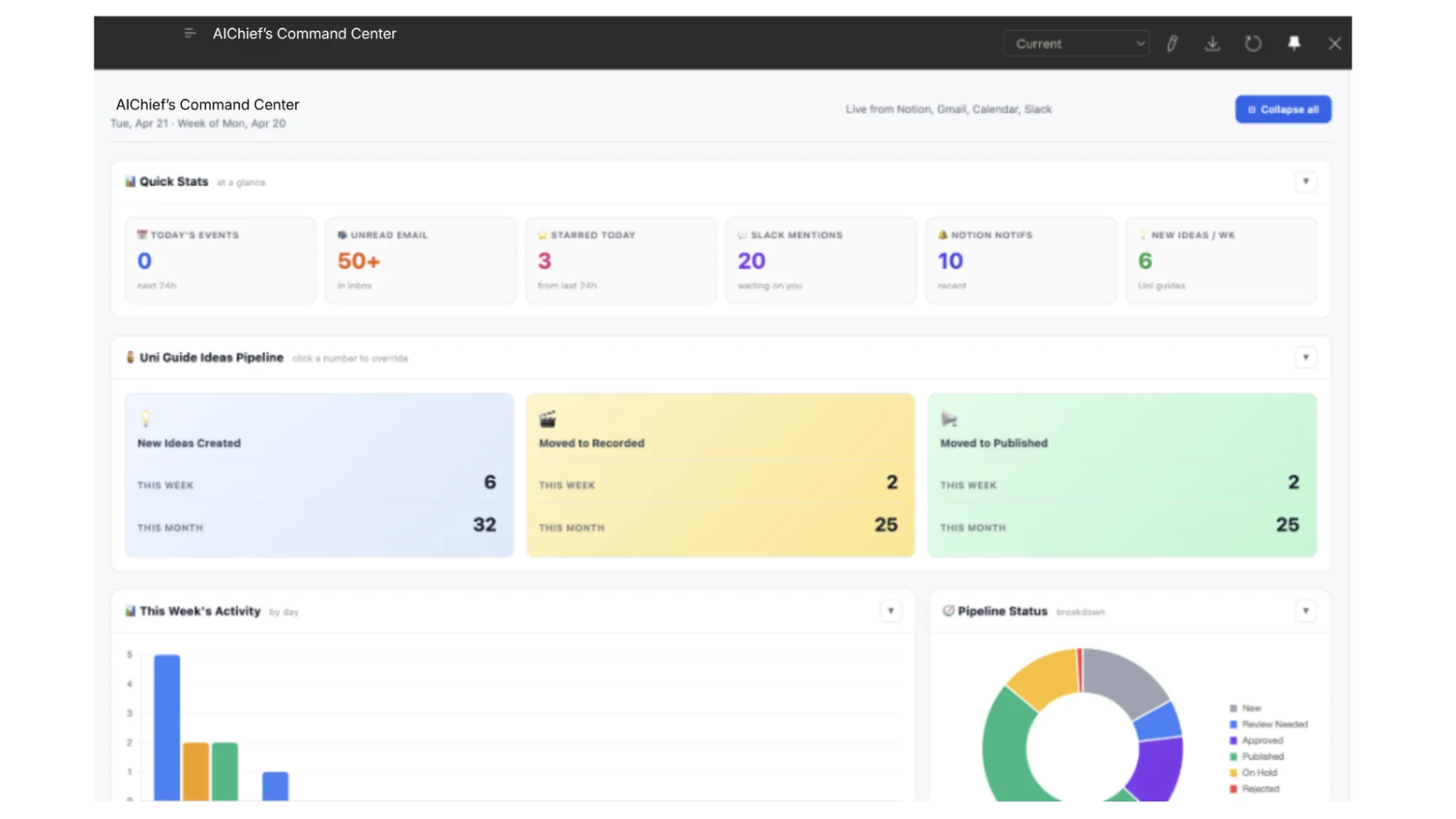
Pro tip
Ask Claude to generate summaries comparing “since yesterday” and “since last week.” Daily shifts help prioritize immediate actions, while weekly trends reveal larger operational patterns.

Editorial Staff
The Editorial Staff at AIChief is a team of Professional Content writers with extensive experience in the field of AI and Marketing. AIChief was Founded in 2025, AIChief has quickly grown to become the largest free AI resource hub in the industry. Stay connected with them on Facebook, Instagram and X for the latest updates.



