

AI Tutorial
Create a Mobile App with Figma AI
Learn how to create a mobile app from scratch using Figma AI. This step-by-step guide covers idea generation, design refinement, integrations, and exporting your final product.
Share
Figma has long been a go-to tool for clean, professional design work, and its AI features take that experience further. This guide explains how to design a mobile app from start to finish using Figma AI.
Who Can Benefit from This:
- Designers exploring AI features in Figma
- Developers who want fast prototypes
- Founders validating app ideas without coding
- Students learning modern design processes
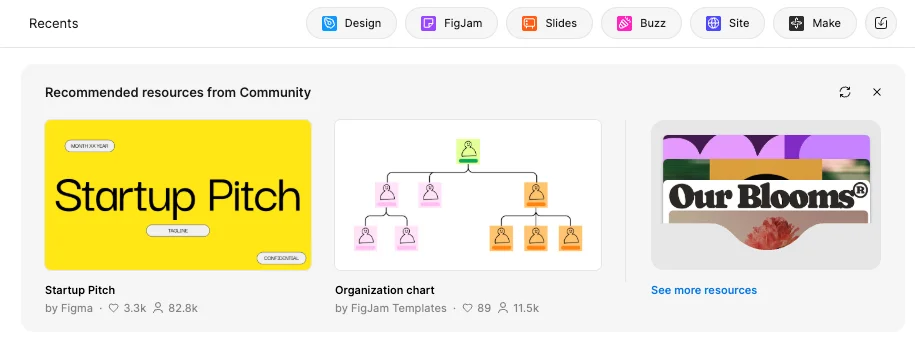
STEP 1: Get Started with Figma
Go to Figma.com and sign in. Once inside, several tabs appear at the top, including Design, FigJam, Slides, Buzz, Site, and Make.
Click “Make”, where a chat-style interface asks: “What do you want to make?”
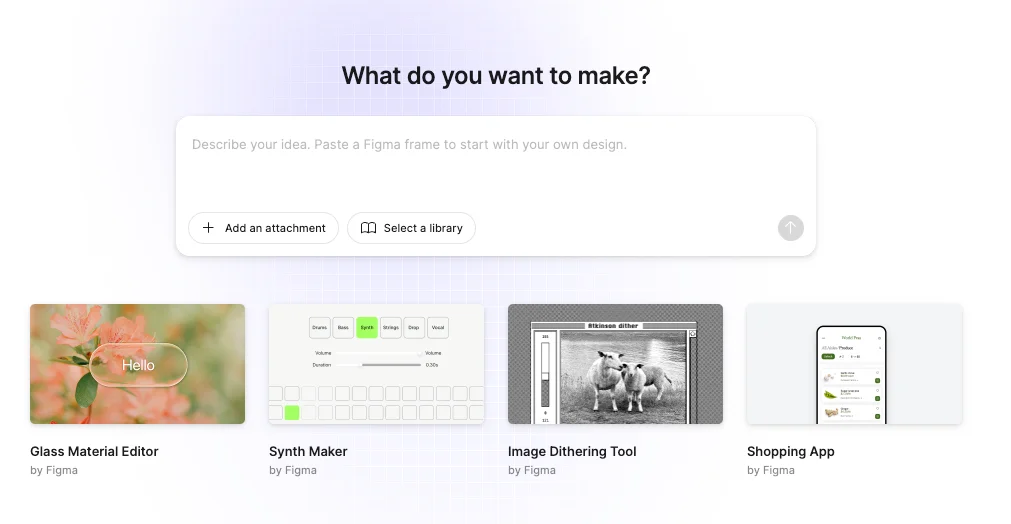
STEP 2: Define the App Idea
At this stage, inspiration can be uploaded, templates can be selected, or a prompt can be written from scratch.
A Shopping App template can serve as a base and be reshaped with a prompt like:
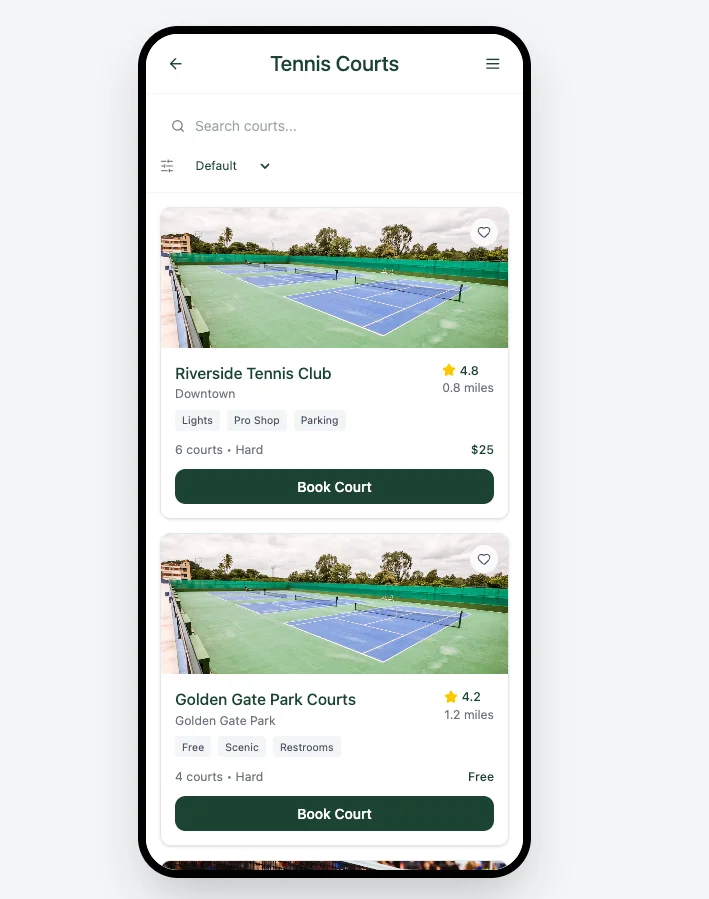
“Build an app for tennis players to discover local courts, track performance, and share activity, similar to Strava, but for tennis.”
Figma AI quickly generates a full layout with dashboards, performance tracking, and social features, turning a simple idea into a working design.
STEP 3: Refine the Design with Better Prompts
The initial version may look complete, but it often lacks a distinct style. Adjusting the prompt can improve the visual direction:
- Clean white background
- Deep green typography
- Beige accent tones
- Neon yellow highlights
Figma AI responds by refining spacing, layout, and overall aesthetics. Even small prompt changes can noticeably enhance the result.
STEP 4: Add Features and Test Interactions
After finalizing the look, additional features can be introduced. For example, calendar functionality can be added so users can schedule matches through tools like Cal.com or Calendly.
Figma AI may suggest using Supabase for authentication and database support.
Testing flows such as “Find Courts” and “Book a Court” shows that interactions are often pre-configured, with buttons triggering navigation and state changes automatically.
STEP 5: Preview, Share, and Export
Once complete, the design can be:
- Previewed in a separate window
- Shared with team members
- Exported or converted into code for development
Many developers continue the process in tools like Cursor to build and deploy the full application.
Pro Tip
Avoid settling for the first version. Refining prompts, whether for layout, colors, or features, consistently improves the outcome. Clear direction leads to stronger results when working with Figma AI.

Editorial Staff
The Editorial Staff at AIChief is a team of Professional Content writers with extensive experience in the field of AI and Marketing. AIChief was Founded in 2025, AIChief has quickly grown to become the largest free AI resource hub in the industry. Stay connected with them on Facebook, Instagram and X for the latest updates.



