

AI Tutorial
Convert Your Course Syllabus into a Lecture Notes Database with Notion AI
Learn how to convert a course syllabus into a structured lecture notes database using Notion AI, saving hours of manual setup.
Share
This tutorial explains how to transform a simple course syllabus into a structured lecture notes database using Notion AI. Instead of manually organizing your semester, you can generate a complete study system in seconds.
Best Suited for:
- University students
- High school students
- Graduate students managing multiple courses
- Anyone looking for a more organized way to take notes
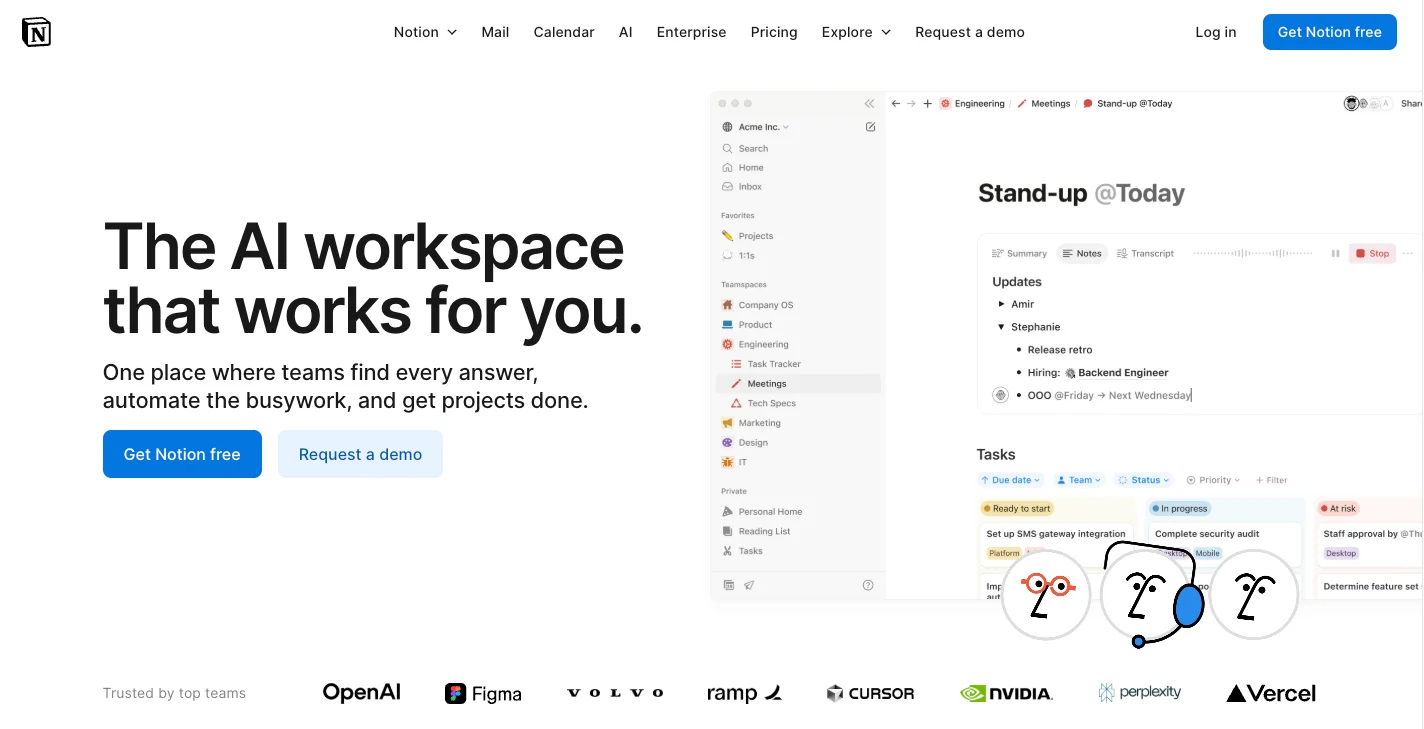
Step 1: Open Notion and start a new page
Go to Notion and create a new page in your workspace.
Inside the page, press the spacebar to open the AI input field. This is where you’ll enter the prompt that powers the workflow.
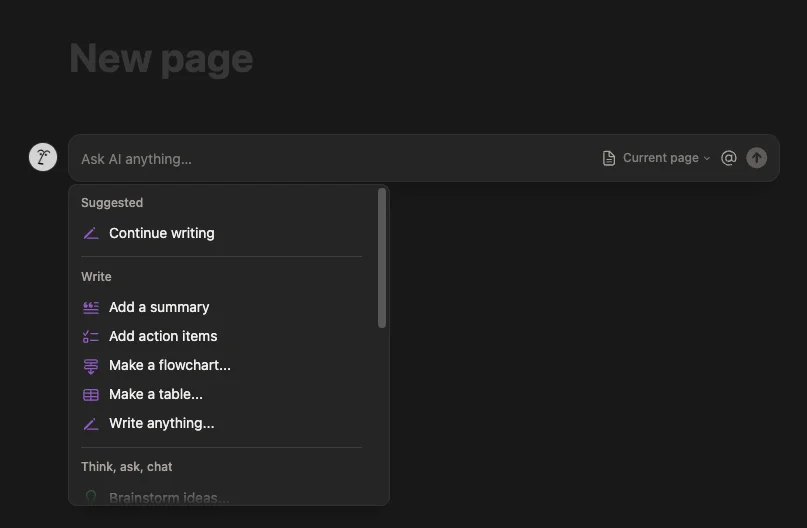
Step 2: Upload your syllabus
Instead of manually entering lecture details, import your syllabus file (PDF or text) directly into the page.
Once added, the syllabus will appear as a plain document; this is exactly what Notion AI needs to begin structuring your content.
Step 3: Generate the database with Notion AI
Now use Notion AI to transform the syllabus. Try a prompt like:
“Let’s make a study guide for this course. Be sure to include a database where I can take notes on each week’s lecture.”
After submitting, Notion AI will begin restructuring your content, adding properties, organizing weeks, and suggesting useful views like boards or calendars.
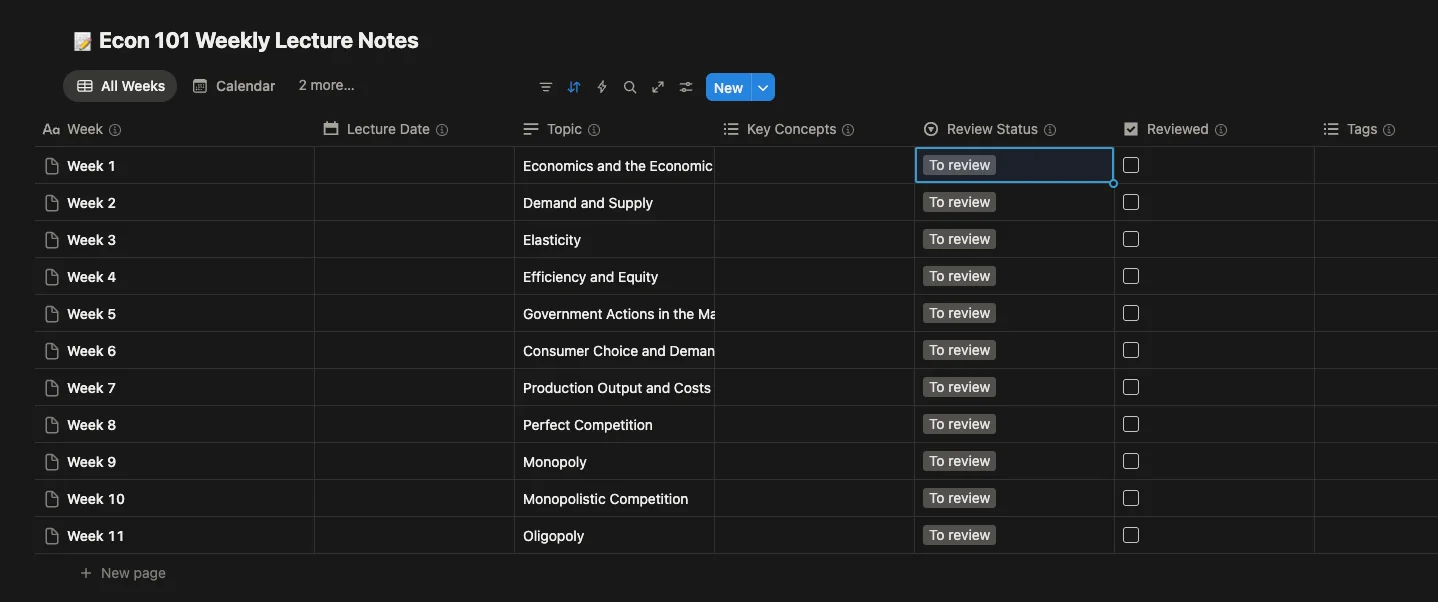
Step 4: Review and refine the output
The AI will create:
- A study guide section at the top
- An embedded database for lecture notes
- Pre-filled entries labeled by week (e.g., Week 1, Week 2, etc.)
- Fields for lecture dates, topics, key ideas, review status, and notes
You can adjust the structure as needed. For example, modify fields or customize statuses like “To Review,” “In Progress,” or “Reviewed.”
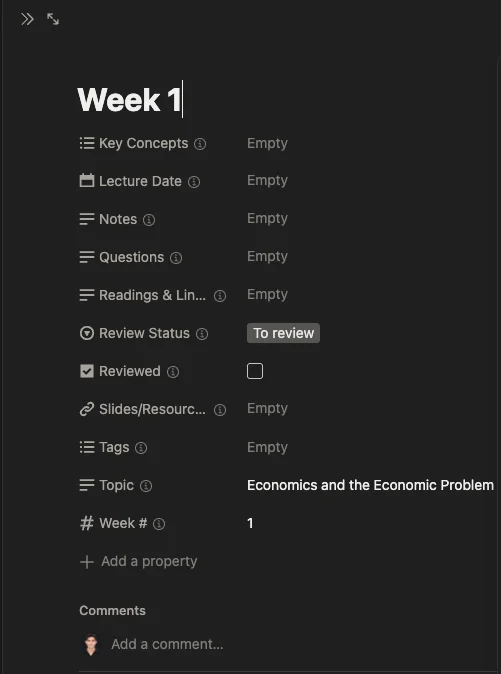
Step 5: Use the system throughout your course
With everything set up, you can:
- Open each weekly entry
- Add notes from lectures and readings
- Track your progress using the review status field
This approach lets you focus on studying instead of setup, making your workflow far more efficient.
Pro Tip
Import syllabi for multiple courses and experiment with prompts, such as adding tags or different database views, to build a more powerful and personalized study system.

Editorial Staff
The Editorial Staff at AIChief is a team of Professional Content writers with extensive experience in the field of AI and Marketing. AIChief was Founded in 2025, AIChief has quickly grown to become the largest free AI resource hub in the industry. Stay connected with them on Facebook, Instagram and X for the latest updates.



