

AI Tutorial
Convert SOP Documents Into AI-Led Training Videos
Learn how to convert SOPs into engaging AI avatar training videos using Synthesia, from script creation to final onboarding content.
Share
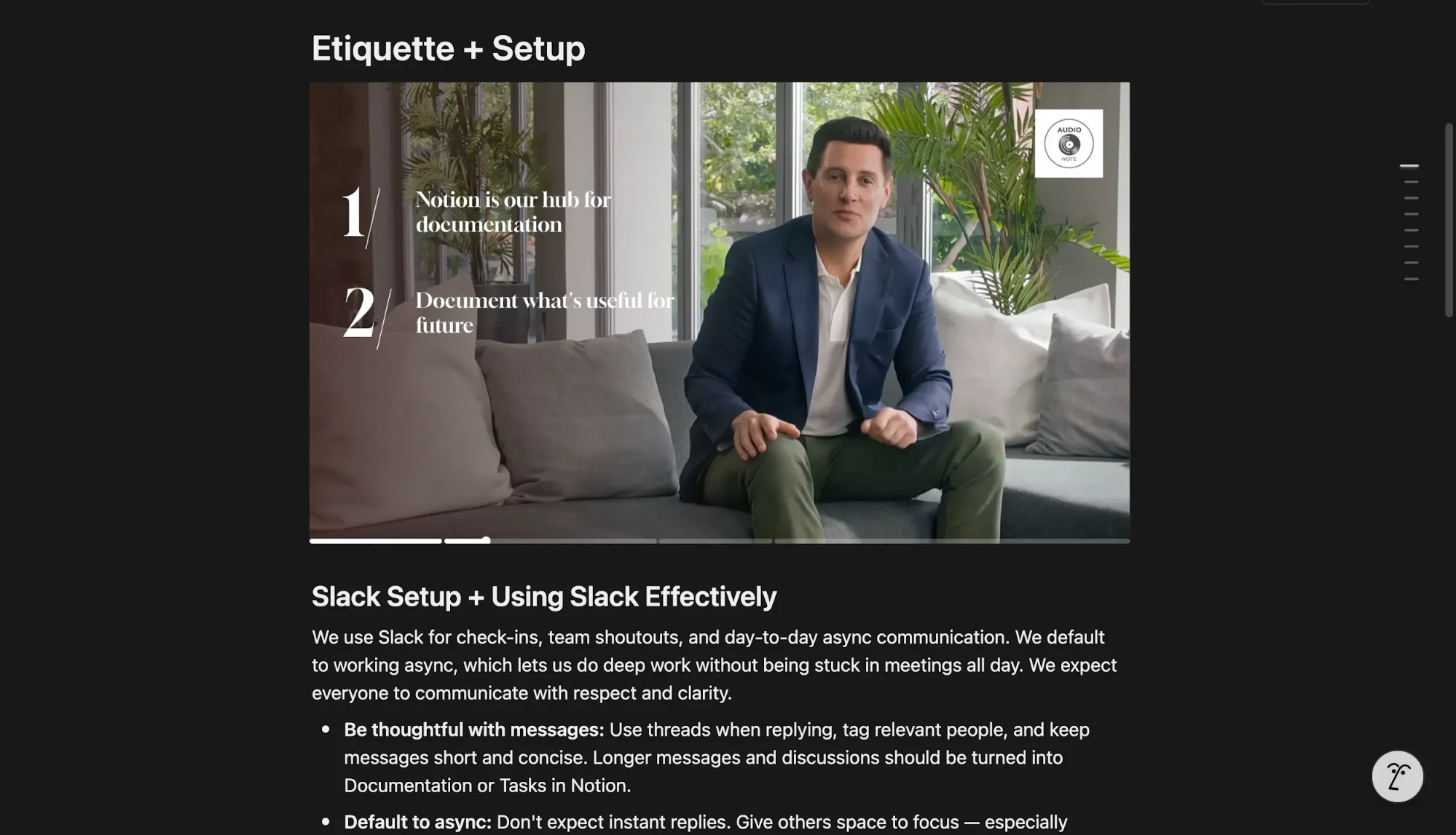
In this walkthrough, you’ll learn how to turn static onboarding materials into dynamic training videos narrated by AI avatars. This method is optimized for producing high-quality videos efficiently and at scale.
Who This Is For
- Operations managers repeat the same onboarding sessions every quarter
- Founders or team leads with SOPs in Google Drive that rarely get read
- Course creators or consultants converting written frameworks into video lessons without production overhead
What You’ll Create
A structured onboarding video library with 4–5 training modules.
What You Need to Start
- Synthesia account ($29/month)
- 3–5 existing SOP or onboarding documents
- Claude or ChatGPT for script writing
Step 1: Create Your Script
Select 3–5 key documents commonly used in onboarding, such as:
- Mission statement
- Onboarding checklist
- Tool setup guide
- Team directory
- Role-specific workflows
Upload one document into Claude or ChatGPT with this prompt:
“Turn this into a two to three-minute training video script for an AI-generated avatar. Include timestamps and shots. Only include text overlays with bullets. The avatar can be seated, standing, head-on, etc.”
Pro tip: Break documents into focused topics like “Slack usage” or “Notion setup” for clarity.
Step 2: Save the Script File
Copy the final script and paste it into a text editor such as Visual Studio Code, Notepad, or TextEdit.
Save the file as [topic]-script.txt. Synthesia requires TXT or PDF format.
Step 3: Upload to Synthesia
Log in to Synthesia and click Create New Video.
Choose Create from AI for the best results.
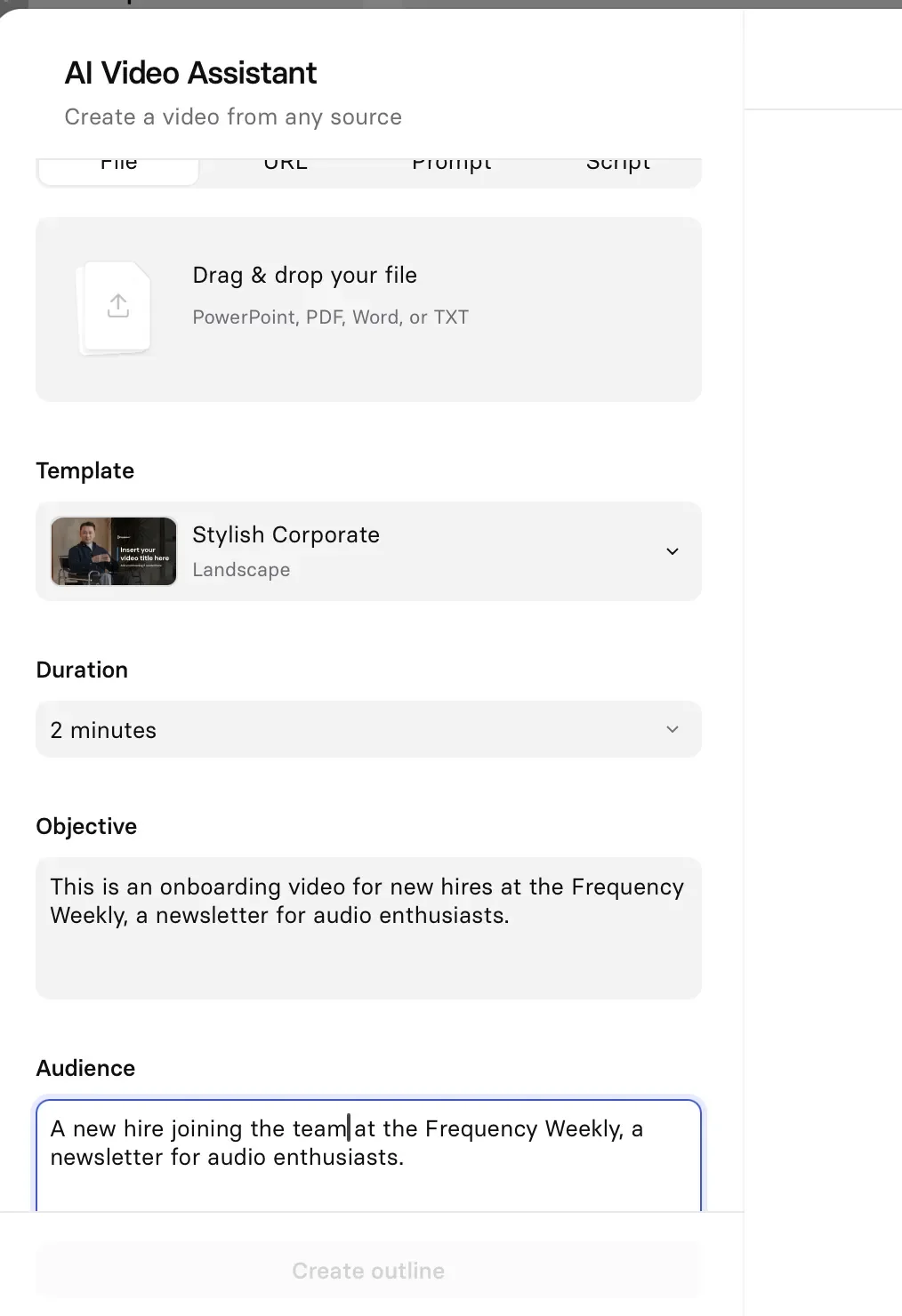
Upload your .txt script file and set the duration to match the script.
Fill in the sidebar fields:
- Objective: What the video teaches
- Audience: Who it’s for
- Language: Preferred language
Step 4: Review Scenes and Customize
Select a clean, professional template.
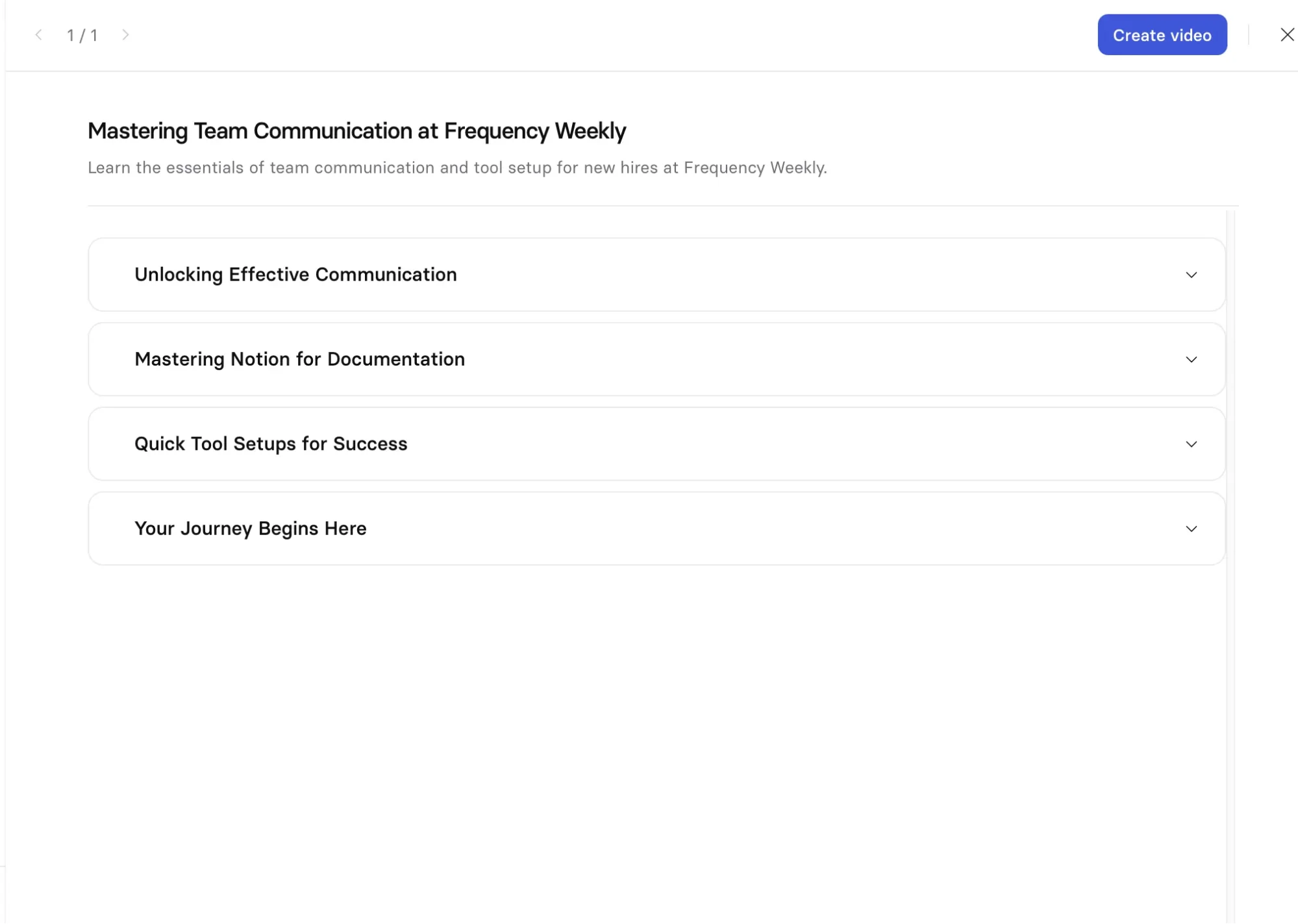
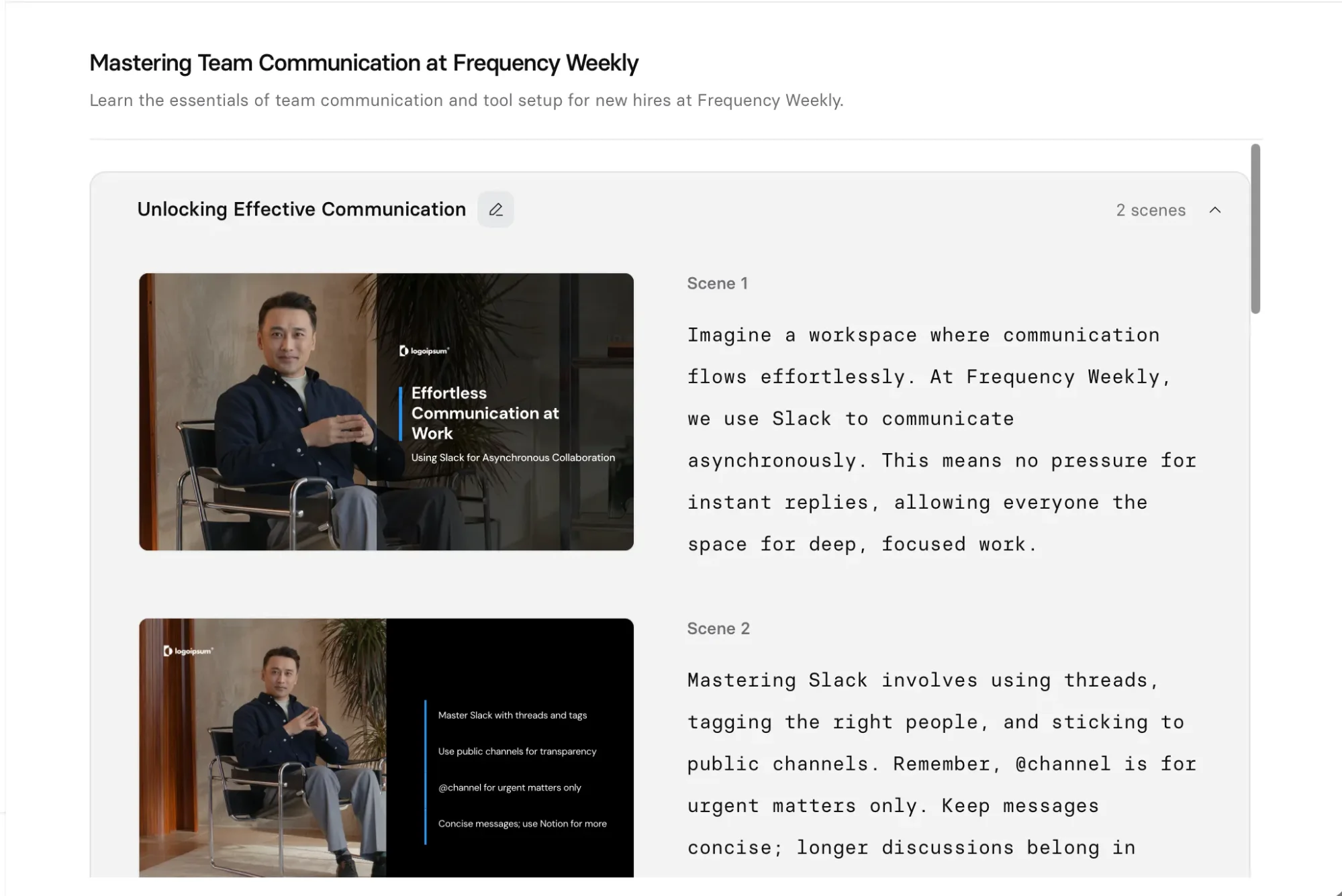
Click Create Outline to generate scene layouts with descriptions and bullet points. Carefully review everything, as edits are limited after generation.
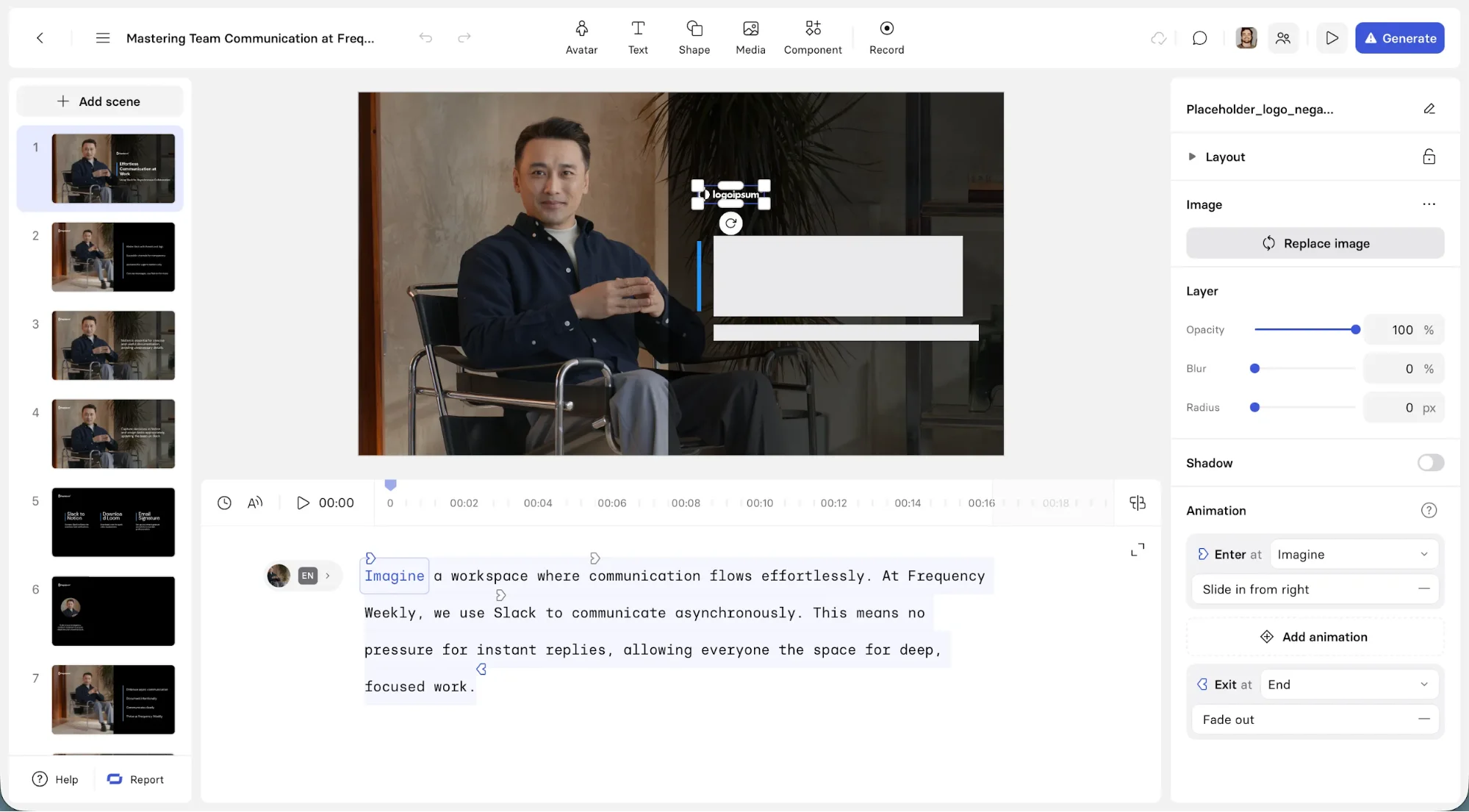
If needed, open the editor to add branding elements like your logo.
Step 5: Generate and Export
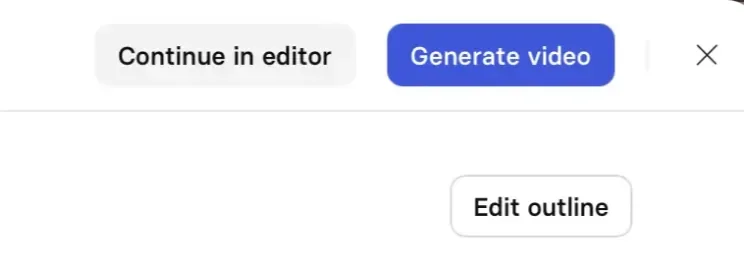
Once finalized, click Generate. This action uses your credits and cannot be undone. Rendering typically takes 10–25 minutes.
After completion, you can:
- Download the video as MP4
- Generate an embed link
Downloading MP4 files is recommended for long-term use and flexibility.
Pro tip: Embedding videos in Notion provides a clean viewing experience with chapters and captions.
Take It Further
Repeat the process for each document to build a full onboarding library. Organize all videos in a single page using Notion or Google Docs for easy access.
You can also experiment with interactive templates and quizzes, but note these require an active Synthesia subscription since they can only be embedded, not downloaded.

Editorial Staff
The Editorial Staff at AIChief is a team of Professional Content writers with extensive experience in the field of AI and Marketing. AIChief was Founded in 2025, AIChief has quickly grown to become the largest free AI resource hub in the industry. Stay connected with them on Facebook, Instagram and X for the latest updates.



