

AI Tutorial
Build Your Own AI-Powered Design System
Learn how to build a reusable design system and launch a portfolio site using Codex and ShadCN components.
Share
This walkthrough shows how to use a powerful yet underused design tool with Codex to build a simple portfolio site. The process streamlines setup, so you no longer need to worry about designing systems from scratch.
Who It’s For
- Vibe coders who struggle with consistent UI systems
- Non-designers who want improved layouts, colors, and components
- Anyone aiming to launch a straightforward portfolio site
What You’ll Build
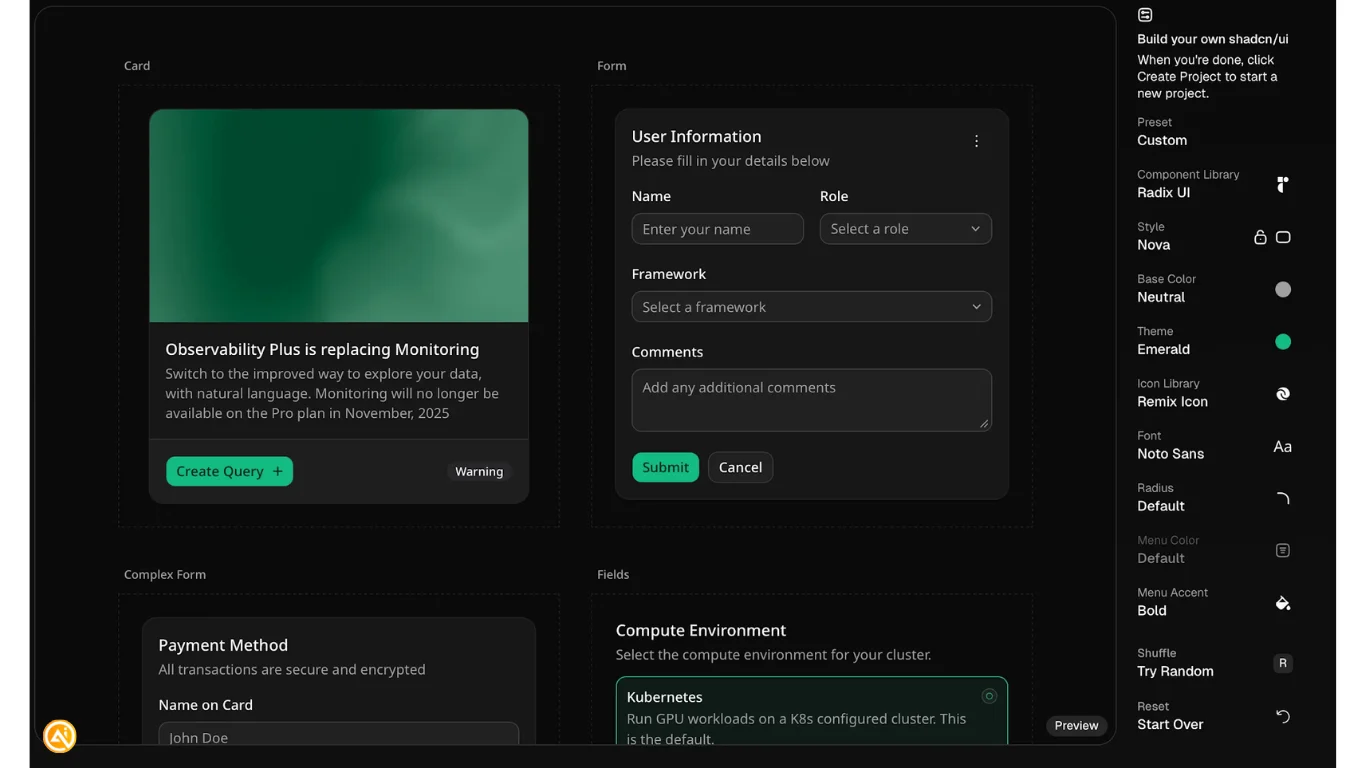
A fully customized design system with reusable elements like buttons, cards, and layout components.
What You Need to Start
- Cursor
- Codex (or Claude Code)
- Context7 agent skill (optional but helpful)
Step 1: Create Your Design System
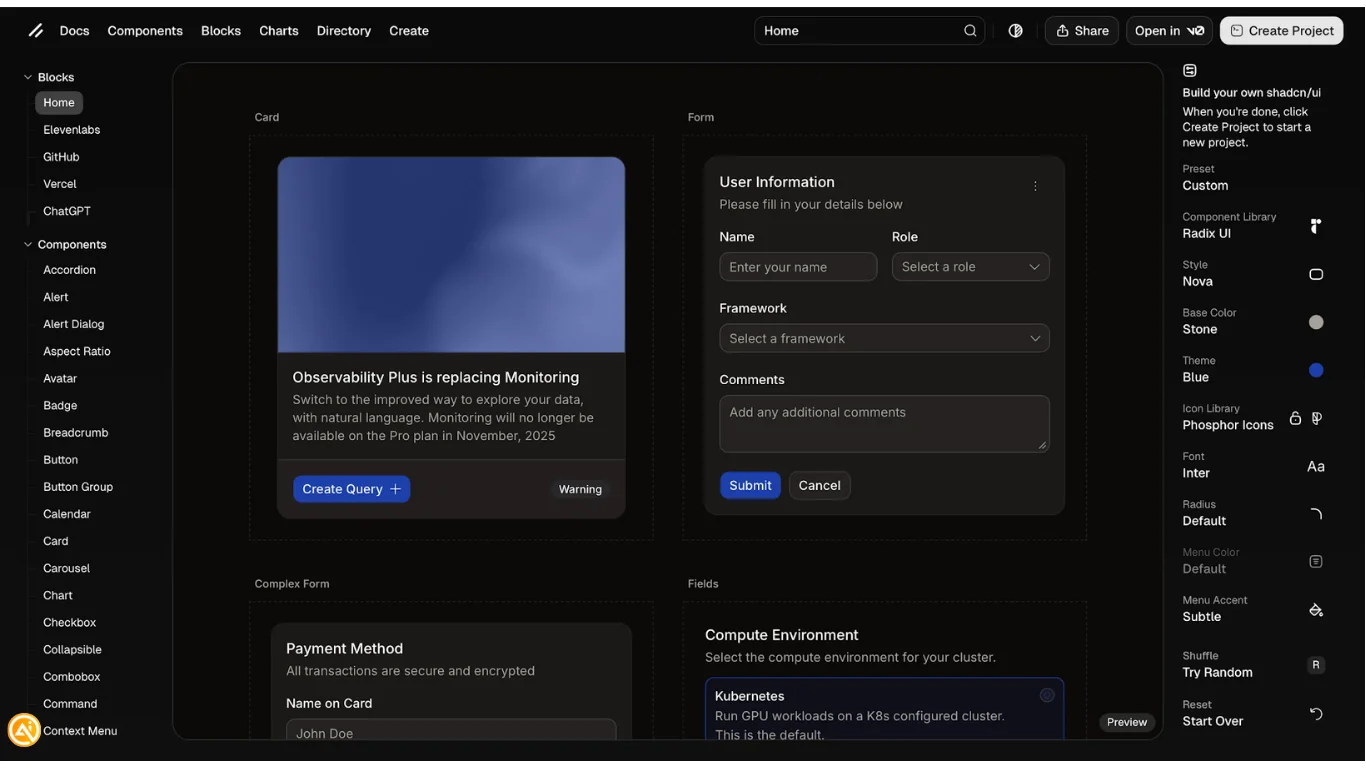
Go to the ShadCN generator and configure your design system using the available options.
Step 2: Set Up Your Project
Click “Create Project” and copy the generated setup command for your chosen stack.
If unsure, go with Next.js and npm.
Example command:
npx shadcn@latest create --preset "<generated-link>" --template next
Save this command, you’ll need the embedded link later.
Step 3: Launch the Project
Run the command in your terminal and name your project when prompted.
Move into the project directory:
- cd [folder-name]
Install dependencies and start the dev server:
- npm install
- npm run dev
Your local site will now run with your custom design system applied.
Step 4: Integrate With Your AI Agent
Open a Codex or Claude session within your project folder.
Find your Claude.md or Agent.md file and paste in the design system instructions.
To get these, open the link from your setup command and copy the configuration.

Tip: Explore ShadCN components to choose the best UI elements for your project.
Step 5: Plan and Generate the Portfolio
Before building, create a structured outline using an AI tool.
Prompt:
- Lay out the site as a PRD in Markdown using ShadCN components.
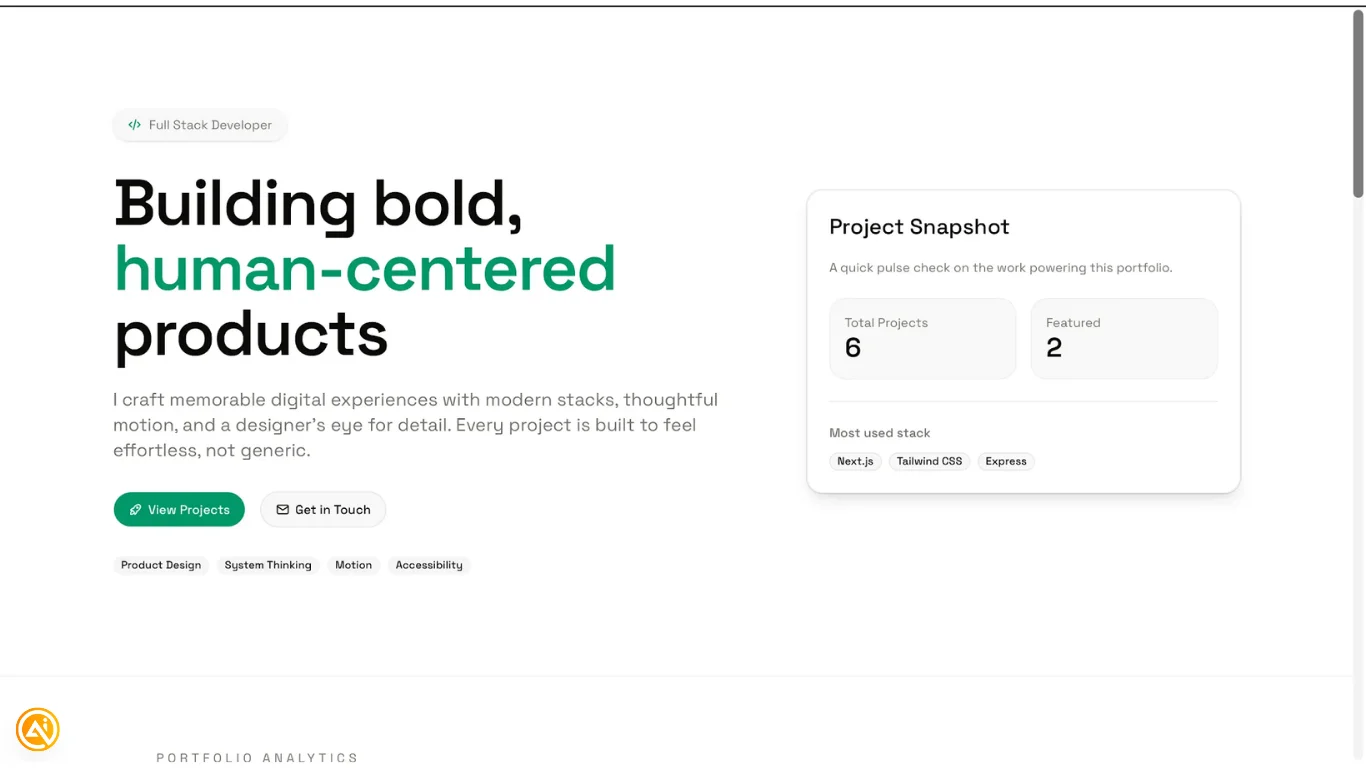
Then instruct your agent:
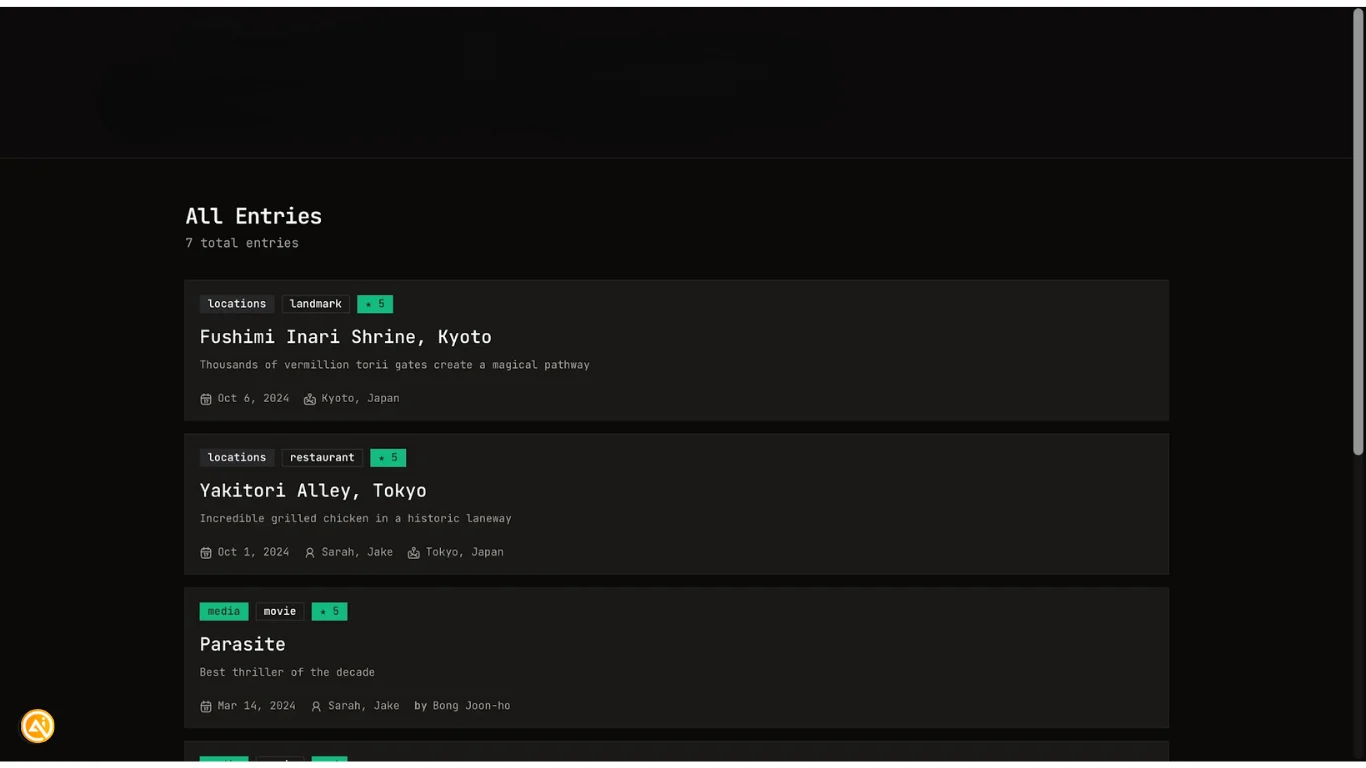
Build a simple portfolio for a developer named [your name] based on the PRD. Make portfolio entries editable via Markdown. Use ShadCN components and the design system defined in Agent.md.
Tip: Ask targeted questions like “Which ShadCN components fit best here?” to refine structure.
Next Steps
If using Context7, add this to your Agent.md:
Always use Context7 to source ShadCN components before creating new UI.
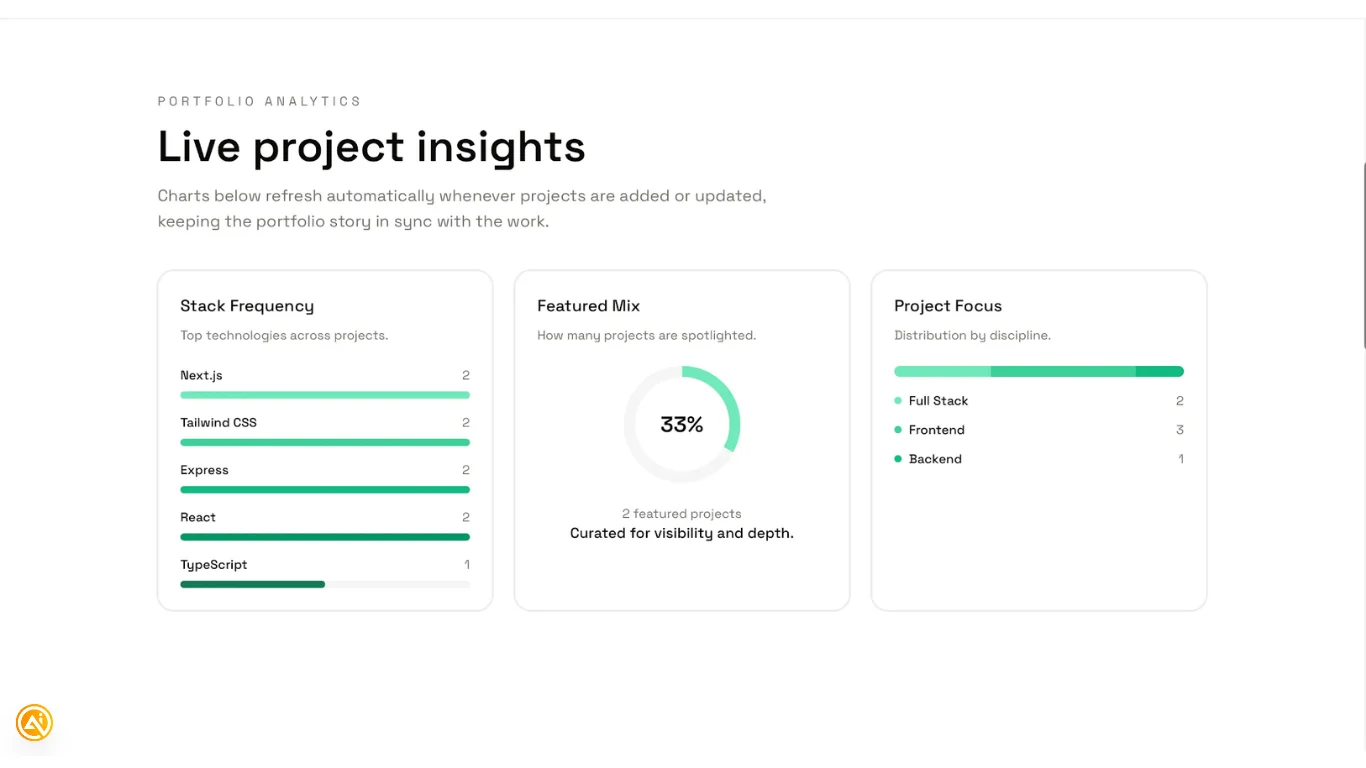
You can also expand your site by adding charts from the ShadCN library to visualize portfolio data.

Emily Newton
Emily Newton is an experienced Editor-in-Chief who has spent the last decade sharing her insights on science and technology advances through platforms like IoT for All and DZone. She is deeply interested in showcasing how connected technologies and smart ecosystems transform modern businesses. When she isn’t writing, Emily enjoys walking local trails, playing video games, or curling up with a good book.



