

AI Tutorial
Build Polished Slide Decks Using AI (Any Tool Workflow)
Learn how to turn unstructured data into polished presentations using Claude and Gamma, no manual slide design required.
Share
In this walkthrough, you’ll learn how to transform raw inputs into a structured slide deck. Whether you're starting with spreadsheets, transcripts, notes, or documents, this method organizes everything into a clear presentation.
Who This Is For
- Marketing managers are rebuilding recurring reports every month
- Agency owners turning long documents into concise client presentations
- Operations leads summarizing meetings into executive-ready updates
What You’ll Create
A complete slide deck generated from existing content. Instead of starting from scratch, you’ll get a fully structured and designed presentation with narrative, data, and layout already handled.
What You Need
- Claude (free or paid)
- Gamma account (free tier works)
- Any raw input: CSV files, notes, transcripts, documents, or outlines
Step 1: Gather Your Source Material
Collect the content you want to use. This could include analytics exports, meeting transcripts, project documents, or rough notes.
The format doesn’t matter. In fact, the more unstructured it is, the more time this workflow saves since you’re not preparing it manually.
Step 2: Generate an Outline With Claude
Start a new chat in Claude, upload your files, and use this prompt:
I want you to turn these materials into a slide deck outline. Before creating it, ask me five multiple-choice questions about the purpose, audience, tone, and structure.
Claude will respond with questions to clarify your needs, such as identifying the audience or presentation goal.
This step is essential because it helps tailor the deck. Without it, outputs often feel generic.
Tip: Add your own constraints if needed, like brand tone or required sections.
Step 3: Refine the Outline
Answer the questions and let Claude produce a markdown outline.
Each heading represents a slide title, while bullet points become slide content. Claude will extract key data, insights, and highlights from your input.
Review the outline and adjust as needed. You can ask Claude to insert slides, modify sections, or change emphasis.
Tip: Make edits at this stage instead of later; it’s faster to adjust structure in text form than inside a designed presentation.
Step 4: Generate the Deck in Gamma
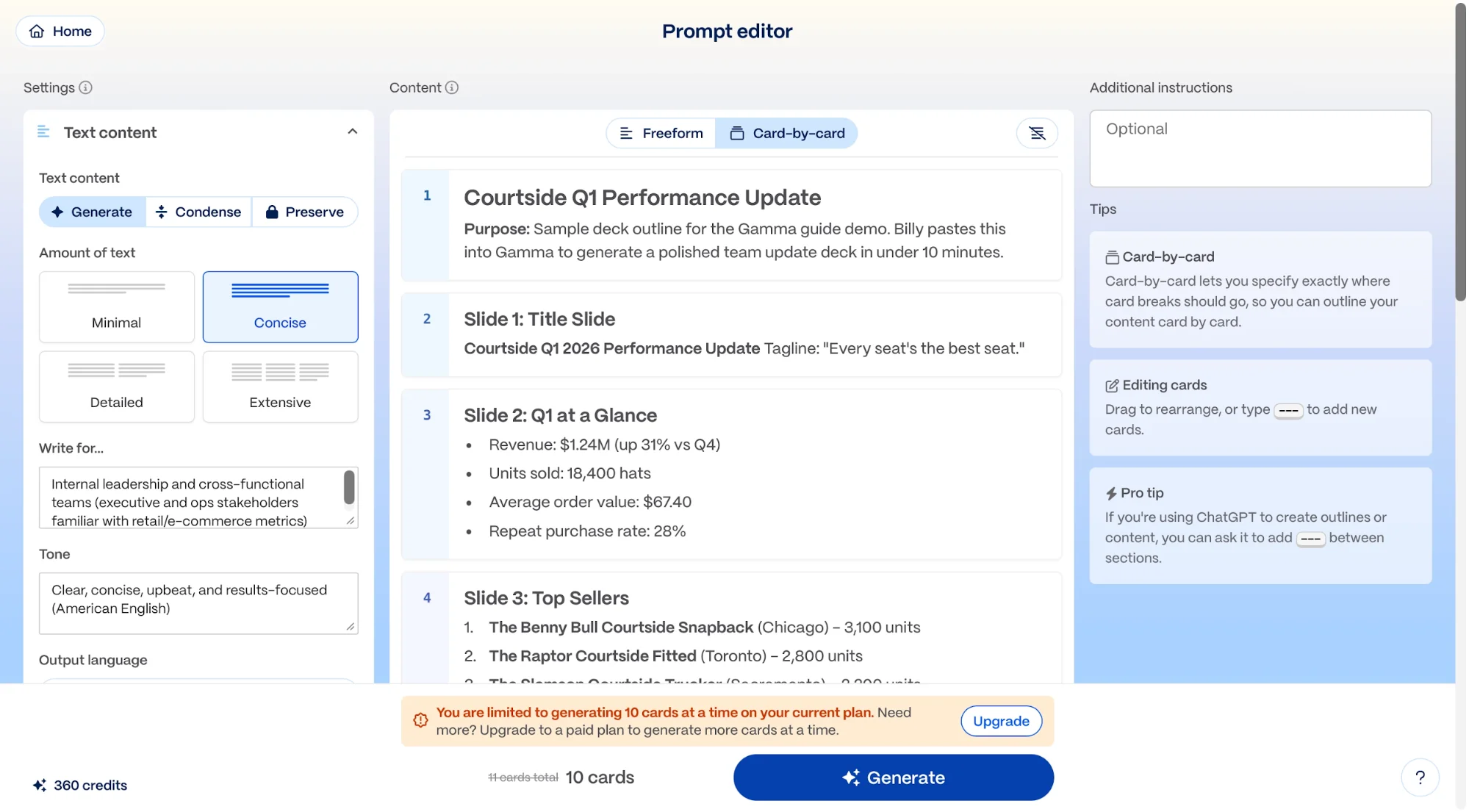
Go to Gamma and create a new presentation. Choose Generate from notes or outline and paste your markdown outline. Continue to the preview screen.
Select options like Preserve and Concise for better results, then generate the deck. Gamma will produce a fully designed presentation with layout, structure, and visuals already in place.
From here, you can make small adjustments, edit slides with AI, and export the final version as a PowerPoint or PDF if needed. The key advantage is that you’re refining a finished product instead of building one from scratch.
Take It Further
Save your generated outline as a reusable template. For recurring presentations, reuse the same structure and update it with new data.
You can also automate the workflow by connecting data sources and generating draft decks on a schedule, reducing repetitive work even further.

Editorial Staff
The Editorial Staff at AIChief is a team of Professional Content writers with extensive experience in the field of AI and Marketing. AIChief was Founded in 2025, AIChief has quickly grown to become the largest free AI resource hub in the industry. Stay connected with them on Facebook, Instagram and X for the latest updates.



