

AI Tutorial
Build High-Quality Presentations Quickly with Kimi K2 Slides
Learn how to use Kimi K2 Slides to generate polished, fully designed presentations from a single prompt in minutes.
Share
This guide explains how to use Kimi Slides to generate full presentations from a single prompt, covering structure, layout, and visual design automatically. Kimi K2 is a large language model based on a Mixture of Experts (MoE) architecture, with 1 trillion parameters and 32 billion activated per task for precise outputs.
Who This Is For
- Small business owners creating business plans, pitch decks, or marketing slides without a designer
- Marketers and sales professionals preparing presentations under tight timelines
- Educators building structured lesson slides or training materials
- Startup founders developing polished investor decks and company profiles

STEP 1: Access Kimi Slides
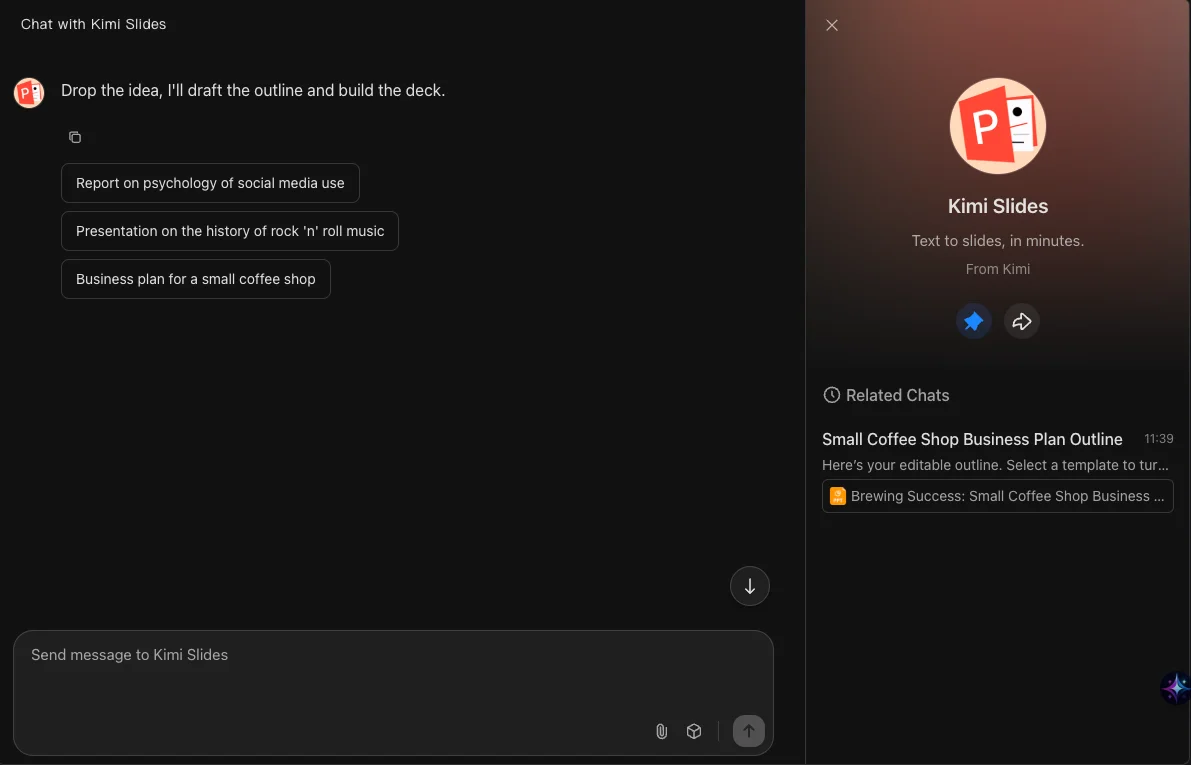
Visit kimi.com and sign in to your account. From the dashboard, locate and select “Kimi Slides.”
This feature runs on the Kimi K2 model, designed for automated presentation creation. On the homepage, choose “Kimi Slides” from the available options.
New users receive free credits for testing. Paid plans include Moderato ($19/month), Allegretto ($39/month), and Vivace ($199/month). The free tier is sufficient for basic experimentation.
STEP 2: Input Your Presentation Idea
Inside Kimi Slides, use the text field to describe your presentation.
Example:
“Create a business plan presentation for a small coffee shop.”
The AI will interpret your prompt and generate an outline with sections, titles, and key points within seconds.
You can then select between two modes:
- Preset Mode: Structured layouts with predefined formatting
- Adaptive Mode: More flexible, visually engaging designs
For creative or customer-facing presentations, Adaptive Mode often produces better visual results.

STEP 3: Select a Template and Adjust Design
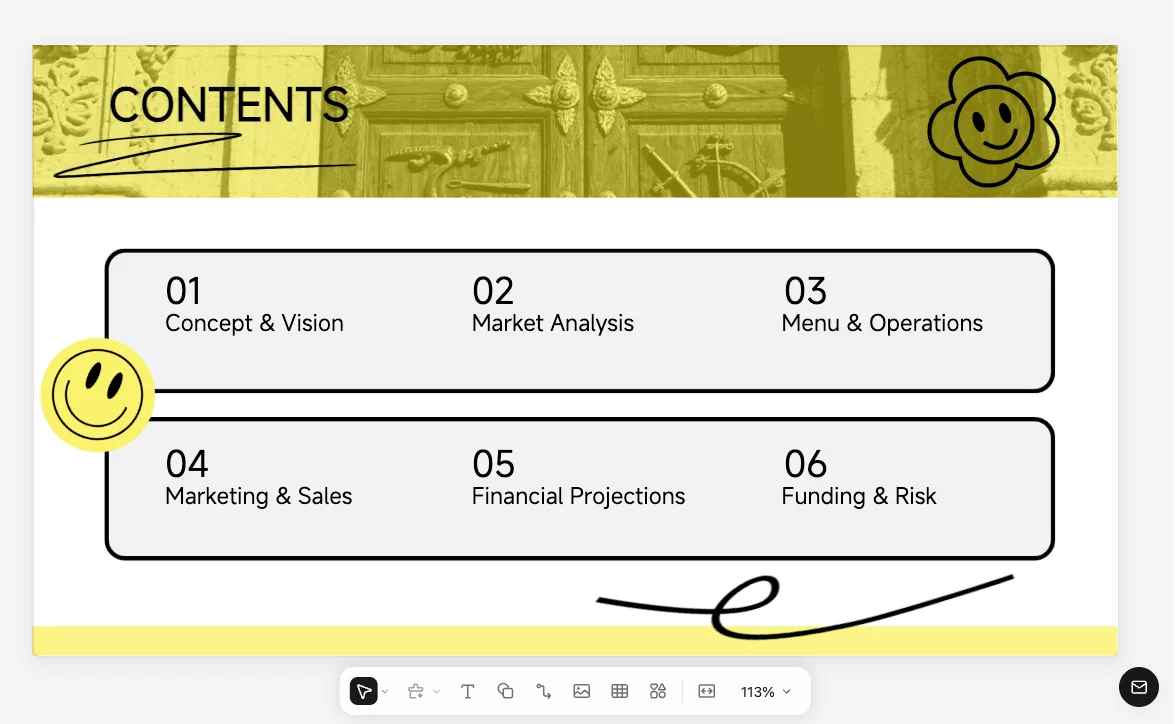
After the outline is generated, browse available templates. Options range from simple business styles to more vibrant layouts, affecting fonts, spacing, and slide composition.
You can further customize by:
- Editing text, shapes, and colors
- Adding images, icons, or tables
- Adjusting layouts and transitions
While custom template imports aren’t supported, built-in templates are well-structured and maintain consistent alignment.
STEP 4: Generate and Review Slides
Click “Generate Slides” to create the full presentation.
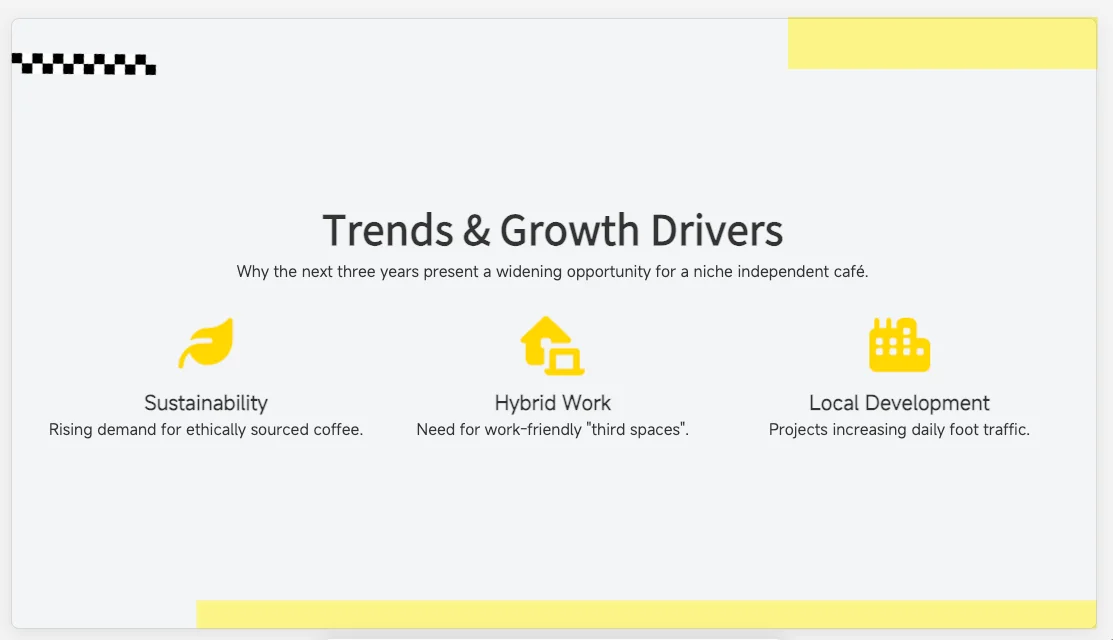
Kimi will assemble slides, apply layouts, and refine visuals. This typically takes 5–10 minutes for a 14–18 slide deck, depending on the selected mode.
Track progress as the slides are created. Once complete, review the full presentation and make any edits if needed.
STEP 5: Export Your Presentation
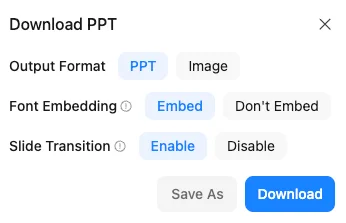
When finished, click “Download” in the top-right corner and choose your format, PPTX for PowerPoint or image files.
Before exporting:
- Embed fonts for consistent formatting
- Enable transitions if needed
- Keep embedding options active to preserve design integrity
Pro Tip
Test different prompts and styles to find what best matches your brand. Kimi K2 Slides can deliver cleaner layouts and faster results compared to tools like Gamma or Canva, especially for structured presentations.

Emily Newton
Emily Newton is an experienced Editor-in-Chief who has spent the last decade sharing her insights on science and technology advances through platforms like IoT for All and DZone. She is deeply interested in showcasing how connected technologies and smart ecosystems transform modern businesses. When she isn’t writing, Emily enjoys walking local trails, playing video games, or curling up with a good book.



