

AI Tutorial
Build Branded Presentation Decks in Minutes Using a Claude Custom Skill
Learn how to build a Claude Custom Skill that generates fully branded presentations automatically using your company’s style guide.
Share
This guide shows how to set up a custom Claude Skill that generates presentations aligned with your company’s branding, automatically applying colors, fonts, and layout rules.
Who This Is For
- Marketing teams producing brand-consistent pitch decks
- Project managers who want to avoid repetitive formatting work
- Teams are spending excessive time aligning presentation styles
- Anyone frustrated with constant “fix the branding” feedback
Step 1: Set Up Your Brand Guidelines Skill Folder
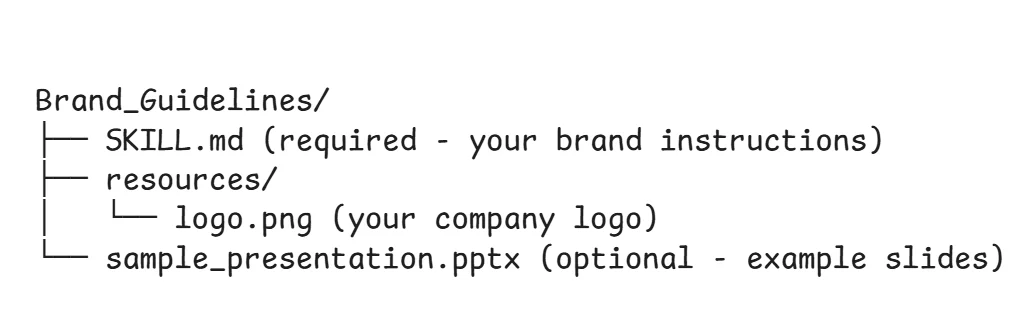
Create a folder named “Brand_Guidelines” on your computer. Inside it, add the following:
1. Create a SKILL.md File
This file defines how Claude applies your branding. It must begin with YAML frontmatter (name and description), followed by instructions. Example:
Name: brand-guideline
Description: Apply our company brand guidelines to presentations, including colors, fonts, and logo placement
Brand Colors
- Primary: #1A1A1A (Dark Gray)
- Accent: #0073E6 (Blue)
Typography
- Headers: Arial Bold, 16pt
- Body: Arial Regular, 12pt
Logo Usage
Place logo in top-right corner of all slides, 10px from edges. Use logo.png from the resources folder.
2. Add Brand Assets
Inside a /resources folder, include:
- Your logo file (e.g., logo.png or logo.svg)
- Any additional brand materials Claude should reference
Your final folder structure should reflect these elements.
Step 2: Compress the Skill Folder
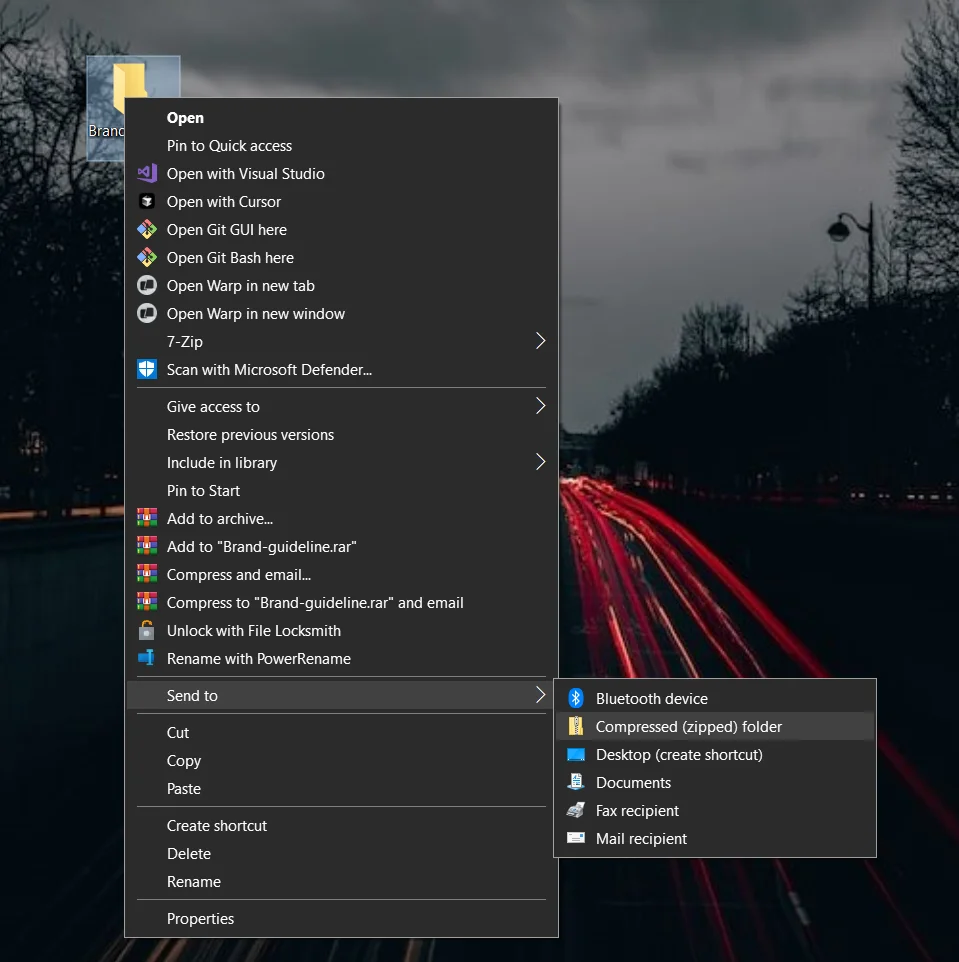
Zip the entire Brand_Guidelines folder:
On Windows:
- Right-click the folder
- Select Send to Compressed (zipped) folder
On Mac:
- Right-click the folder in Finder
- Select Compress "Brand_Guidelines"
A Brand_Guidelines.zip file will be created.
Important: Zip the full folder, not just its contents, to preserve structure.
Step 3: Upload and Configure in Claude
Open Claude and go to:
Profile, then go to Settings, and Capabilities
- Enable Code execution and file creation
Then:
- Go to the Skills section
- Click Upload Skill
- Select your Brand_Guidelines.zip file
Optional: Connect Google Drive via Settings, Connectors, Google Drive, and Connect to automatically save generated presentations.
Step 4: Generate Branded Decks Instantly
Start a new chat and prompt Claude to create a presentation using your brand guidelines. Example:
“Create a 7-slide PowerPoint presentation for ‘Q4 Marketing Strategy’ following our company brand guidelines and including the company logo. Include: title slide, agenda, market analysis, competitor overview, proposed strategies, budget breakdown, and closing slide with action items, based on the attached data.”
Claude will automatically apply your uploaded Skill, handling layout, colors, fonts, and logo placement, while generating the presentation.
Download the file or access it in Google Drive if connected. Your branded deck is ready with no manual adjustments.
Pro Tip
Mention a reference file in your prompt, such as:
“Match the layout style of sample_presentation.pptx”
This helps Claude replicate consistent slide structure, spacing, and visual hierarchy every time.

Editorial Staff
The Editorial Staff at AIChief is a team of Professional Content writers with extensive experience in the field of AI and Marketing. AIChief was Founded in 2025, AIChief has quickly grown to become the largest free AI resource hub in the industry. Stay connected with them on Facebook, Instagram and X for the latest updates.



