

AI Tutorial
Build an AI Sales Rep with Zapier Agents
Learn how to use Zapier Agents to automate lead qualification, filter inbound prospects, and draft personalized follow-up emails using AI-powered workflows.
Share
Zapier Agents lets you create an AI-powered sales assistant that automatically qualifies inbound leads and drafts personalized follow-up emails for promising prospects.
Best Suited for:
- Small sales teams managing large volumes of inbound leads
- Startups automating lead qualification workflows
- Business owners focused on high-intent prospects
- Marketing teams are improving lead management efficiency
STEP 1: Create Your AI Agent
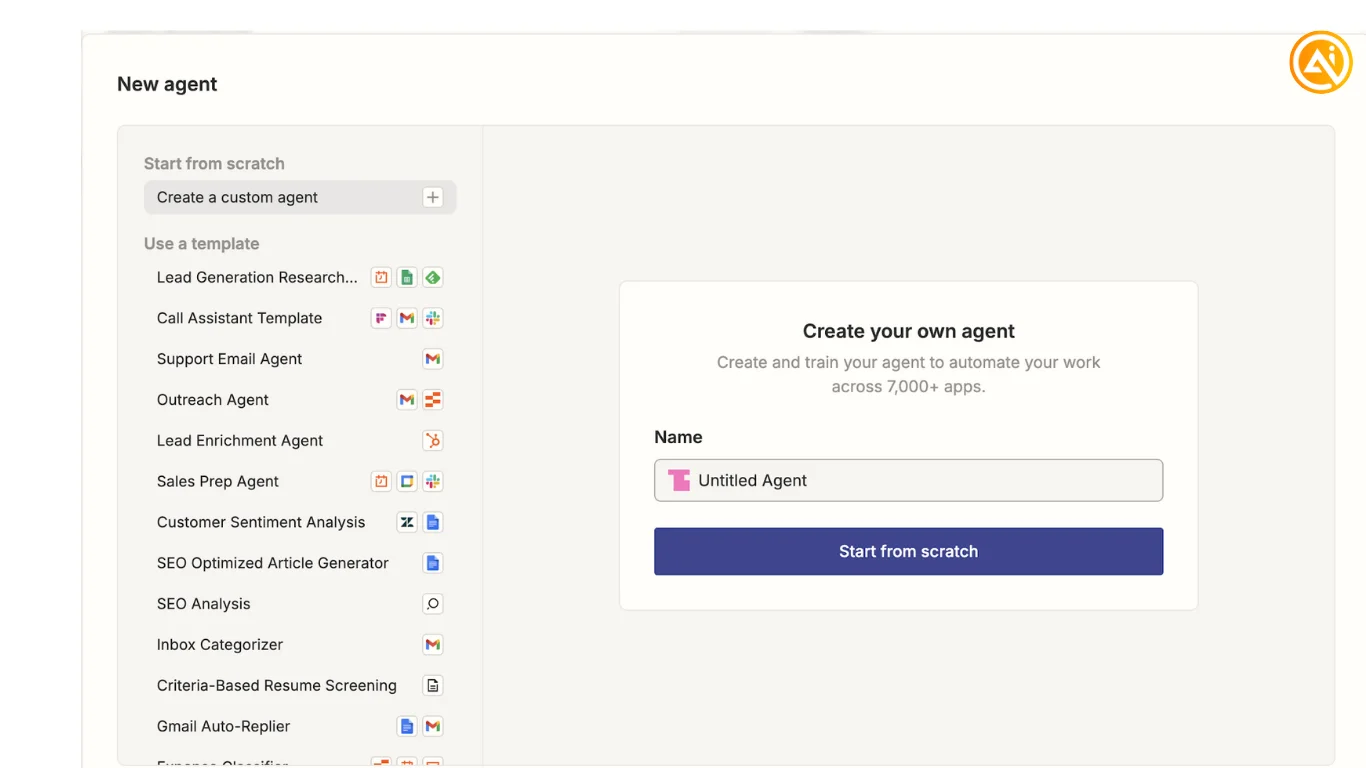
Visit Zapier Agents and create a new agent. Click “Configure” to open your workflow settings, then select “Create behavior” to begin setting up your automation.
This behavior acts as the core logic behind your AI sales representative. Zapier’s free plan includes up to 400 activities per month, which is enough to test and refine your workflow.
STEP 2: Configure Lead Collection
Choose Google Forms as the trigger for collecting inbound leads. Start by creating a form with fields such as:
- Name
- Email address
- Company name
- Additional qualification questions
Inside your Zapier Agent workflow:
- Select “Google Forms” as the trigger app
- Choose “New Response” as the trigger event
This setup ensures the agent activates automatically every time a new form submission is received.
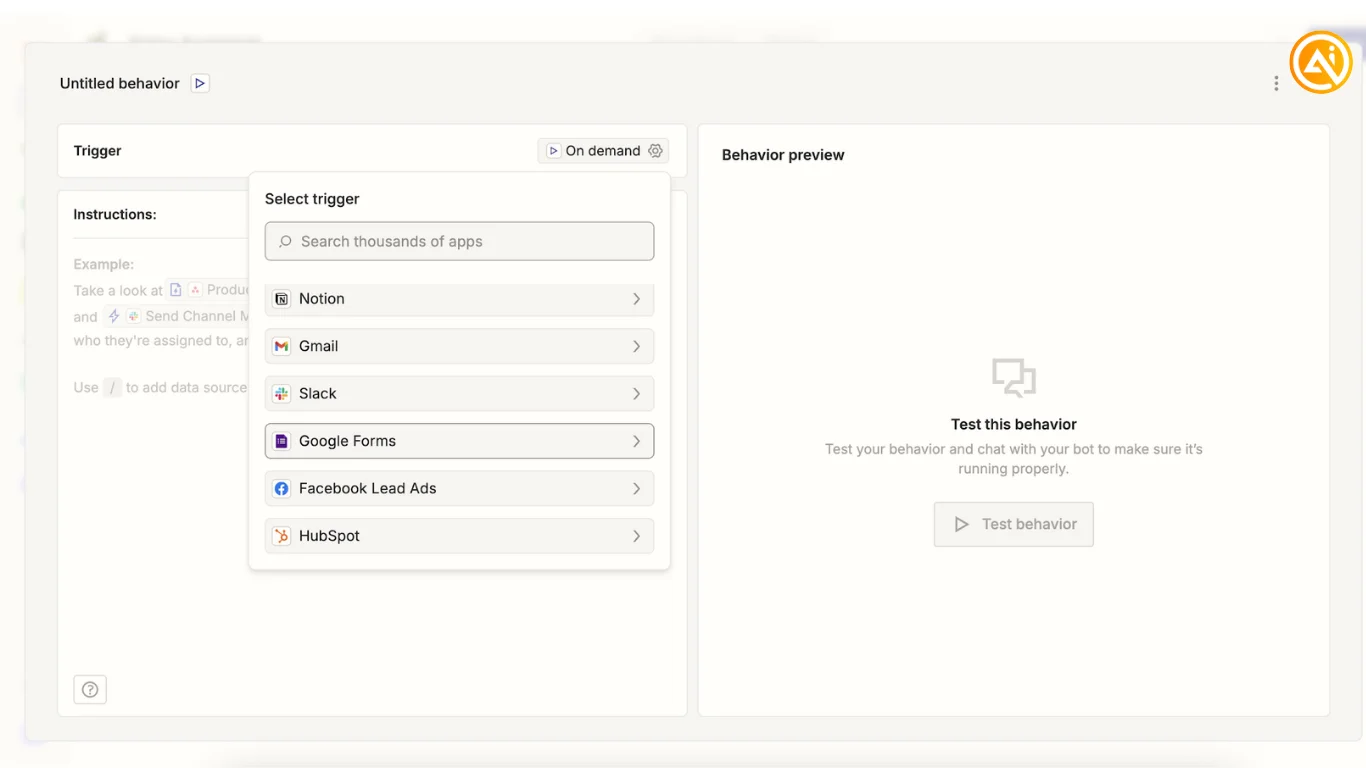
All submitted lead information will then flow directly into your AI qualification workflow.
STEP 3: Define Your Qualification Rules
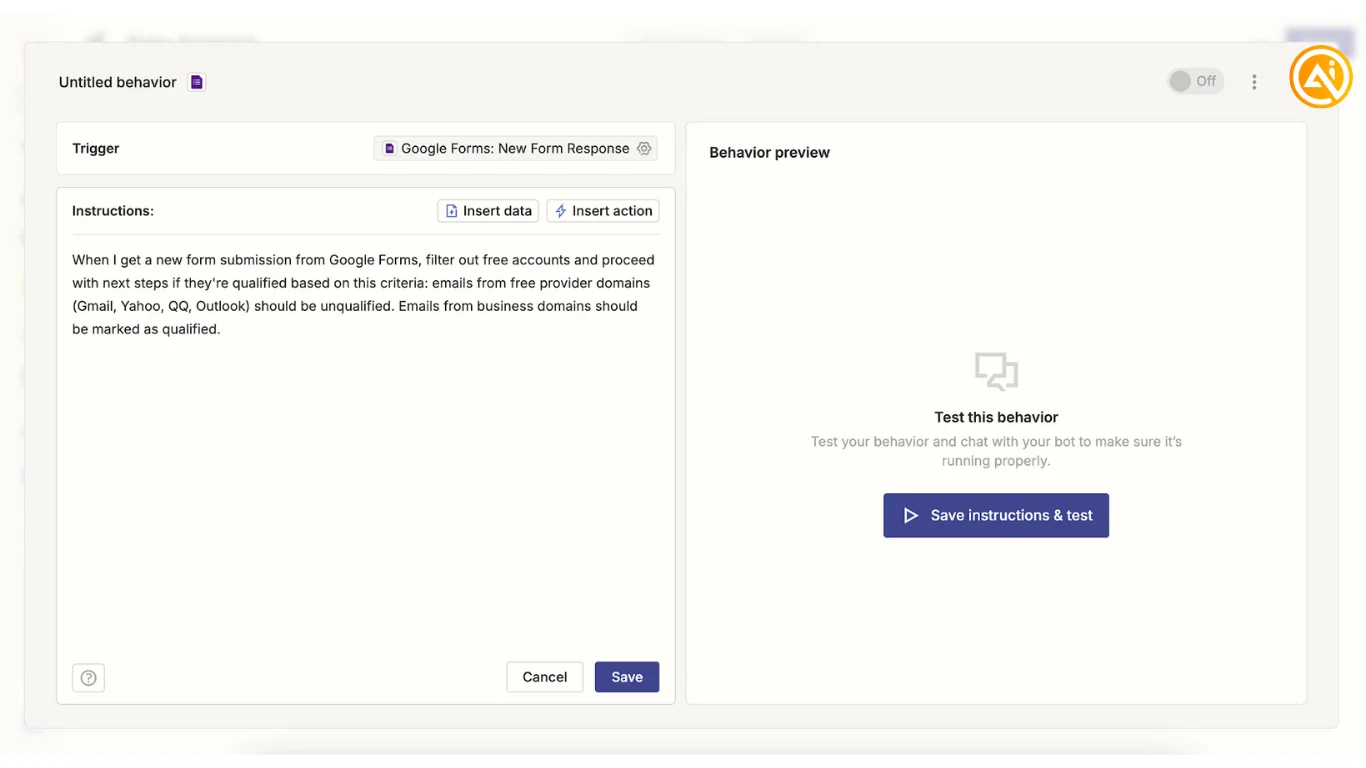
Next, add natural-language instructions to determine which leads should qualify.
Example instruction:
“When I receive a new form submission from Google Forms, filter out free email accounts and continue only if the lead meets the qualification criteria. Emails from free providers like Gmail, Yahoo, QQ, and Outlook should be marked as unqualified. Business domain emails should be considered qualified.”
You can customize the qualification logic further based on your business needs. For example:
- “Only qualify companies with more than 30 employees.”
- “Prioritize leads from the technology sector.”
- “Reject leads without a company website.”
These instructions help the AI identify higher-quality prospects automatically.
STEP 4: Automate Follow-Up Email Drafts
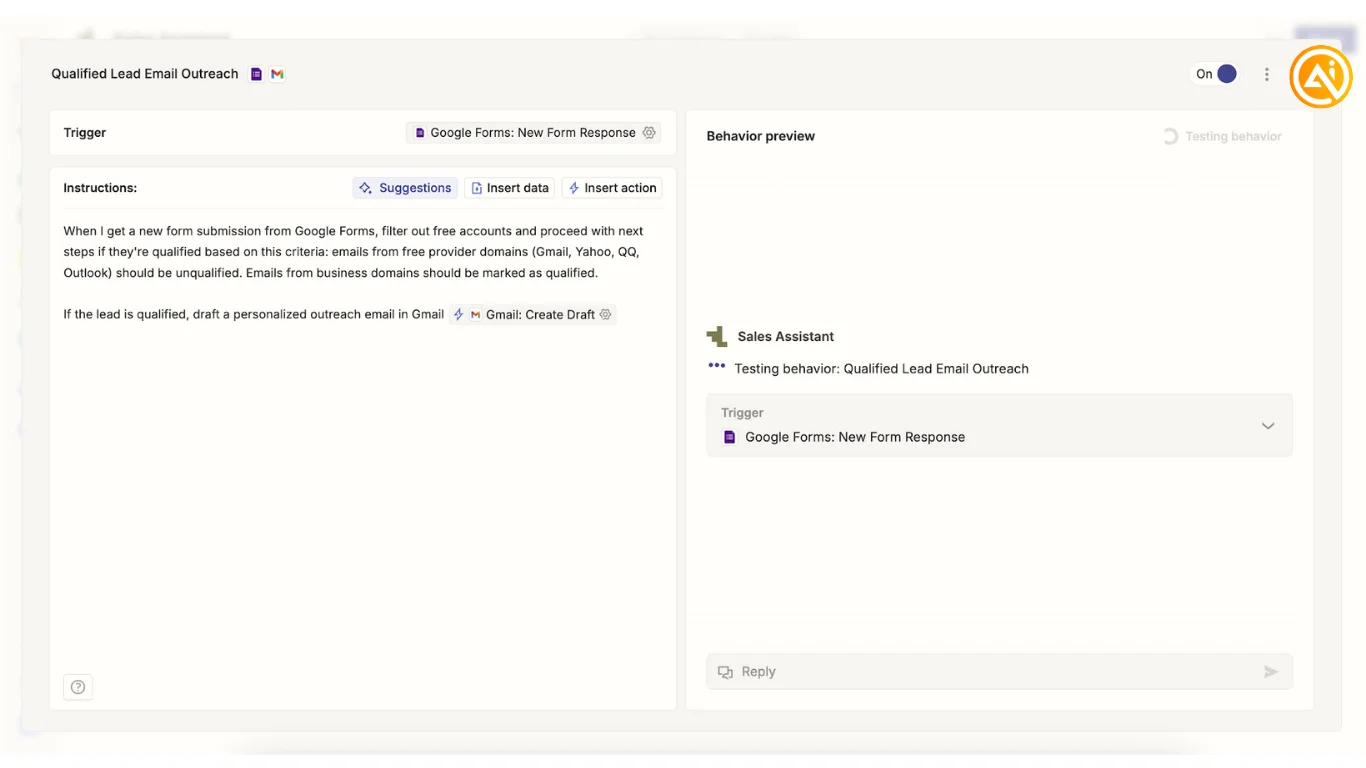
For leads that pass your qualification rules, configure the agent to prepare outreach emails automatically.
Add instructions such as:
“If the lead is qualified, create a personalized outreach email draft in Gmail.”
Then connect Gmail by:
- Adding a Gmail action
- Selecting “Create Draft”
You can allow the AI to generate email content dynamically using the lead details, or provide specific guidance for tone, messaging, and structure.
Once everything is configured, activate the workflow using the toggle switch in the top-right corner.
Submit a few test leads to verify that:
- Unqualified leads are filtered correctly
- Qualified prospects trigger personalized email drafts properly
Pro Tip
Add scoring logic to your qualification process by assigning values to factors such as company size, industry, job title, or budget. This helps your AI sales rep prioritize the highest-value opportunities automatically.

Editorial Staff
The Editorial Staff at AIChief is a team of Professional Content writers with extensive experience in the field of AI and Marketing. AIChief was Founded in 2025, AIChief has quickly grown to become the largest free AI resource hub in the industry. Stay connected with them on Facebook, Instagram and X for the latest updates.



