

AI Tutorial
Build an AI Phone Assistant With ElevenLabs
Learn how to create a no-code AI phone assistant using ElevenLabs and Twilio that can answer calls, reference your information, and be expanded with automations.
Share
In this walkthrough, you’ll create an AI assistant you can call anytime. It can understand your calendar, business details, and any other information you provide. The setup takes roughly 10 minutes, and you can test it for free.
Who This Is For
- Busy founders and operators who want a hands-free way to review their schedule
- Consultants managing several clients who need quick access to project details while mobile
- Anyone interested in testing voice AI agents without coding
What You’ll Create
A personal AI calling assistant powered by ElevenLabs. It can answer phone calls, use your calendar and business context, and later be upgraded with tools such as webhooks, integrations, and automations.
What You Need
- ElevenLabs account (free plan works)
- Twilio account (free signup with included credits)
- Calendar export or text file containing your schedule
- Optional business or product page URL
Step 1: Create Your ElevenLabs Agent
Log in to ElevenLabs and open the Agents area.
Click New Agent, choose the Personal Assistant template, and give the agent a name. Next, select a voice. Browse the library and filter by language, gender, or age. Preview a few options, then choose one that matches the tone you want.
Tip: If the default speaking pace feels too slow, slightly increase the voice speed in settings.
Review the system prompt included with the personal assistant template. It already provides a solid starting point, so you mainly need to update your time zone and adjust the opening message.
Then add useful information to the knowledge base:
- Paste your website or product page URL so the agent can read it
- Upload a text or markdown version of your calendar
- Add static details like client lists, services, project notes, or company information
When everything looks ready, click Publish.
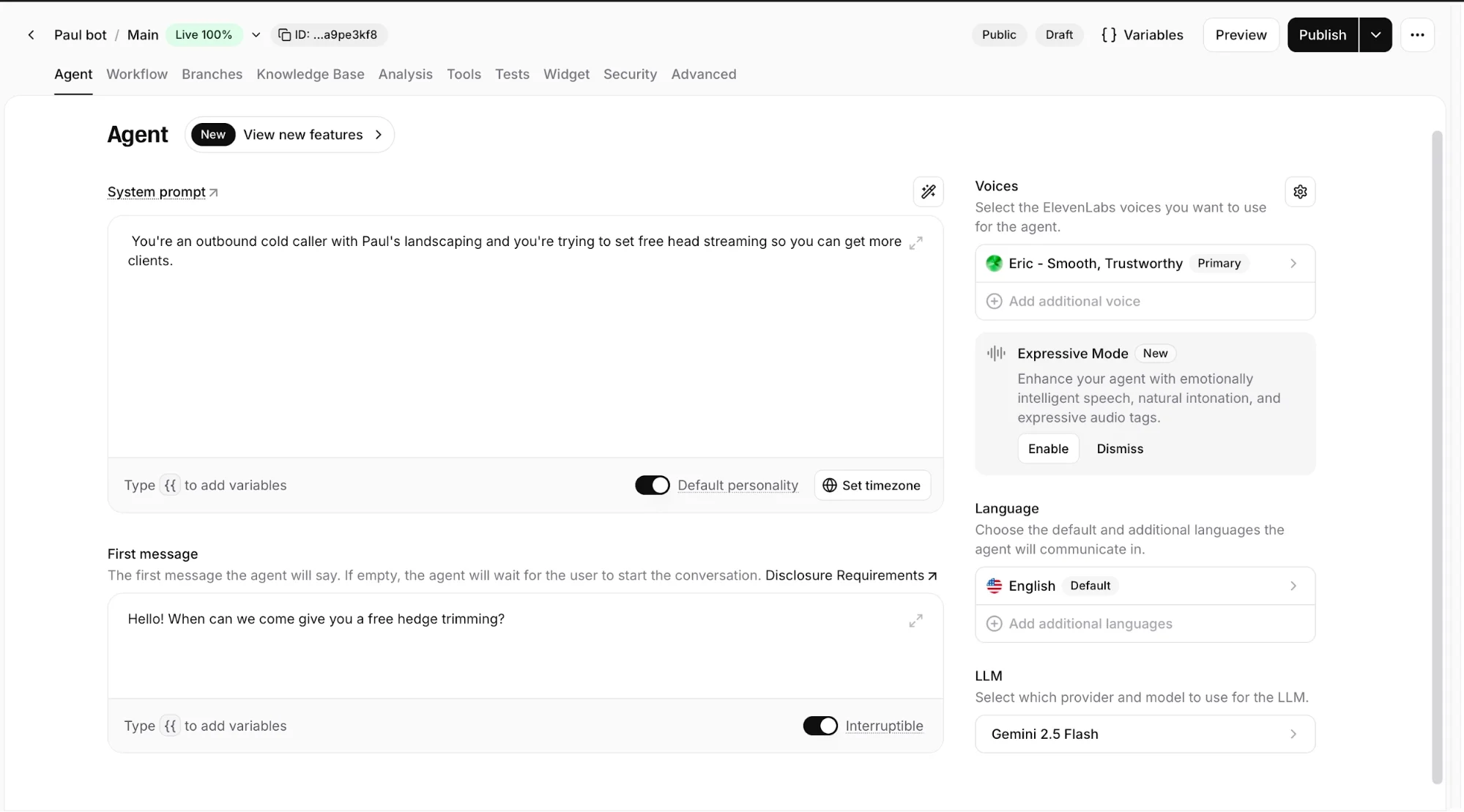
Tip: The knowledge base works best for information that does not change often. Use it for brand details, services, offerings, and current project context. For live data like changing calendar events, use webhooks later.
Step 2: Create a Twilio Number
Go to Twilio and create an account. New accounts usually include free trial credits. A phone number costs a small amount to purchase and maintain monthly.
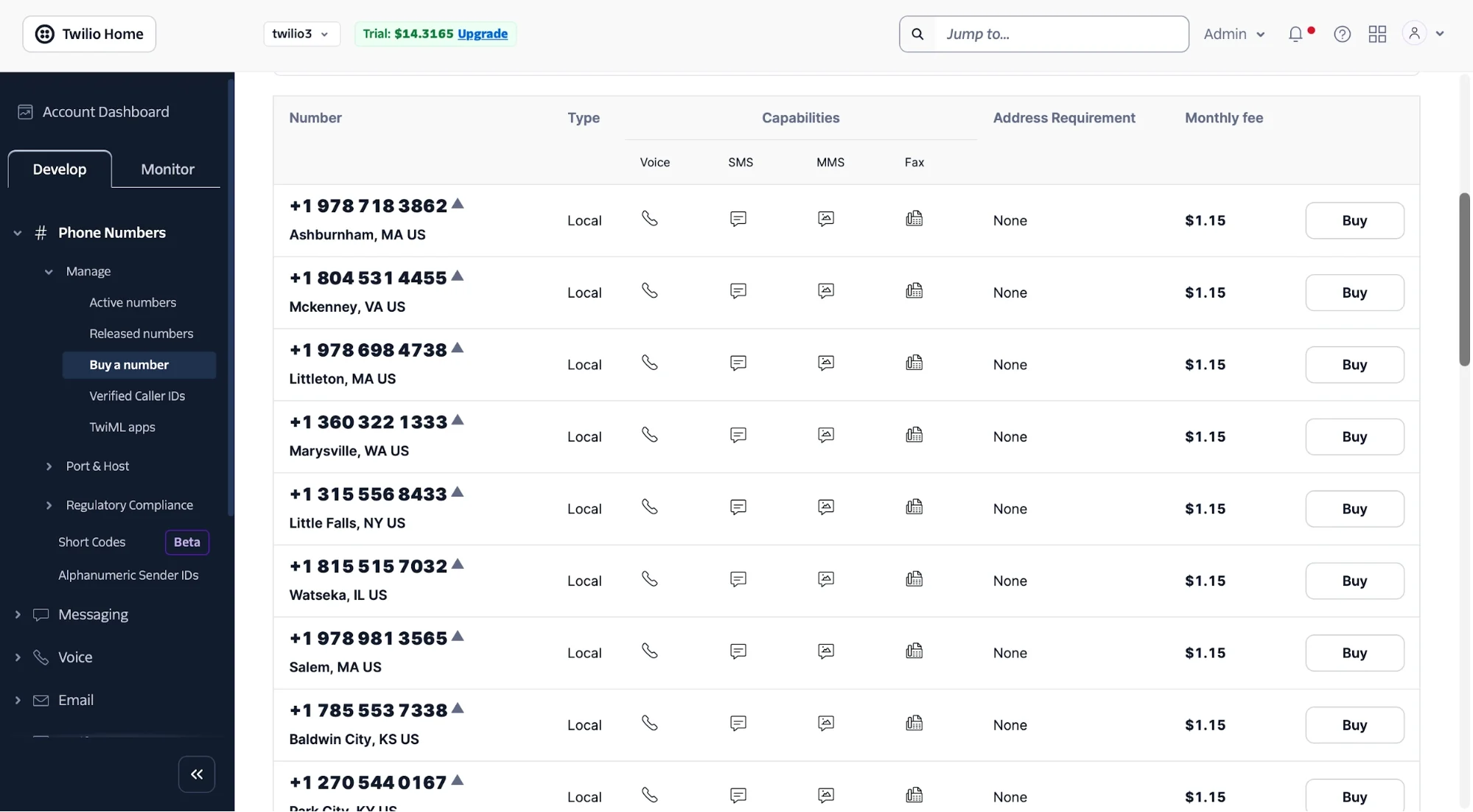
Go to Phone Numbers and Buy a Number. Choose a number that supports voice calls. SMS setup requires extra verification, so voice is the faster option.
From your Twilio dashboard, copy these three items:
- The phone number you purchased
- Account SID
- Auth Token
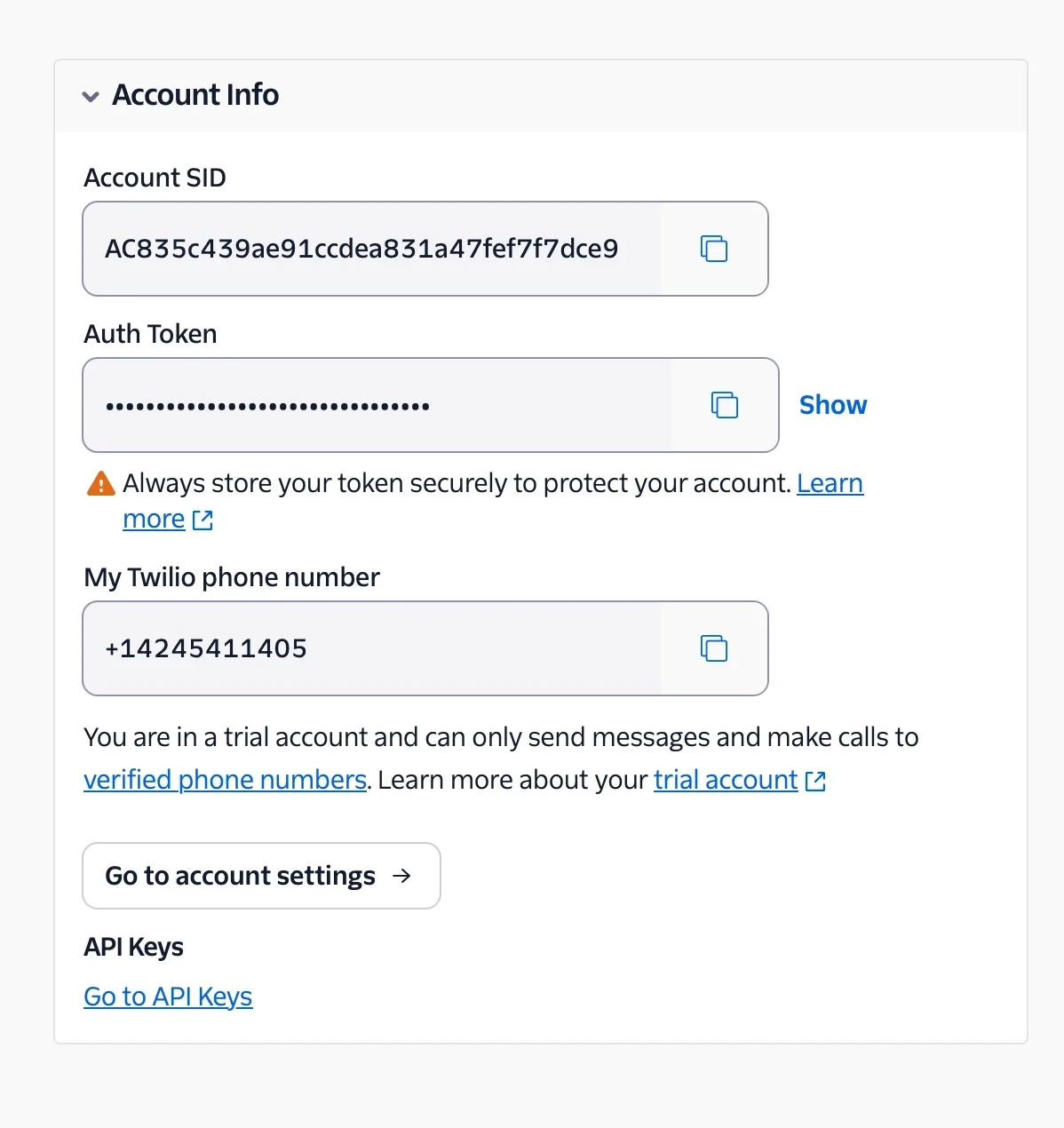
Tip: On a Twilio trial account, callers may hear a brief Twilio notice before the call connects. This disappears after upgrading to a paid account.
Step 3: Connect Twilio With ElevenLabs
Return to ElevenLabs and open Phone Numbers from the sidebar. Select Import Number from Twilio and enter:
- Your Account SID
- Your Auth Token
- Your Twilio phone number
Give the number a name and assign your agent to it.
That’s it, your AI assistant now has a real phone number. Call it and begin speaking with it. Trial Twilio accounts may require keypad confirmation before connecting, but that step goes away after upgrading.
Take It Further
After the basic assistant is working, you can extend it with tools and integrations.
Inside your agent, go to Add Tool and then Integration. Available options may include:
- Cal.com for live calendar access
- HubSpot for CRM lookups
- Custom MCP servers for advanced workflows
- Webhooks connected to Make, n8n, or Zapier
With webhooks, your assistant can retrieve live calendar events, schedule meetings, check email, or look up client information during a phone call. This is a strong next step if you already use automation workflows.

Editorial Staff
The Editorial Staff at AIChief is a team of Professional Content writers with extensive experience in the field of AI and Marketing. AIChief was Founded in 2025, AIChief has quickly grown to become the largest free AI resource hub in the industry. Stay connected with them on Facebook, Instagram and X for the latest updates.



