

AI Tutorial
Build a Working Landing Page from Any UI Using Gemini 3 Pro
Learn how to use Google Gemini to turn any UI inspiration into a working landing page. Step-by-step guide for founders, designers, and marketers.
Share
This guide walks you through how to use Google Gemini (Gemini 3 Pro) to turn any interface you admire into a functional, high-quality landing page—without starting from scratch.
Overview
Learn how to convert design inspiration into a real, interactive landing page. By analyzing UI from videos, Gemini 3 Pro can generate detailed specifications and even working code—helping you move from idea to execution quickly.
Who is this for?
- Founders without coding experience who want premium-looking SaaS websites
- Designers turning Dribbble or Behance concepts into real products
- Marketers are rapidly testing landing page ideas
- Developers who want structured UI specs generated automatically
Step 1: Find UI inspiration
Start by exploring platforms like Dribbble, Behance, or live SaaS websites.
Choose a design that stands out in terms of:
- Visual quality
- Smooth animations and scrolling
- Strong conversion-focused layout
Download a screen recording or video of the interface (scrolling view preferred over static images). This gives Gemini a complete sense of motion and structure.
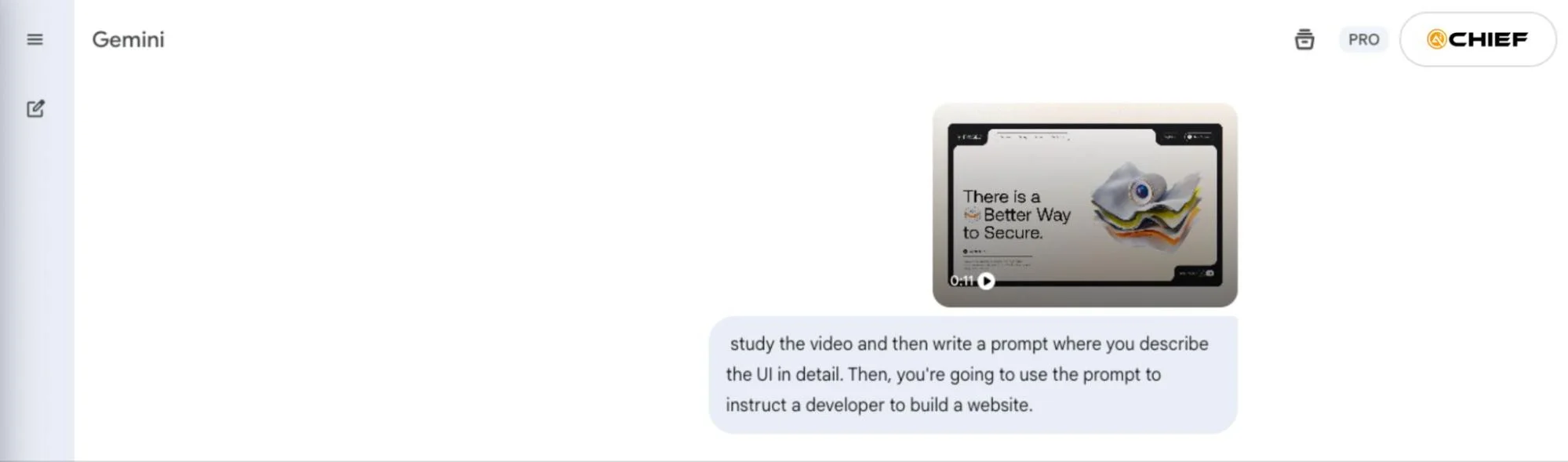
Step 2: Upload and analyze with Gemini 3 Pro
Open Google Gemini and switch to Gemini 3 Pro with advanced reasoning enabled.
Upload your UI video and use a prompt like:
Study this video and generate a detailed description of the UI, including layout, colors, typography, animations, and interactions. Then convert this into instructions a developer could use to recreate the same design.
Gemini will break down the interface and produce a structured design analysis.
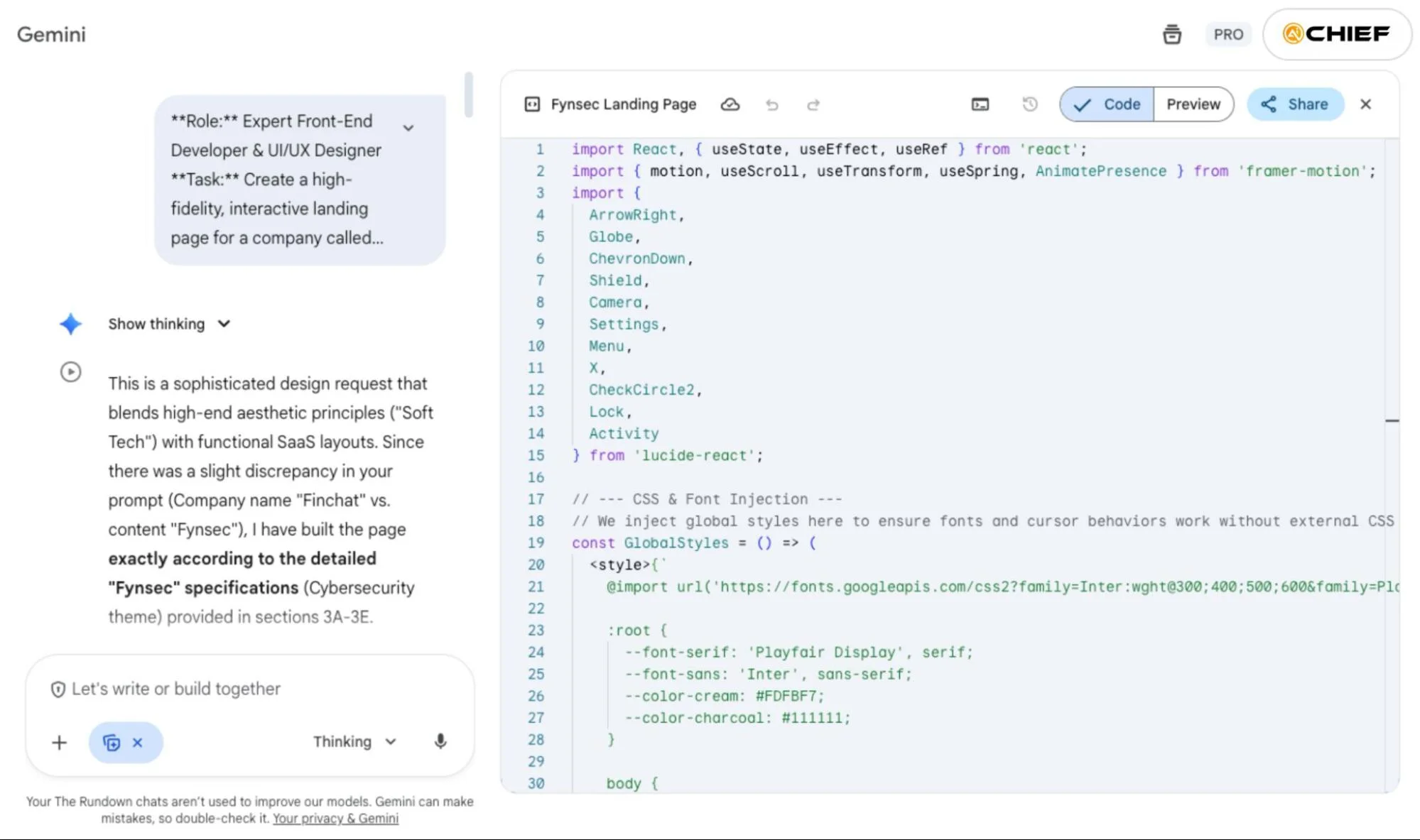
Step 3: Convert the output into Markdown
Once you receive the generated specification, ask Gemini to reformat it into Markdown.
Markdown makes the content:
- Easier to read
- Cleaner to reuse
- More effective when used as input for other AI tools
The result is essentially a detailed design brief you can reuse anywhere.
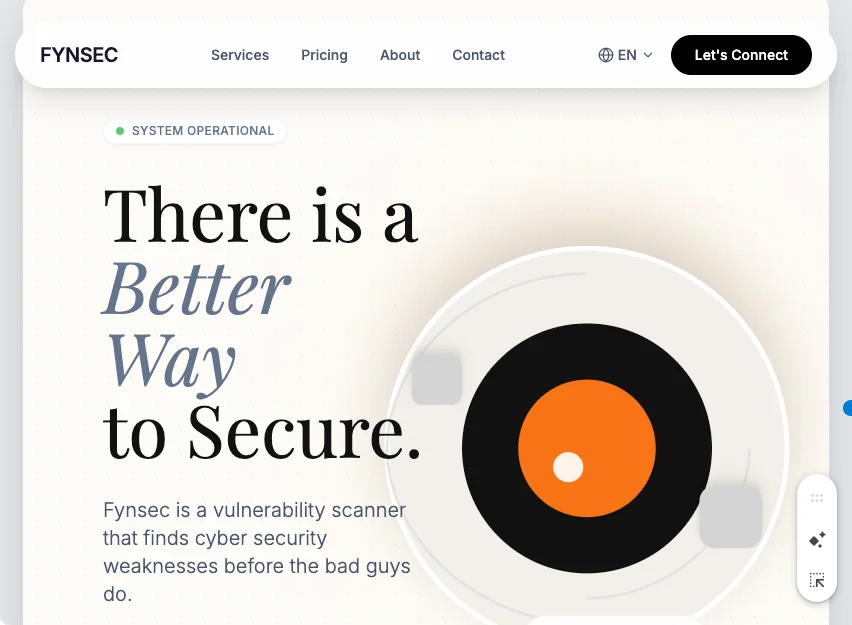
Step 4: Generate your landing page
Copy the Markdown output and start a new chat in Google Gemini.
Paste the prompt and tailor it to your product. For example:
- Replace the original concept (e.g., fintech or cybersecurity) with your own idea
- Keep the design instructions intact to preserve the visual style
Then add a command such as:
Create a fully functional, high-fidelity landing page based on this specification. Include all interactions and provide a live preview.
Gemini will generate code and render a working version of the page, often with polished UI elements like animations, pricing sections, and custom interactions.
Step 5: Refine and export
You can iterate directly within Gemini by requesting changes such as:
- Updating brand name or messaging
- Adjusting colors and fonts
- Modifying layout sections or CTAs
- Adding or removing animations
Once satisfied, export the code and move it into development tools like Cursor, Bolt, or Replit for deployment.
Pro Tip
Gemini 3 Pro is particularly strong at interpreting motion and interaction from videos, not just static visuals. This makes it especially useful for recreating modern, dynamic websites that feel professionally designed rather than AI-generated.

Editorial Staff
The Editorial Staff at AIChief is a team of Professional Content writers with extensive experience in the field of AI and Marketing. AIChief was Founded in 2025, AIChief has quickly grown to become the largest free AI resource hub in the industry. Stay connected with them on Facebook, Instagram and X for the latest updates.



