

AI Tutorial
Build a Sales CRM Pipeline Using Notion AI
Learn how to create a complete CRM dashboard for managing leads and sales pipelines using Notion AI, no manual setup required.
Share
This tutorial shows how to create a fully functional CRM dashboard in Notion using Notion AI. Instead of manually setting up pages, fields, and views, the AI handles the structure for you.
Best suited for:
- Entrepreneurs tracking incoming leads
- Freelancers managing client interactions
- Sales professionals needing a simple CRM
- Small business owners avoiding complex CRM systems
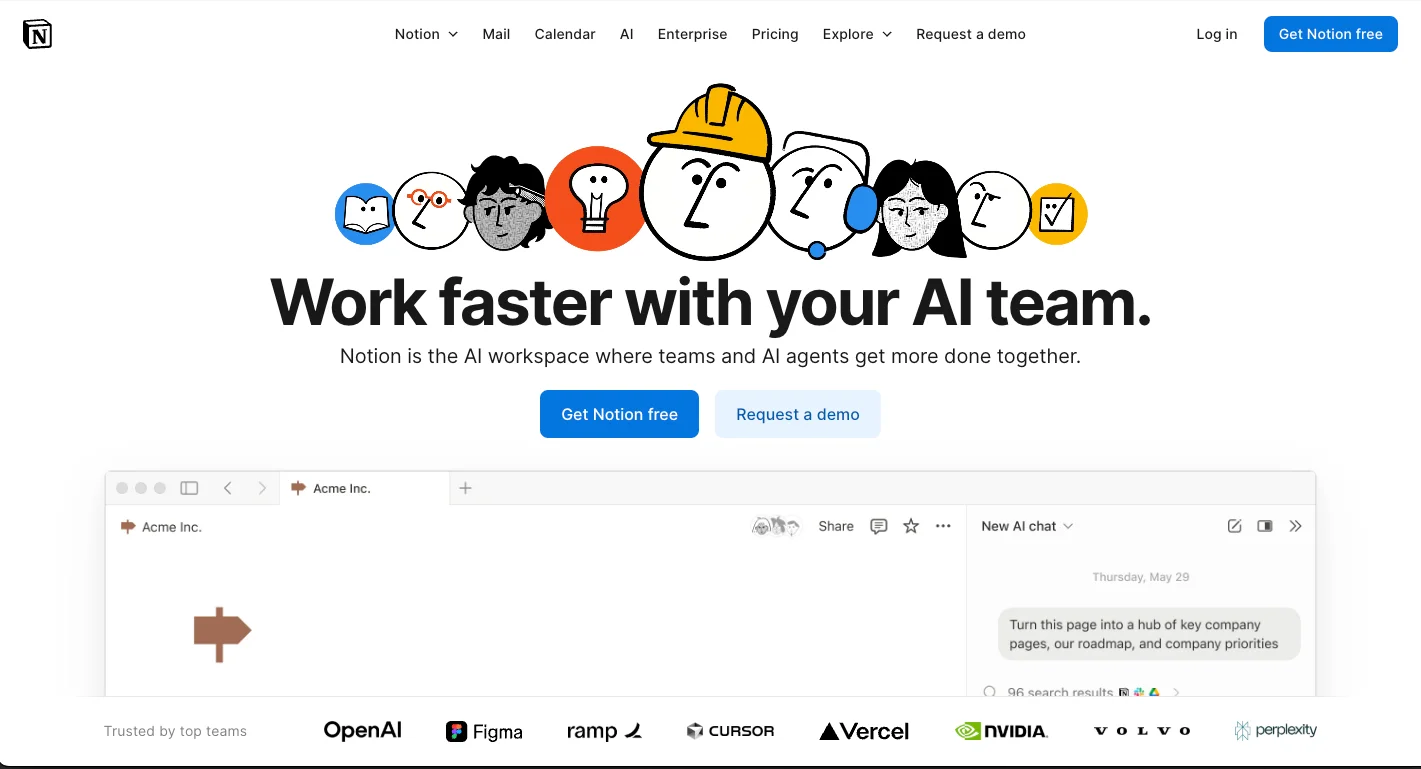
Step 1: Set up your workspace in Notion
Go to Notion and open your main dashboard.
Access the Notion AI feature from within your workspace. For a cleaner interface, you can collapse the sidebar to reduce clutter and improve navigation.
If you’re using a business plan (around $24/month), you’ll also have access to integrations like Gmail, Slack, Notion Mail, and cloud storage tools. These are useful for syncing and automation, but not required for this setup.
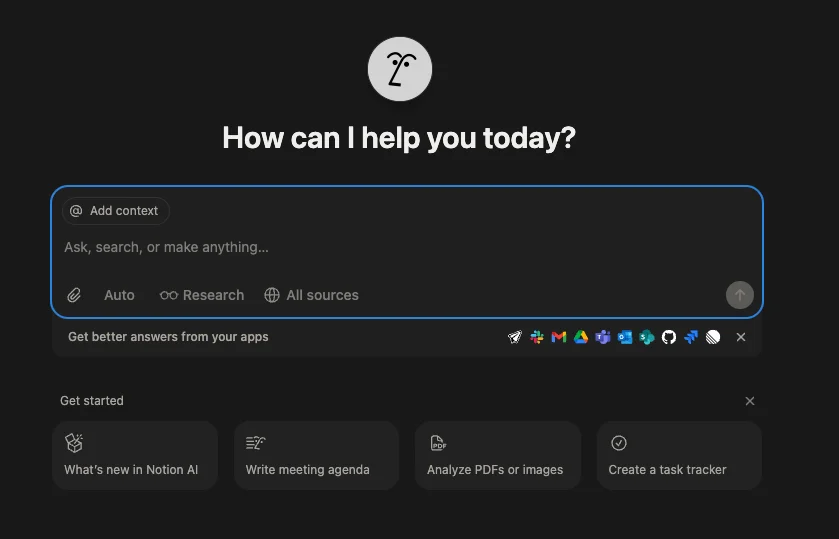
Step 2: Enter your CRM prompt
Use Notion AI to generate your CRM structure. Here’s an example prompt:
“A CRM pipeline database where I can track leads from first contact through conversion. Add filters for:
- Type of subscriber (free vs. paid)
- First contact
- Second contact
- Did they convert?
- Why didn’t they convert?”
You don’t need to overcomplicate it, Notion AI can organize everything logically and save you from manually creating pages, toggles, and views.
Step 3: Generate the database
Submit your prompt, and Notion AI will instantly begin building your CRM structure.
Once complete, it may suggest additional fields like:
- Follow-up
- Assigned to
- Next step
Accepting these suggestions helps expand your pipeline and make it more functional.
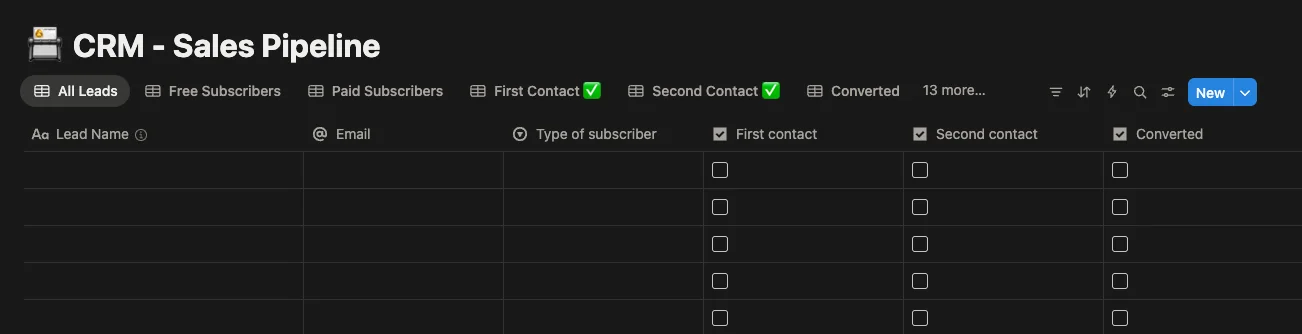
Step 4: Review and customize
The AI will create a new page titled CRM – Sales Pipeline with all the requested fields.
Now refine it to match your workflow:
- Convert toggle fields into checkboxes or yes/no options if needed
- Add custom filters like “Deal Size” or “Industry”
At this stage, you’re improving rather than building from scratch, which significantly speeds things up.
Step 5: Start using your CRM
Once your pipeline is ready, begin adding your leads directly into the database using Notion AI’s input panel.
Over time, this becomes your central system for tracking outreach, managing relationships, and monitoring conversions.
While it may not be perfect, it’s highly effective for SOPs, documentation, and database creation.
Pro Tip
Try different prompt variations for better results. For example:
- “Create a sales pipeline with Kanban stages”
- “Build a lead tracker with follow-up reminders”
More specific prompts usually produce more tailored outputs.

Editorial Staff
The Editorial Staff at AIChief is a team of Professional Content writers with extensive experience in the field of AI and Marketing. AIChief was Founded in 2025, AIChief has quickly grown to become the largest free AI resource hub in the industry. Stay connected with them on Facebook, Instagram and X for the latest updates.



