

AI Tutorial
Build a personal morning newspaper with Claude
Learn how to build an AI-powered morning newspaper in Claude using Slack, Gmail, Notion, and Calendar integrations for daily updates, priorities, and schedule prep.
Share
Claude can generate a customized daily newspaper that summarizes your updates, priorities, and schedule using information from your connected apps.
Who can benefit from this?
- Professionals managing multiple communication channels
- Founders and operators reviewing daily priorities
- Teams centralizing updates and action items
- Anyone wanting a streamlined morning briefing
STEP 1: Connect your integrations
Open Claude or Claude CoWork and make sure your integrations are enabled.
Recommended connections:
- Slack
- Notion
- Gmail
- Calendar
If you already maintain a central task system or AI reporting database in Notion, connect that as well. This helps Claude move beyond simple information gathering and behave more like an editor organizing your day.
STEP 2: Generate the first Morning Edition
Ask Claude to create your first newspaper-style briefing using a prompt like this:
"Take a stab at making me a quick morning newspaper called Morning Edition. It should update me on:
- my Slack updates
- my Notion updates
- my Gmail updates
- my calendar updates
Use the last 24 hours. Make it a static newspaper, not a live artifact. Format it like a newspaper with top stories, action items, and schedule prep."
The “last 24 hours” instruction helps keep the report focused and relevant.
The “static newspaper, not a live artifact” instruction is also important because it creates a version you can archive, revisit, and compare over time.
Pro tip: If the report feels too evenly weighted, ask Claude to make stronger editorial decisions. Action items and calendar preparation should be prioritized over less important updates.
STEP 3: Refine the format and save it as a skill
Once Claude generates the first version, review and improve it before saving the workflow.
Focus on:
- improving the layout
- removing weaker sections
- reorganizing the flow
- making important updates more visible
Then tell Claude:
- "Turn this process into a skill."
Claude will package the workflow into a reusable skill so you can run it repeatedly without rebuilding the prompt each time.
Pro tip: If your reports are already being collected elsewhere, lighter models like Sonnet or Haiku may be more efficient than using Opus for this workflow.
STEP 4: Automate delivery in Claude CoWork
After saving the skill, open Claude CoWork and create a recurring task.
You can use a simple instruction like:
- "Run /morning-edition every morning."
If you want automatic delivery, use:
- "Run /morning-edition and then email it to me at [your email]."
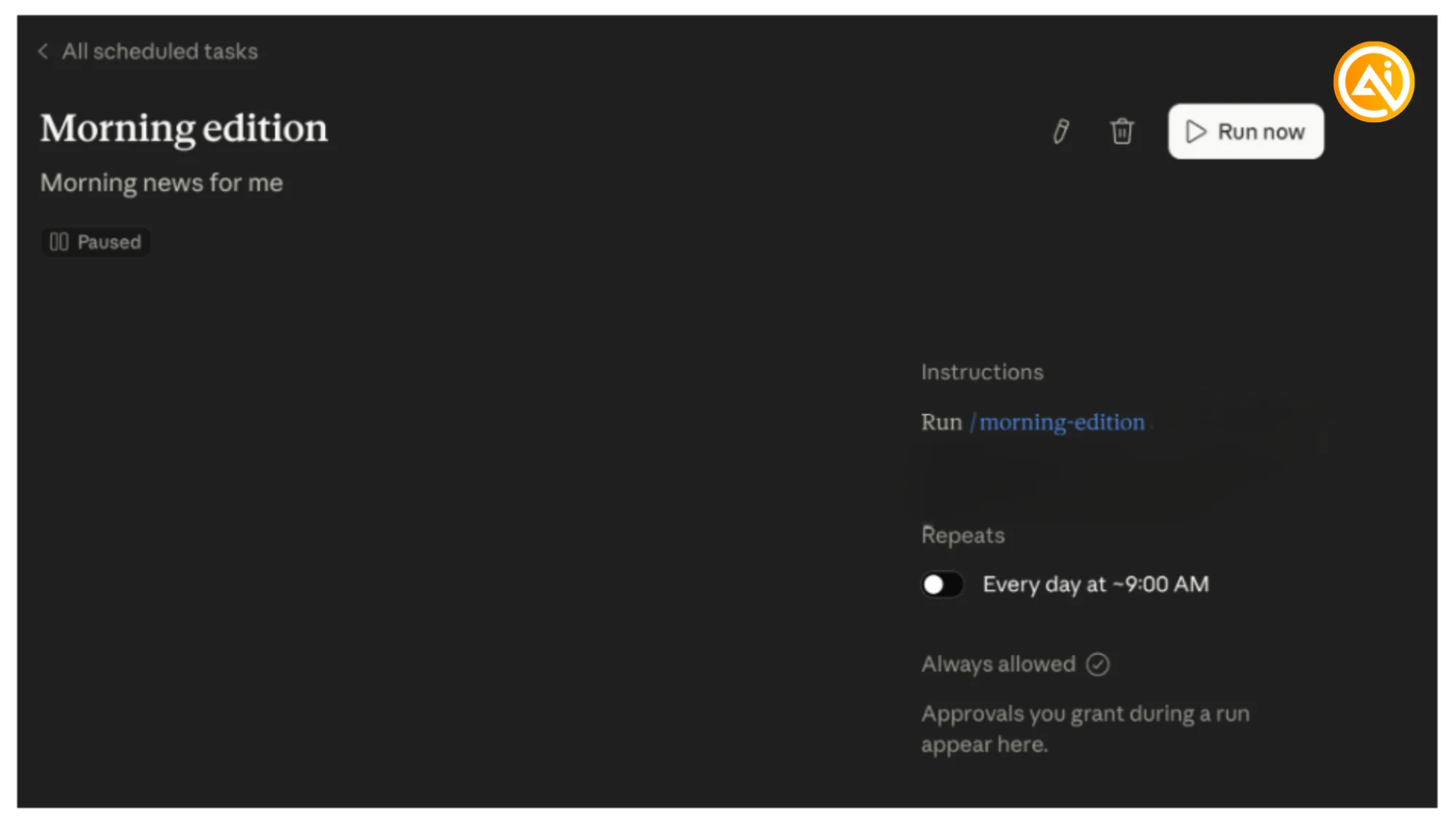
If Slack or email integrations are connected, Claude can send the briefing directly there. Otherwise, it will appear inside a new Claude CoWork thread.
Once the workflow is stable, your morning summary becomes a repeatable system instead of another prompt you need to remember every day.

Editorial Staff
The Editorial Staff at AIChief is a team of Professional Content writers with extensive experience in the field of AI and Marketing. AIChief was Founded in 2025, AIChief has quickly grown to become the largest free AI resource hub in the industry. Stay connected with them on Facebook, Instagram and X for the latest updates.



