

AI Tutorial
Automate Your Business with Notion AI Agents (Step-by-Step)
A simple guide to creating Notion custom agents that automate tasks, track work, and organize outputs in one central workspace.
Share
In this guide, you’ll learn how to build custom Notion AI agents that handle recurring work across your business automatically. By setting up a simple system, you can manage tasks like lead tracking, marketing workflows, or reporting, without adding complexity.
Who This Is For
- Founders and operators juggling multiple AI tools and struggling to keep everything organized
- Consultants and agencies managing recurring client work who want a centralized system
- Teams collaborating with AI that need a shared, transparent workflow
What You’ll Build
By the end, you’ll have:
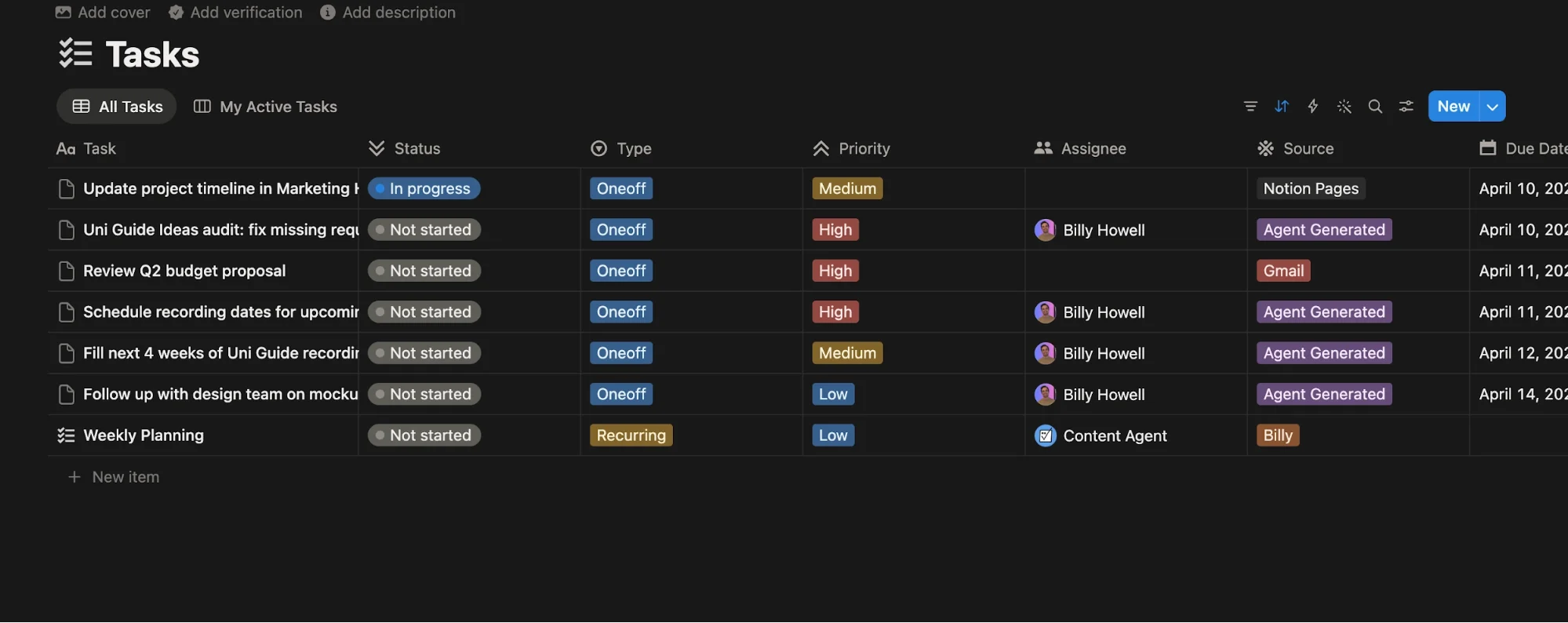
- A shared Tasks database to track work
- A Reports database to log outputs
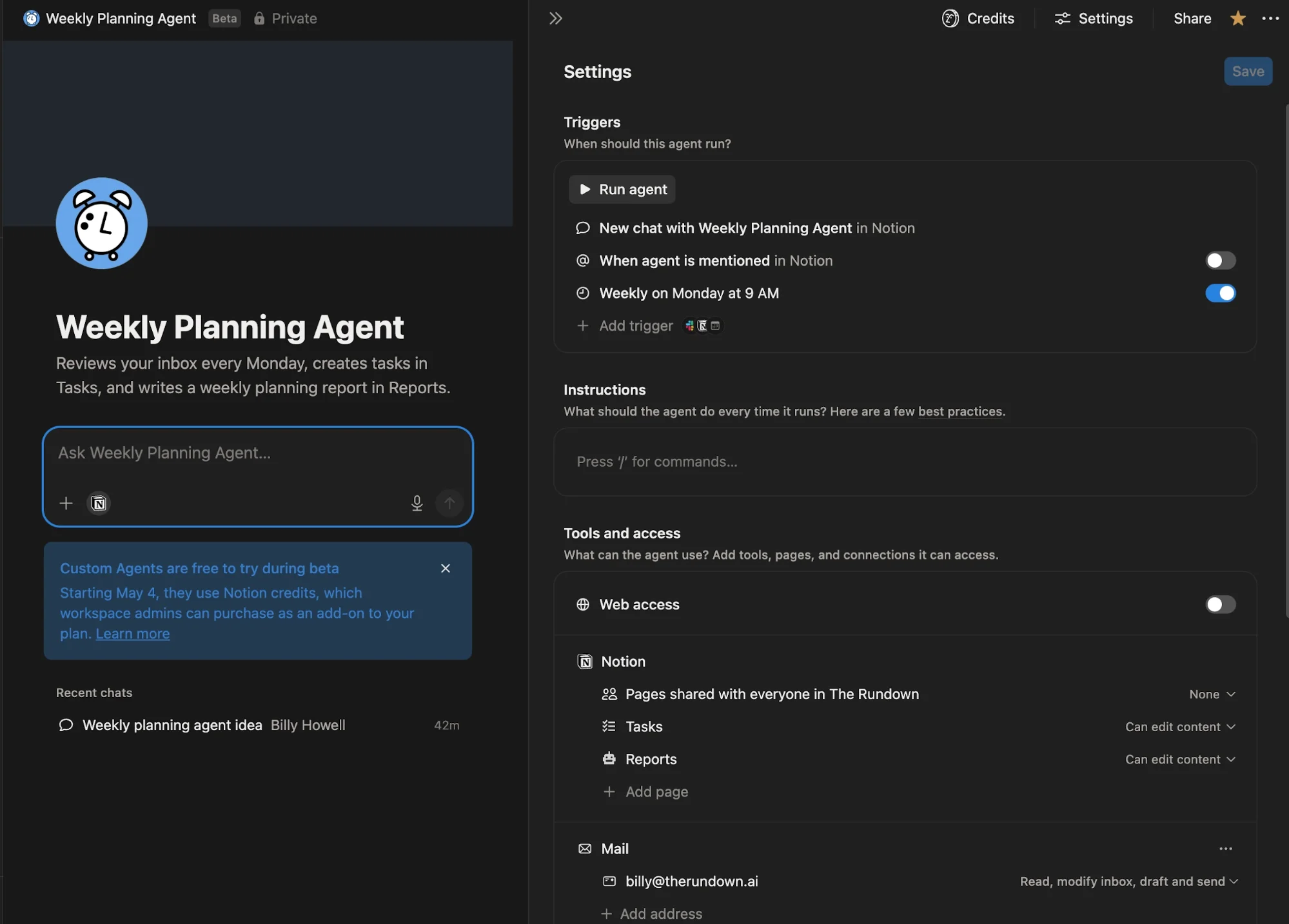
- A Weekly Planning agent that reviews your inbox, creates tasks, and logs summaries automatically
Once this structure is in place, you can reuse it to automate almost any recurring process in your business.
Requirements
- A Notion workspace (any plan)
- A Business or Enterprise plan for Notion Custom Agents
- Or an external AI tool (like Claude, ChatGPT, or Perplexity) connected to Notion
- Optional: free Notion AI credits (available through May 2026)
Step 1: Create the Tasks Database
Start by creating a new page in Notion and adding a database using Build with AI.
Use a prompt like:
- Create a task database for tracking recurring and one-off tasks completed by agents and humans. Include fields for Name, Type, Assignee, Priority, and Status.
Notion will generate the structure automatically.
Key fields:
- Type: Distinguishes recurring vs. one-off tasks
- Assignee: Allows tasks to be assigned to either a person or an AI agent
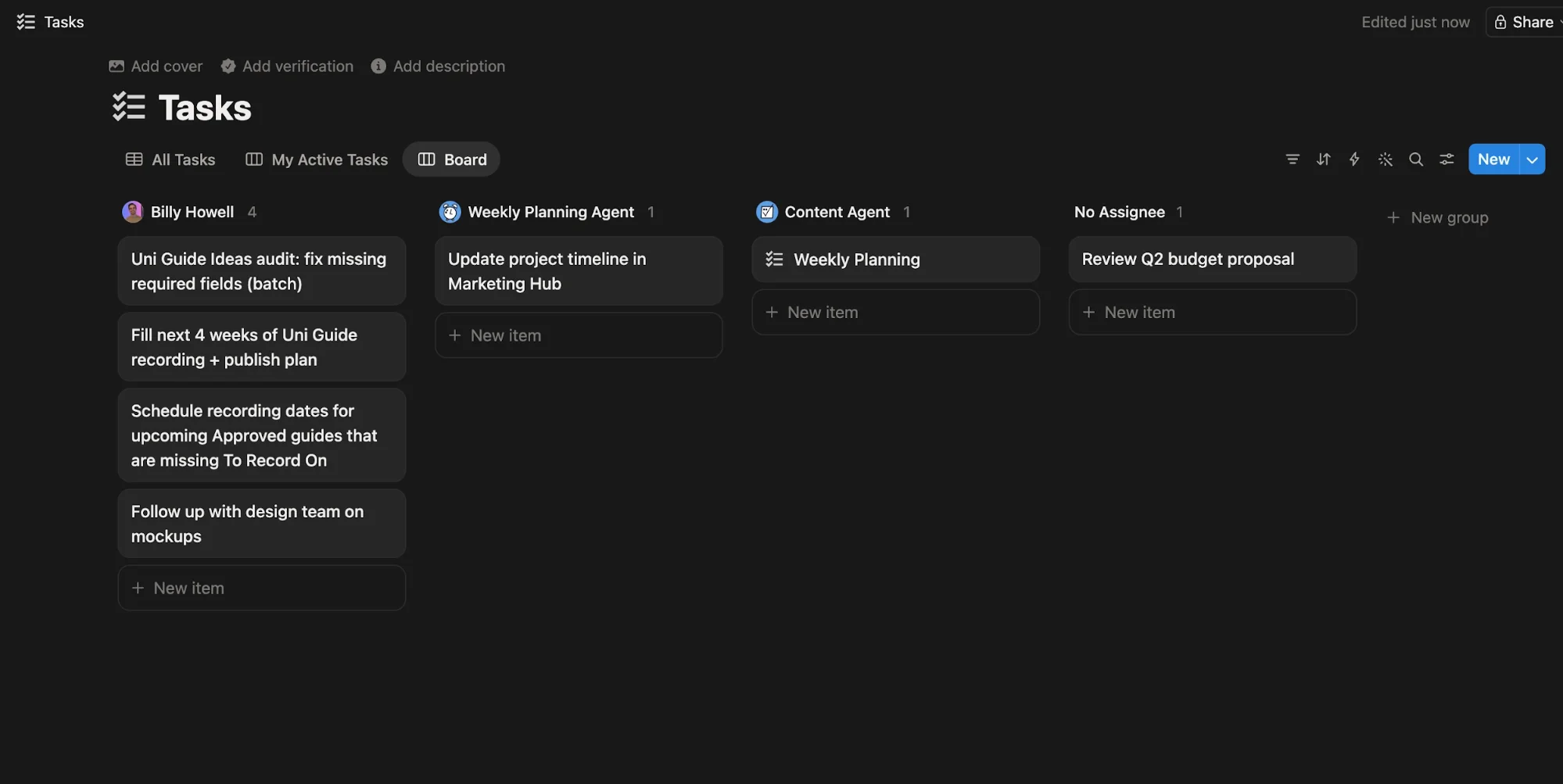
Pro tip: Add a Kanban view grouped by Assignee. This gives you a clear overview of what each agent (or teammate) is working on.
Step 2: Create the Reports Database
Next, build a second database for tracking outputs.
Prompt example:
- Create a reports database where teammates and AI agents can log reports. Include a field to identify who created each report and views for daily, weekly, and monthly reports.
This database acts as your audit log. Every time an agent runs, it records what it did.
Think of it this way:
- Tasks = Inputs (what needs to be done)
- Reports = Outputs (what was actually done)
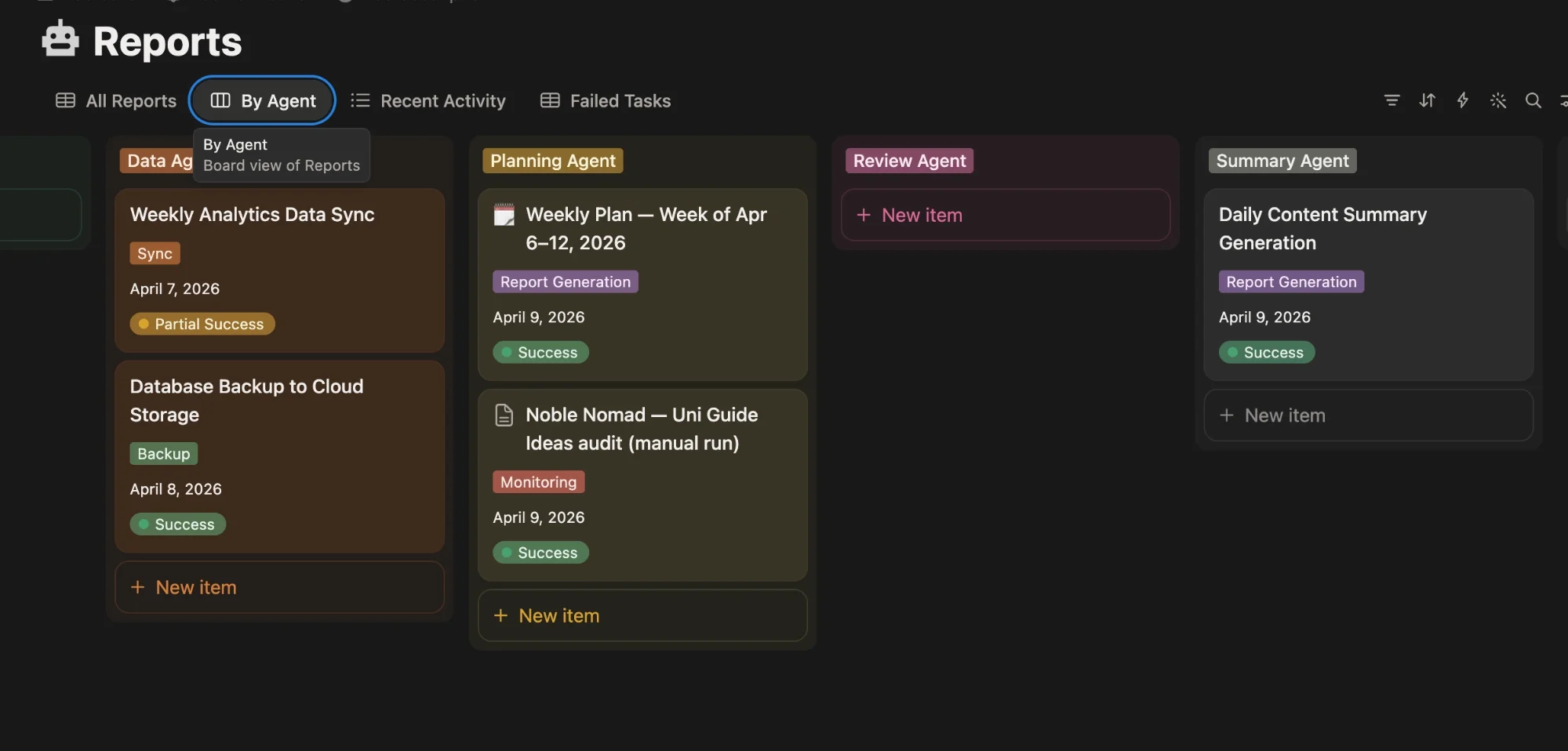
Keeping both ensures full visibility and accountability across your workflows.
Step 3: Build Your First Custom Agent
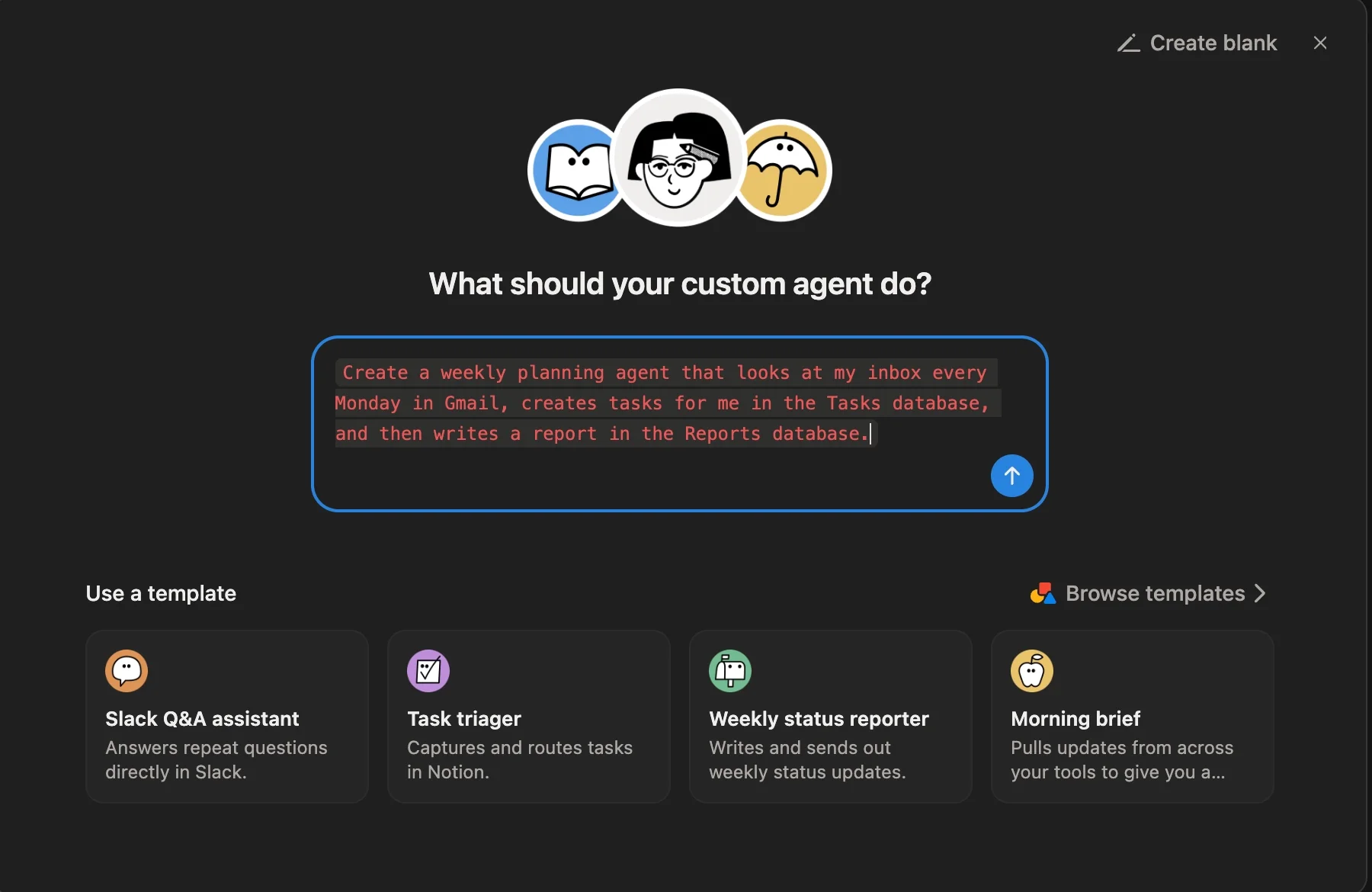
Open Notion AI and click Create Custom Agent.
Instead of configuring everything manually, use a prompt like:
- Create a weekly planning agent that reviews my Gmail inbox every Monday, creates tasks in the Tasks database, and logs a summary in the Reports database.
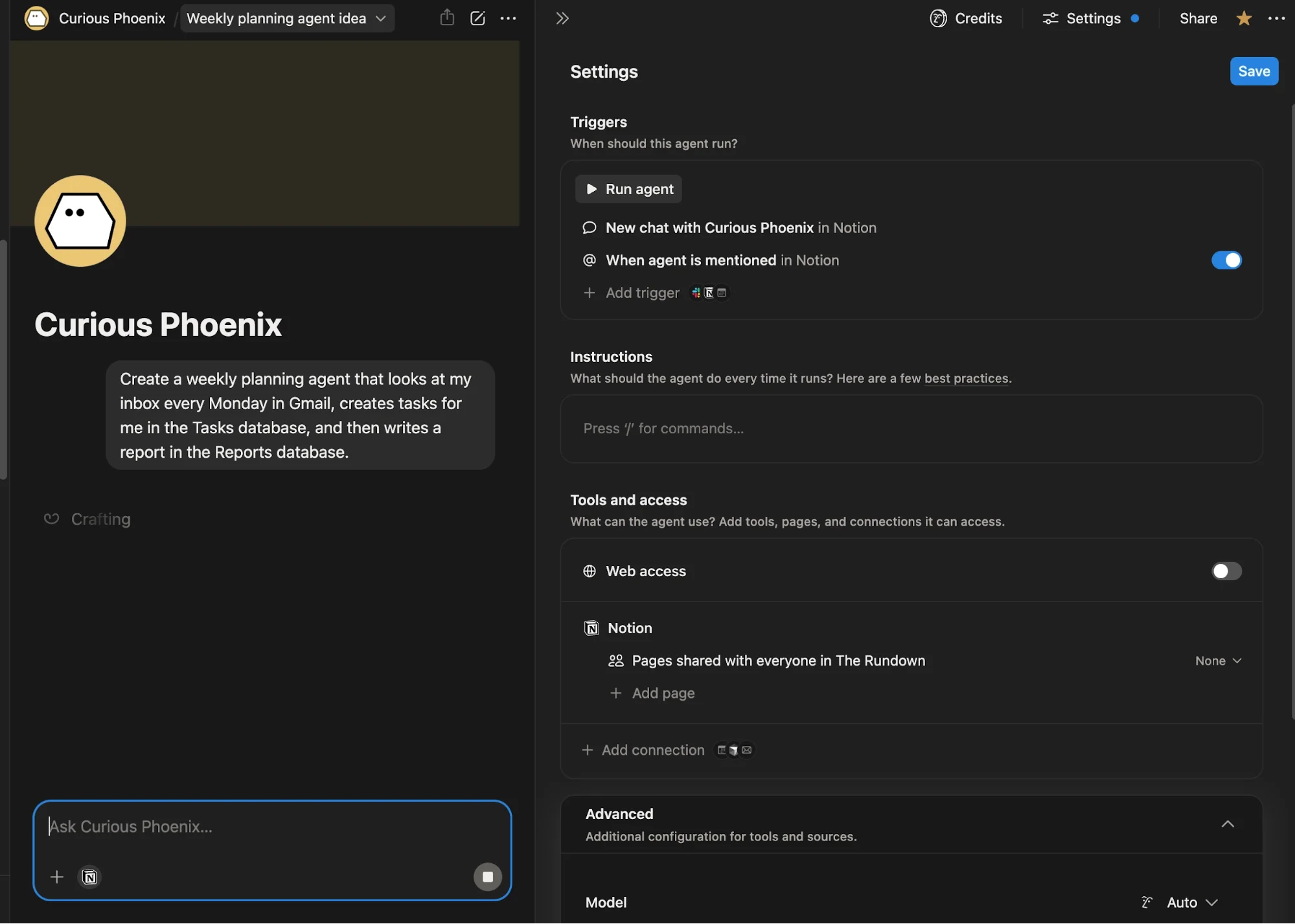
Notion will generate:
- The agent name
- Trigger schedule
- Instructions
- Data connections
Review the setup, connect Gmail if needed, confirm the schedule, and save.
Pro tip: Ensure the agent has edit access to both the Tasks and Reports databases.
Step 4: Assign Work to Agents Like Teammates
Notion agents can be triggered just like human collaborators.
To assign work:
- Open a task in your database
- Set the agent as the Assignee
- Mention the agent in a comment using @
The agent will immediately begin working on the task.
Pro tip: You can disable automatic triggers in the agent settings if you prefer more control.
Step 5: Expand the System Across Your Business
Once your first agent is working, you can extend this system to other processes:
- Lead management
- Marketing campaigns
- Financial tracking
- Customer support workflows
The key idea is simple:
- Assign tasks
- Let agents execute
- Track everything in Reports
This transforms your AI tools into a coordinated system rather than disconnected apps.
Going Further
You don’t need to rely only on Notion’s built-in agents.
Any AI tool with a Notion integration (like Claude, ChatGPT, or Perplexity) can plug into the same system.
For example, you can instruct an external agent:
- After completing your task, log a summary in the Reports database with the agent name and a brief description.
By doing this across all tools, you create a single dashboard showing everything your AI stack is doing.
Final Takeaway
Custom Notion agents let you treat AI like a team, not just a collection of tools.
With a simple two-database system, you can:
- Automate recurring work
- Assign tasks seamlessly
- Track outputs in one place
The result is a cleaner, more scalable workflow, without adding unnecessary complexity.

Editorial Staff
The Editorial Staff at AIChief is a team of Professional Content writers with extensive experience in the field of AI and Marketing. AIChief was Founded in 2025, AIChief has quickly grown to become the largest free AI resource hub in the industry. Stay connected with them on Facebook, Instagram and X for the latest updates.



