

AI Tutorial
Automate Canva Design Workflows with ChatGPT Agents
Learn how to use the Canva connector with ChatGPT Agent Mode to generate, duplicate, and edit Canva designs automatically using AI-powered workflows.
Share
ChatGPT now supports Canva connectors, allowing AI agents to create and modify Canva designs directly through natural language prompts. The workflow enables ChatGPT Agent Mode to navigate Canva, duplicate templates, and insert personalized content automatically.
Best Suited For:
- Content creators producing social posts and announcements in bulk
- HR teams are preparing employee recognition materials
- Startup founders creating branded communication assets
- Anyone exploring AI-powered design automation workflows
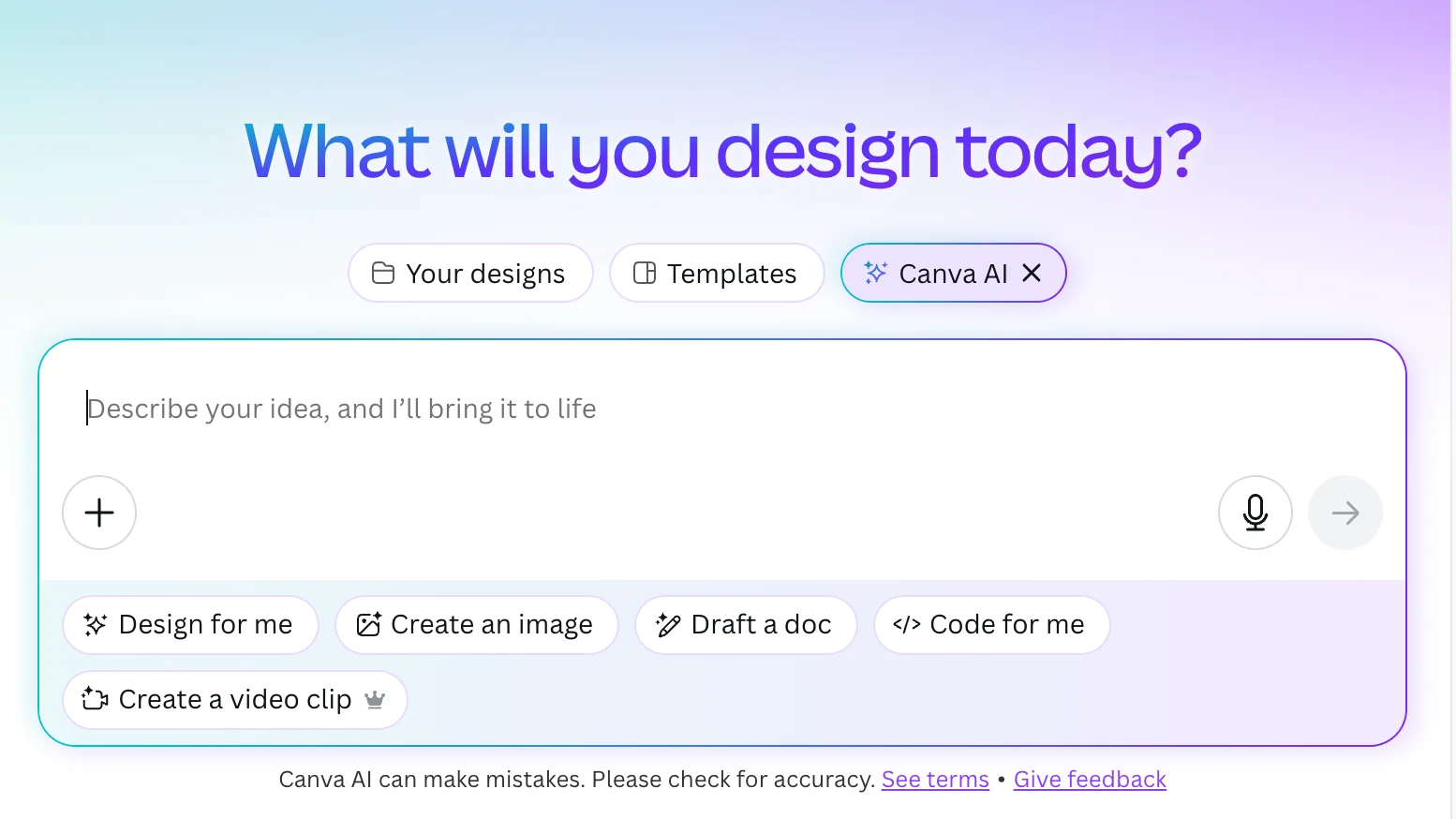
STEP 1: Create a Design or Select a Canva Template
Go to canva.com/ai to access Canva’s AI-powered design portal.
The platform includes templates and AI generation tools for:
- Social media graphics
- Presentations
- Marketing materials
- Invitations and cards
- Logos and branding assets
For this example, a congratulatory letter template was selected as the starting point.
Canva’s templates already handle much of the visual structure, while AI helps accelerate repetitive content generation.
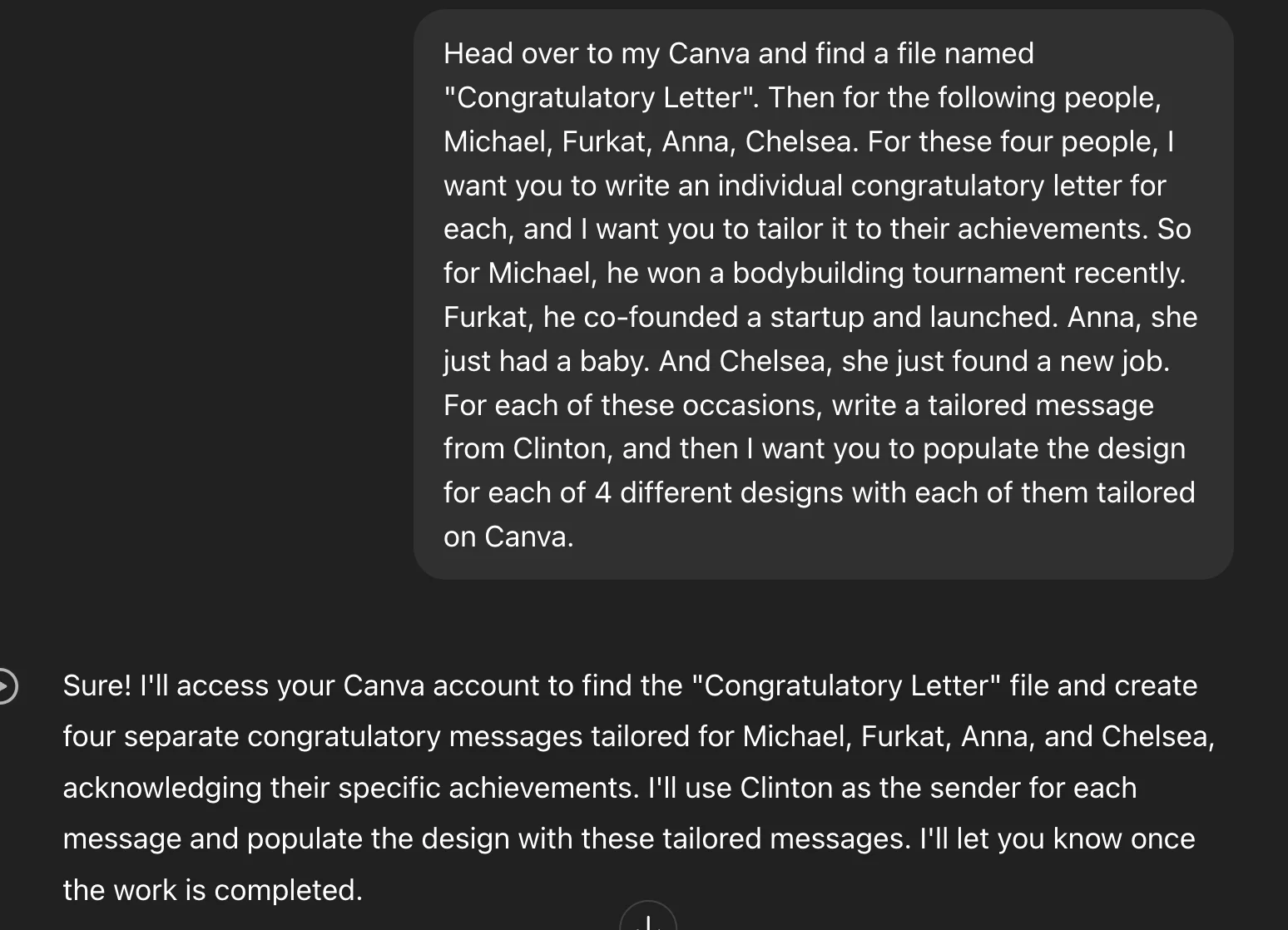
STEP 2: Describe the Design You Want to Generate
Inside Canva AI, enter a prompt describing the type of content needed.
Example prompts:
- “Congratulatory letter”
- “Birthday invitation”
- “New job announcement”
Next, use ChatGPT Agent Mode to generate multiple personalized variations based on the same design template.
Example use case:
- Michael — bodybuilding competition winner
- Furkat — launched a startup
- Anna — welcomed a baby
- Chelsea — started a new job
ChatGPT generated personalized congratulatory messages for each recipient, while Canva handled the visual layout.
The AI-generated text quality was generally strong, though occasional formatting issues required minor manual edits.
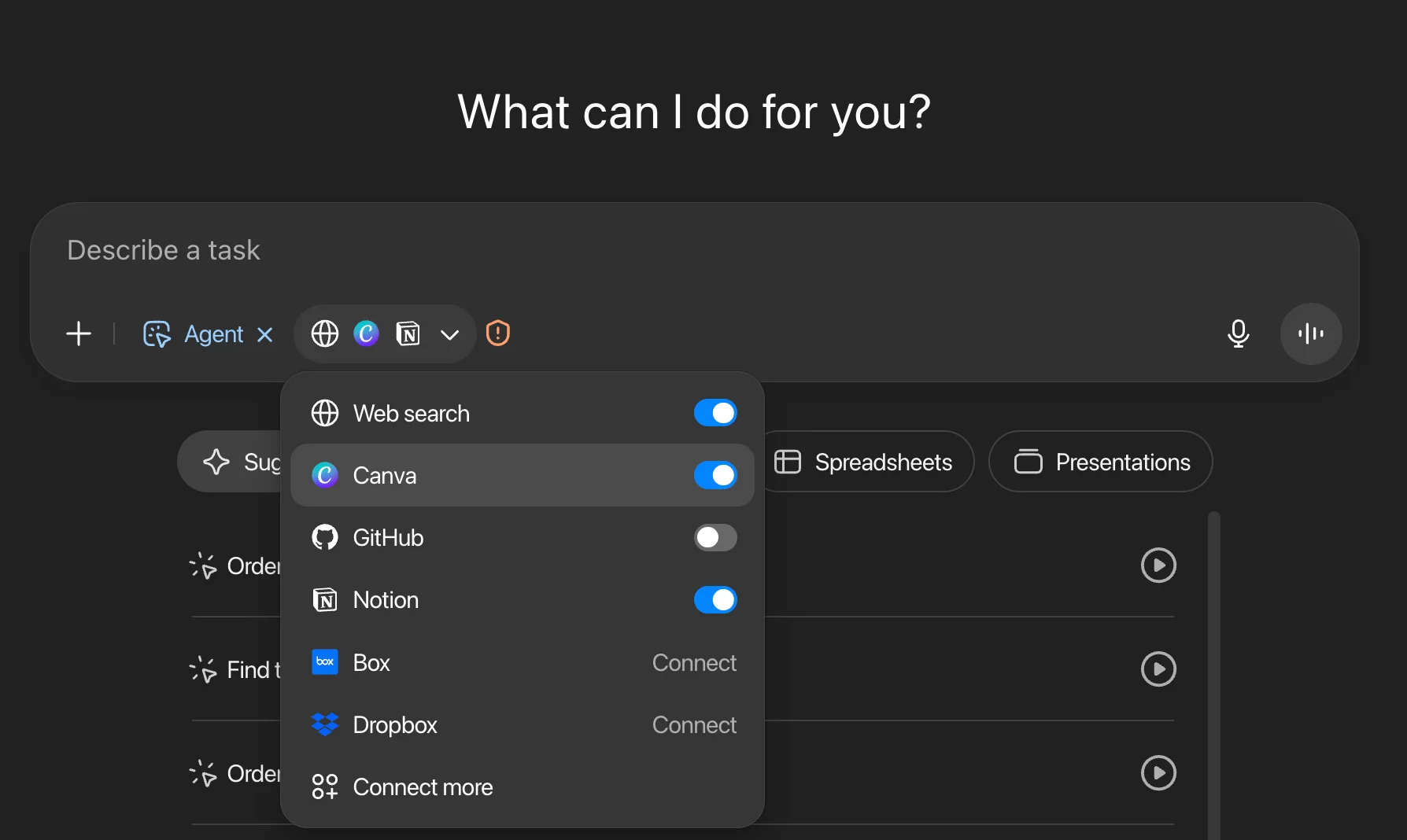
STEP 3: Connect ChatGPT to Canva Using Connectors
Inside ChatGPT:
- Click the “+” button
- Open Agent Mode
- Connect your Canva account
- Search for the Canva template file you created
Once connected, instruct ChatGPT to:
- Duplicate the Canva design
- Insert personalized text for each recipient
- Create separate versions automatically
Important Consideration:
Connecting Canva through Agent Mode provides AI access to your Canva workspace. Sensitive or private design files should be reviewed before enabling integrations.
During the workflow, Agent Mode duplicated the template and generated multiple completed versions automatically.
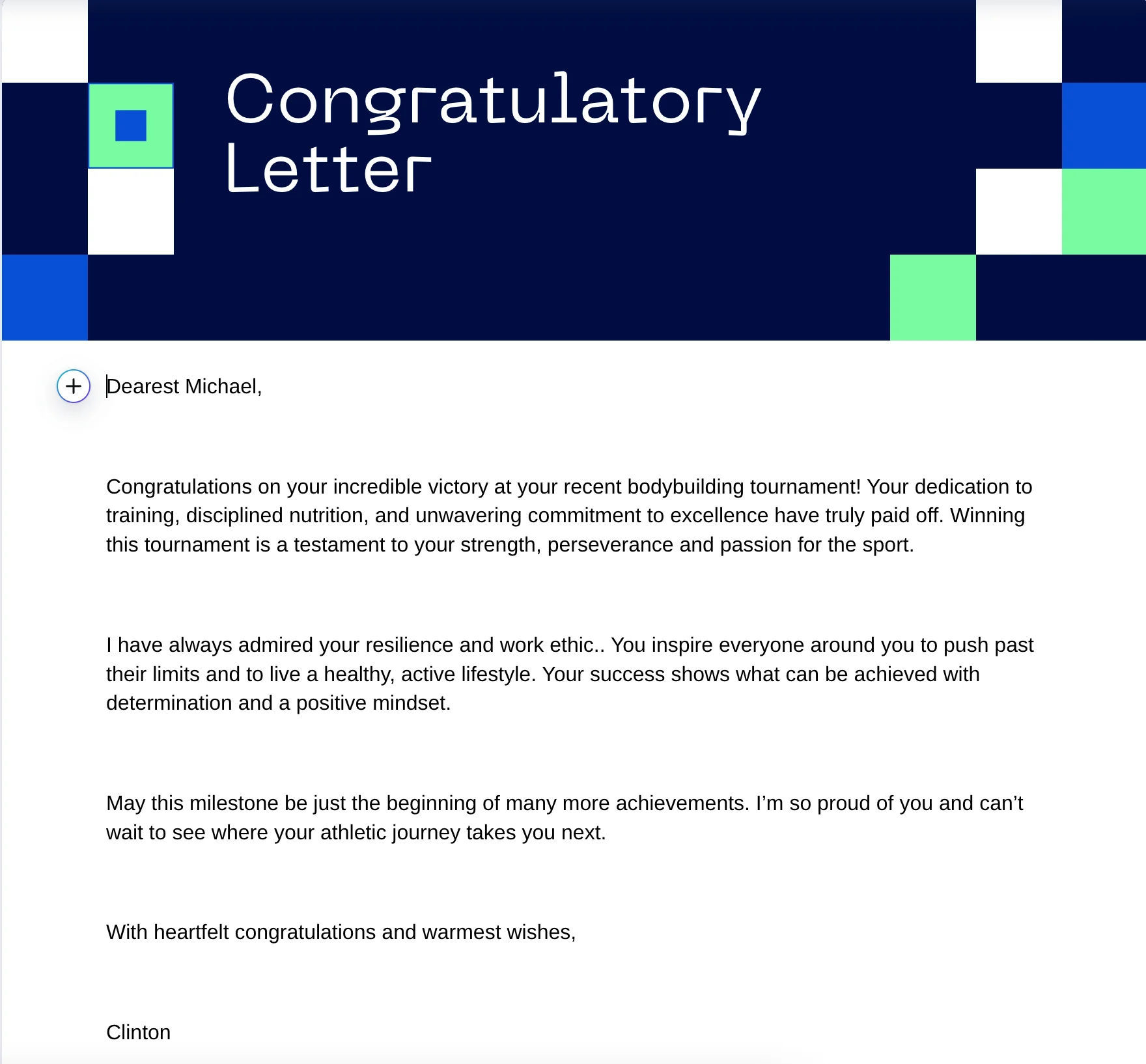
STEP 4: Review Outputs and Make Final Adjustments
After Agent Mode finishes processing, reopen Canva to review the generated files.
Typical outputs include:
- Separate duplicated templates for each recipient
- AI-generated personalized messages already inserted
- Editable layouts ready for export or sharing
Minor formatting issues may still occur occasionally, such as incorrect spacing or merged words. In most cases, these can be corrected quickly with manual edits.
The workflow currently works best as an AI-assisted drafting system rather than a fully autonomous one-click solution.
Pro Tip
Combining Canva AI with ChatGPT Agent Mode produces the best results. Use ChatGPT to generate personalized content at scale, Canva AI for quick visual layouts, and then manually refine formatting or design details where needed.

Editorial Staff
The Editorial Staff at AIChief is a team of Professional Content writers with extensive experience in the field of AI and Marketing. AIChief was Founded in 2025, AIChief has quickly grown to become the largest free AI resource hub in the industry. Stay connected with them on Facebook, Instagram and X for the latest updates.



