

AI Tutorial
Analyze Emails and Generate Personalized Replies with GPT-5
Learn how to use GPT-5 inside Microsoft 365 and Copilot to analyze email threads, summarize inbox activity, and generate personalized replies that match your writing style.
Share
This workflow demonstrates how GPT-5 inside Microsoft 365 can automatically analyze Outlook conversations, summarize inbox activity, and draft context-aware email responses tailored to your writing tone.
Best Suited For:
- Professionals managing ongoing client communications
- Sales teams handling lengthy negotiation threads
- Anyone dealing with large inboxes and detailed email histories
STEP 1: Open GPT-5 through Microsoft Copilot
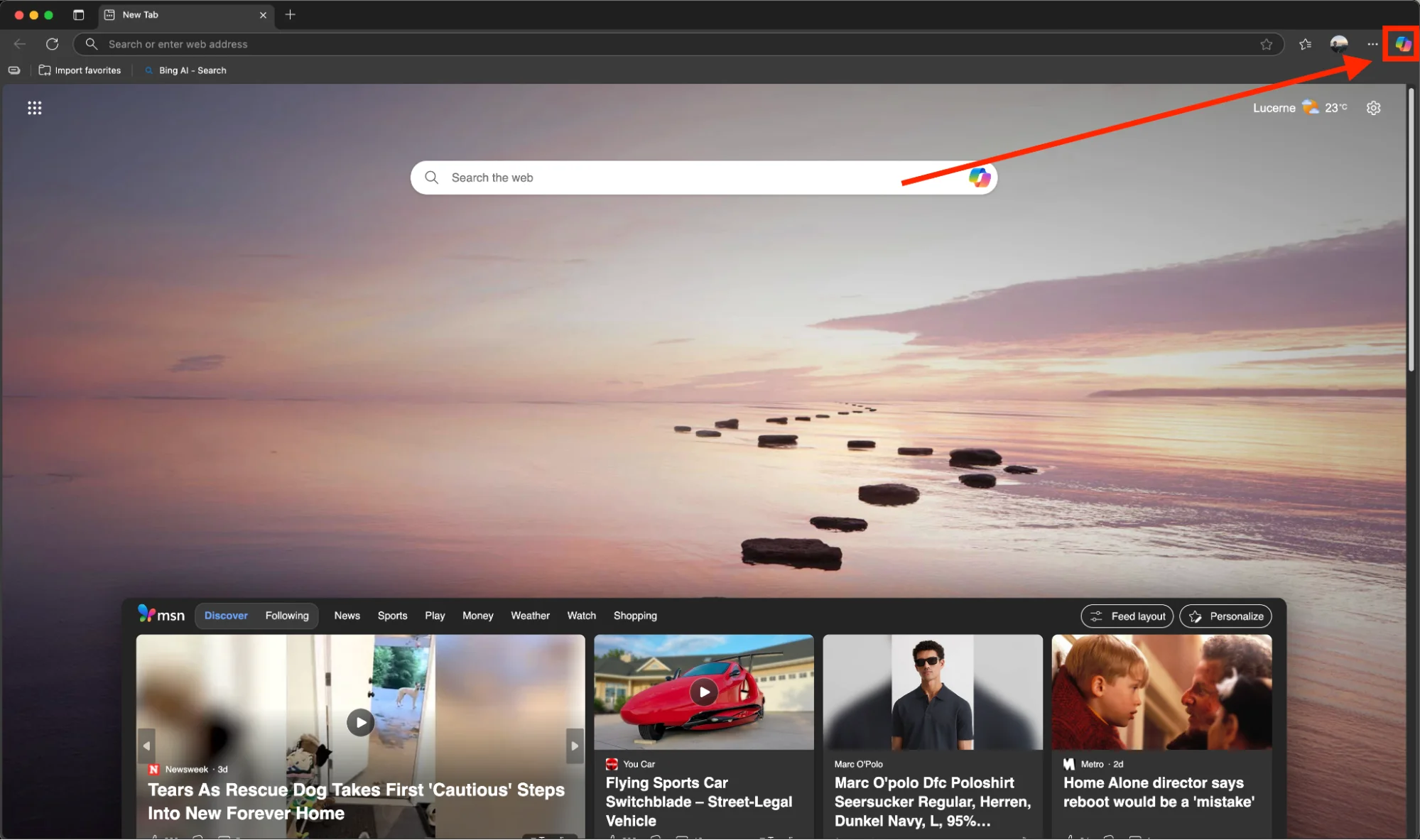
Launch Microsoft Edge and click the Copilot icon located in the upper-right corner of the browser.
GPT-5 is now integrated across Copilot tiers, including free plans that offer expanded reasoning capabilities compared to standard free AI tiers.
Sign in using a Microsoft account to access Microsoft 365 integrations and AI-powered features. New users can create a free Microsoft account to access the broader Microsoft ecosystem.
STEP 2: Connect Microsoft 365 Data Sources
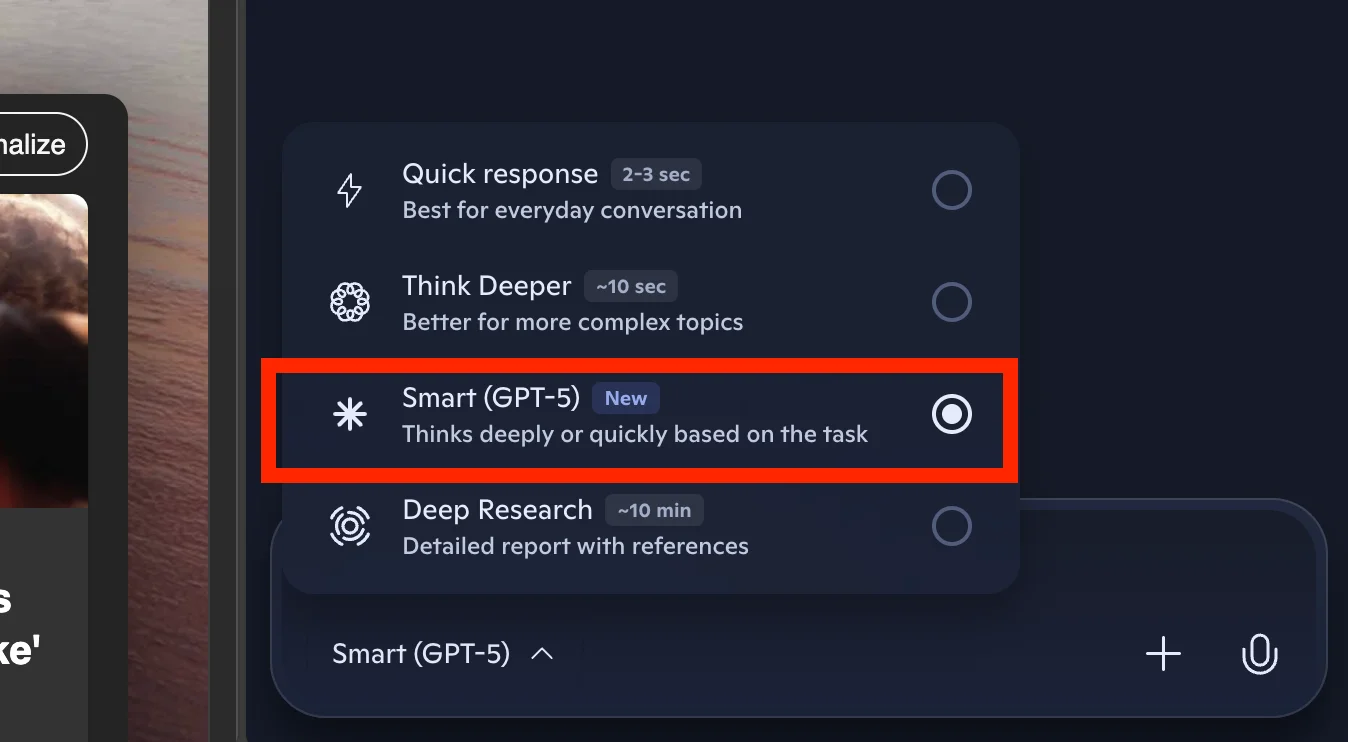
Enable “Smart” mode inside Copilot.
For personal Microsoft accounts, data connections are generally enabled automatically after activating Smart mode.
Enterprise users may require Microsoft 365 administrators to enable Microsoft Graph data permissions. This allows GPT-5 to securely access Outlook history, communication patterns, and related context.
STEP 3: Create an Email Analysis Prompt
GPT-5 can now search and analyze Outlook email history using natural language prompts.
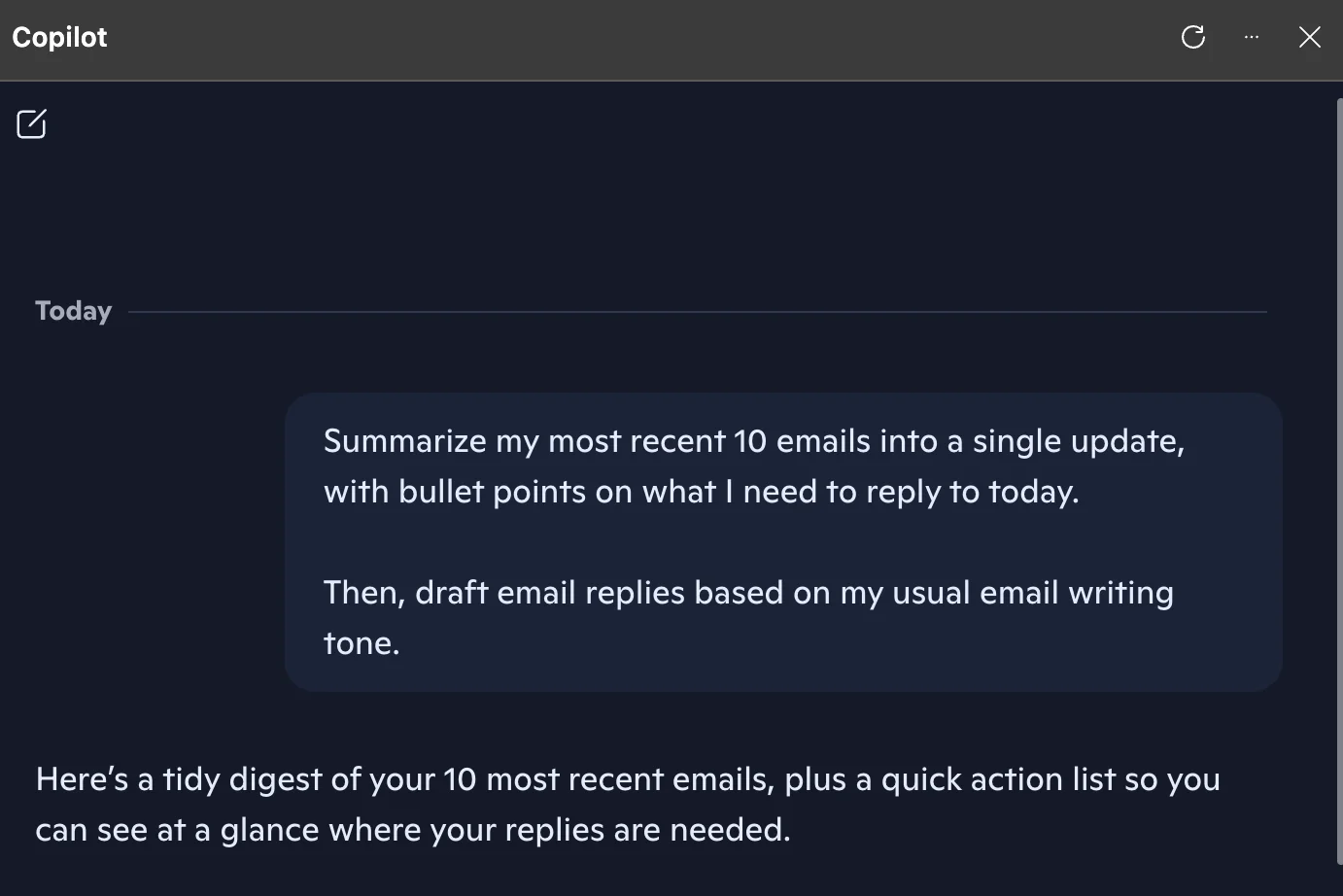
Example prompt:
“Summarize my latest 10 emails into a single update with bullet points outlining what requires a response today. Then draft replies using my typical email writing tone.”
STEP 4: Analyze Context from Long Email Threads
GPT-5 will generate a contextual summary that may include:
- Key discussion points and past decisions
- Recent updates or changes in the conversation
- Communication style patterns used with specific contacts
This is especially useful for complex professional relationships where conversation history and tone consistency are important.
Instead of manually reviewing months of email history, GPT-5 can quickly surface the most relevant context from the inbox.
STEP 5: Review and Refine the Drafted Replies
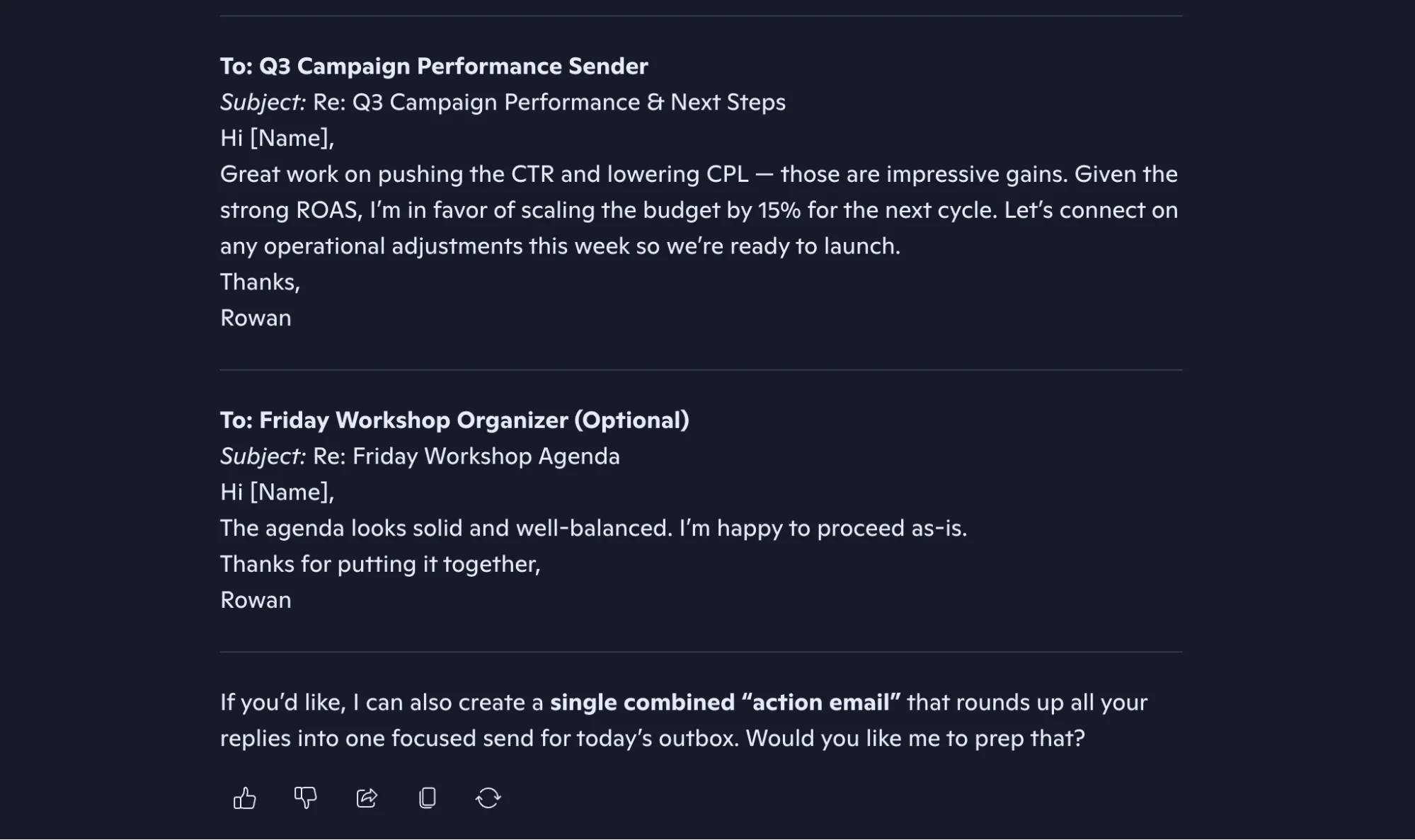
GPT-5 will create email drafts based on writing patterns from previous conversations.
Review the generated response and make any necessary edits before sending.
Additional refinement prompts can also be used, such as:
- “Make this more formal”
- “Add more detail about the project timeline”
- “Shorten the response while keeping the same tone”
Pro Tip
Create role-specific response styles by prompting GPT-5 to analyze communication differences across executives, peers, and direct reports. For example:
“Analyze my communication style with executives versus internal team members, then draft this response using the appropriate tone for a C-level stakeholder.”

Editorial Staff
The Editorial Staff at AIChief is a team of Professional Content writers with extensive experience in the field of AI and Marketing. AIChief was Founded in 2025, AIChief has quickly grown to become the largest free AI resource hub in the industry. Stay connected with them on Facebook, Instagram and X for the latest updates.



