

AI Tutorial
A Look Inside Comet: Perplexity’s AI-Powered Browser
Discover how Comet by Perplexity works, its key features, and how to use it for research, shopping, and automation.
Share
This walkthrough covers the basics of Comet, what’s available on free vs. paid plans, and a preview of several practical workflows.
Who It’s For
- Researchers seeking reliable citations
- Shoppers looking for the best deals without manual searching
- Anyone wanting an easy-to-use virtual assistant
Requirements
- Comet browser from Perplexity
- A free or paid Perplexity subscription
Step 1: Install and Set Up
Download and install the Comet desktop app.
Follow the onboarding steps (turn up your volume for the intro experience).
Tip: You don’t need to set it as your default browser for ad blocking; it works regardless.
Step 2: Navigate the Interface
Most tools are located in the sidebar and the top-right navigation area.
Sidebar Tools
- Library: your chat history
- Discover: a customizable feed of trending AI content
- Spaces: build agents with custom context (docs, links, tools, instructions)
- Finance: AI-powered financial insights similar to Yahoo Finance or Bloomberg Terminal
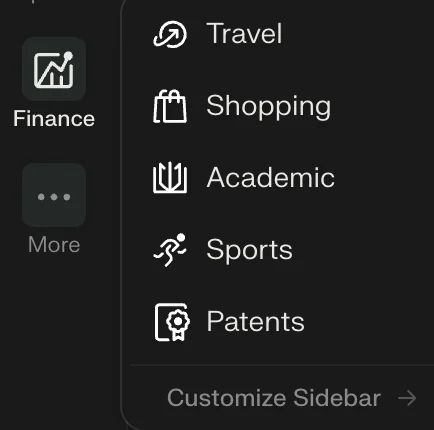
- More: additional tools you can add
Navigation Bar Tools

- Summarize Page: click the three-line icon or press ⌥ + S to generate a summary of the current page
- Voice Mode: use the sound-wave icon or ⌥ + Shift + V for voice interaction
- Assistant: opens a side panel that can control your browser tab and perform actions
Step 3: Try a Template
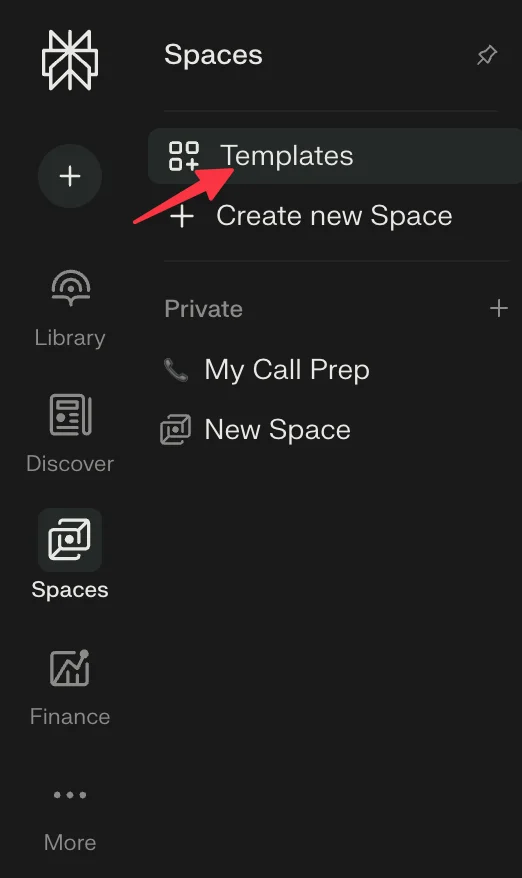
Go to Spaces and then Templates and select a task.
A good starting option is Trip Planner Pro. Enter a prompt like:
“Plan a trip from [city] to [destination] on [dates].”
Templates work similarly to custom GPTs but are more structured. Some may include forms for inputs like budget or preferences.
Tip: Use the “Get Started with Perplexity” template to learn the platform faster.
Step 4: Run Your First Workflow
Visit a shopping site such as Amazon or Walmart.
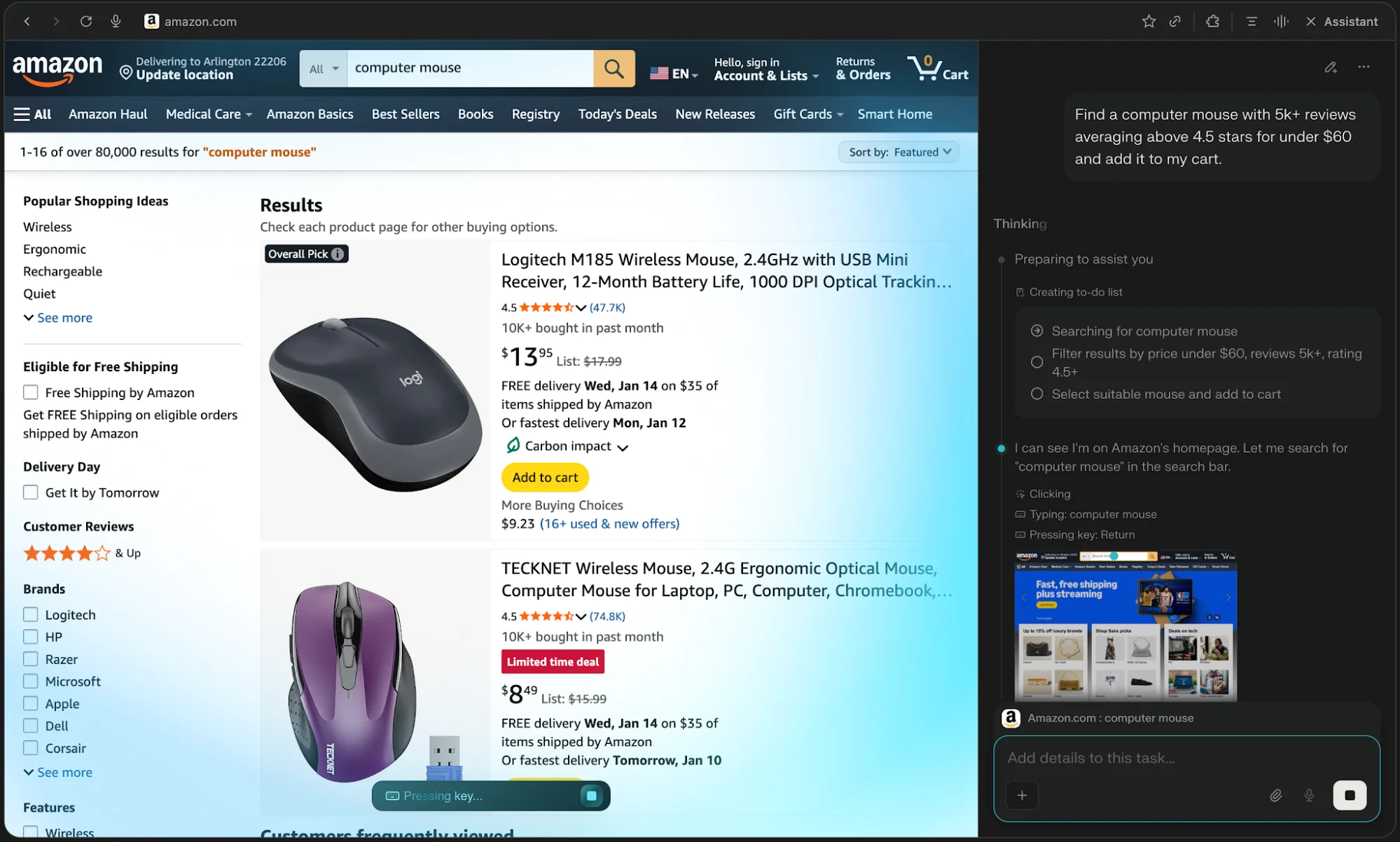
Open Assistant (⌥ + A or via the top-right icon) and try:
“Find a computer mouse with 5k+ reviews, 4.5+ rating, under $60, and add it to my cart.”
A blue overlay indicates the assistant is actively controlling your tab.
Going Further
To unlock more functionality, configure integrations and services in your profile settings.
- Assistant: enhances automation capabilities
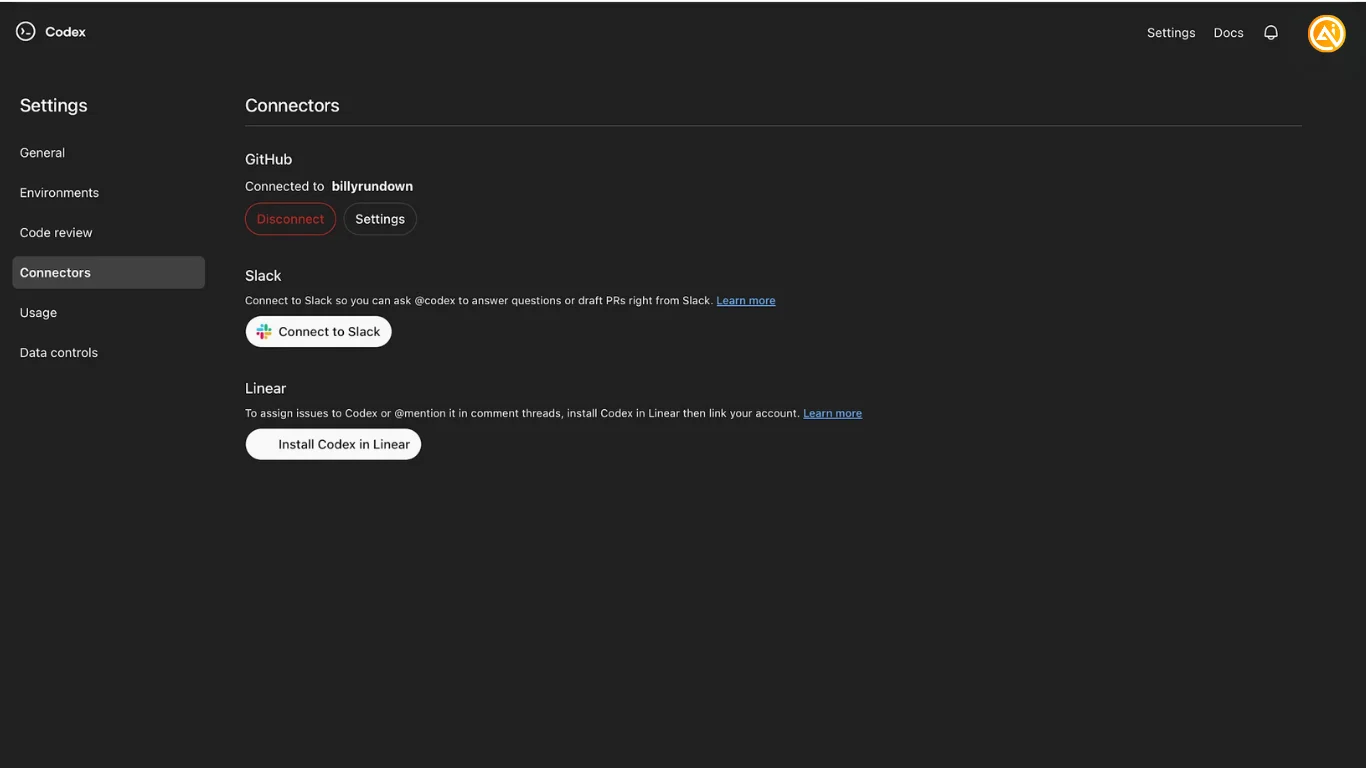
- Connectors: links external tools and data
- Purchases: enables buying with your saved payment method
The Purchases section also allows tracking of orders, and Comet includes similar tracking for travel bookings.

Emily Newton
Emily Newton is an experienced Editor-in-Chief who has spent the last decade sharing her insights on science and technology advances through platforms like IoT for All and DZone. She is deeply interested in showcasing how connected technologies and smart ecosystems transform modern businesses. When she isn’t writing, Emily enjoys walking local trails, playing video games, or curling up with a good book.



