AI Showcase
AI Clothes Changer for Ecommerce: How to Build a Consistent Model Catalog Across Every SKU
Learn how to use an AI clothes changer to create consistent on-model fashion product images from existing garment and model photos across your SKUs.
Share
A fashion catalog can feel inconsistent even when every product photo looks good on its own. One item is shown on a studio model, the next on a lifestyle background, and the third uses a different crop. Shoppers notice the visual shift as they browse.
You do not always need a full reshoot to fix that. An AI clothes changer (also called virtual try-on) can help you build a more consistent on-model catalog from garment photos and real model photos you already have—so every SKU feels like it belongs to the same store, not a random mix of shoots.
Here’s a simple workflow for building a more consistent model catalog across your SKUs.
Step 1: Define Your Catalog’s Visual Rules
Consistency does not mean every product image has to look identical. It means the collection shares a recognizable visual style while each garment remains clear and accurate.
Before you create images, decide on a few basics:
- Model direction: Choose the general look and presentation that fit your brand.
- Framing: Pick a primary crop, such as full-body or three-quarter length.
- Background and lighting: Use a small set of backgrounds and lighting styles.
- Product visibility: Keep the garment’s important details easy to see.
These choices give your team a reference for every new product image and make outliers easier to spot.
Step 2: Prepare Clear Garment and Model Photos
Choose a garment photo where the item is fully visible and details like color, pattern, and silhouette are easy to inspect. Use a model photo with a pose and crop that leave room to show the clothing.
If the garment is obscured, poorly lit, or shown at an awkward angle, fix the source image first. A clean starting point makes the result easier to review.
Step 3: Create Your First On-Model Image with an AI Clothes Changer
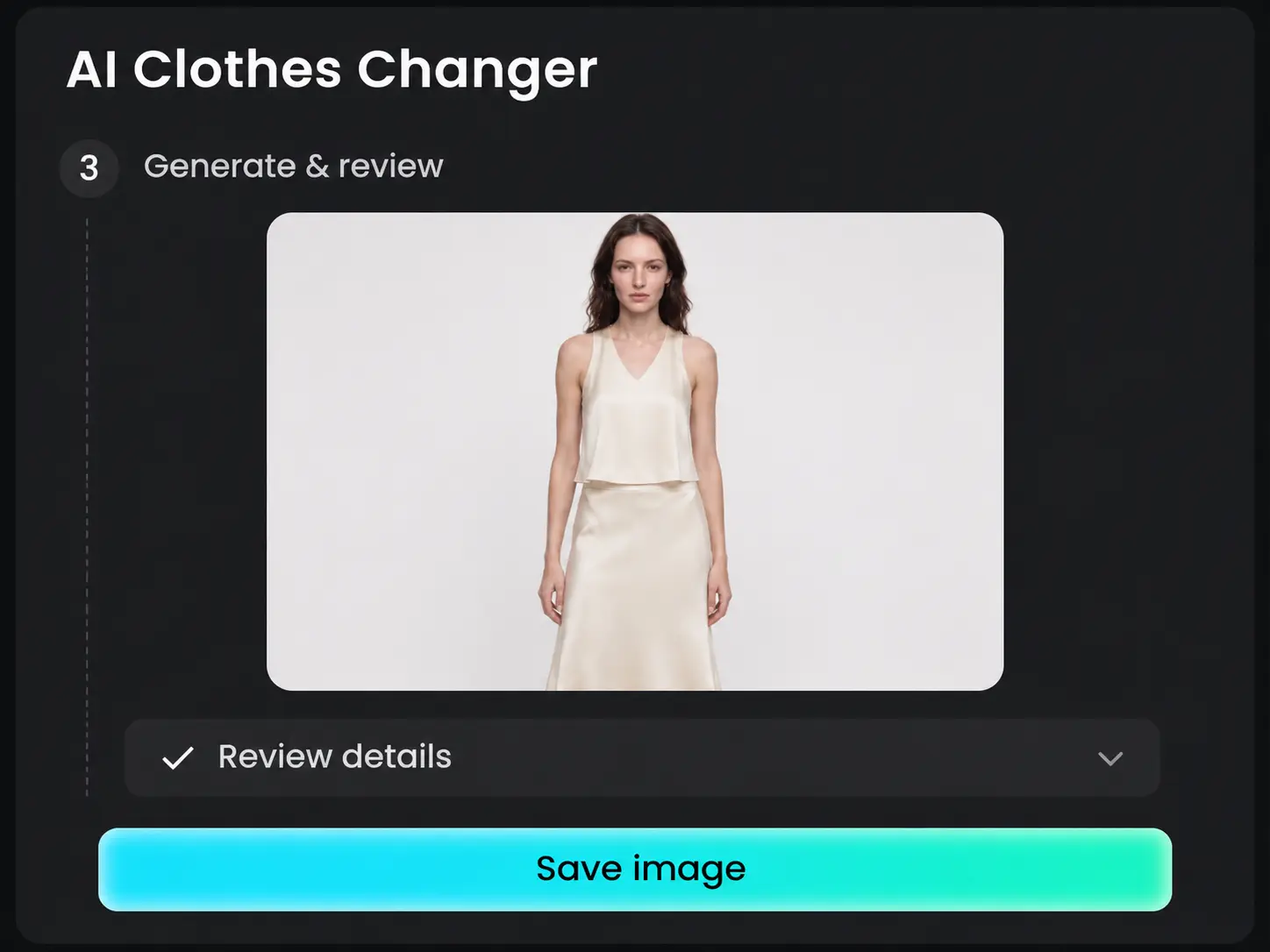
Choose one representative SKU, such as a blouse or jacket, to test your visual direction. Tool such as Koozee AI, the Fashion visual platform, are built around this garment-plus-model approach for apparel teams that need listing-scale visuals.
How to Use Koozee’s AI Clothes Changer in 3 Steps
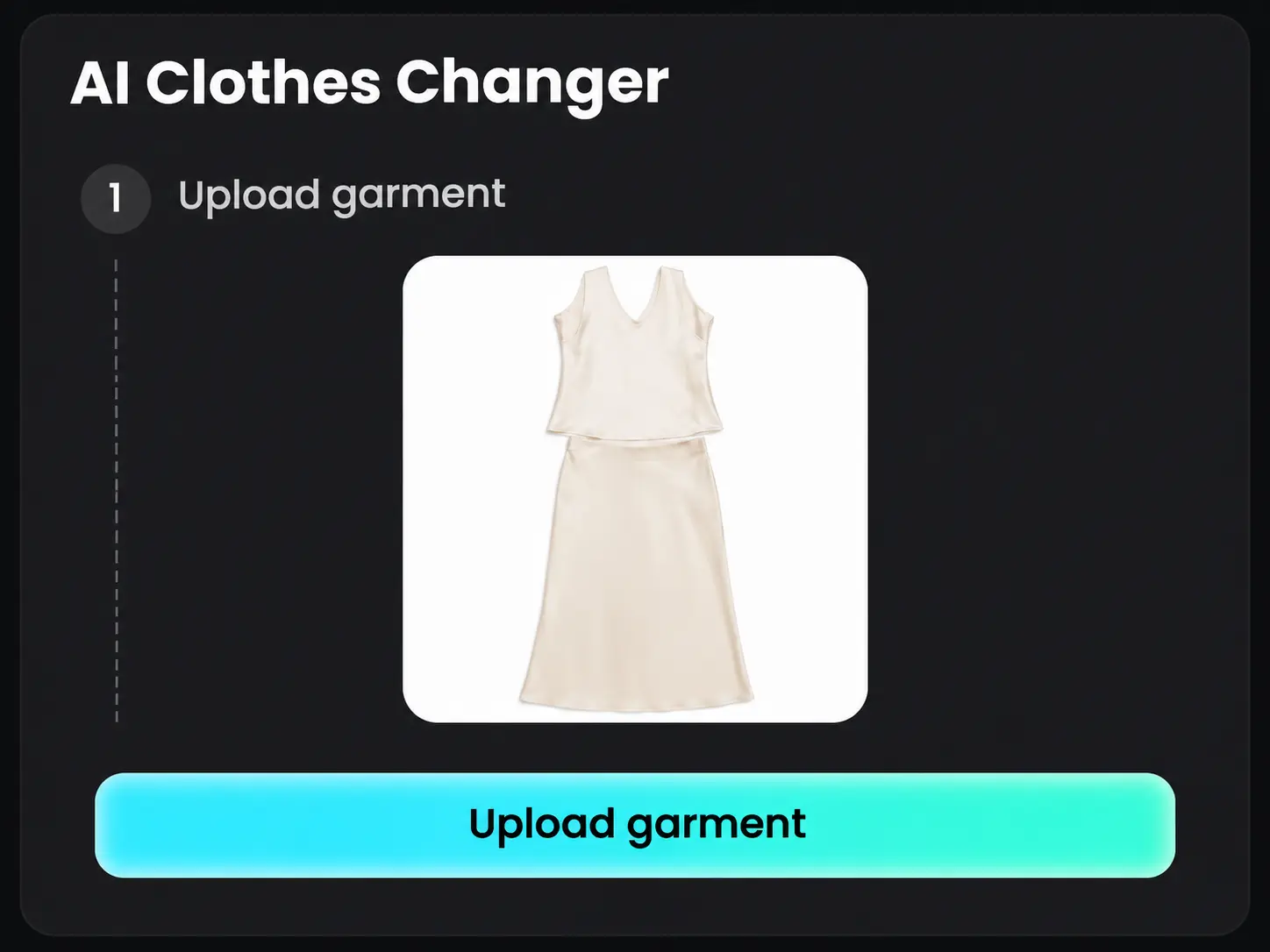
1. Upload a clear garment image. A product photo or flat lay works well.
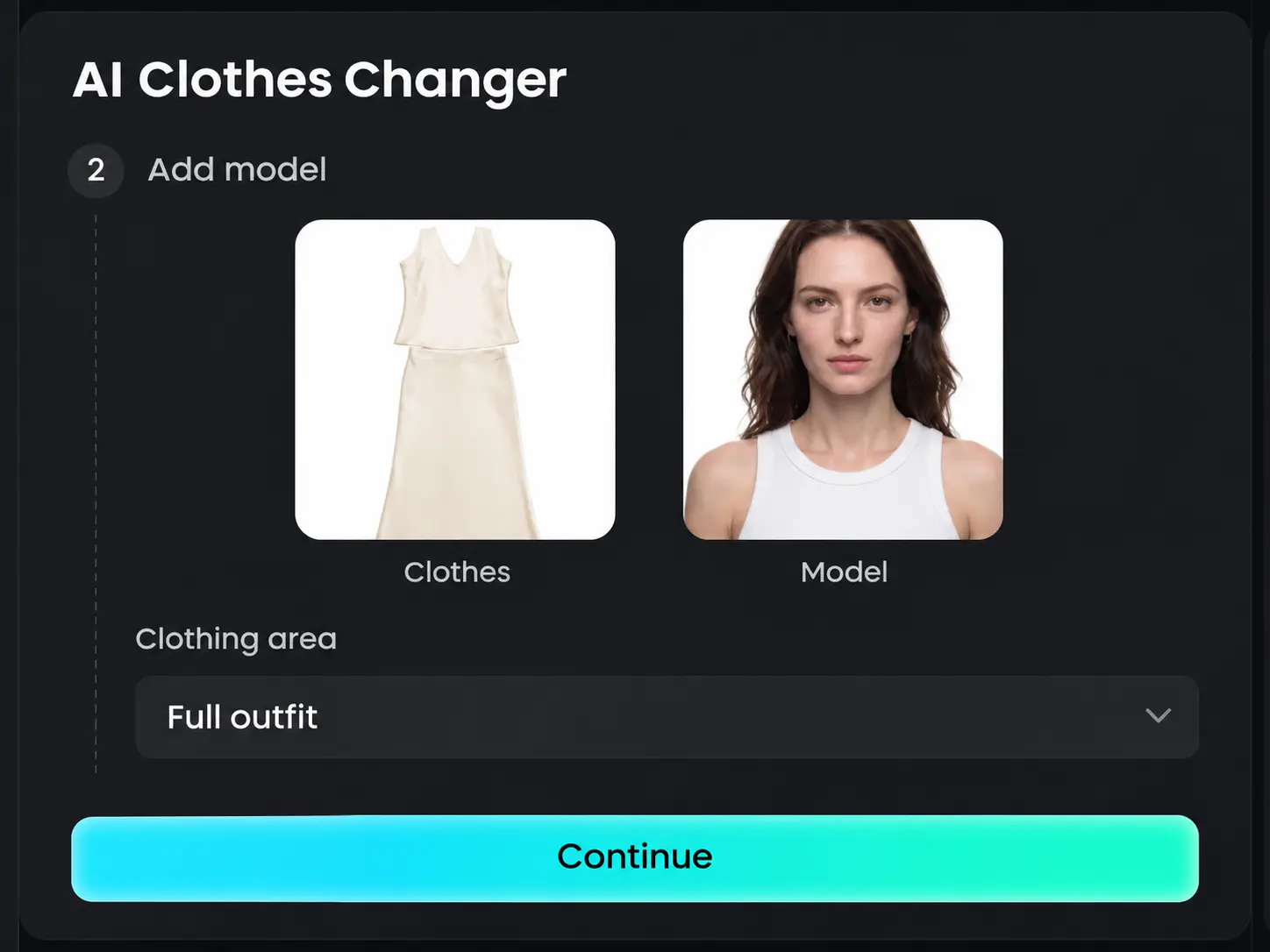
2. Upload a model photo and select the clothing area to change, such as a top, bottom, dress, outerwear, or full outfit.
Step 4: Use the Approved Image as a Reference
Once the first image fits your catalog, note what makes it work: the model style, crop, background, and lighting. Apply those same choices to the next SKUs, adjusting only when a garment needs a different view to show its shape or details.
This gives the collection a shared visual direction without forcing every product into exactly the same image.
Step 5: Change One Variable at a Time
If you want to compare alternatives, change one element at a time. Keep the background and framing steady while trying a different model, for example, or keep the model consistent while testing a new pose.
When several details change at once, it becomes harder to tell which choice works—and harder to keep the collection cohesive.
Step 6: Review Every Image Before Publishing
Compare each result with the actual garment and check for:
- Accurate garment color, pattern, and silhouette
- Visible details such as collars, sleeves, seams, and hems
- A pose that shows the product clearly
- A background and crop that fit the rest of the catalog
If an important detail looks different or unclear, revise the image or choose another source. A cohesive catalog helps shoppers browse, but accurate product representation should come first.
Common Mistakes to Avoid
- Changing the model, background, pose, and crop all at once
- Using source photos that hide important garment details
- Publishing generated images without checking them against the actual product
- Making every image identical, even when a different view would show the garment better
Final Thoughts
A consistent model catalog starts with clear visual rules, suitable source photos, and one reviewed reference image. Apply the same direction across your SKUs, change one variable at a time, and check every result before publishing. This gives your catalog a more cohesive look while keeping each product easy to understand.
FAQs

Editorial Staff
The Editorial Staff at AIChief is a team of Professional Content writers with extensive experience in the field of AI and Marketing. AIChief was Founded in 2025, AIChief has quickly grown to become the largest free AI resource hub in the industry. Stay connected with them on Facebook, Instagram and X for the latest updates.