

AI Tutorial
Use Microsoft Copilot as Your Interactive Study Tutor
Learn how to use Microsoft Copilot’s Vision and Voice features to create an interactive, voice-driven study environment on your desktop.
Share
This guide explains how to use Microsoft Copilot’s Vision and Voice capabilities to turn your desktop into a conversational learning setup for complex topics.
Who This Is For
- Students working through dense textbooks, research papers, or problem sets
- Self-learners tackling technical tutorials or coding exercises
- Graduate students preparing for exams or exploring advanced topics
- Anyone who prefers learning through conversation instead of reading
STEP 1: Install the Copilot Desktop App
Most modern Windows devices include Microsoft Copilot by default. If not, install it manually.
For Windows:
- Open the Microsoft Store from the Start menu
- Search for “Microsoft Copilot”
- Click Get or Install
- Launch the app and sign in
For macOS:
- Open the App Store (requires macOS 14.0+ and Apple silicon)
- Search for “Microsoft Copilot”
- Install the official app
- Open it from Applications and sign in
Once installed, you’re ready to enable voice and vision features.
STEP 2: Enable Voice and Vision Features
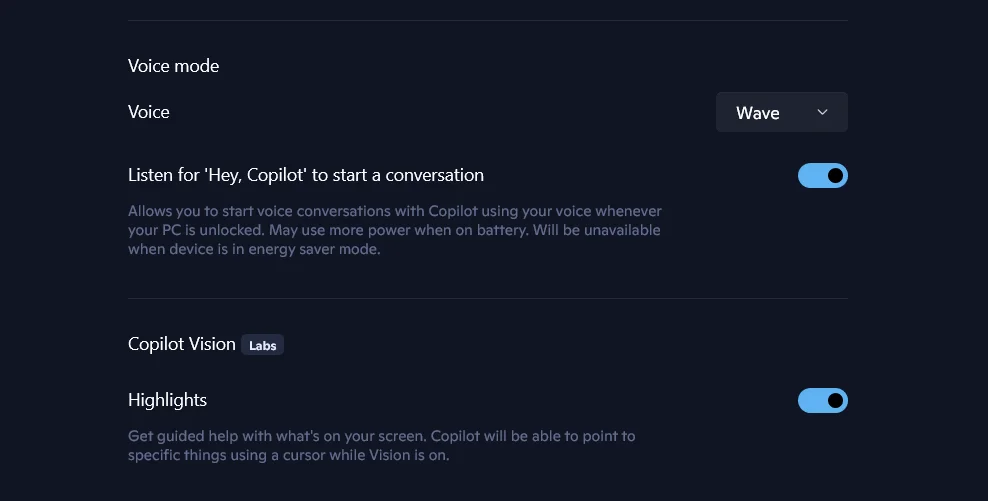
Open the Copilot app and go to Settings via your profile icon.
Turn on:
- Voice Mode (enables “Hey, Copilot”)
- Copilot Vision (allows screen understanding)
Next, open your study material, which could be a PDF, browser tab, or coding environment.
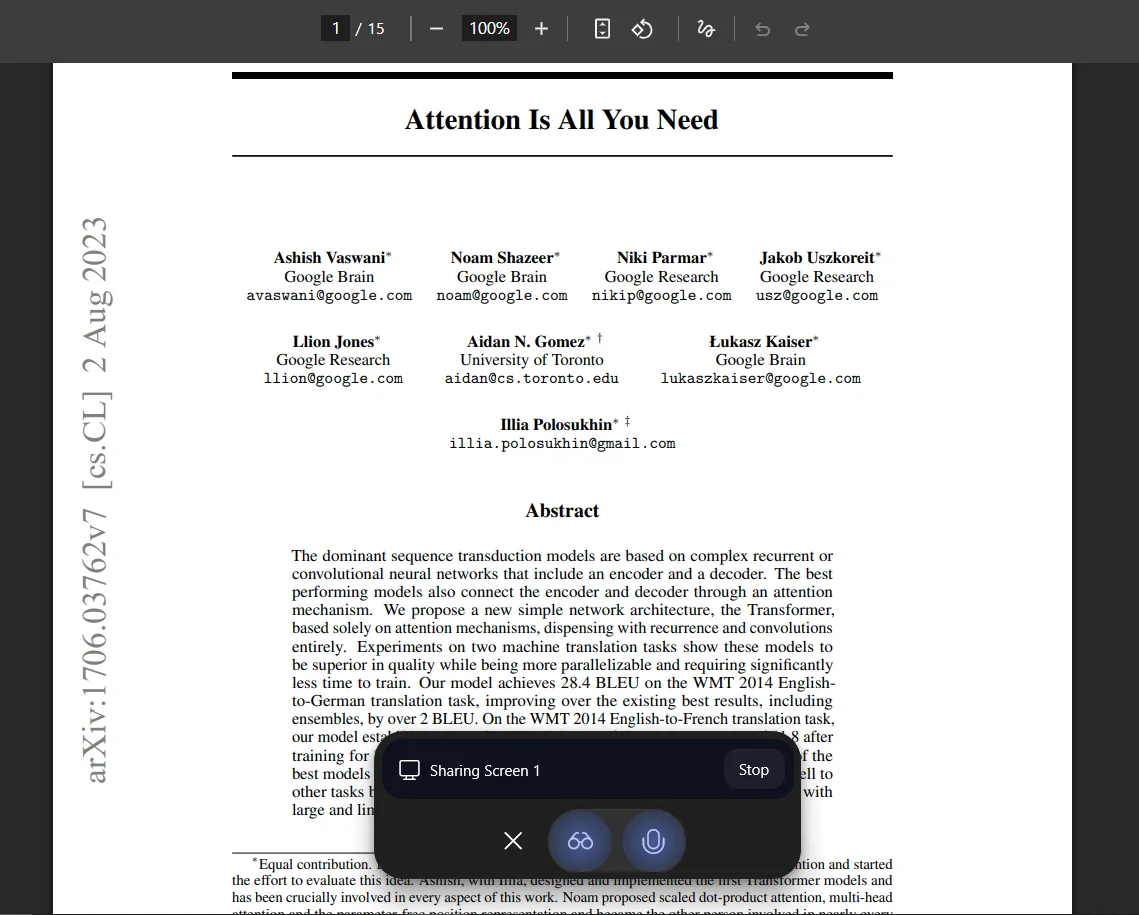
For example, you might open a research paper like “Attention Is All You Need.”
Say “Hey, Copilot” to activate it, then click the Vision icon (glasses) to let it scan your screen and identify the content.
STEP 3: Learn Through Voice Interaction
With Vision active, ask questions out loud to explore the material.
Example prompts:
- “Walk me through this paper and explain the key ideas.”
- “Explain this concept like I’m 15 and how it applies in real life.”
- “Create a similar practice problem and solve it with me.”
Copilot responds verbally, highlights relevant parts on screen, and guides you step by step. You can ask follow-ups, request hints, or explore variations interactively.
STEP 4: Create and Export Study Materials
After your session, close the Copilot toolbar to view the conversation history inside the app.
Generate structured notes with a prompt like:
“Create detailed, analogy-based notes from this session, including step-by-step explanations for review.”
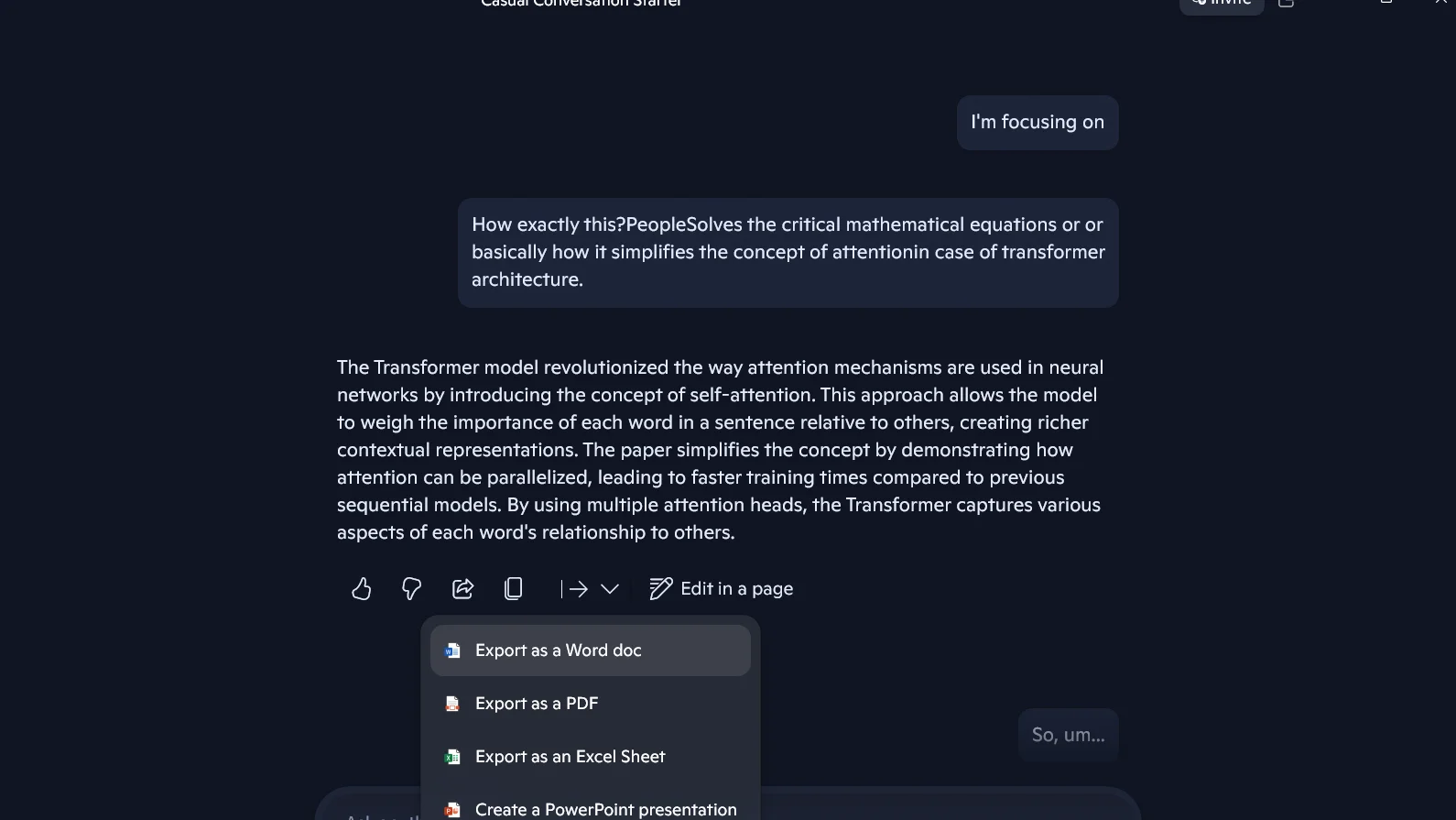
Copilot organizes the content, which you can:
- Export as a Word document
- Edit directly within the app
- Save to tools like Notion or Obsidian
Pro Tip
After studying, use Copilot’s Deep Research feature to expand on the topic and connect concepts for a more comprehensive understanding.

Emily Newton
Emily Newton is an experienced Editor-in-Chief who has spent the last decade sharing her insights on science and technology advances through platforms like IoT for All and DZone. She is deeply interested in showcasing how connected technologies and smart ecosystems transform modern businesses. When she isn’t writing, Emily enjoys walking local trails, playing video games, or curling up with a good book.



