

AI Tutorial
Translate Your Videos Into Any Language Using HeyGen
Learn how to use HeyGen to translate existing videos with lip-synced audio, localize content for global audiences, and automate future translations.
Share
In this walkthrough, you’ll learn how to translate videos into different languages with AI. If you create paid or organic video content for global audiences, this is a simple and practical way to localize your message.
Who This Is For
- Brands running video ads in multiple countries
- Course creators are seeing demand from international learners
- YouTube creators trying to reach non-English audiences
What You’ll Create
A translated version of an existing talking-head video with lip-synced audio in another language. The final result looks and sounds like it was recorded naturally in that language. You’ll also learn how to automate translations for future uploads.
What You Need
- HeyGen account (free plan includes 3 translations up to 3 minutes each)
- A talking-head video with one speaker and clear audio
- Access to Meta or Google Ads data to identify top markets (optional)
Step 1: Identify Your Best Non-English Markets
Open your Meta Ads Manager or Google Ads dashboard and find your three strongest non-English-speaking countries. Use those markets to decide which languages to translate into first.
Not running ads? Check Google Analytics or YouTube Analytics to see where your international viewers are coming from. The goal is to translate for audiences that already exist, not to guess randomly.
Step 2: Upload Your Video to HeyGen
Create an account on HeyGen. The free plan gives you a few credits for short videos.
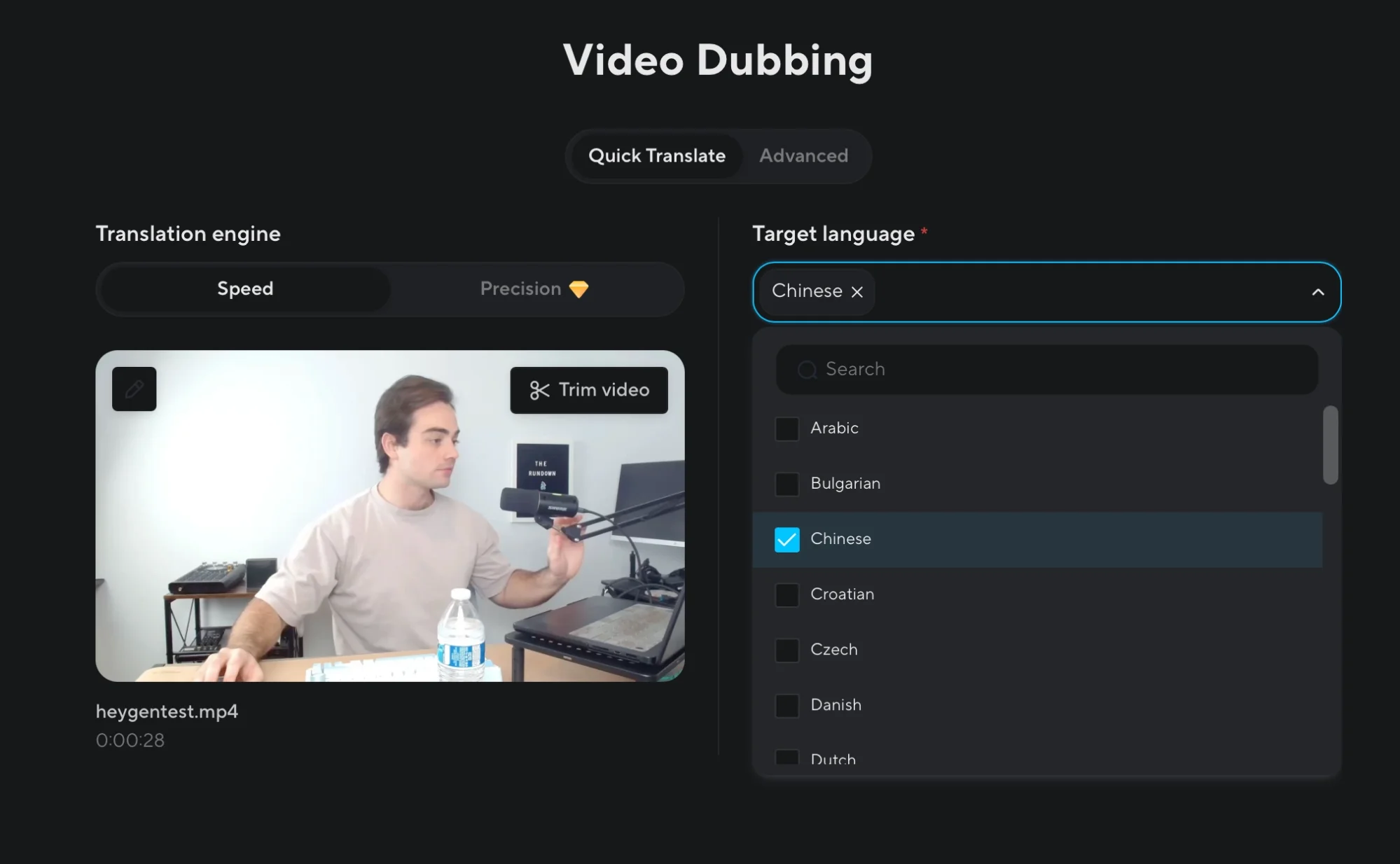
In the sidebar, click Translate, then choose Upload. You can upload a file or paste a YouTube or Google Drive link.
Use a talking-head video with a single speaker and clean audio. Better source quality leads to better translation quality.
Step 3: Choose Languages and Start Translation
Select the target languages based on the markets you identified earlier. You can choose several languages in one run.
Leave the default settings as they are, since they usually work well immediately.
Click Translate.
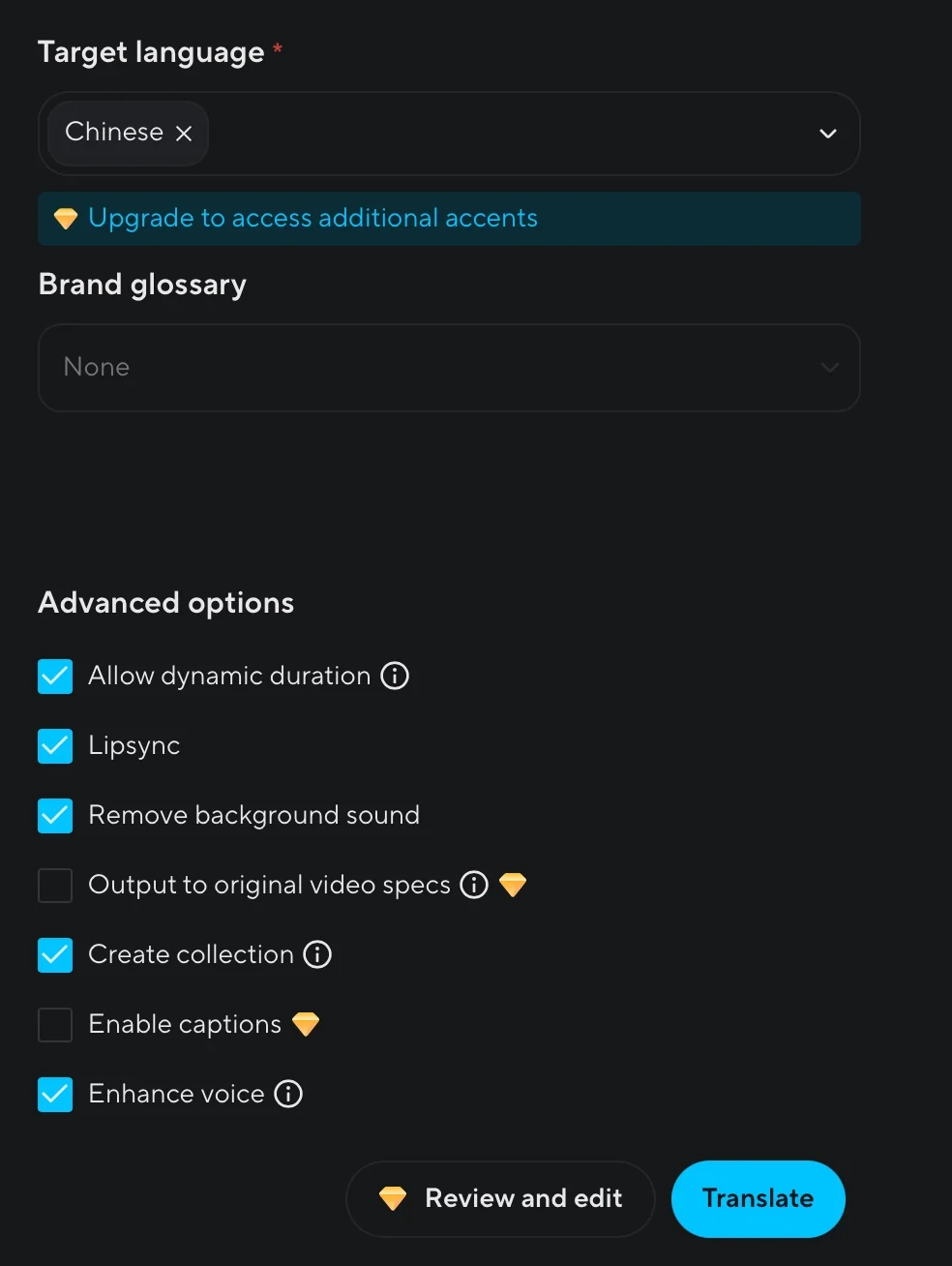
Your translated video should be ready in about 5–10 minutes.
Tip: If the export quality looks reduced, that may be a free-plan limitation. A paid plan can preserve original quality, which is better for ads, landing pages, or client-facing assets.
Step 4: Review and Publish
Watch the translated version and compare it with the original. The standout feature is lip sync: HeyGen adjusts mouth movement to match the translated speech while keeping proper names, links, and numbers intact.
You can use translated videos in several places:
- Paid ads: Run localized versions in different markets
- YouTube: Upload separate videos for each language
- Landing pages: Show localized hero videos based on visitor location
- Course platforms: Add translated lessons as separate modules
Separate YouTube uploads can perform better than relying only on built-in dubbing because the video itself is localized, not just the audio.
Take It Further
You can automate this workflow with Make.com or n8n using HeyGen integrations.
Set up two workflows:
- Workflow 1: Watch a Google Drive folder and send new videos to HeyGen for translation
- Workflow 2: Detect completed translations, download them, and save them back to Google Drive
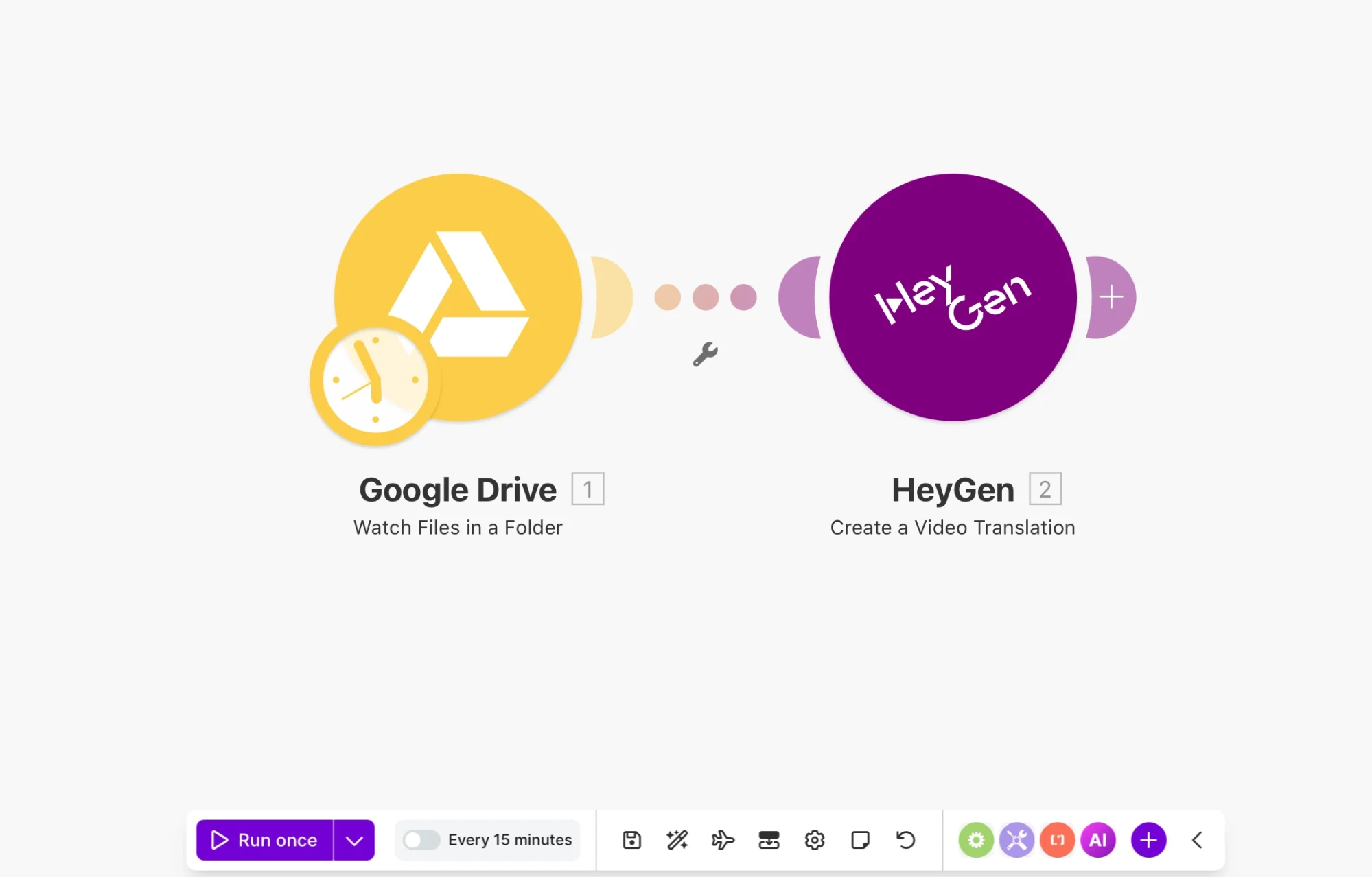
Once configured, you can drop in one video and receive multiple translated versions automatically.
Tip: HeyGen also offers API access, so you can build a custom translation script or app for a more tailored workflow.

Editorial Staff
The Editorial Staff at AIChief is a team of Professional Content writers with extensive experience in the field of AI and Marketing. AIChief was Founded in 2025, AIChief has quickly grown to become the largest free AI resource hub in the industry. Stay connected with them on Facebook, Instagram and X for the latest updates.



