

AI Tutorial
Run Your Own Coding Agent Locally (For Free)
Set up a local coding agent with Ollama and Claude Code. Save on API costs, keep your code private, and run everything on your machine.
Share
In this guide, you’ll learn how to download and run a coding LLM directly on your laptop using Ollama, and connect it to Claude Code or Codex with a single command. The result: a fully functional coding agent that runs locally, costs nothing per token, and keeps your code private.
Who This Is For
- Solo developers and indie founders are spending heavily on Claude Code Max or Codex Pro for tasks that don’t require top-tier reasoning
- Students, hobbyists, and beginner programmers who want a hands-on agentic setup without paying monthly fees
- Anyone working with sensitive or proprietary code who prefers everything to stay on their own machine
What You’ll Build
By the end, you’ll have a local coding agent (Claude Code, Codex, or OpenCode) connected to a free Ollama model running on your hardware. You’ll use the same interface and workflow, just without API costs or external dependencies.
Requirements
- Ollama installed (follow the install guide if needed)
- Claude Code set up, or OpenCode as an alternative
- A terminal and an active project folder
Hardware:
- 8 GB RAM (minimum, for smaller models)
- 16 GB RAM (recommended)
- 32 GB+ or GPU (ideal for larger models)
Step 1: Check Your Hardware and Choose the Right Model
- On Mac: Apple menu and go to About This Mac
- On Windows: Settings, and then System, and lastly About
| RAM | Model Size | Example |
|---|---|---|
| 8 GB | ~3B params | qwen3-coder:3b |
| 12 GB | 4–7B params | gemma4:e2b |
| 16 GB | 7–12B params | qwen3-coder:7b |
| 32 GB+ / GPU | 20B+ | gpt-oss:20b |
Step 2: Choose a Model That Supports Agent Workflows
- The Applications section on the model page
- Ensure it supports tools like Claude Code, Codex, or OpenCode
- qwen3-coder: strong code generation for its size
- gemma4: better at multi-step reasoning and tool usage
- gpt-oss: powerful open-weights model with solid agent support
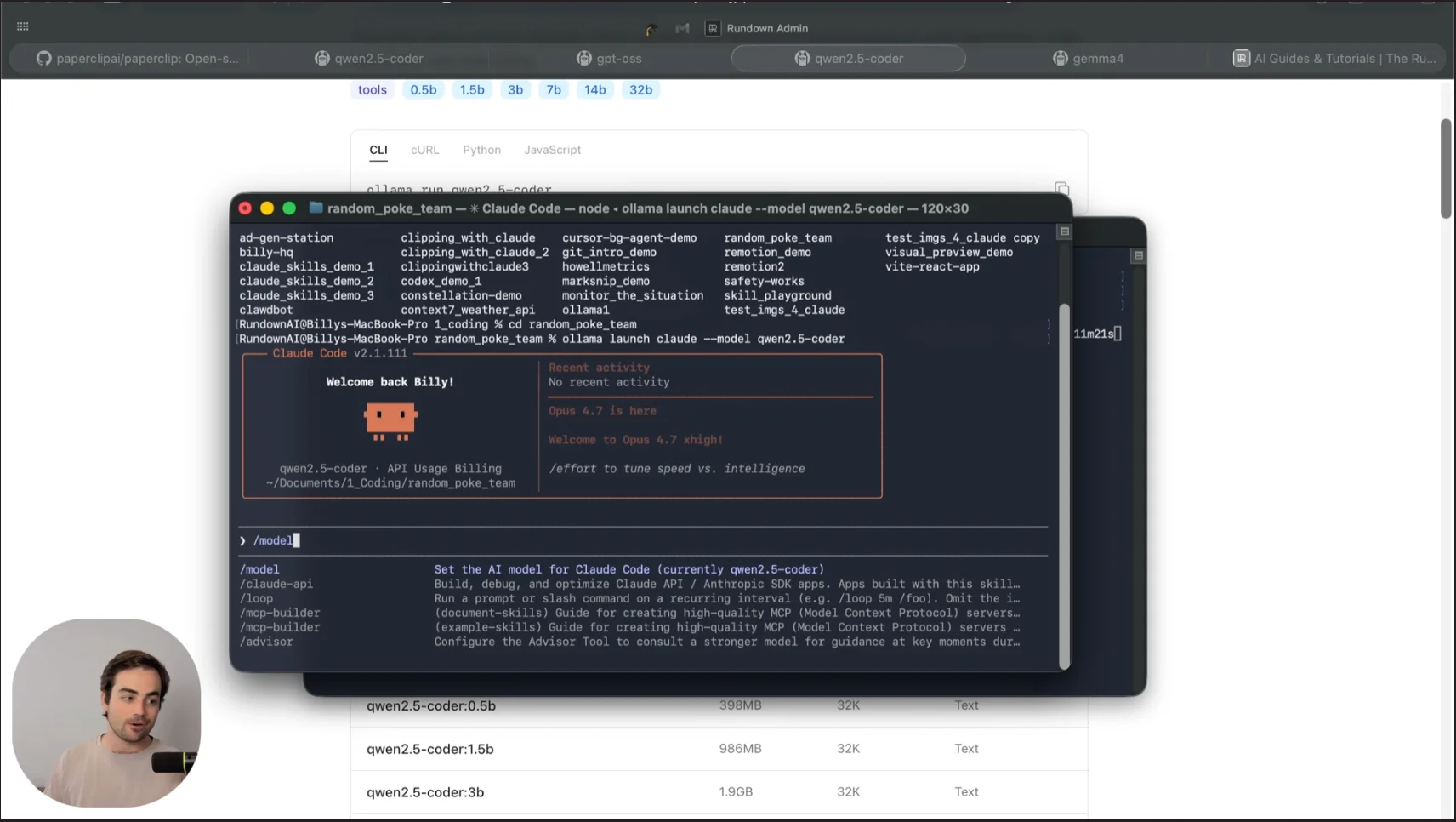
Step 3: Launch Your Local Coding Agent

- Open your terminal inside your project folder
- Paste and run the command
- Confirm the model download
Step 4: Increase the Context Window
- Open the Ollama app
- Go to Settings
- Increase context to 32K or higher (depending on your system)
Step 5: Try OpenCode for a Simpler Setup
curl -fsSL https://opencode.ai/install | bash
Run it with:
ollama launch opencode --model gemma4:e4b
Pro tip: Smaller models perform better when they “think less.” Use plan mode (Shift + Tab) or reduce reasoning settings if tasks feel overcomplicated.
Going Further
Once everything is working, you can extend your setup:
- Use a hybrid workflow: Let Claude Code or Codex handle planning, and your local model handle repetitive tasks
- Control your agent remotely: Use Claude remote control and connect via mobile
- Run on a dedicated machine: Set up an old PC or Mac mini as a local inference server
Final Takeaway
Local coding models aren’t yet a complete replacement for cloud-based agents, but they’re incredibly useful for:
- Practicing agent workflows
- Protecting sensitive code
- Reducing costs on routine tasks
And with rapid improvements, the gap between local and cloud models continues to shrink.

Editorial Staff
The Editorial Staff at AIChief is a team of Professional Content writers with extensive experience in the field of AI and Marketing. AIChief was Founded in 2025, AIChief has quickly grown to become the largest free AI resource hub in the industry. Stay connected with them on Facebook, Instagram and X for the latest updates.



