

AI Tutorial
How to Use Claude to Identify and Clean Up Storage on Your Mac
Learn how to identify and safely clean up storage-heavy files on your Mac using Claude. Discover what’s taking up space before deleting anything.
Share
This guide explains how to use Claude as a smart assistant to analyze your Mac’s storage. Instead of randomly deleting files, you’ll first understand what’s consuming space and then decide what can be safely removed.
Who This Is For
- Professionals and freelancers dealing with constant storage warnings
- Developers with large project folders, dependencies, and caches
- Mac users who want to reclaim space without risking important files
What You’ll Achieve
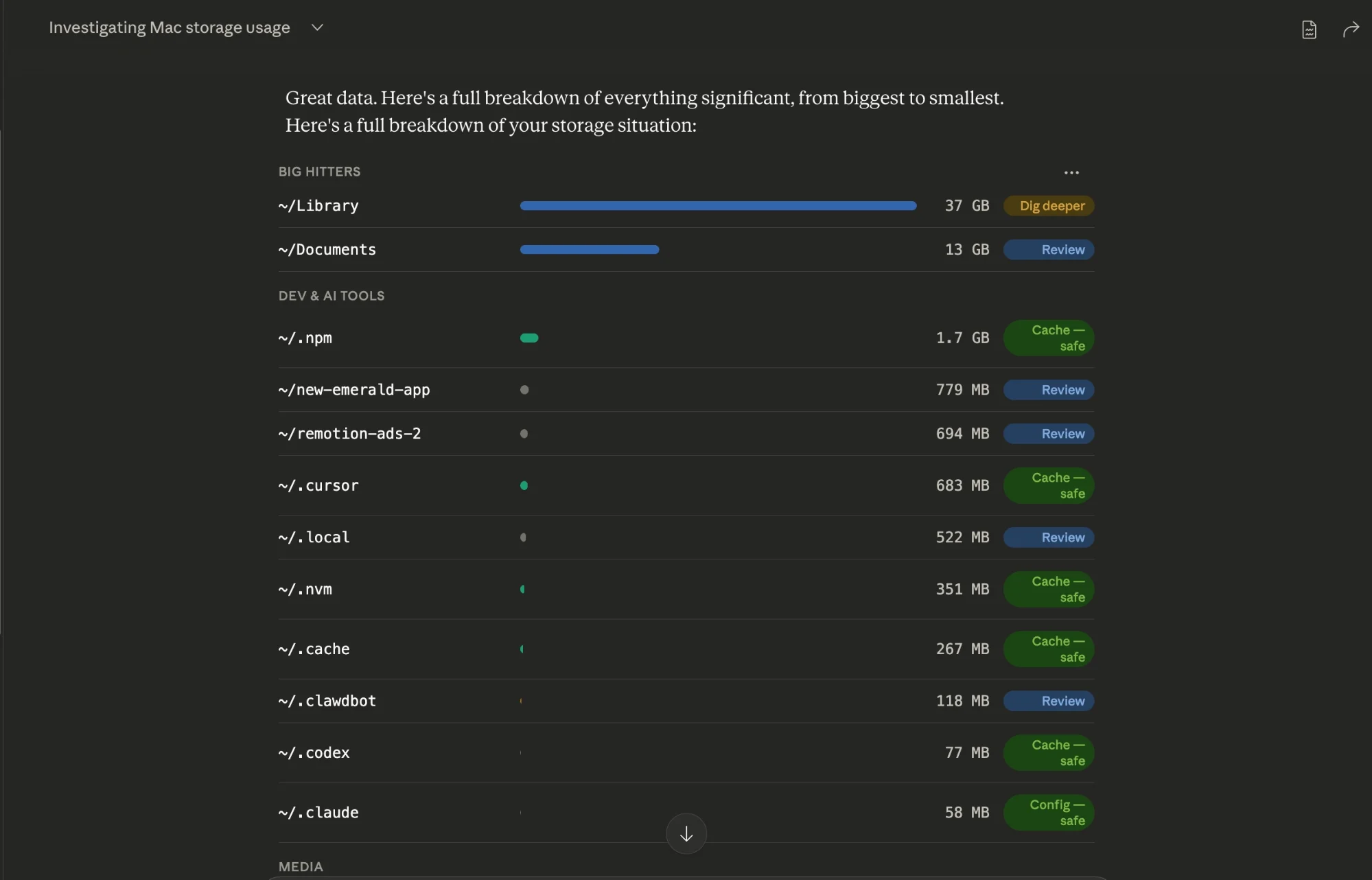
- Identify the biggest space-consuming folders on your system
- Understand what those files contain
- Safely remove unnecessary data
- Build a repeatable cleanup routine
Requirements
- Access to Claude or a similar AI assistant
- Basic familiarity with using Terminal commands
Step 1: Analyze Before Removing Anything
Begin by opening a new session with Claude and clearly stating that your goal is investigation, not deletion.
Example Prompt
- Help me analyze what is using storage on my Mac.
- Start by listing the largest directories in my home folder.
- For each one, explain what it likely contains, whether it is safe to remove,
- and what I should check before deleting anything.
- Do not suggest any deletion commands yet.
Run the commands Claude provides in Terminal and share the results back. This allows Claude to give more accurate, system-specific insights.
Tip:
Mac’s built-in storage view can be misleading. The issue is often multiple medium-sized folders rather than a single large file.
Step 2: Locate Large Dependency Folders
If you’ve done development work, dependency folders like node_modules can take up significant space.
Ask Claude to scan your development directories and organize results based on size and activity.
Example Prompt
Scan my development folders for large dependency directories.
List the biggest ones, their locations, and last modified dates.
Group them into:
- Likely safe to remove (inactive projects)
- Needs review (possibly active projects)
Explain your reasoning.
Removing these folders is usually low risk since they can be regenerated later if needed.
Step 3: Clean Package Managers and Tooling Data
Next, focus on tools that accumulate unused files over time.
Examples
- Homebrew (old versions and cached downloads)
- Docker (unused images, containers, and build cache)
Suggested Prompt
Explain how to clean up unused data from my package managers.
Show what is safe to remove, what requires review, and how much space I can recover.
Always review the impact before running cleanup commands.
Step 4: Clear Application Caches Carefully
Application caches can quietly consume large amounts of storage.
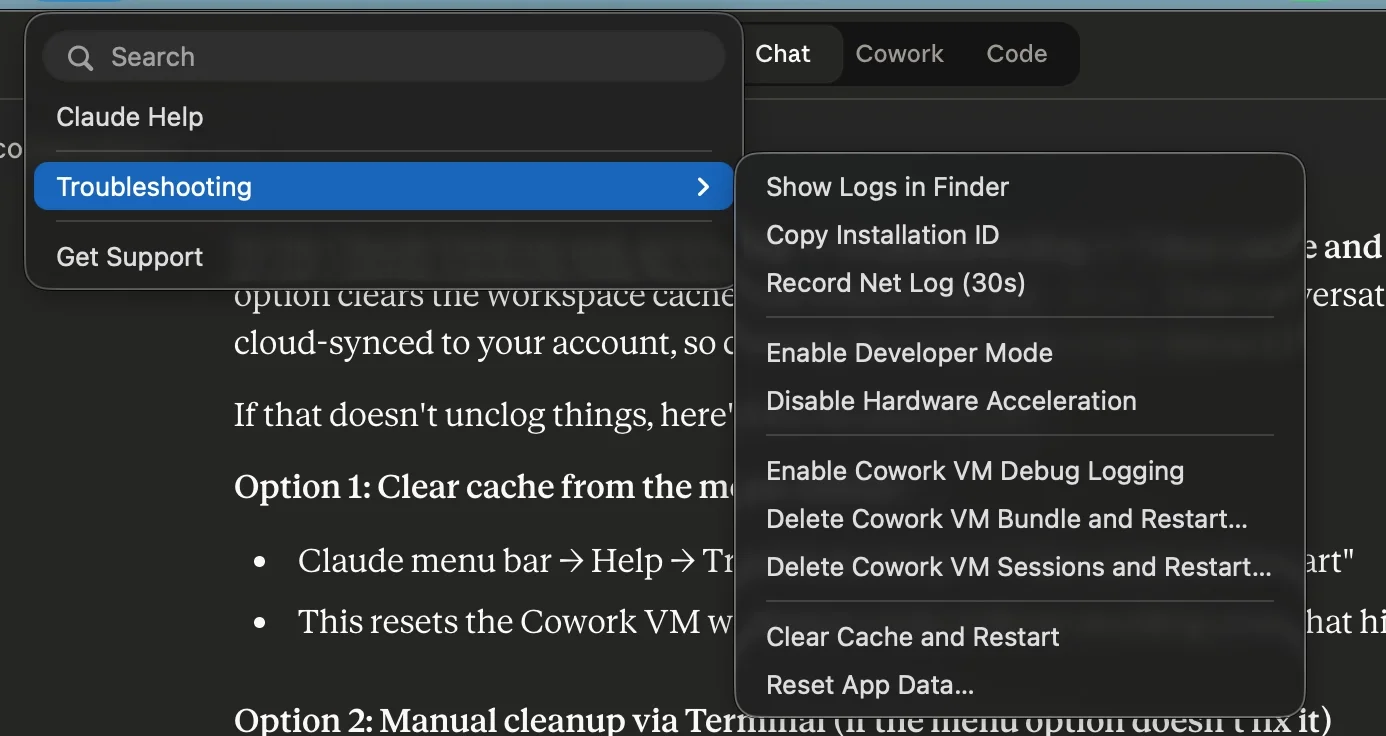
For Claude Desktop:
- Open the app
- Go to troubleshooting options
- Clear cache and restart
Be cautious with advanced options that may remove session data or history.
Tip:
Other AI tools and development apps may also store large local caches over time.
Step 5: Create a Repeatable Cleanup Routine
Instead of doing this once, turn your process into a monthly habit.
You can ask Claude to:
- Generate a checklist for regular cleanup
- Create a reusable workflow or script
- Guide you step-by-step through future audits
Additional Areas to Check
Some commonly overlooked storage-heavy items include:
- Python virtual environments
- Xcode simulators and build data
- Old downloads and archives
- Screen recordings and exported media
- Package manager caches
Final Thoughts
The key advantage of this approach is clarity. Instead of guessing what to delete, you make informed decisions based on real data. Over time, this prevents unnecessary risk and keeps your system running efficiently.

Editorial Staff
The Editorial Staff at AIChief is a team of Professional Content writers with extensive experience in the field of AI and Marketing. AIChief was Founded in 2025, AIChief has quickly grown to become the largest free AI resource hub in the industry. Stay connected with them on Facebook, Instagram and X for the latest updates.



